

Epson L3210 Refill Guide: Easy Ink Tank Tips
Keep your Epson EcoTank printing vibrantly with safe and simple refill advice.
The Epson L3210 is a popular choice for home and small office users thanks to its integrated EcoTank refill system, designed to reduce printing costs. However, refilling these ink tanks can sometimes seem daunting. Many users worry about making a mess, introducing air bubbles that affect print quality, or even damaging the printer.
This guide is designed to demystify the Epson L3210 refill process. We’ll walk you through how to refill ink safely and effectively, ensuring your EcoTank printer continues to produce high-quality prints without hassle. By following these simple steps, you can maintain optimal printer performance and enjoy consistent results.
Understanding Your EcoTank Printer
Epson’s EcoTank technology replaces traditional ink cartridges with large, refillable ink tanks. This system is built for efficiency, allowing for thousands of pages to be printed before a refill is needed. The L3210 model is part of this innovative line, offering a cost-effective solution for high-volume printing needs.
The key benefit is the sheer volume of ink the tanks hold, significantly lowering the cost per page compared to cartridge-based printers. Understanding the basic layout of your Epson L3210 refill area is the first step towards a successful refill. Always ensure you are using genuine Epson ink or high-quality compatible inks specifically designed for your printer model.
Preparing for an EcoTank Printer Refill
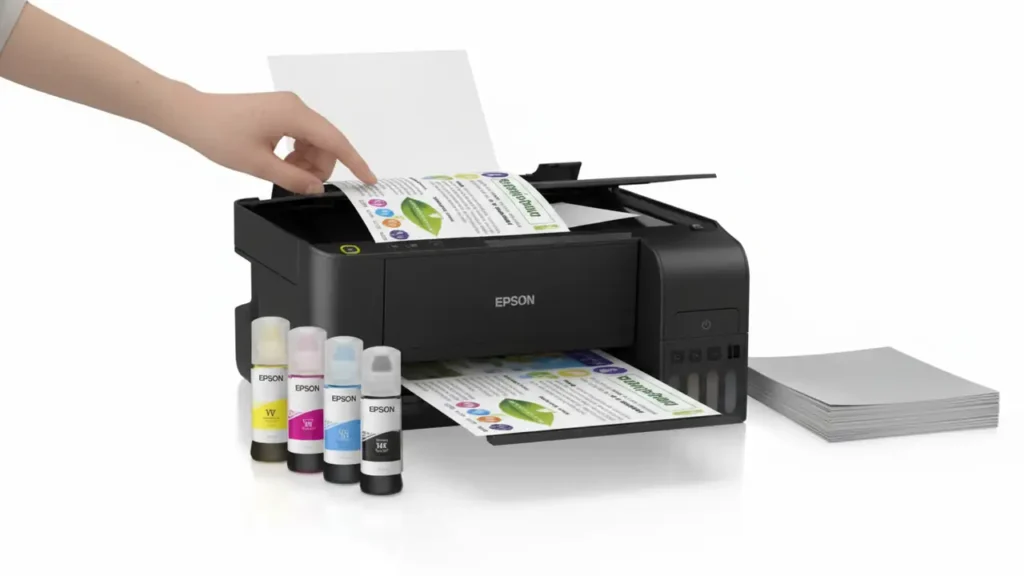
Before you begin any EcoTank printer refill, proper preparation is crucial to avoid spills and ensure a smooth process. Gather all the necessary supplies, including your new ink bottles, a clean paper towel or cloth, and potentially some disposable gloves if you want to keep your hands clean.
Ensure your printer is on a stable, level surface, preferably in a well-lit area. Check that the printer is powered on, as this can help equalize pressure within the ink tanks, though always exercise caution. Having everything ready beforehand prevents last-minute fumbling and potential messes during the Epson L3210 refill.
The Step-by-Step Epson L3210 Refill Process
Refilling your Epson L3210 refill tanks is straightforward when you follow these steps carefully. Remember to handle the ink bottles with care to prevent accidental spills.
- Power On Your Printer: Ensure the printer is switched on. This helps the ink flow more smoothly.
- Open the Ink Tank Cover: Lift the scanner unit and then open the ink tank cover.
- Identify the Color to Refill: Determine which ink tank is low. The L3210 has separate tanks for Cyan, Magenta, Yellow, and Black.
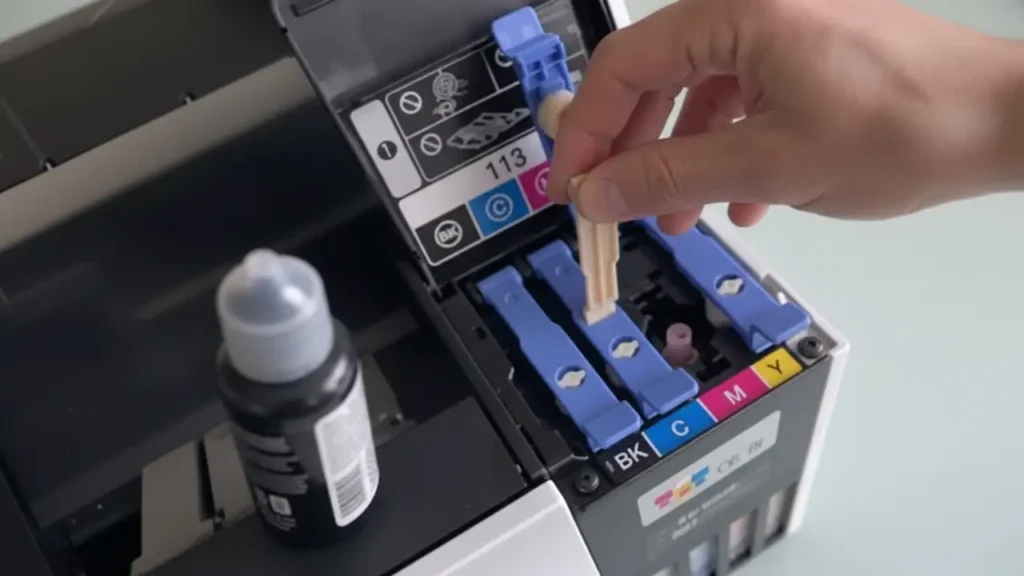
- Open the Ink Tank Cap: Gently pull open the cap for the specific color you are refilling.
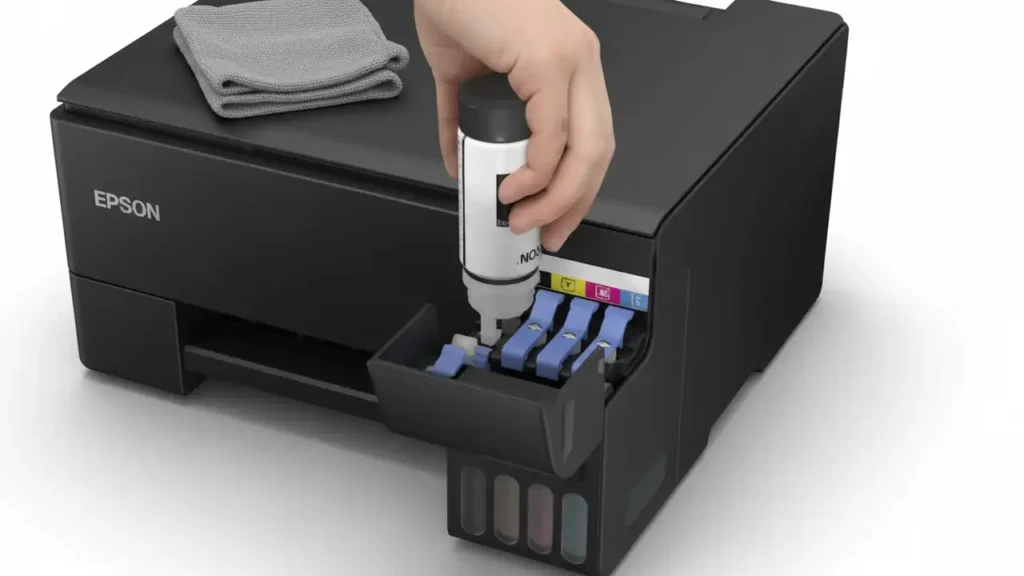
- Prepare the Ink Bottle: Take the new ink bottle. Unseal it and unscrew the cap. Crucially, do not press the ink bottle to squeeze out the ink. Epson ink bottles are designed with a specific nozzle that fits into the tank port and releases ink via gravity and pressure.
- Align and Insert the Nozzle: Align the nozzle of the ink bottle with the corresponding port on the ink tank. The bottles have a keyed design, meaning each color’s nozzle will only fit into its correct tank port, preventing color mix-ups.
- Allow Ink to Flow: The ink will automatically flow into the tank once the nozzle is properly seated. You will see the ink level rise. Do not force the bottle or try to speed up the process.
- Wait for Completion: Wait until the ink bottle is completely empty. The printer is designed to draw the ink until the bottle is drained.
- Remove the Ink Bottle: Once the bottle is empty, carefully lift it straight up. There should be no dripping if done correctly.
- Close Ink Tank Cap and Cover: Securely close the ink tank cap, then close the main ink tank cover and lower the scanner unit.
- Initiate a Printer Flush (Recommended): On your printer’s control panel or via the printer driver software on your computer, initiate an “Ink Flush” or “Power Flushing” procedure. This ensures the ink is properly distributed through the system and primes the print head, which is vital after an EcoTank printer refill. This process might take several minutes.
Avoiding Spills and Air Bubbles During Refills
Spills are the most common concern when learning how to refill an Epson L3210 refill tank. The keyed nozzle design on genuine Epson ink bottles greatly reduces the risk of incorrect insertion, which is a primary cause of spills. Always ensure the nozzle clicks firmly into place before allowing the ink to flow.
To prevent air bubbles, which can disrupt ink flow and lead to poor print quality or gaps in your prints, avoid shaking the ink bottles vigorously before use. Let the ink flow naturally. Never try to refill a tank when the printer is off, as this can create pressure imbalances. If you suspect an air bubble, running an “Ink Flush” is the best way to clear it.
Maintaining Print Quality After Refilling
After completing your Epson L3210 refill, it’s essential to check print quality. Run a test print of a document that uses all colors. If you notice any fading, banding, or missing colors, the print head may need cleaning or priming.
Most Epson printers have a “Head Cleaning” utility within the printer driver software. Run this utility, followed by another test print. If problems persist, consider running the “Ink Flush” again or checking for firmware updates. Consistent use of the printer is also key; infrequent printing can lead to ink drying in the nozzles. Regular printing ensures the ink system remains active and clear.
Protecting Your Printhead and Printer Longevity
Your EcoTank printer’s printhead is a sensitive component. Proper refilling is one way to protect it, but other practices are also vital. Always use genuine Epson ink or ink specifically formulated for your L3210 model to avoid clogging or damaging the nozzles.
Ensure you keep the printer in a clean environment, free from excessive dust. When the printer is not in use for extended periods, it’s a good idea to print a few pages every week or two to keep the ink flowing. If you ever encounter persistent print quality issues or error messages after a refill, do not force operations. Consult your printer manual or Epson support.
Frequently Asked Questions
A successful Epson L3210 refill is a key part of maintaining your printer and ensuring cost-effective printing. By understanding the process and taking precautions against spills and air bubbles, you can confidently manage your ink levels. Remember to perform regular maintenance like head cleanings and utilize the Ink Flush when needed.
With these tips for your Epson L3210 refill, you can keep your printer running smoothly for years to come, enjoying high-quality prints without the constant expense of cartridges.
Safety and Warranty Note: Always unplug your printer from the power source before performing any maintenance that involves opening panels or touching internal components. Avoid touching the printhead or other sensitive electronic parts directly with your fingers. Using non-genuine ink or improper refilling procedures may void your printer’s warranty. If you are unsure about any step, consult your printer’s manual or contact authorized Epson support.