

Brother Printer Messages Fix Center (Drum, Toner & Maintenance)
If your Brother printer shows messages like Replace Drum, Replace Toner, Toner Low, or similar alerts, this hub will guide you to the right fix—fast.
This page is a central directory that links to step-by-step troubleshooting guides for the most common Brother messages. Each guide is written to be safe and model-aware (because button sequences can vary slightly between Brother families).
Quick Fix Checklist (Start Here)
Before you do anything advanced, try these quick steps:
1) Power Reset
-
Turn the printer OFF
-
Unplug for 60 seconds
-
Plug back in and turn ON
2) Confirm the Message Type
Brother alerts often look similar but mean different things:
-
Toner Low ≠ Replace Toner
-
Replace Drum ≠ Drum Error
-
No Toner / Toner Missing is different from low toner
3) Only Reset Counters After Replacement
Resetting “drum/toner counters” without replacing parts may cause:
-
poor print quality
-
hardware wear
-
misleading maintenance tracking
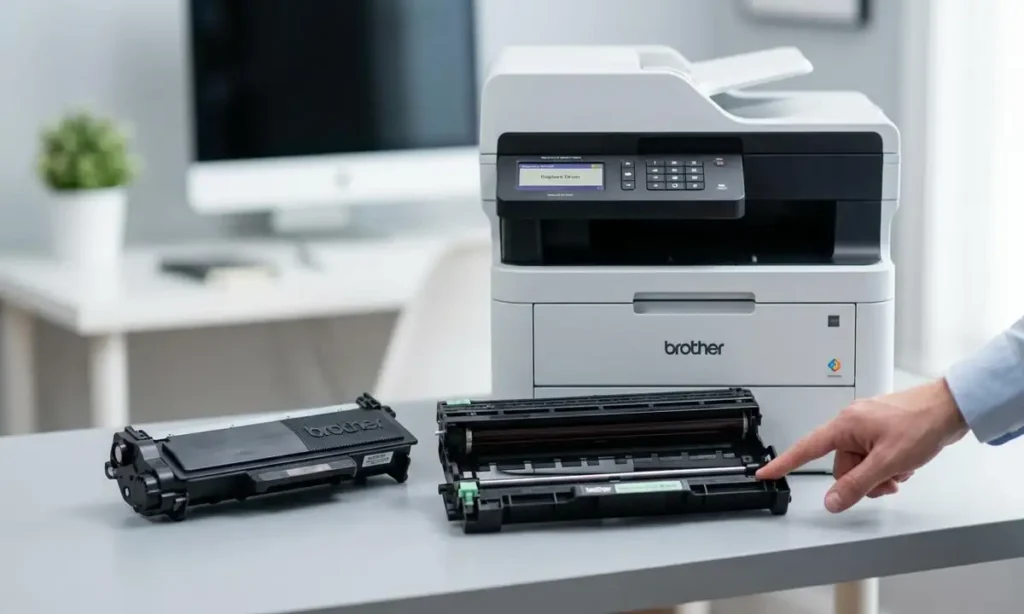
Most Common Brother Messages (Choose Your Issue)
Replace Drum
This usually appears when the drum counter hits its limit. In many cases you must replace the drum unit, then reset the drum counter (steps vary by model).
👉 Full guide:
Replace Drum on Brother Printer — Meaning & Reset Steps
Replace Toner / Toner Ended
This appears when toner is truly empty (or not detected). Solutions depend on cartridge type and sensor detection.
👉 Full guide:
Brother Replace Toner Message — Fixes That Work
Toner Low
This warning often means toner is getting low, but you may still have prints left.
👉 Full guide:
Brother Toner Low Warning — What to Do (and What NOT to Do)
Drum Error / Drum Stop
This may indicate an installation issue, dirty contacts, or a drum unit fault.
👉 Full guide:
Brother Drum Error — Causes & Fix Steps
Paper Jam (Brother)
Jam troubleshooting depends on the jam location (rear/inside/duplex).
👉 Full guide:
Brother Paper Jam — Safe Removal & Prevention
Tips to Avoid Repeat Messages
-
Use the correct cartridge/drum model for your printer.
-
Always seat the drum + toner unit properly until it clicks.
-
Clean toner/drum contacts gently (dry cloth—no liquids).
-
Avoid resetting counters unless you replaced the part.