

Epson L3210 Resetter: Fix Ink Pad Errors Safely
Your Epson L3210 is showing an ink pad error, preventing you from printing. Don’t worry, there are safe ways to address this common issue.
This guide will walk you through understanding why your Epson L3210 might be displaying an ink pad end-of-life message and how to resolve it using an Epson L3210 resetter utility. We’ll cover the main options available, including the popular WIC Reset Utility and free adjustment programs, detailing the steps for a successful reset to get your printer working again.
Understanding the Epson L3210 Ink Pad Error
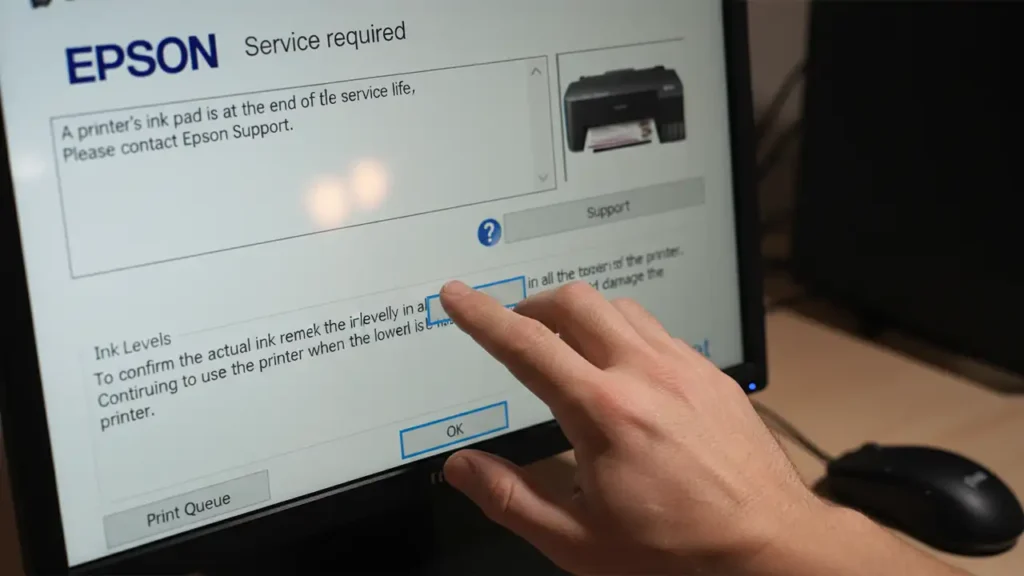
The Epson L3210, like many ink tank printers, uses an ink pad to absorb excess ink during cleaning cycles and other operations. Over time, this pad becomes saturated, and the printer’s internal counter signals that it’s reached its limit. This is a protective measure to prevent ink overflow and potential damage.
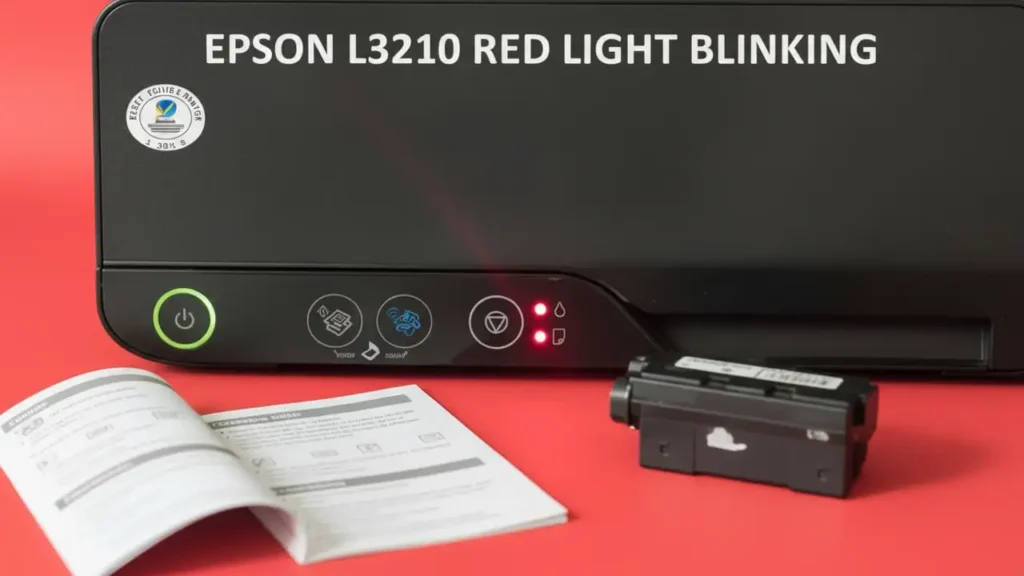
When this counter reaches its maximum, the printer stops printing and displays an error message, often indicating that the ink pad needs to be replaced or reset. For many users, the most practical solution is to reset this counter using specialized software, as replacing the physical pad can be a complex and costly service task. The Epson L3210 resetter tools are designed for this purpose.
Options for Your Epson L3210 Resetter
When facing an ink pad error on your Epson L3210, you generally have two main types of resetters to consider. Each has its own advantages and disadvantages, and understanding them can help you choose the best approach for your situation.
The most widely used and recommended solution is the WIC Reset Utility. This paid utility is known for its reliability and ease of use. Alternatively, there are various “free” or “adjustment programs” available online. While tempting, these free options can sometimes be outdated, unreliable, or even contain malware, posing a risk to your computer and printer. Proceed with caution if opting for free software, and prioritize your data security.
WIC Reset Utility: The Reliable Choice
The WIC Reset Utility is a professional tool developed to reset various Epson printer models, including the L3210. It’s a small, downloadable application that requires a valid license key (purchased through their website) to reset the ink pad counter. This utility is well-regarded in the printer community for its effectiveness and regular updates.
Using the WIC Reset Utility involves connecting your printer via USB, running the software, selecting your printer model, and applying the reset function. The process is straightforward and typically takes only a few minutes. The small cost of the license key is often well worth the peace of mind and the ability to quickly resolve the Epson L3210 resetter need without further complications.
Exploring Free Epson L3210 Adjustment Programs
While paid utilities like the WIC Reset Utility offer guaranteed functionality, the allure of a free Epson L3210 resetter is undeniable. These programs are often shared on forums and download sites, promising a no-cost solution. However, users should be extremely cautious.
Many free adjustment programs found online are either not compatible with the latest firmware, may not work correctly, or could potentially harm your printer’s internal firmware. Some downloads may also bundle unwanted software or viruses. If you choose to explore this route, ensure you download from reputable sources and always scan files with up-to-date antivirus software before running them. The Epson L3210 adjustment program found for free requires a higher level of technical vigilance.
Step-by-Step: Using an Epson L3210 Resetter Utility
This guide focuses on the general steps involved in using a resetter utility, primarily referencing the WIC Reset Utility due to its common usage and reliability. Always refer to the specific instructions provided with the resetter software you choose to download.
- Download the Resetter Software: Navigate to the official website for your chosen resetter utility (e.g., WIC Reset Utility). Download the version compatible with your operating system (Windows or macOS).
- Install the Software: Run the downloaded installer file. Follow the on-screen prompts to complete the installation. Ensure you have administrative privileges on your computer.
- Purchase a License Key (if applicable): If you are using a paid utility like WIC Reset Utility, purchase a license key from their official site. You will receive this key via email.
- Connect Your Epson L3210: Turn on your Epson L3210 printer and connect it to your computer using a reliable USB cable. Ensure the printer is detected by your operating system.
- Launch the Resetter Utility: Open the installed resetter software. You may be prompted to enter your license key at this stage.
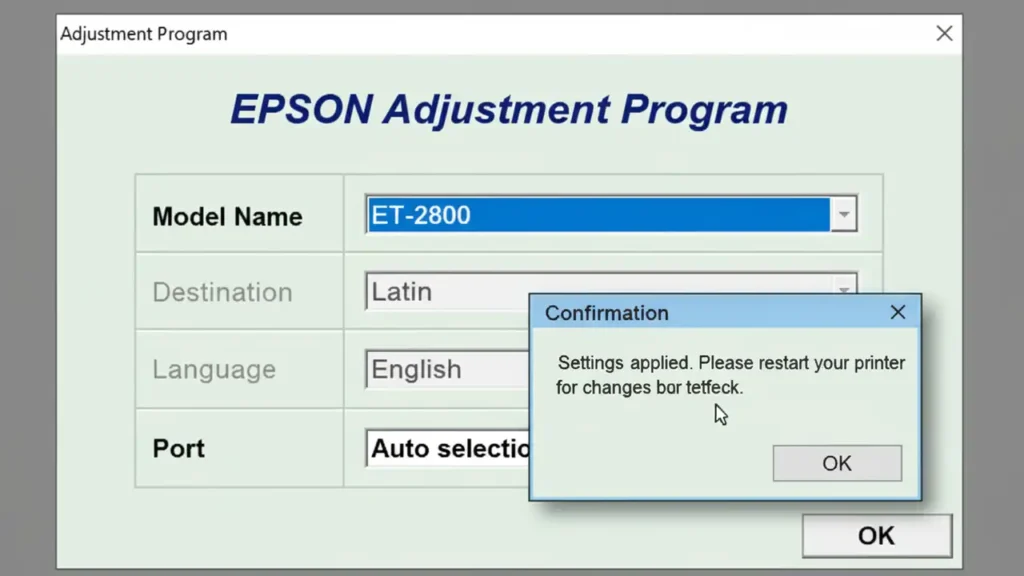
- Select Your Printer: Within the utility, find the option to select your printer model. Choose “Epson L3210” from the dropdown list. If the utility doesn’t automatically detect it, there might be a manual selection option.
- Access the Adjustment Menu: Look for a button or menu option such as “Adjustment Program,” “Maintenance,” or “Reset Waste Ink Pad Counter.” This is the core function to address the Epson L3210 resetter need.
- Select and Reset the Counter: Choose the “Waste ink pad counter” option and then click on the “Check” button to see the current counter status. Next, click the “Initialize” or “Reset” button to reset the counter to zero.
- Confirm and Reboot: The software will likely confirm the reset was successful. You may be prompted to turn your printer off and then on again. Follow these instructions precisely.
- Test Print: Once the printer has rebooted, try printing a test page. The ink pad error message should now be gone, and your printer should function normally.
Performing a Clean Print Head Cycle
After successfully resetting the ink pad counter, it’s a good practice to run a clean print head cycle through your printer’s standard utility software. This ensures the ink system is primed and ready for optimal printing. You can usually find this option within your printer’s properties in the Windows Control Panel or System Preferences on macOS.
Preventing Future Ink Pad Errors
While an Epson L3210 resetter tool can solve the immediate problem, taking preventative measures can help prolong the life of your ink pads and delay the need for another reset. Consistent printing is key; running the printer regularly, even for small tasks, helps keep the ink flowing and prevents clogs.
Avoid unnecessary deep cleaning cycles. Only run a print head clean when you notice a degradation in print quality. Extended periods of non-use can lead to ink drying in the print heads, forcing more frequent cleaning cycles and thus increasing waste ink. A judicious approach to maintenance is your best defense against recurring Epson L3210 wic reset utility needs.
Common Questions About Your Epson L3210 Resetter
Safety and Warranty Considerations
Before attempting any software-based reset or accessing printer internals, always ensure your printer is unplugged from the power source to prevent electrical shock. Avoid touching sensitive components like the print head or internal mechanisms unless you are certain of what you are doing. Using third-party software to reset internal counters might void your manufacturer’s warranty. If you are uncomfortable with these steps or concerned about warranty implications, it’s best to contact an authorized Epson service center.
Resetting the ink pad counter with a reliable Epson L3210 resetter is a viable solution for many users. By understanding the error and choosing the right tool, you can efficiently resolve the issue and resume printing. Always prioritize safe practices and reliable software sources.