

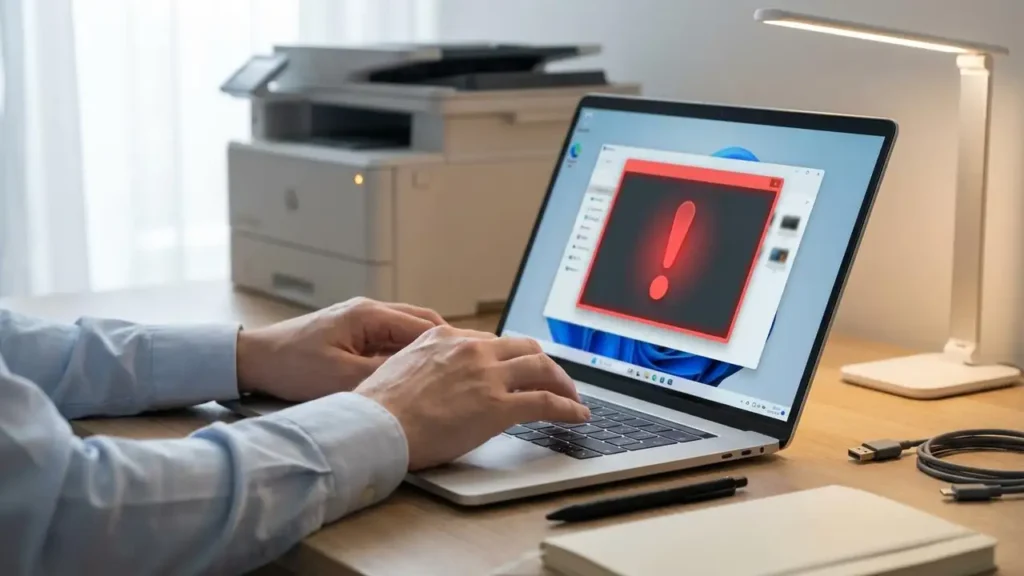
Windows Printer Driver Unavailable Fix
Solve the frustrating “printer driver is unavailable” error on Windows 10 and 11 with these simple steps.
The “printer driver is unavailable” error message is a common and frustrating roadblock when you’re trying to print. This issue typically occurs on Windows 10 and Windows 11 when your operating system cannot communicate correctly with your printer, often due to a corrupted driver file, an outdated driver, or a problem during a recent Windows update. Whether you use an HP printer, a Brother printer, or another brand, this guide will walk you through the necessary steps to resolve the printer driver unavailable issue and get your printing tasks back on track. We’ll cover how to uninstall the problematic driver, find and install the correct one, and prevent future occurrences.
Understanding the “Printer Driver is Unavailable” Error
This error message means that Windows has lost the connection or the necessary instructions to operate your printer. Think of the printer driver as a translator; it converts the data from your computer into commands your specific printer model can understand. When this translation fails, your computer doesn’t know how to send documents to the printer, resulting in the printer driver unavailable error. Common triggers include Windows updates that may install a generic driver or conflict with your existing one, or sometimes the driver files themselves become corrupted over time.
Initial Troubleshooting: Quick Checks for Printer Issues
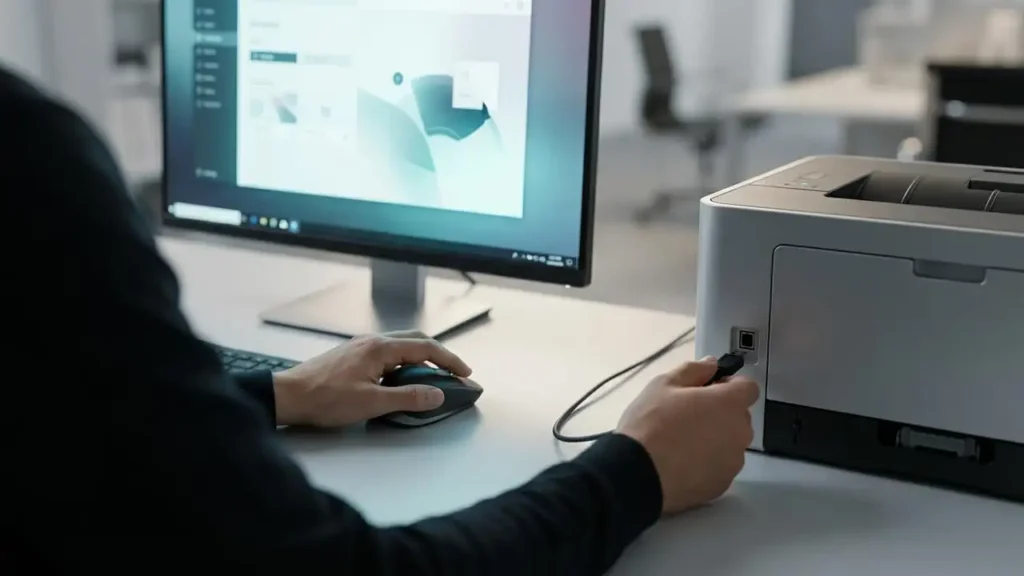
Before diving into driver reinstallation, perform a few basic checks to rule out simpler problems. Ensure your printer is powered on and that all necessary cables (USB or Ethernet) are securely connected. Sometimes, a simple reboot of both your computer and printer can resolve temporary communication glitches. Also, check your printer’s control panel for any error lights or messages that might indicate a hardware issue, such as a paper jam or an empty ink cartridge, which could indirectly affect driver communication.
Reinstalling Your Printer Driver: The Core Solution
The most reliable way to fix the printer driver unavailable error is to completely remove the existing driver and install a fresh copy. This process ensures that any corrupted files are gone and that you are using the correct, up-to-date software for your printer model. We will guide you through uninstalling the printer and its driver from Windows, then acquiring and installing the correct driver for your specific printer, whether it’s an HP printer or a Brother printer. This methodical approach is key to solving printer driver unavailable problems.
Step 1: Uninstalling the Printer from Windows
The first step is to remove the printer from your Windows system. This cleans up the existing, potentially problematic driver installation.
- Open the Settings app on your Windows 10 or 11 computer. You can do this by pressing
Windows key + I. - Navigate to Bluetooth & devices (Windows 11) or Devices (Windows 10).
- Select Printers & scanners.
- Find your printer in the list. Click on it, then select Remove device. Confirm the removal when prompted.
- After removing the printer, you’ll need to remove the associated driver software. Go back to Settings > Bluetooth & devices > Printers & scanners. Click on your printer again (it might still appear or be listed as an old device). Click Remove device again if available.
- Now, open the Print Management tool. Search for “Print Management” in the Windows search bar and open it.
- In the left pane, expand Print Servers, then your computer name, and select Drivers.
- Find the driver associated with your printer in the list. Right-click on it and select Remove Driver Package. You might need to select “Remove driver and driver package.” Follow the on-screen prompts. If Windows says the driver is in use, ensure all print queues are cleared and try again.
Step 2: Downloading the Latest Printer Driver
With the old driver removed, it’s crucial to download the latest version. Always get drivers directly from the manufacturer’s official website to ensure authenticity and compatibility.
- Open your web browser and go to the support or downloads section of your printer manufacturer’s website (e.g., HP support, Brother support).
- Search for your specific printer model. Be precise; entering the full model number is essential.
- Select your operating system (Windows 10 or Windows 11, and ensure you choose the correct bit version, usually 64-bit).
- Download the full driver and software package. Avoid basic or universal drivers unless the manufacturer explicitly recommends them for your issue.
- Save the downloaded file to a location you can easily access, like your Desktop or Downloads folder.
Step 3: Installing the New Printer Driver
Now, install the driver you just downloaded. This process usually involves running the downloaded installer file.
- Locate the driver installer file you downloaded.
- Run the installer by double-clicking it. You may need administrator privileges; if prompted, click “Yes.”
- Follow the on-screen instructions carefully. The installer will guide you through the setup process.
- When the installer asks to connect the printer, follow its direction. If it’s a USB printer, connect the USB cable only when prompted. For network printers, ensure your computer is connected to the same network.
- Complete the installation. It may prompt you to print a test page.
Verifying the Fix and Testing Your Printer
After successfully installing the new driver, it’s vital to test your printer to confirm the printer driver unavailable error is resolved. A test print is the best way to ensure everything is functioning correctly.
- Open the Printers & scanners settings again. Your printer should now appear correctly listed.
- Click on your printer, then select Manage.
- Click on Print a test page. If the test page prints successfully, the printer driver unavailable issue is likely resolved. If not, review the steps or consider contacting the manufacturer’s support.
Preventing Future “Printer Driver Unavailable” Errors
To minimize the chances of encountering the printer driver unavailable error again, especially after Windows updates, some proactive measures can be taken. Keeping your drivers updated manually, and being cautious with automatic Windows updates, can significantly help.
Managing Windows Updates for Printer Stability
Windows updates are essential for security and new features, but they can sometimes cause compatibility issues with existing hardware drivers. You can choose to pause updates temporarily or configure Windows to notify you before installing updates. This gives you a chance to check for new printer drivers from your manufacturer before or immediately after a major Windows update. For critical systems, consider setting Windows to install updates during off-hours.

Keeping Your Printer Driver Updated
Regularly checking for driver updates directly from your printer manufacturer’s website is a good practice. Manufacturers often release updated drivers to improve performance, fix bugs, or ensure compatibility with newer operating system versions. While Windows Update might try to install a driver, the manufacturer’s specific driver is usually more optimized for your HP printer or Brother printer and less likely to cause conflicts that lead to the printer driver unavailable error.
Safety and Warranty Considerations
Before performing any driver uninstallation or reinstallation, ensure your printer is powered off and unplugged, especially if you need to physically access any components. Avoid touching sensitive parts like the print heads or toner cartridges directly, as oils from your skin can damage them. Modifying or attempting repairs beyond driver updates may void your printer’s warranty. If you are uncomfortable with any of these steps or if the problem persists, it’s always best to consult your printer’s manual or contact authorized service personnel.
Frequently Asked Questions about Printer Driver Unavailable
This comprehensive guide should help you effectively resolve the printer driver unavailable error on your Windows 10 or 11 system, ensuring your printing needs are met without further interruption.