

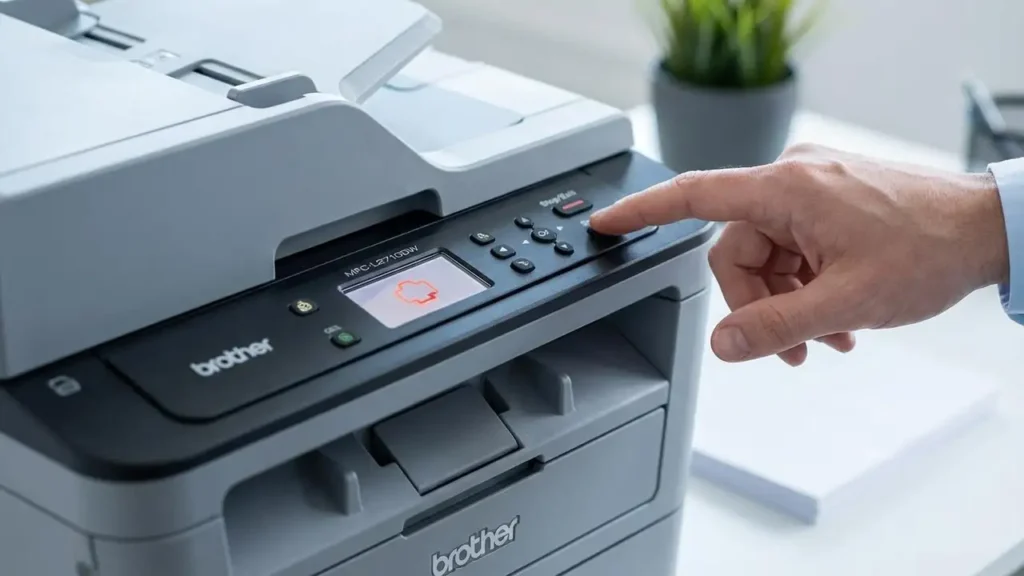
Brother Toner Low Warning Explained
Understand what the toner low message on your Brother printer means and how to get back to printing quickly.
Experiencing a toner low warning on your Brother printer can be a common source of concern, especially when you’re in the middle of an important print job. This alert typically signifies that your current toner cartridge is approaching its end-of-life, but it doesn’t necessarily mean you need to stop printing immediately. In many cases, Brother printers are designed to allow you to continue printing for a significant period even after this warning appears, often until the print quality noticeably degrades or a “Replace Toner” error emerges.
This guide will walk you through what the toner low message truly indicates for your Brother printer, the practical steps you can take to maximize the remaining toner, and what actions you should avoid to prevent further issues. Understanding these nuances can save you time, money, and unnecessary trips to the store for a new toner cartridge. We’ll cover simple solutions that can often extend the life of your current cartridge and provide clarity on when replacement is genuinely required.
Understanding the Brother Toner Low Indicator
When your Brother printer displays a toner low message, it’s communicating that the toner cartridge installed is nearing depletion. This warning is primarily based on the estimated page yield programmed into the toner cartridge’s chip, which tracks how many pages have been printed since the cartridge was installed. It’s important to note that this is an estimation, and the actual amount of toner remaining can vary.
For most Brother models, like the MFC or HL series, a toner low warning typically means there’s still about 10-20% of the toner powder left in the cartridge. This is usually enough toner to print several hundred more pages, depending on your print settings and the complexity of your documents. The printer is giving you an advance notice to prepare for replacement, rather than an immediate shutdown command.
Simple Steps to Maximize Toner Low Cartridge Life
Before rushing to replace your toner cartridge, there are several simple actions you can take to potentially extend its usability and clear the toner low warning temporarily. These methods aim to redistribute the remaining toner powder evenly within the cartridge or ensure the printer’s sensors are functioning correctly. Following these steps can help you get the most out of your current supply and avoid unnecessary expenses.
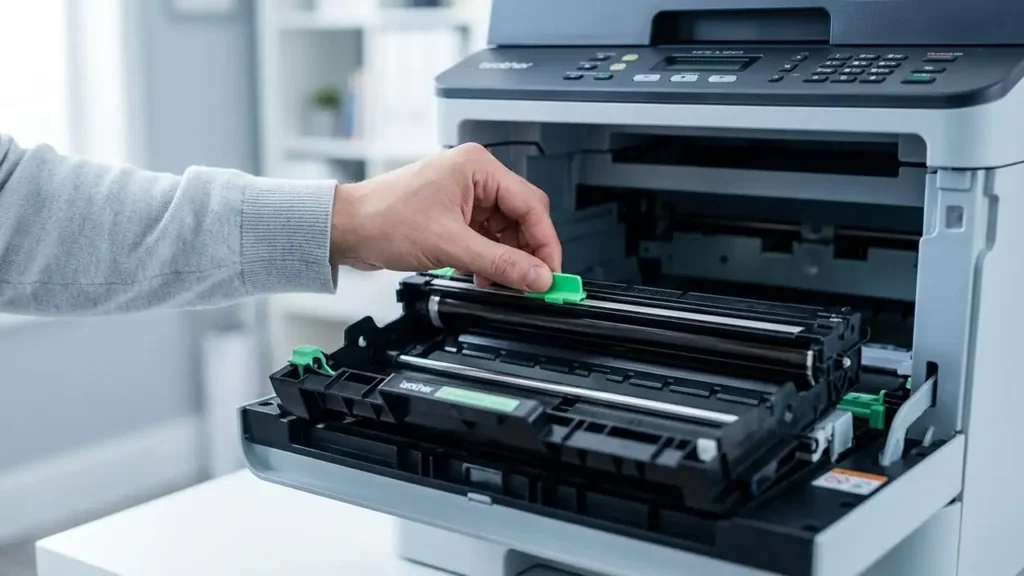
The most common and effective first step is to gently redistribute the toner. Remove the toner cartridge from the printer. Hold it securely and rock it gently from side to side, about 5 to 6 times. This action helps to spread the remaining toner powder across the roller, ensuring a more consistent supply to the drum unit. Reinstall the cartridge and power on the printer; the toner low message may disappear, allowing you to continue printing.
Another potential cause for a persistent toner low alert, even with a seemingly full cartridge, can be related to the printer’s internal components. Specifically, the corona wire within the drum unit can accumulate dust or toner particles, leading to inaccurate readings. On many Brother drum units, there is a small green tab designed to clean this wire. Carefully slide this tab back and forth several times. This simple maintenance can sometimes resolve false sensor readings and clear the toner low indicator.
Navigating Brother Printer Settings for Continued Printing
Modern Brother printers often come with built-in features to manage consumable alerts. If your printer is displaying a toner low warning and you wish to continue printing while print quality is still acceptable, you may be able to adjust its settings. This “Continue Mode” allows you to bypass the printer’s default behavior of stopping print jobs when the toner level is low. Accessing this feature can be model-specific, so consult your printer’s manual if unsure.
On many Brother models, accessing this continue mode involves navigating through the printer’s control panel menu. Typically, you would access the “General Setup” or “Settings” menu, then look for an option related to toner or consumables. Within that section, you might find an option like “Replace Toner” or “Toner Status,” where you can select an option to “Continue” printing. This overrides the immediate stop command, giving you more control over when to replace the cartridge.
When to Replace Your Brother Toner Cartridge
While the toner low warning offers a grace period, there comes a time when replacement is unavoidable. The primary indicator that your toner cartridge is truly empty and needs replacing is a significant degradation in print quality. This could manifest as faint printing, lines, missing text, or the appearance of white spaces where toner should be applied. If redistributing the toner or using continue mode doesn’t resolve these quality issues, it’s time for a new cartridge.
Another definitive sign is when your Brother printer stops printing altogether and displays a “Replace Toner” or “Toner Empty” error message, rather than just “toner low.” This indicates that the cartridge has reached its absolute end and the printer can no longer draw sufficient toner to produce an image. At this point, attempting to redistribute or bypass the warning will not be effective, and a new toner cartridge must be installed. Always ensure you purchase genuine Brother toner for optimal performance and to avoid potential compatibility issues.
Troubleshooting Persistent Toner Low Errors
Sometimes, even after installing a new toner cartridge, the toner low warning or a related error message might persist. This can be frustrating, but it often points to an issue with the printer’s internal counter or a sensor that hasn’t reset correctly. Fortunately, many Brother printer models have manual reset procedures that can clear these persistent errors and restore normal functionality. These resets typically involve a specific sequence of button presses while the printer is in a particular state, such as with the cover open.
For Brother MFC (Multi-Function Center) and DCP (Digital Print Center) models, a common manual reset involves opening the front cover (where you access the toner and drum units), pressing the “Clear/Back” button, and then quickly pressing the sequence *, 0, 0. The printer should then enter a maintenance or service mode where you can reset the toner counter. For Brother HL (Laser) models, the procedure often involves opening the cover, holding down the “Go” button while turning the printer on, releasing the button, and then pressing “Go” twice, waiting for a pause, and then pressing “Go” five more times.
What NOT to Do When Your Brother Printer Shows Toner Low
When dealing with a toner low alert on your Brother printer, it’s crucial to avoid certain actions that can lead to further problems or unnecessary costs. The first and most common mistake is discarding the cartridge immediately upon seeing the warning. As mentioned, these cartridges often contain enough toner for hundreds of additional pages, so holding onto it until print quality suffers is a prudent approach.
Another common error is confusing the toner cartridge with the drum unit. The toner low message pertains solely to the toner cartridge, which contains the toner powder. The drum unit, a separate and often more expensive component, is responsible for transferring the toner image onto the paper. Replacing the drum unit when you only have a toner low warning is unnecessary and costly. Drum units typically last for many thousands of pages, usually through the life of 3-4 toner cartridges.
Furthermore, avoid swapping partially used toner cartridges between printers. Doing so can confuse the page counters within the printers, potentially leading to incorrect toner low or “empty” readings on both devices. It’s best to use a cartridge in the printer for which it was intended. Lastly, never touch the shiny surface of the drum unit or the toner roller inside the cartridge. These surfaces are sensitive to oils from your skin, which can cause permanent damage and lead to print defects.
Safety and Warranty Considerations
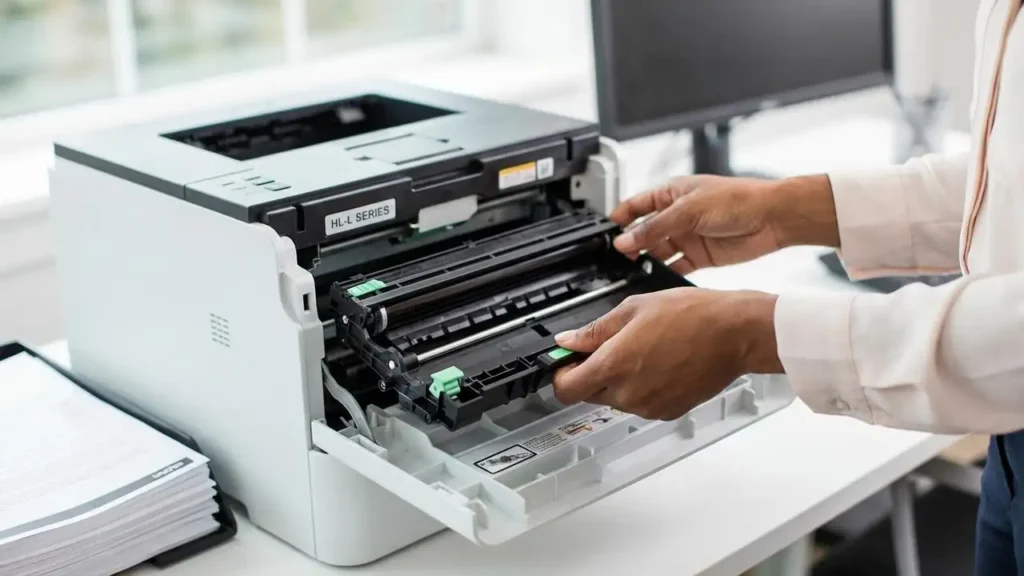
When performing any maintenance on your Brother printer, such as removing and redistributing toner cartridges or cleaning components, always ensure the printer is turned off and unplugged from the power source for your safety. Avoid touching sensitive internal components like the fuser unit or imaging drum directly, as they can be hot or easily damaged. Remember that performing manual resets or opening panels not intended for user access might void your printer’s warranty. If you are uncomfortable with any of these steps or if the problem persists, it is best to consult your printer’s manual or contact Brother customer support or an authorized service technician.
Frequently Asked Questions about Brother Toner Low Warnings
Addressing a toner low warning on your Brother printer is usually a straightforward process involving a few simple checks and potential adjustments. By understanding what the message signifies and employing the correct troubleshooting steps, you can effectively manage your toner supply and ensure your printer continues to operate smoothly. Remember to redistribute toner first, check printer settings, and only replace the cartridge when print quality is compromised or the printer explicitly indicates it’s empty.