

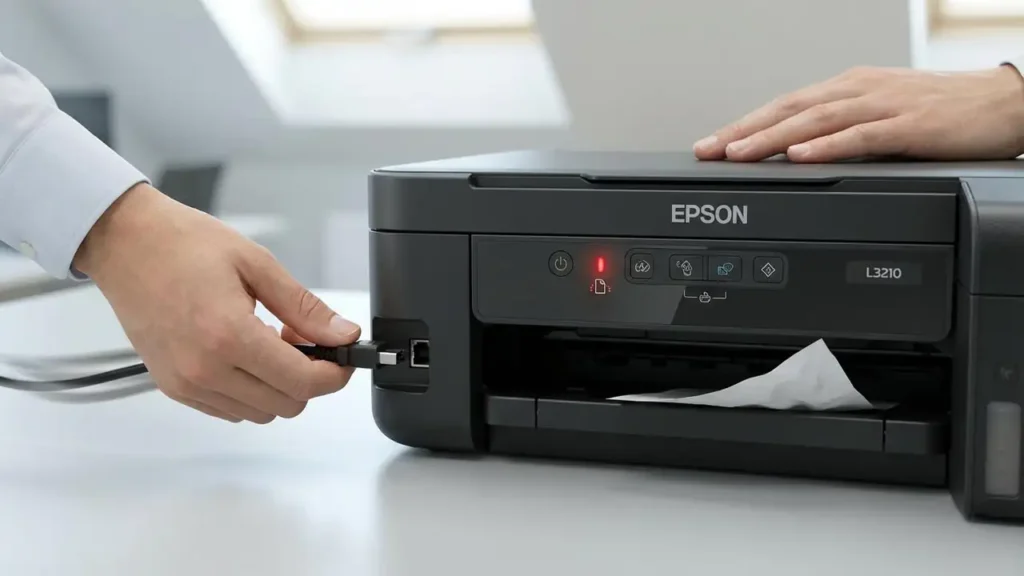
Epson L3210 Paper Jam: Fix and Prevent
Stop frustrating paper jams with this simple guide to clearing your Epson L3210.
A paper jam in your Epson L3210 printer can halt your workflow instantly, leaving you staring at an error message and a potentially mangled piece of paper. This common issue, often signaled by blinking lights or a specific error on your computer, can be resolved with a few careful steps. Understanding how to safely remove jammed paper and prevent future Epson L3210 paper jam occurrences will save you time and keep your printer running smoothly. We will walk you through the most effective methods for clearing jams from various points in your printer and provide essential tips to avoid this problem down the line.
Locating and Accessing the Jammed Paper
When your Epson L3210 indicates a paper jam, the first step is to identify where the paper is stuck. Printers have multiple potential stopping points for paper. Common areas include the paper input tray, the internal paper path, and the output area. Sometimes, the paper might be only partially fed, while other times it could be severely crumpled or torn inside. Always cancel the print job from your computer immediately after noticing the jam. This prevents the printer from attempting to feed more paper and worsen the situation.
Step-by-Step: Clearing an Epson L3210 Paper Jam
Clearing an Epson L3210 paper jam requires patience and a gentle touch. Rushing the process can lead to tearing the paper, leaving small fragments behind that can cause further issues. Follow these steps precisely to safely remove the obstruction. Remember to always unplug the printer from the power source before attempting any physical intervention, unless a specific step requires power for access.
Clearing Jams from the Rear (Paper Feed Slot)
The rear of your Epson L3210 features a paper feed slot that is often the easiest place to access a jam. If the paper has fed only a short distance or is exiting from the back, this is your first point of inspection.
- Cancel Print Job: Ensure the print job is cancelled on your computer.
- Open Rear Cover: Locate and open the small rear cover on the printer. This usually flips up or slides open.
- Gently Pull Paper: Carefully grip the edge of the jammed paper that is visible. Pull it slowly and steadily in the same direction it was being fed. Avoid yanking or tearing the paper. If it resists, check if it’s snagged on any internal components.
Clearing Jams from the Front (Under the Scanner Unit)
For jams deeper within the printer, you may need to lift the scanner unit to gain access to the front paper path and the print head area. This provides a wider view and more room to maneuver.
- Power Off and Unplug: For safety, turn off and unplug the printer.
- Lift Scanner Unit: Gently lift the entire scanner unit from the front. It should hinge open, exposing the internal mechanics.
- Locate Paper: Carefully inspect the area around the print head carriage and the paper path leading from the front rollers.
- Remove Paper: If you find jammed paper, grasp it firmly but gently. Pull it slowly in the direction of the paper path. You might need to move the print head carriage slightly to reach it, but do so with caution.
Handling Torn Paper Fragments
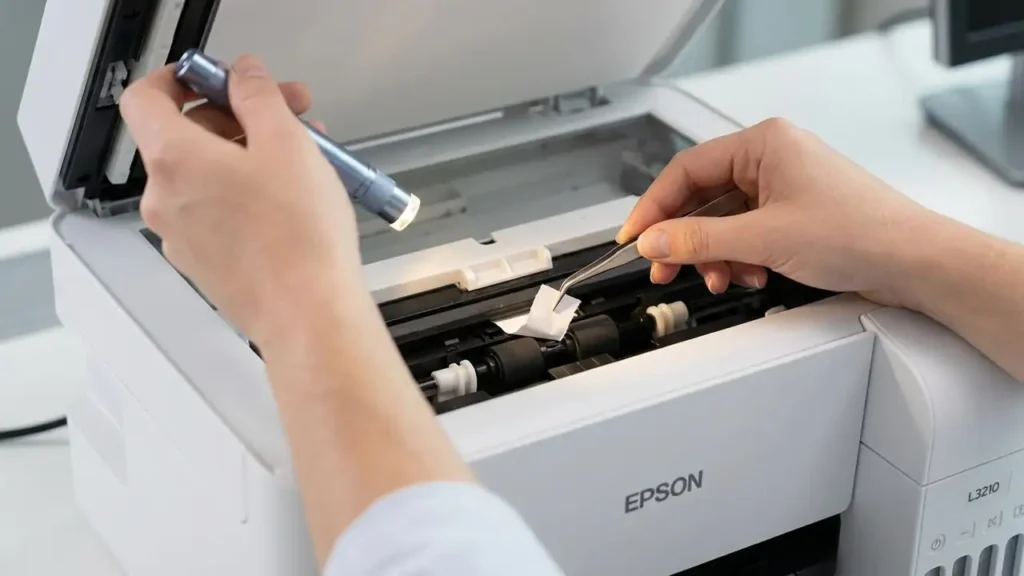
Sometimes, paper tears during removal, leaving small pieces behind. These fragments are notorious for causing recurring paper jams or even damaging internal components. If you suspect any torn bits remain, carefully use a bright light source and tweezers to inspect the entire paper path. Pay close attention to the rollers and the area around the print head. Removing all fragments is crucial for reliable printing.
Troubleshooting Common Epson L3210 Paper Jam Causes
Even after clearing a jam, understanding its root cause is essential to prevent recurrence. Many Epson L3210 paper jam issues stem from simple, correctable factors related to paper handling and printer maintenance. Addressing these underlying issues will save you significant hassle in the long run.
Issues with Paper Type and Condition
The type and condition of the paper you use significantly impact feeding accuracy. Using paper that is too thick, too thin, or damaged can lead to misfeeds and jams. Always check your printer’s specifications for the supported paper weight and type. Avoid using creased, wrinkled, or damp paper, as these conditions can cause rollers to grip unevenly.
Loading Paper Incorrectly
Proper paper loading is critical for smooth operation. When placing paper into the input tray, ensure it’s fanned out and aligned straight. The edge guides should be adjusted snugly against the paper stack, but not so tight that they cause the paper to buckle. Overfilling the tray is another common mistake that can force multiple sheets into the printer at once, leading to jams.
Dirty or Damaged Rollers
The rubber rollers inside your printer are responsible for feeding the paper. Over time, dust and paper debris can accumulate on these rollers, reducing their grip and causing them to slip. In some cases, the rollers themselves can become worn or damaged, requiring professional attention. Cleaning the rollers, when accessible and safe to do so, can often resolve feeding issues.
Preventive Measures for Future Printing
Preventing paper jams is far more efficient than fixing them. By adopting good printing habits and performing regular, simple maintenance, you can significantly reduce the occurrence of Epson L3210 paper jam incidents. Your printer will thank you with reliable performance.
Always Use Quality Paper
Investing in good quality paper is one of the simplest yet most effective ways to prevent paper jams. Reputable brands often produce paper with consistent thickness and smoothness, which feeds more reliably through your printer’s mechanisms. Look for paper that is specifically recommended for your printer type (inkjet or laser).
Proper Paper Loading Techniques
Ensure you follow the correct loading procedure every time. Fan the paper stack before loading, and align the edges by tapping them on a flat surface. Adjust the paper guides so they are snug against the paper stack without bending it. Do not exceed the maximum paper capacity indicated for your Epson L3210’s input tray.
Regular Printer Maintenance
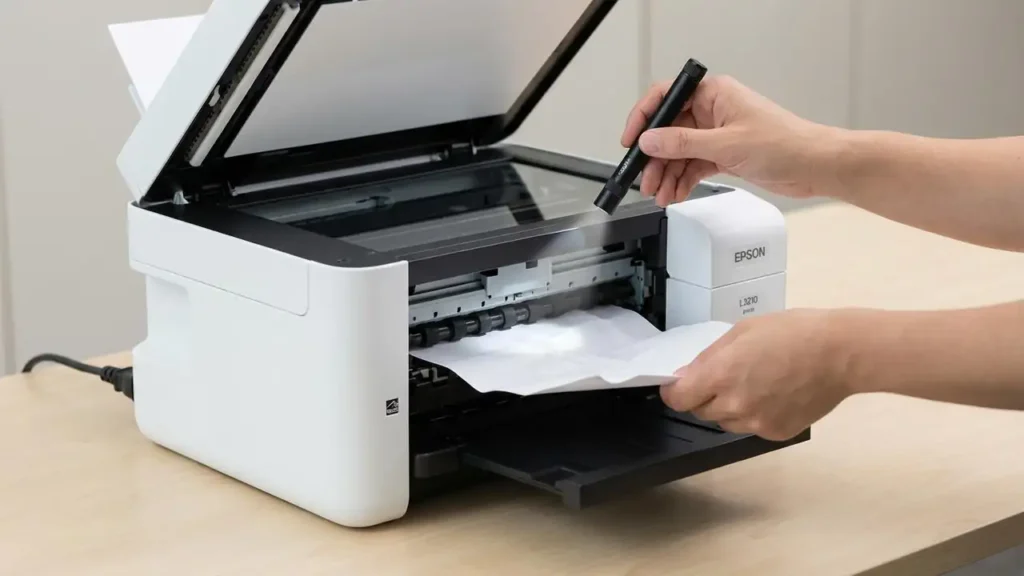
Keep your printer clean, especially the paper path and rollers. A soft, dry cloth can be used to wipe down accessible exterior surfaces. Periodically, you can use a lint-free swab or a specialized roller cleaning sheet to gently clean the feeding rollers. Keeping the printer on a flat, stable surface also ensures that it operates correctly and paper feeds evenly.
Safety and Warranty Considerations
Before performing any manual paper jam removal, always ensure the printer is powered off and unplugged from the electrical outlet. This is a critical safety step to prevent electric shock or damage to the printer’s internal components. Avoid touching sensitive parts like the print head or encoder strips directly with your fingers, as oils from your skin can cause irreparable damage.
Opening the printer or attempting repairs beyond basic jam removal may void your manufacturer’s warranty. If you are uncomfortable with any step, or if the jam persists after attempting these fixes, it is advisable to contact Epson customer support or an authorized service center. They have the tools and expertise to diagnose and resolve more complex issues safely.
Frequently Asked Questions About Epson L3210 Paper Jam Issues
Clearing an Epson L3210 paper jam is a manageable task that, with the right approach, can be completed quickly and safely. By following the detailed steps for removal and implementing preventive measures, you can significantly reduce the frustration associated with paper jams. Consistent care and attention to your printer’s needs will ensure it performs at its best for years to come.