

Epson Software Updater: What It Is, How to Use It, and When to Update Firmware
Epson Software Updater is an official Epson tool that helps you install recommended software, drivers, and—sometimes—firmware updates for your printer. If you’re troubleshooting an Epson L3210 (or any Epson EcoTank), using the official updater is safer than downloading random “driver packs” from unknown websites.
This guide shows exactly how to use Epson Software Updater, what to update, and what to avoid.
Quick Answer (Start Here)
Use Epson Software Updater to install official drivers and utilities.
Update firmware only when it’s recommended and relevant to your issue.
Never interrupt power during a firmware update.
If your printer works perfectly and you don’t need new features or fixes, firmware updates may not be urgent.
👉 Back to the main hub:
Epson L3210 Support Center
What Is Epson Software Updater?
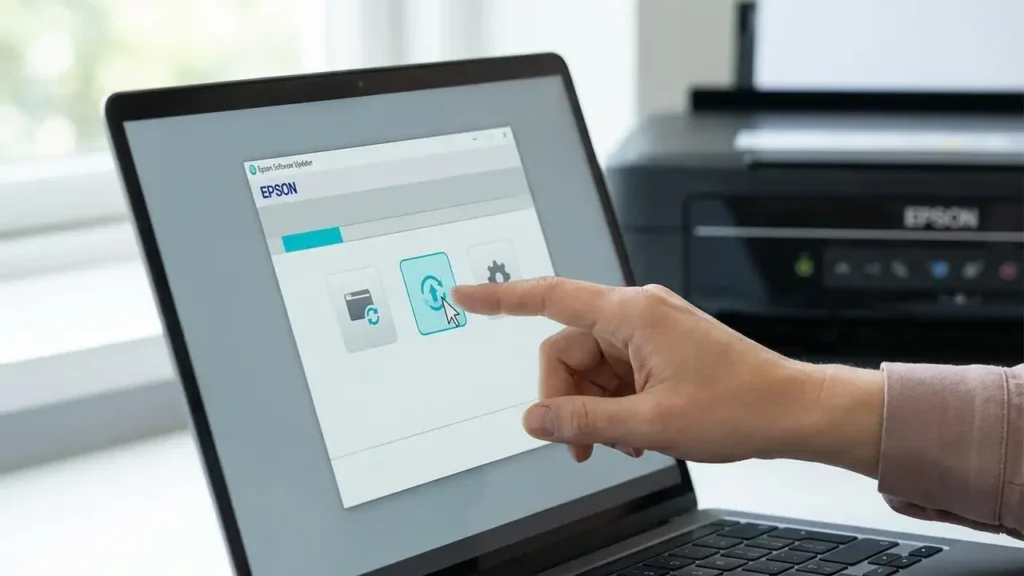
Epson Software Updater is Epson’s official update manager. It checks for:
printer drivers,
Epson utilities (maintenance tools, scanning software, etc.),
optional and recommended updates,
and (for some models) firmware updates.
It’s designed to keep your Epson software stack stable and compatible with your operating system.
When Should You Use It?
Use Epson Software Updater when:
you just installed the printer and want the correct official tools,
Windows/macOS updated and your printer started acting weird,
you’re troubleshooting issues like “not printing”, connection problems, or software errors,
Epson recommends a firmware update to fix a known problem.
Step-by-Step: How to Use Epson Software Updater
Step 1) Install / Open the Tool
If you already have it: open Epson Software Updater from your Start menu (Windows) or Applications (macOS).
If you don’t have it: install it from Epson’s official support site for your printer model.
Step 2) Select Your Printer
The tool will detect your Epson device. Confirm you’re updating the correct printer.
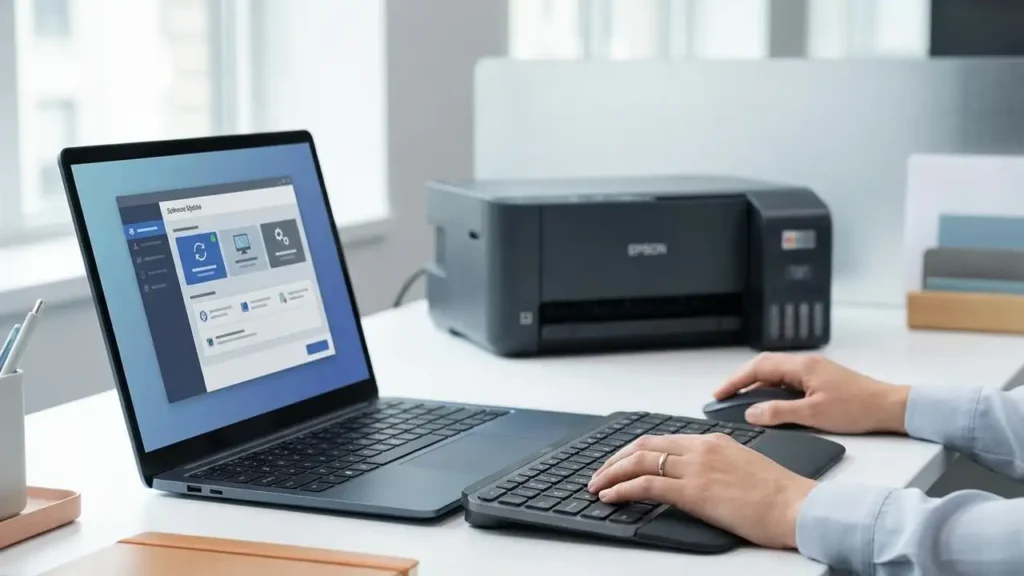
Step 3) Review Available Updates
You may see categories like:
Essential Product Updates
Recommended Updates
Optional Updates
Firmware Update (if available)
Step 4) Choose What to Install
Best practice:
Install drivers and essential updates first.
Only install optional utilities if you actually need them.
Be cautious with firmware updates (read the next section).
Step 5) Restart and Test
After updates install:
restart your computer,
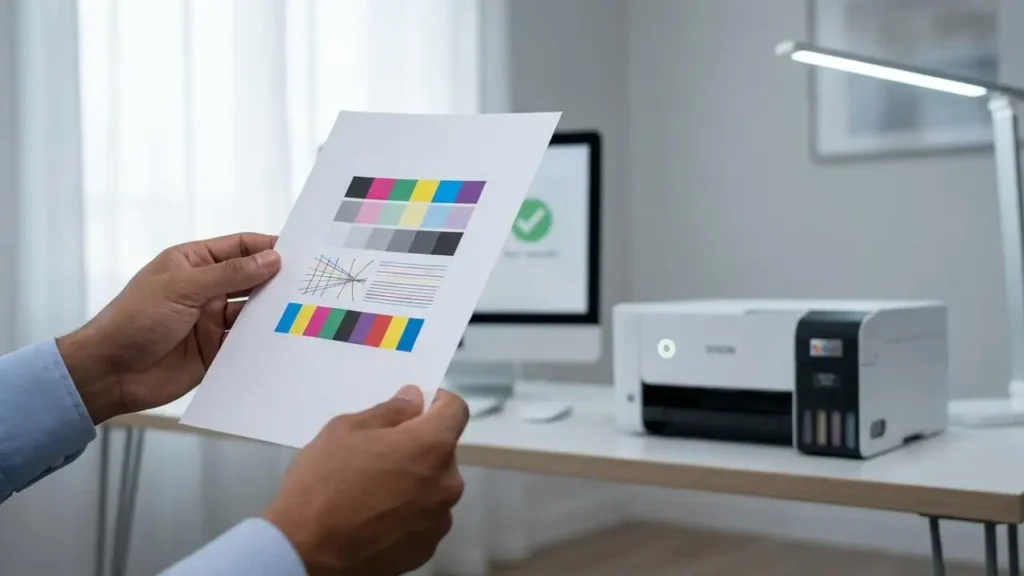
print a test page,
run a nozzle check if print quality is the issue.
Firmware Updates: Should You Update?
Firmware updates can be helpful, but they should be treated carefully.
Update firmware if:
Epson recommends it for stability/bug fixes,
you have a problem the firmware update specifically addresses,
your printer is new and the update improves compatibility.
Consider waiting if:
your printer works perfectly and you don’t have issues,
you are in the middle of urgent printing and can’t risk interruption,
you’re unsure what the update changes.
Important: Never power off the printer, unplug it, or disconnect the USB/Wi-Fi during a firmware update.
Common Problems (and Fixes)
Epson Software Updater Doesn’t Detect My Printer
Try:
reconnect USB cable / try another port,
reboot printer and computer,
ensure the printer is powered on and not in error state,
reinstall the driver, then try again.
Updates Fail or Get Stuck
Try:
restart the computer,
temporarily disable aggressive antivirus blocks (then re-enable),
run the updater as Administrator (Windows).
What NOT to Do
Don’t download “all-in-one driver packs” from random websites.
Don’t install suspicious “updater” tools that aren’t Epson.
Don’t interrupt firmware updates once started.
Related Guides
Epson L3210 “End of Service Life” message — Meaning & Safe Fix Options