

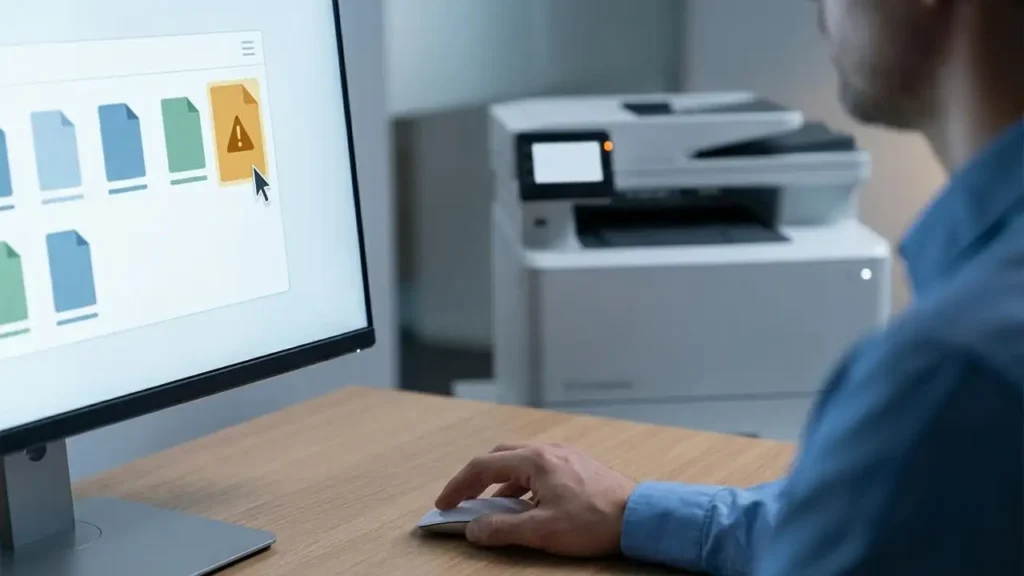
How to Clear a Stuck Printer Queue Safely
Resolve frustrating print job blockages with these simple, effective steps.
A frozen print queue can be incredibly frustrating, halting your workflow and leaving you staring at a blank screen or an error message. Whether it’s a single document that won’t budge or an entire batch of print jobs that have suddenly become unresponsive, knowing how to clear a printer queue is a vital skill for any computer user. This guide will walk you through the safest and most effective methods for Windows and macOS to get your printer back to business.
You might be dealing with an HP printer, an Epson, or any other brand, and the principles for clearing a stuck queue remain largely the same. We’ll start with the easiest software solutions and then move on to more direct system resets if the initial steps don’t work. Understanding how to clear a printer queue Windows 11 or Windows 10 is straightforward, as is addressing the same issue on a Mac.
Basic Software Clear: Cancelling Stuck Jobs
The first and most straightforward approach to clearing a stuck queue involves interacting directly with the print job list within your operating system. This method is non-intrusive and is usually successful for minor glitches or simply canceling a document you no longer need to print. You don’t typically need administrator privileges for this initial step.
For Windows users, accessing the print queue is simple. Navigate to Settings, then Bluetooth & devices, and select Printers & scanners. Find your specific printer, click on it, and then choose “Open print queue.” Within the queue window, you should see a list of all pending print jobs. Locate the document that is causing the blockage, right-click on it, and select “Cancel.” If multiple documents are stuck, you can try canceling them one by one.
On macOS, the process is quite similar. Open System Settings and navigate to Printers & Scanners. Double-click on the printer in question to reveal its print queue. You will see a list of queued documents. Next to each document, there’s usually an “X” button or a similar cancel icon. Click this icon to remove the stuck job from the queue. If there are many, you can often find an option to “Delete All” or “Resume” jobs, though canceling individually can sometimes resolve stubborn issues.
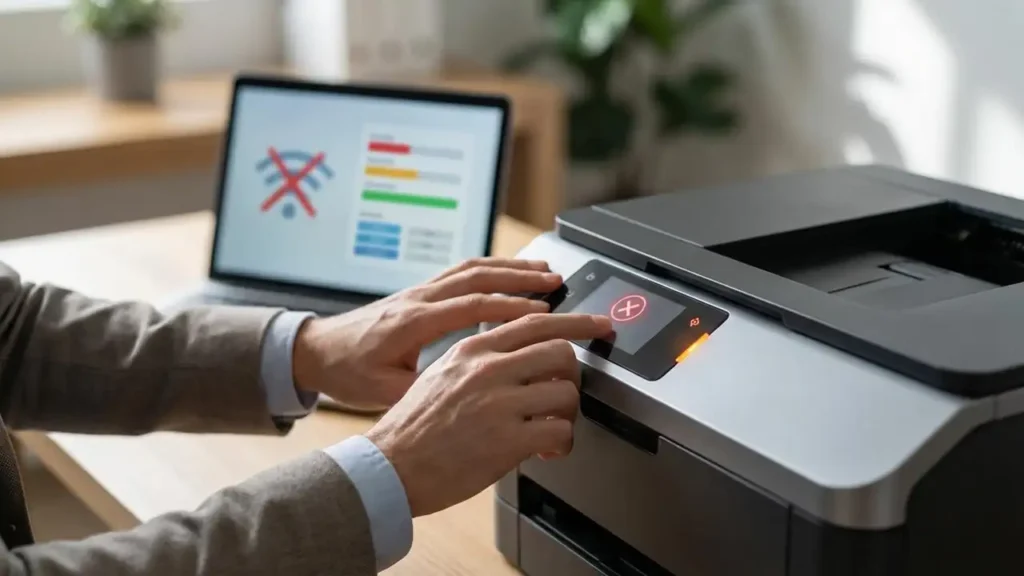
Manual System Reset: Restarting the Print Spooler
If the simple cancellation method doesn’t work, the print spooler service might be stuck in a loop. This is the background process responsible for managing print jobs. Manually stopping and restarting this service is often the most effective solution when direct cancellation fails. This step requires administrative privileges.
To reset the print spooler on Windows, open the Command Prompt as an administrator. You can do this by searching for “cmd” in the Windows search bar, then right-clicking on “Command Prompt” and selecting “Run as administrator.” Once the command window is open, type net stop spooler and press Enter. This command stops the print spooler service.
After stopping the spooler, you need to clear out any corrupted or pending files within its spool folder. Open File Explorer and navigate to C:WindowsSystem32spoolPRINTERS. Inside this folder, delete all the files. Do not delete the PRINTERS folder itself, just its contents. Once all files are removed, return to the administrator Command Prompt and type net start spooler and press Enter. This restarts the service, and your print queue should now be clear.
For macOS users who face a persistently frozen queue, the Terminal can be a powerful tool. Open Terminal from Applications > Utilities. Type the command cancel -a and press Enter. This command attempts to cancel all pending print jobs across all printers. If this doesn’t resolve the issue, a more drastic step is to reset the printing system. Right-click (or Control-click) on the printer in the Printers & Scanners settings and select “Reset printing system.” Be aware that this action will remove all printers and their associated settings from your Mac, requiring you to re-add them afterward.
Addressing Printer-Specific Issues
Sometimes, the problem might stem from the printer itself rather than the computer’s operating system. Checking the printer’s status and connectivity can often reveal the root cause of a document stuck in print queue and won’t delete. For instance, many HP printers have their own diagnostic tools or status lights that can indicate a problem.
Check your printer’s control panel for any error messages, blinking lights, or paper jams that might be preventing new jobs from processing. Ensure the printer is online and not paused. In the print queue window on your computer, look under the “Printer” menu for options like “Use Printer Offline” or “Pause Printing.” If these are checked, uncheck them. A simple power cycle of both the printer and your computer can also resolve temporary communication glitches.
If you’re using a wireless connection, confirm that your printer and computer are connected to the same Wi-Fi network, and that the network signal is strong. Occasionally, switching between a 2.4GHz and 5GHz band on your router can help if the printer only supports one. For specific models like an HP printer, visiting the HP support website can provide model-specific troubleshooting guides or firmware updates.
Preventing Future Stuck Queues
To avoid the common annoyance of how to clear a printer queue that is stuck in the future, a few preventative measures can be highly effective. The most frequent culprit behind persistent queue issues is outdated or corrupted printer drivers. Keeping your printer drivers up-to-date is crucial for smooth communication between your computer and the printer.
You can usually find the latest drivers on the manufacturer’s website (e.g., for HP, Epson, Canon, Brother). Regularly checking for updates, especially after operating system upgrades, can save you a lot of trouble. Additionally, avoid overwhelming your printer with too many large print jobs simultaneously, particularly with older or less powerful consumer-grade models. Sending documents in smaller batches can prevent the spooler from becoming overloaded.
Manufacturer-specific utility software, like the HP Smart app or Epson’s support tools, often includes features for diagnosing and resolving printing issues automatically. These tools can scan your system for driver problems or service issues and often fix them with minimal user intervention. Utilizing these dedicated apps can be a proactive way to maintain your printer’s performance.

Common questions about how to clear a printer queue
If you’ve tried these steps and are still experiencing difficulties, or if you’re uncomfortable performing the system reset procedures, it’s always best to consult your printer’s manual or contact the manufacturer’s support. Sometimes, a deeper hardware issue might require professional attention to ensure your printer is repaired correctly and safely.