

HP Smart App Not Working? Fix Windows 11 Loading Issues
Get your HP printer and scanner back online with this simple troubleshooting guide.
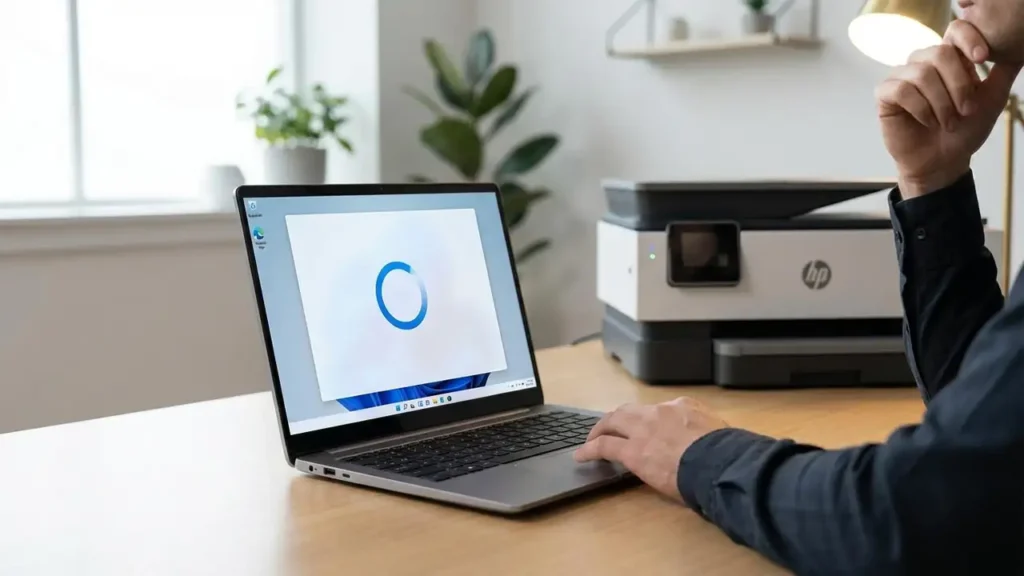
Experiencing issues with the HP Smart app not working on your Windows 11 computer can be frustrating, especially when you need to print or scan documents. You might find the application won’t open at all, or it gets stuck indefinitely on a blue spinning circle, indicating it’s not responding. This guide is designed to help you resolve these common problems and get your HP Smart app functioning correctly again.
We understand that a non-functional HP Smart app can disrupt your workflow, whether at home or in a small office. This guide will walk you through a series of clear, actionable steps to troubleshoot and fix the HP Smart app stuck loading issue. We’ll cover everything from basic checks to more advanced resets and driver repairs, specifically tailored for the Windows 11 environment.
By following these instructions, you’ll be able to identify the root cause of the HP Smart app not responding problem and implement effective solutions. The goal is to restore your printing and scanning capabilities without lengthy downtime. Let’s get your HP Smart app back to full working order.
Basic Checks for HP Smart App Not Working
Before diving into more complex solutions, it’s wise to perform a few quick checks. Sometimes, the simplest solutions are overlooked. Ensure your HP printer is powered on and connected to your network, either via Wi-Fi or USB. Verify that Windows 11 recognizes your printer; you can do this by going to Settings > Bluetooth & devices > Printers & scanners.
Also, check your internet connection, as the HP Smart app often requires a stable connection for setup and operation. Sometimes, a simple restart of both your computer and your HP printer can resolve temporary glitches that cause the HP Smart app won’t open behavior. If these basic steps don’t yield results, it’s time to move on to app-specific troubleshooting.
Resetting the HP Smart App in Windows 11
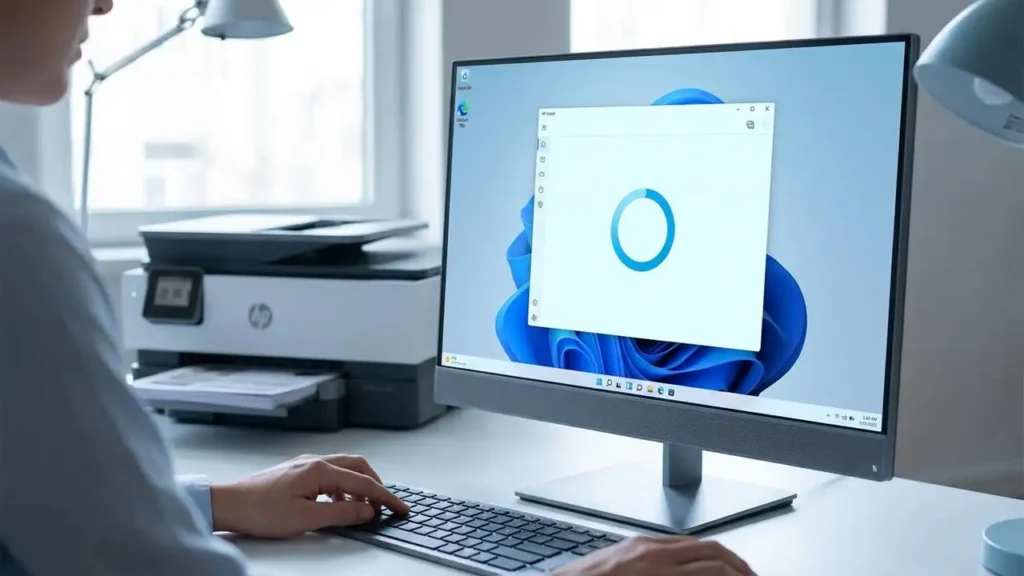
If the HP Smart app stuck loading or the HP Smart blue circle issue persists, resetting the application is a highly effective next step. This process removes corrupted temporary files and settings that might be preventing the app from launching correctly. It’s a common fix for many Windows Store applications that encounter operational problems.
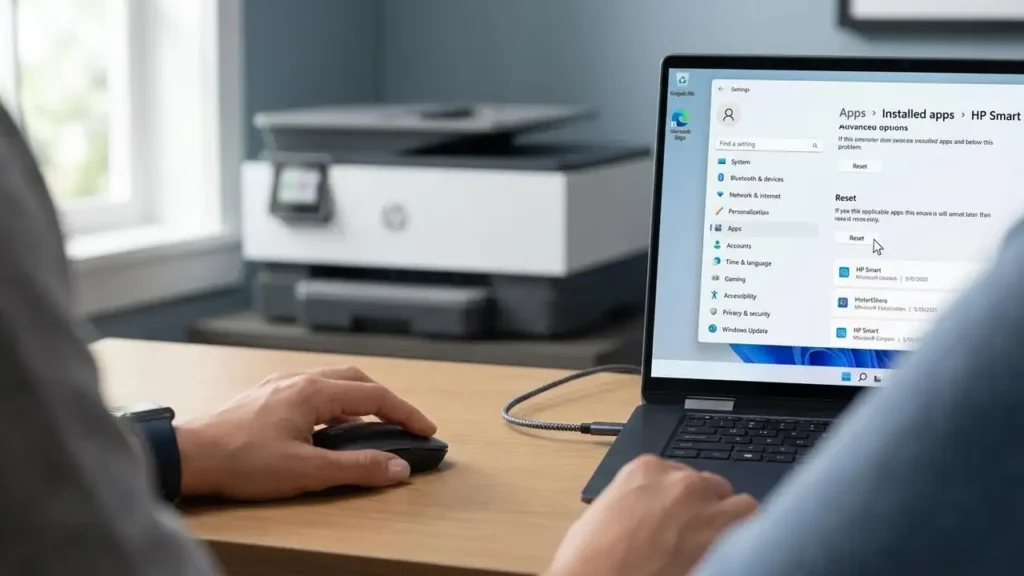
To reset the HP Smart app, navigate to Windows Settings by pressing Win + I. Then, go to “Apps” and select “Apps & features.” Find “HP Smart” in the list of applications. Click on it, then select “Advanced options.” Scroll down to the “Reset” section and click the “Reset” button. Confirm the action when prompted; this will restore the app to its default state.
Reinstalling the HP Smart App to Fix Issues
A full reinstallation can often resolve persistent problems when resetting the app doesn’t work. This ensures you have a completely fresh installation, free from any residual errors or corrupt data that might be causing the HP Smart app not working or HP Smart app won’t open symptoms. This method is particularly effective for resolving conflicts with other software or system updates.
First, uninstall the HP Smart app from your system. Go back to Settings > Apps > Apps & features, find HP Smart, click on it, and select “Uninstall.” After the uninstallation is complete, restart your computer. Then, open the Microsoft Store app, search for “HP Smart,” and download and install the latest version. Once installed, try launching the app again to see if the HP Smart app stuck loading issue is resolved.
Repairing Printer Drivers and Connections
Corrupted or outdated printer drivers are a frequent cause of connectivity and operational problems with printing software like HP Smart. Ensuring your drivers are up-to-date and that the printer is correctly connected to your system is crucial for the HP Smart app not responding on Windows 11. This section focuses on how to refresh these critical components.
To update your drivers, you can go to the HP support website, enter your printer model, and download the latest driver package for Windows 11. Alternatively, Windows Update sometimes provides driver updates automatically. You can also try removing and re-adding your printer through Windows Settings (Printers & scanners). This forces Windows to re-establish the connection and install fresh drivers.
Another powerful tool for driver issues is the HP Print and Scan Doctor. Download this utility from the HP website, run it, and let it diagnose and fix any detected problems with your printer software or drivers. This tool is specifically designed to address many common printing and scanning issues, including those that might cause the HP Smart blue circle error.
Reconnecting Your Printer with HP Smart
After resetting or reinstalling the app and ensuring drivers are sound, you’ll need to reconnect your HP printer. This step is vital if the app was previously working but then stopped responding. It ensures that the HP Smart application can properly communicate with your specific printer model.
Open the HP Smart app. If it was successfully reinstalled, you should see an option to “Add Printer” or “Set up a new printer.” Follow the on-screen instructions, which will guide you through detecting your printer on the network or via USB. Make sure your printer is discoverable during this process. Successfully adding your printer is the key to resolving the HP Smart app not working issue after performing other troubleshooting steps.
If you encounter difficulties during the connection phase, double-check your Wi-Fi network name and password if using a wireless connection. Ensure your computer and printer are on the same network. For USB connections, try a different USB port or cable to rule out hardware issues. This ensures that the HP Smart app fix is complete.
Troubleshooting the HP Smart Blue Circle Issue
The HP Smart blue circle or spinning icon is a visual indicator that the application is stuck in a loop or experiencing a critical process failure. This often happens during startup or when trying to access specific features like scanning or printing. While we’ve covered resetting and reinstalling, sometimes a system-level check is beneficial.
Ensure your Windows 11 operating system is fully updated. Pending Windows updates can sometimes cause conflicts with applications. Go to Settings > Windows Update and check for and install any available updates. A quick system restart after updates can also help apply them correctly. This ensures that the HP Smart app not responding behavior is addressed at a foundational level.
Safety and Warranty Considerations
When performing troubleshooting steps like resetting or reinstalling applications, it’s important to remember general computer safety. Always ensure you are downloading software, such as the HP Smart app or drivers, directly from the official HP website or the Microsoft Store to avoid malware. When physically interacting with your printer, such as checking connections or clearing paper jams, always unplug the printer from the power outlet first. Avoid touching sensitive internal components like the print heads or toner drums directly, as they can be fragile and sensitive to oils from your skin. Modifying printer hardware or firmware can void your warranty. If you are uncomfortable performing any of these steps, it is always best to contact HP support or an authorized service provider.
Frequently Asked Questions about HP Smart App Fix
Successfully resolving issues with the HP Smart app not working or HP Smart app won’t open on Windows 11 is achievable with these systematic troubleshooting steps. By resetting, reinstalling, and ensuring your drivers and connections are sound, you can overcome the frustrating HP Smart app stuck loading and HP Smart blue circle errors. This guide empowers you to regain full functionality of your HP printing and scanning hardware.