

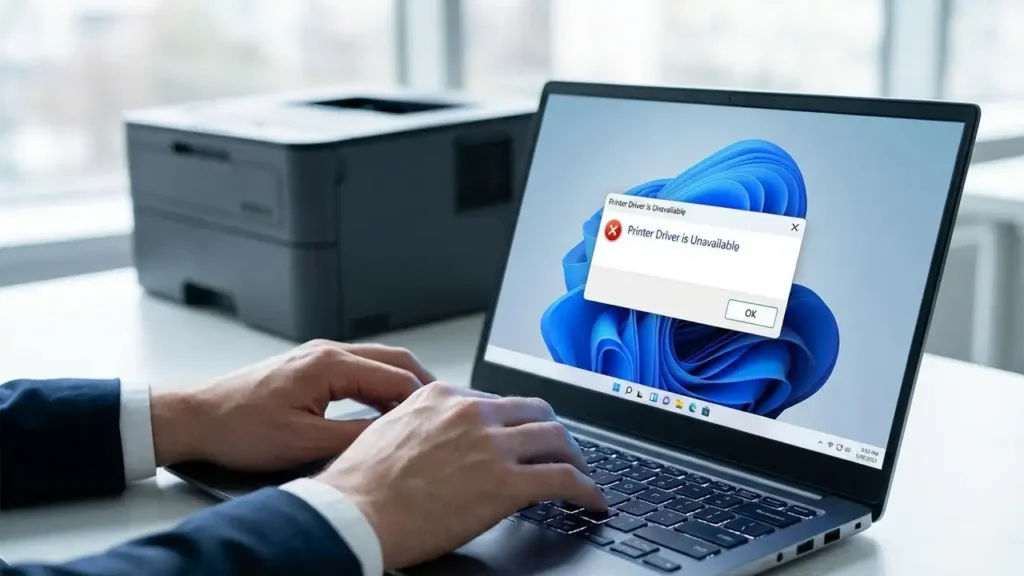
Printer Driver Unavailable on Windows? Fix It Now!
Stop frustrating errors and get your printer working again with this simple guide.
The “printer driver is unavailable” error message on Windows can be a significant roadblock, preventing you from printing documents, photos, or anything else you need. This common issue often pops up without warning, leaving users confused and unable to complete their tasks. Whether you’re using an HP printer driver unavailable, a Brother printer driver unavailable, or any other brand, the underlying causes and solutions are often similar. This guide will walk you through diagnosing the problem and implementing effective fixes.
Understanding why your printer driver is unavailable is key to resolving the issue. Most commonly, this error signifies a communication breakdown between your Windows operating system and the printer hardware. This can stem from a corrupted printer driver file, a recent Windows update that caused compatibility issues, or a temporary glitch in the print spooler service. By systematically addressing these potential causes, you can restore full functionality to your printer.
Why Your Printer Driver is Unavailable
When Windows says your printer driver is unavailable, it means the operating system cannot find or properly use the software necessary to translate your print commands into instructions your specific printer can understand. This software, the printer driver, acts as a translator. Without it, or if it’s damaged, your computer effectively doesn’t know how to talk to the printer. This can happen suddenly, especially after Windows updates, or gradually if driver files become corrupted over time.
The symptoms are clear: you send a document to print, but nothing happens, or you get an error message. Sometimes, the printer might appear offline in your devices, even though it’s powered on and connected. The cause is almost always related to the driver software or the Windows print spooler service that manages print jobs.
Basic Checks Before Reinstalling Drivers
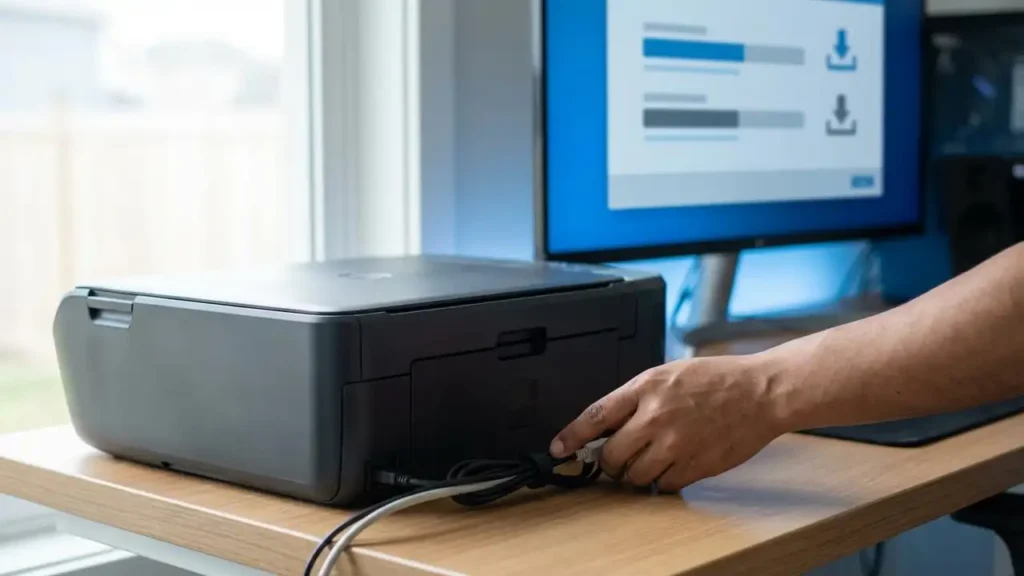
Before diving into more complex troubleshooting, it’s essential to perform a few simple checks. These basic steps can often resolve connectivity or temporary software issues without needing to reinstall drivers. Verifying these common culprits will save you time and effort. Always start with the easiest solutions.
- Restart Your Printer and Computer: This is the universal first step for many tech issues. Turn off your printer, unplug it from the power source, wait 30 seconds, and then plug it back in and turn it on. Do the same for your computer. This clears temporary memory and can resolve minor glitches.
- Check Printer Connections: Ensure all cables connecting your printer to your computer (USB) or network (Ethernet/Wi-Fi) are secure. For wireless printers, confirm they are connected to the correct Wi-Fi network. A loose cable or incorrect network connection can mimic a driver problem.
- Verify Printer Status: Look at your printer’s control panel. Are there any error lights or messages displayed on the printer itself, such as paper jams, low ink, or toner issues? Address these physical printer problems first, as they can prevent printing even if the driver is fine.
Understanding and Fixing the Print Spooler
The Windows Print Spooler is a crucial service that manages all print jobs. It receives your document, holds it in a queue, and sends it to the correct printer. If this service is stopped, crashed, or stuck, it can cause the printer driver is unavailable error. Restarting this service is a common fix for many printing problems.
This service acts as an intermediary, allowing multiple applications to send print jobs without interfering with each other. When it malfunctions, it can leave print jobs stuck and cause communication errors with the printer driver. A quick restart often refreshes its state and resolves the issue.
Restarting the Print Spooler Service
To restart the Print Spooler:
- Press the
Windows key + Ron your keyboard to open the Run dialog box. - Type
services.mscand press Enter or click OK. - In the Services window, scroll down and find “Print Spooler”.
- Right-click on “Print Spooler” and select “Restart”. If “Restart” is greyed out, select “Start”.
- You can also right-click and select “Properties”, then ensure the “Startup type” is set to “Automatic”. Click Apply and OK.
- Try printing again after the service has restarted.
How to Reinstall Your Printer Driver
If restarting the print spooler doesn’t solve the printer driver unavailable error, the driver software itself is likely the culprit. Reinstalling the correct printer driver for your specific model is the most effective solution. This process involves removing the old driver and installing a fresh copy from the manufacturer’s website. This ensures you have the latest, most compatible software.
It’s crucial to download the driver from the official manufacturer’s website (like HP or Brother) to ensure you get the correct and safe version. Using generic drivers from unknown sources can lead to more problems or security risks. Ensure you know your printer’s exact model number for this step.
Removing the Old Printer Driver
First, you need to uninstall the current, potentially problematic driver from Windows. This cleans up your system and prepares it for the new installation. Removing the driver ensures no conflicting files remain.
- Open Windows Settings (press
Windows key + I). - Go to “Bluetooth & devices” (or “Devices” in older Windows versions) and select “Printers & scanners”.
- Click on your printer from the list.
- Click “Remove device”. Confirm the removal when prompted.
- Next, we need to remove the driver package itself to prevent remnants from causing future issues. Press
Windows key + R, typeprintui /s /t2, and press Enter. This opens the Print Server Properties window. - In the “Drivers” tab, select your printer driver from the list.
- Click “Remove” and choose “Remove driver and driver package”. Confirm any prompts. If the driver is in use, you may need to restart your computer first and try again.
Installing the New Printer Driver
Now that the old driver is removed, you can install a fresh one. This is the most critical step to resolve the printer driver is unavailable error. Having the correct driver installed allows Windows to communicate properly with your printer again.
- Visit the official website for your printer manufacturer (e.g., HP support, Brother support, Canon support).
- Navigate to their “Support” or “Downloads” section.
- Enter your printer’s exact model number (e.g., HP LaserJet Pro MFP M28w, Brother HL-L2390DW).
- Select your operating system (e.g., Windows 11, Windows 10, 64-bit).
- Download the latest recommended driver or full software package.
- Run the downloaded installer file and follow the on-screen instructions. This usually involves connecting your printer via USB or selecting it on your network when prompted.
- Once the installation is complete, restart your computer one last time.
Checking for Windows Updates and Printer Compatibility
Sometimes, the printer driver unavailable error appears after Windows itself has been updated. Microsoft periodically releases updates that can improve system stability and security, but occasionally these updates can introduce incompatibilities with older printer drivers. Ensuring your Windows is up-to-date, and checking for specific printer firmware updates, can prevent or resolve these conflicts.
A recent Windows update might have altered system files or services that the printer driver relies on. Checking for further updates might bring a patch for the issue, or updating the printer’s firmware can ensure it’s compatible with the newest OS version.
Managing Windows Updates
To check for Windows updates:
- Open Windows Settings (
Windows key + I). - Go to “Update & Security” (or “Windows Update” in Windows 11).
- Click “Check for updates”.
- If updates are found, download and install them. Restart your computer as needed.
- If the issue started immediately after a specific update, you might consider uninstalling that recent update as a temporary measure while waiting for a permanent fix from Microsoft or the printer manufacturer. Go to “View update history” and then “Uninstall updates”.
Updating Printer Firmware
Check your printer manufacturer’s website for any available firmware updates for your specific model. Firmware is the internal software of your printer. Updating it can fix bugs and improve compatibility with your operating system. Follow the manufacturer’s instructions carefully for firmware updates, as interrupting this process can cause serious issues.
Common Questions About Printer Driver Unavailable
Safety and Warranty Note:
Always unplug your printer from the power outlet before performing any physical checks or cleaning. Avoid touching sensitive internal components like the print head, drum, or fuser directly, as they can be fragile and hot. Tampering with or opening your printer may void its warranty. If you are uncomfortable performing any of these steps, it is best to contact an authorized service center or the manufacturer’s support.
Resolving the printer driver unavailable error on Windows 10 or 11 is usually achievable with these steps. By systematically checking connections, restarting services, and reinstalling the correct printer driver, you can get your printer back up and running. Patience and attention to detail during the driver installation process are key to a successful fix.