

Fix “No Toner” Error on Your Brother Printer
Resolve your brother printer no toner message and get back to printing fast.
Brother printers are reliable workhorses for many homes and offices, but encountering a persistent “No Toner,” “Replace Toner,” or “Cannot Detect Toner Cartridge” message can be incredibly frustrating. This error often appears even when you’ve just installed a brand-new toner cartridge or know there’s still plenty of toner left. Such a notification on your Brother MFC-L2710DW or similar model usually indicates a detection issue rather than an actual toner shortage. Fortunately, many of these brother printer no toner problems can be resolved with a few simple troubleshooting steps before you consider buying another cartridge or calling for service.
This guide will walk you through the most common fixes, from basic reinstallation checks to performing a manual reset of your printer’s internal counter. By following these instructions carefully, you can often override the “no toner” error and ensure your printer recognizes your cartridge correctly, saving you time and money. Let’s dive in and get your Brother printer back on track.
Initial Checks and Proper Reinstallation of Your Toner Cartridge
Before attempting any complex resets, it’s crucial to ensure the toner cartridge is installed correctly and free from common obstructions. A loose connection or overlooked protective cover is a frequent cause of the brother printer no toner error.
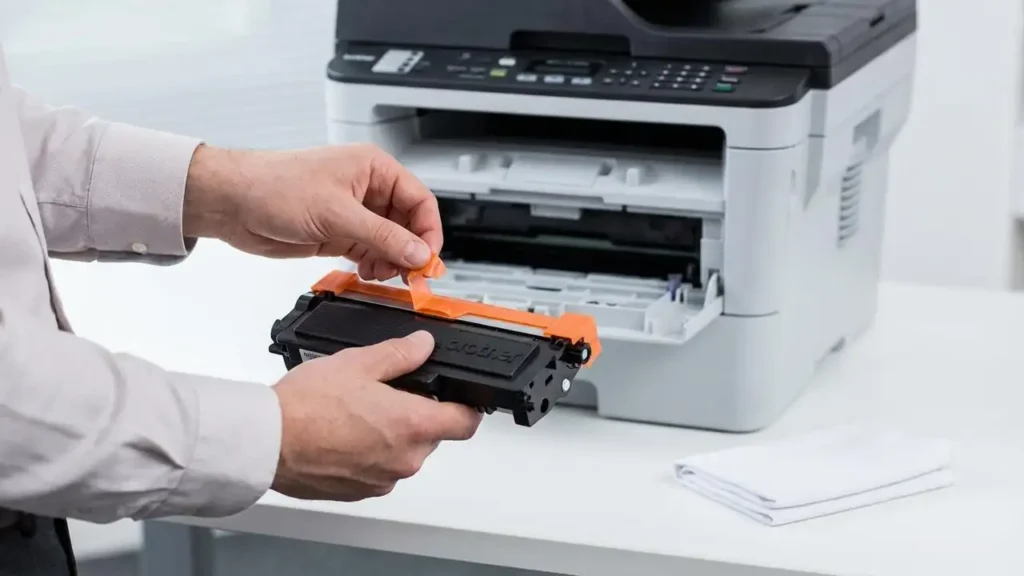
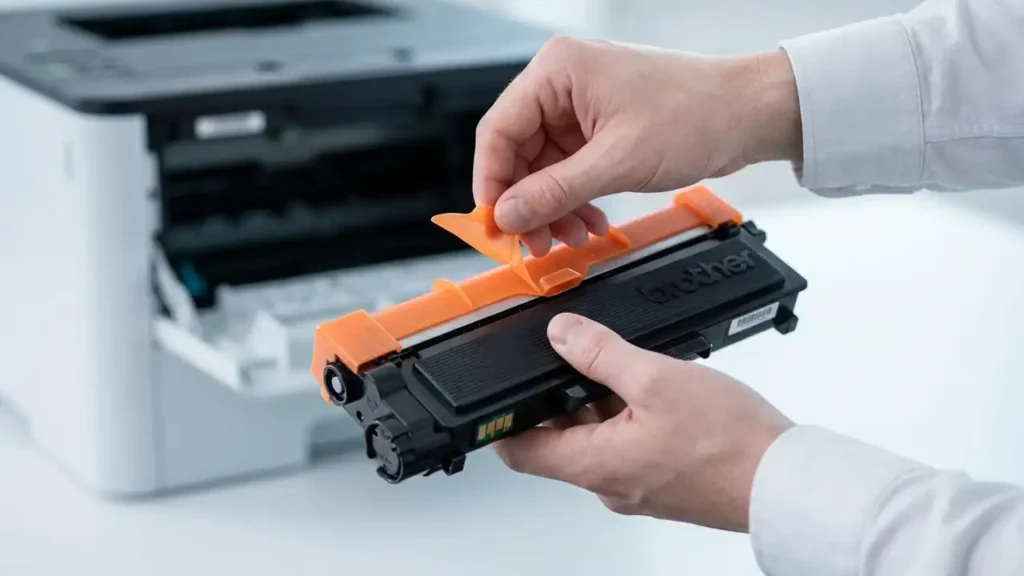
- Check for Protective Covers: If you’ve just installed a new toner cartridge, double-check that all orange plastic guards, protective strips, or blue tape have been completely removed. These covers are essential for shipping but must be taken off before installation, as they block contact or toner release.
- Clean the Contacts: Power off your Brother printer and open the front cover to access the drum and toner assembly. Carefully remove the drum unit and separate the toner cartridge from it by pressing the green lock lever. Using a dry, lint-free cloth, gently wipe the metal contacts on the side of the toner cartridge and the corresponding metal contacts inside the printer (on the drum unit and/or the printer itself). These contacts facilitate communication between the cartridge and the printer.
- Reinsert Firmly: Slide the toner cartridge back into the drum unit until it locks firmly into place with an audible click. Then, slide the entire drum and toner assembly back into the printer. Push it in until it’s seated correctly and the front cover closes securely. Turn the printer back on and check if the brother printer no toner message has cleared.
Understanding Your Brother Printer No Toner Message
Your Brother printer is designed to monitor toner levels and notify you when a replacement is needed. However, sometimes the “no toner” or “cannot detect toner cartridge” message appears due to the printer’s internal counter not resetting, or a communication glitch with the cartridge’s chip. This doesn’t always mean the cartridge is truly empty.
Laser printers like the Brother MFC-L2710DW use a drum unit and a toner cartridge as separate consumables. The toner cartridge fits inside the drum unit, and together they slide into the printer. If any part of this assembly isn’t seated perfectly, or if the printer’s sensor or counter fails to register a new cartridge, it will display the warning. Understanding this distinction is key to effectively addressing the brother printer no toner issue.
Performing a Manual Toner Reset for Your Brother Printer
If reinstallation and cleaning don’t resolve the “no toner” message, you might need to manually reset the toner counter. This procedure forces the printer to recognize the cartridge as full. The steps vary slightly depending on your Brother model (MFC/DCP or HL series) and whether it has a touchscreen.
Reset for MFC/DCP Models (e.g., MFC-L2710DW, with touchscreen)
These steps are commonly used for Brother multi-function printers like the MFC-L2710DW.
- Ensure your Brother printer is powered on.
- Open the front cover of the printer (the one that provides access to the toner and drum assembly). Do not close it during this process.
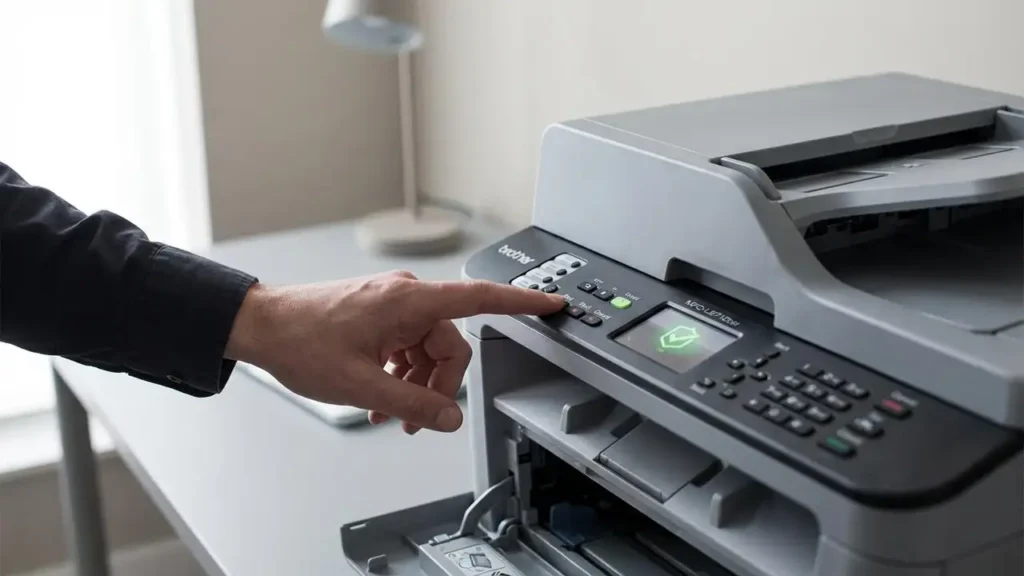
- On the printer’s control panel, press the Back and Cancel (or Red Cross) buttons simultaneously, then immediately press Back again. This combination should unlock a hidden reset menu.
- You will see a list of toner colors (K=Black, C=Cyan, M=Magenta, Y=Yellow). Use the arrow keys or touchscreen to navigate to the toner cartridge you are trying to reset (usually K.TNR-STD or K.TNR-HC for black, standard or high capacity).
- Select the appropriate option (e.g., K.TNR-STD for a standard capacity black toner).
- The display will ask “Reset?”. Confirm with Yes or OK.
- Once confirmed, the display should show “Accepted” or “Reset Complete.”
- Close the front cover of the printer. The brother printer no toner error should now be gone, and the printer should be ready to print.
Reset for HL Models (without touchscreen)
For Brother HL series printers without a touchscreen, the reset procedure involves the Go button.
- Ensure the printer is powered off.
- Open the front cover of the printer.
- Press and hold the Go button while simultaneously turning the printer back on. Keep holding the Go button until all indicator lights illuminate.
- Release the Go button. All lights should now turn off.
- Press the Go button twice (2 times). Wait for a few seconds.
- Press the Go button five or six times (5-6 times) quickly, depending on your specific model. The number of presses can sometimes vary; try five first, then six if it doesn’t work.
- Close the front cover. The “no toner” message should clear, and the printer should initialize.
Other Potential Causes and Solutions
While manual resets and proper installation resolve most brother printer no toner issues, a few other factors might be at play, especially if you’re using compatible or remanufactured cartridges.
- Firmware Updates: Occasionally, Brother releases firmware updates that can make their printers less compatible with third-party or non-official toner cartridges. If the error started after a recent firmware update, this might be a factor. There’s no safe way to downgrade firmware, so contacting the cartridge supplier or Brother support might be necessary.
- Faulty Toner Chip: Compatible toner cartridges contain a chip that communicates with the printer. If this chip is defective or damaged, the printer will fail to recognize the cartridge, leading to the “cannot detect toner cartridge” message. If you suspect a faulty chip and still have your old official Brother cartridge, some users carefully transfer the original chip to the new compatible one, but this carries risks and may void the cartridge warranty.
- Damaged Drum Unit: Though less common, a damaged or worn-out drum unit can sometimes interfere with toner detection. If you’ve tried multiple toner cartridges and still get the error, inspect your drum unit for physical damage.
Safety and Warranty Notes
Always unplug your Brother printer before opening any covers or touching internal components for cleaning. Avoid touching the sensitive green drum surface directly with your fingers, as oils can damage it. Remember that using compatible cartridges or performing manual resets might affect your printer’s warranty if damage occurs. If you are unsure about any step or suspect a hardware malfunction, it’s best to consult an authorized Brother service center or technical support.
Common Questions About Brother Printer No Toner
Encountering a brother printer no toner message can be an irritating interruption to your workflow, but it’s often a fixable issue rather than a genuine problem with your toner supply. By methodically working through the installation checks, cleaning the necessary contacts, and performing a manual toner reset tailored to your Brother model, you can usually resolve the error. Don’t let a simple detection glitch keep your Brother printer from performing its duties—with these steps, you can confidently troubleshoot and overcome the “no toner” warning.