

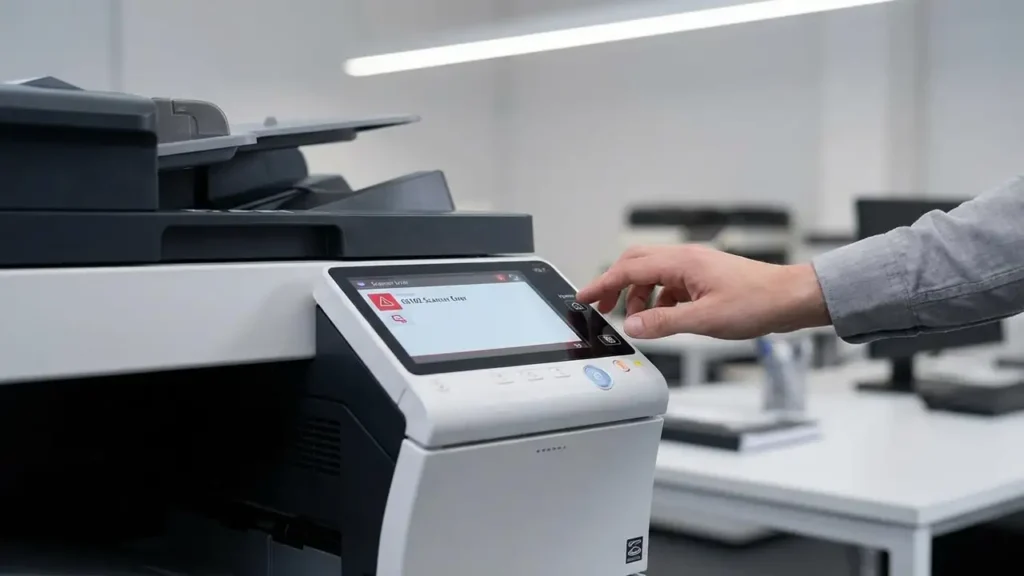
Fix C6102 Konica Minolta Error on Your Bizhub Printer
Quickly resolve scanner malfunctions and restore full functionality to your Konica Minolta bizhub device.
Encountering the C6102 Konica Minolta error on your bizhub printer can be a frustrating experience, as it typically indicates a problem with the device’s scanning unit. This error prevents the printer from performing scan, copy, and fax functions, effectively limiting your multi-function device’s capabilities. Models like the bizhub 360i, C224e, or C554e are susceptible to this issue when the scanner’s internal components encounter a hitch.
The C6102 Konica Minolta code signals that the scanner module is not properly detecting its home position. This crucial starting point ensures accurate scanning and copying. Without the scanner module reaching its home position, the system cannot calibrate itself, leading to the error message and halting operations. Fortunately, many common causes can be addressed with simple troubleshooting steps.
Understanding the C6102 Konica Minolta Error Message
The core meaning behind the C6102 Konica Minolta error is a failure of the scanner’s home sensor (often labeled PS201) to register the scanning module at its initial starting point. This sensor is essential for the scanner to know its exact location before and after each scan. When this detection fails, the system interprets it as a malfunction, triggering the error.
Several factors can contribute to this communication breakdown. The most frequent culprits include dirt or debris obstructing the sensor or the scanner’s glass, a physical blockage preventing the scanner carriage from moving freely, or issues with the mechanical components like the drive belt or even the scanner motor itself. Understanding these potential causes is the first step in effective Konica Minolta dépannage.
Initial Troubleshooting Steps for C6102
Before diving into more complex diagnostics, a few basic actions can often resolve a transient C6102 Konica Minolta error. These steps aim to reset the printer’s internal state and clear any temporary glitches that might be causing the home sensor to misread. Always ensure the printer is turned off and unplugged before performing any physical checks.
- Perform a Simple Power Cycle: Turn off your Konica Minolta printer using the main power switch, usually located on the side or back. Wait for at least 30 seconds to allow all internal components to fully discharge. Then, plug the printer back in and power it on. This can often clear minor software hang-ups or reset sensor readings.
- Inspect for Visible Obstructions: While the printer is off, gently open the scanner lid and look for any foreign objects. Papers clips, sticky notes, or small pieces of paper might have fallen onto the scanner glass or track. Remove anything that could impede the scanner carriage’s movement.
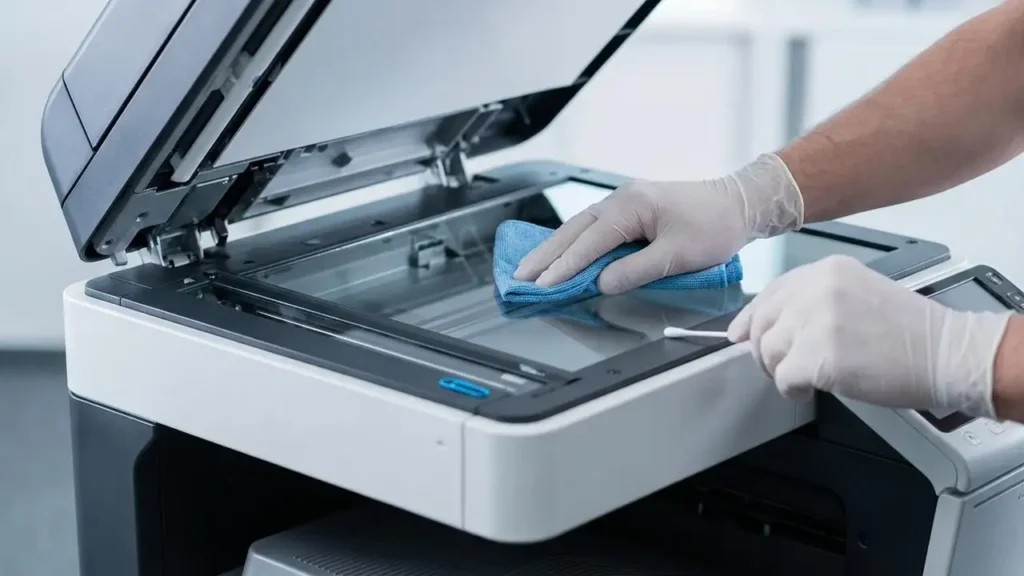
- Check the Scanner Glass: Sometimes, smudges, dust, or residue on the scanner glass can interfere with the scanner’s ability to sense its position or even cause scanning errors. Use a soft, lint-free cloth and a mild glass cleaner (sprayed onto the cloth, not directly onto the glass) to thoroughly clean the entire scanner surface.
Cleaning and Mechanical Checks for Scanner Issues
A significant portion of scanner-related problems, including the C6102 Konica Minolta error, can be attributed to environmental factors or minor mechanical issues. Regular cleaning and careful inspection of accessible parts are crucial for maintaining optimal performance. These steps go a bit deeper than initial checks.
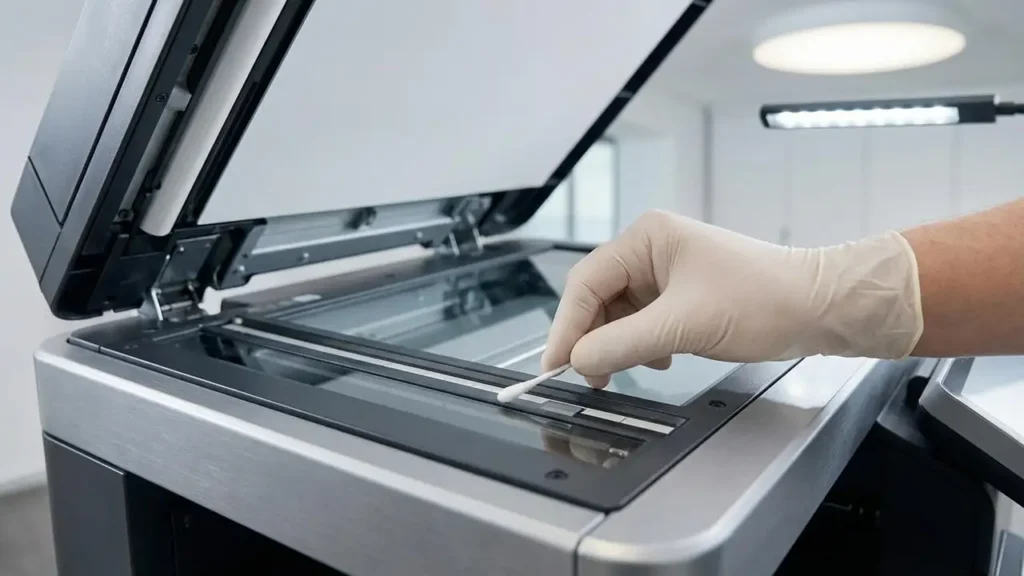
- Thoroughly Clean the Scanner Glass and Sensor Area: Beyond just the main scanning area, pay close attention to the thin strip of glass or the white plastic strip next to it. This area is often used for calibration and home position detection. Carefully wipe it down to ensure no dust or debris is present. If you can locate the physical home sensor (it’s a small optical sensor, often near one end of the scanner track), gently clean it with a cotton swab dampened with isopropyl alcohol, being careful not to damage it.
- Verify Scanner Carriage Movement: With the printer still off and unplugged, try to gently push the scanner carriage (the part that moves across the glass) from one end to the other. It should move smoothly without excessive resistance or grinding noises. If it feels stiff or catches, there might be a physical obstruction not visible from the surface. Avoid forcing it, as this could damage the drive mechanism.
- Inspect the Drive Belt (if accessible): For some models, the scanner drive belt might be visible by carefully opening a service cover or inspecting the underside of the scanner unit. Check if the belt is properly tensioned, not frayed, or broken. A loose or damaged belt can cause the scanner carriage to stop short of its home position, triggering the C6102 Konica Minolta code. If the belt is damaged or loose, it typically requires professional intervention.
Performing a Software Reset (Trouble Reset)
If physical checks and cleaning don’t resolve the C6102 Konica Minolta error, a specific software reset function on Konica Minolta bizhub devices, known as “Trouble Reset,” can sometimes clear persistent error codes. This is a more comprehensive reset than a simple power cycle and can often resolve issues without deep technical knowledge.
- Access the Service Menu: Ensure the printer is completely powered off via the main switch.
- Initiate Trouble Reset: While holding down the “Utility/Counter” button (its location may vary slightly by model, but it’s typically on the control panel), power on the printer. Continue to hold the button until a special service screen appears on the touch panel.
- Select Trouble Reset: On this service screen, you should see an option labeled “Trouble Reset.” Tap this option on the touchscreen.
- Confirm and Reboot: After selecting “Trouble Reset,” you should see an “OK” confirmation message. Once confirmed, power off the printer again, wait a few seconds, and then power it back on normally without holding any buttons. This should allow the printer to restart without the C6102 Konica Minolta error.
When to Call a Technician: Advanced C6102 Issues
Despite your best efforts, some C6102 Konica Minolta errors require professional expertise. If the problem persists after attempting all the above troubleshooting steps, the issue likely lies with internal components that are difficult or risky for an untrained user to access. This is where professional Konica Minolta dépannage becomes essential.
The scanner home sensor (PS201) itself might be faulty, or the scanner motor (M201) could be failing or have loose connections. Testing these components often requires entering the printer’s service mode and using specialized diagnostic tools, which should only be performed by a certified Konica Minolta technician. They have the knowledge to safely replace these parts and ensure proper calibration. Attempting to disassemble complex internal components without proper training can void your warranty and potentially cause further damage. Always unplug your device before attempting any internal inspections. If in doubt, contact an authorized service center.
Common Questions About C6102 Konica Minolta Error
The C6102 Konica Minolta error can seem daunting, but many of its underlying causes are resolvable with careful cleaning, mechanical checks, and the specific Trouble Reset procedure. By systematically working through these steps, you stand a good chance of getting your Konica Minolta bizhub’s scanner back in full working order. If the issue remains, remember that professional Konica Minolta dépannage services are available to address more complex component failures.