

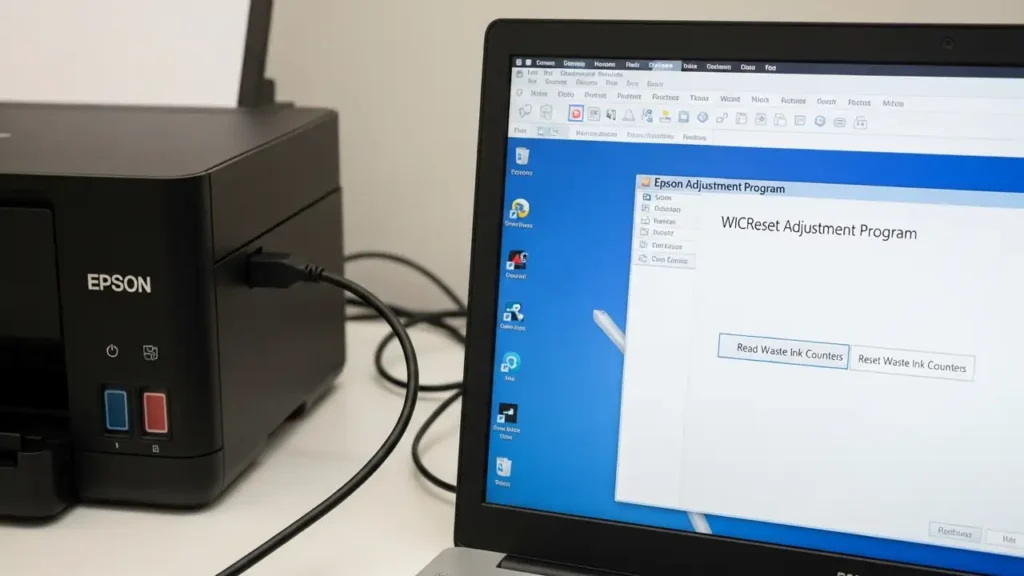
Resolving Epson service required waste ink pad Error on EcoTank
When your Epson EcoTank printer displays a “Service required” alert, it usually indicates that the internal Epson service required waste ink pad counter has reached its preset operational limit. This warning means the absorbent pads, designed to collect surplus ink, are deemed full, and it’s more involved than simply replacing a common maintenance box. Addressing this prompt is vital for continued printer functionality and preventing potential internal ink issues.
You have two primary avenues for resolving this: engaging with official Epson support for professional repair or employing specific third-party software tools for a self-service solution. Each path involves distinct actions and carries specific implications for the device’s long-term health.
Understanding the Epson service required waste ink pad Message
The “Service required” message on an Epson EcoTank printer directly points to the waste ink pads, which are crucial components. These specialized pads effectively capture and retain excess ink produced during routine print head cleaning cycles and regular printing operations. Over time, these pads become saturated. A dedicated internal counter tracks their absorption capacity. Once this counter registers that its limit has been met, the printer ceases operation to prevent messy ink overflows and potential internal damage to sensitive components. This alert is fundamentally different from a notification to replace an external maintenance box. Moreover, the message can imply that other internal printer components might also be nearing the end of their useful operational lifespan, suggesting a more comprehensive review might be beneficial.
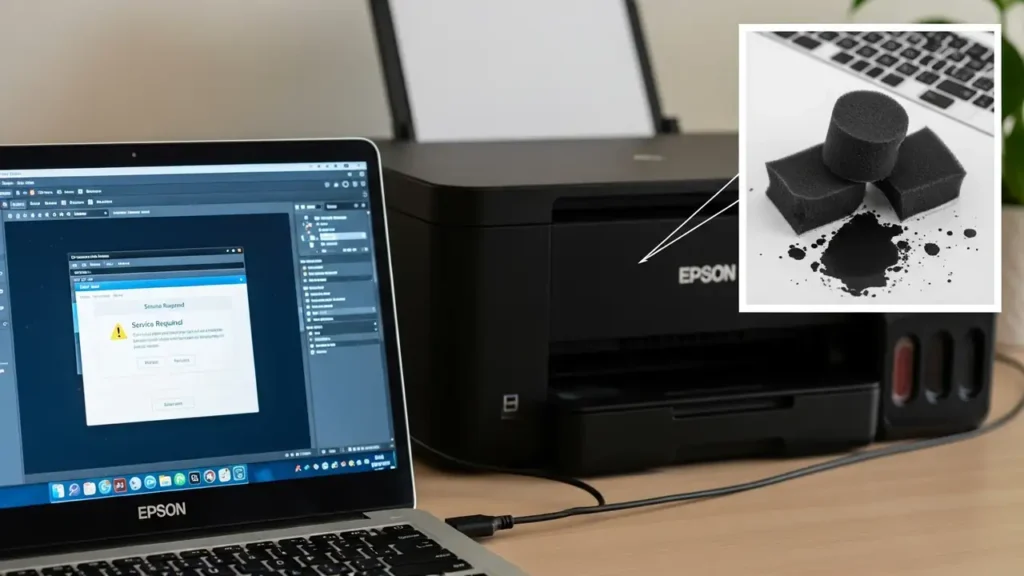
Official Resolution for the Epson service required waste ink pad
Epson strongly advises users to contact their official customer service department or a certified technician when this critical service message appears. This recommended action involves having the waste ink pads physically replaced, along with a proper reset of the printer’s internal counter, all performed by a qualified professional. This comprehensive service aims not only to replace the saturated pads but also to assess the general wear and tear on other components, thereby ensuring the device’s overall proper and reliable operation. Opting for professional service often provides peace of mind regarding the repair quality and the longevity of the fix.
- Engage Epson Support: Begin by reaching out to Epson’s customer service for direct assistance. They can provide specific guidance on how to arrange for a suitable repair service tailored to your location and printer model.
- Explore Service Programs: For example, customers in Canada can access Epson’s specialized, low-cost ink pad replacement service. This convenient offering often includes comprehensive round-trip shipping and all necessary packaging directly to and from Epson’s designated service centers, simplifying the repair process significantly.
DIY Software for epson waste ink pad reset software
For individuals who prefer to address the issue themselves, certain third-party software tools can effectively reset the waste ink counter. Programs such as WICReset (WIC Waste Ink Counter Reset Utility) or the Epson Adjustment Program are specifically designed for this purpose. While these applications allow for immediate restoration of printer functionality, it is absolutely crucial to physically clean or replace the saturated waste ink pads after performing the digital counter reset. Failing to address this physical aspect can lead to significant ink spills and potentially irreversible damage to your device over time. Be aware that this specialized software may require a paid reset key for activation.
Steps to Reset the Epson service required waste ink pad Counter with Software
- Acquire Software: Obtain a compatible reset program for your specific printer model, such as WICReset or the Epson Adjustment Program. This software may require purchasing a reset key to enable its full functionality.
- Connect Printer: Ensure your printer is directly connected to your computer via a USB cable. Wireless (Wi-Fi) or wired (Ethernet) network connections are typically not suitable or supported for this specific reset process.
- Run Program: Launch the downloaded software on your computer and carefully select your Epson printer model from the available options within the application interface.
- Access Counter: Navigate to the “Waste ink pad counter” section or a similar option within the software’s settings menu. This is where the usage data is stored.
- Check and Reset: Click the “Check” option to view the current waste ink pad level or usage percentage. Afterward, proceed by clicking “Initialization” or “Reset” to clear the counter back to zero.
- Power Cycle: To finalize the reset, turn off your printer completely. Wait a few seconds, then power it back on. This action allows the printer to recognize the newly reset counter.
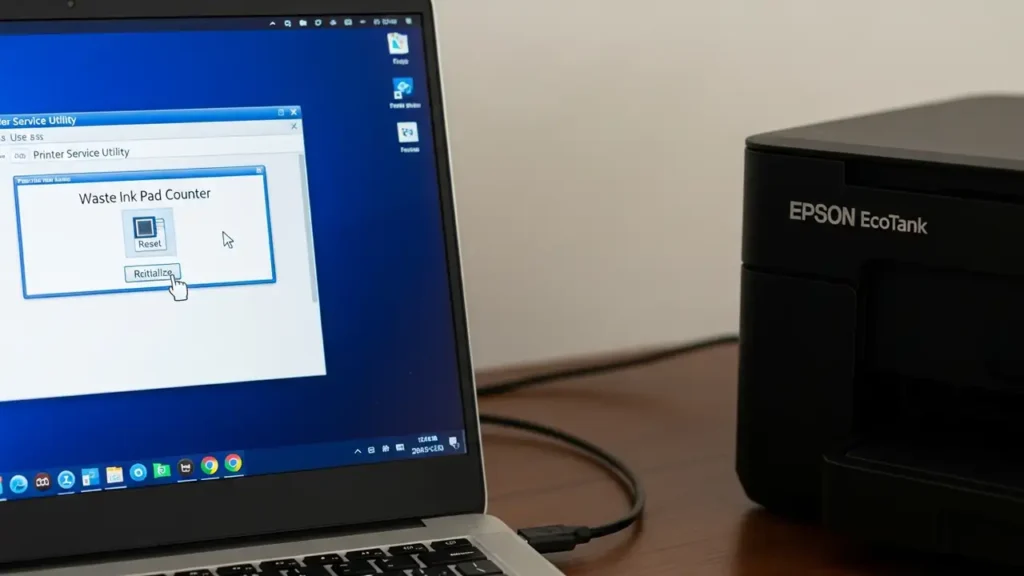
Important Considerations and Prevention
Relying solely on software to reset the counter without physically attending to the waste ink pads is a critical oversight and constitutes only a temporary fix. The “Service required” alert serves as a genuine and important indicator that a core component has reached its capacity. Disregarding the physical state of the pads after a software reset effectively bypasses the printer’s inherent safety mechanisms. This significantly increases the risk of internal ink leaks, which can damage delicate electronic components within the printer or create considerable mess. Prioritizing physical maintenance immediately following a software reset is paramount for the long-term health and safe operation of your printer, preventing the very issues the Epson service required waste ink pad warning aims to avert. Proactive and proper maintenance can save considerable trouble and expense.
Frequently Asked Questions
Promptly addressing the “Service required” message is fundamentally important for the sustained performance and longevity of your Epson EcoTank printer. Whether you choose to utilize Epson’s professional service or opt for a DIY software-based counter reset, it is crucial to remember that the physical condition of the Epson service required waste ink pad remains the ultimate concern. Ensuring proper maintenance ensures your printer continues to operate reliably, preventing potential damage and avoiding more significant repair costs and inconvenience in the future.