

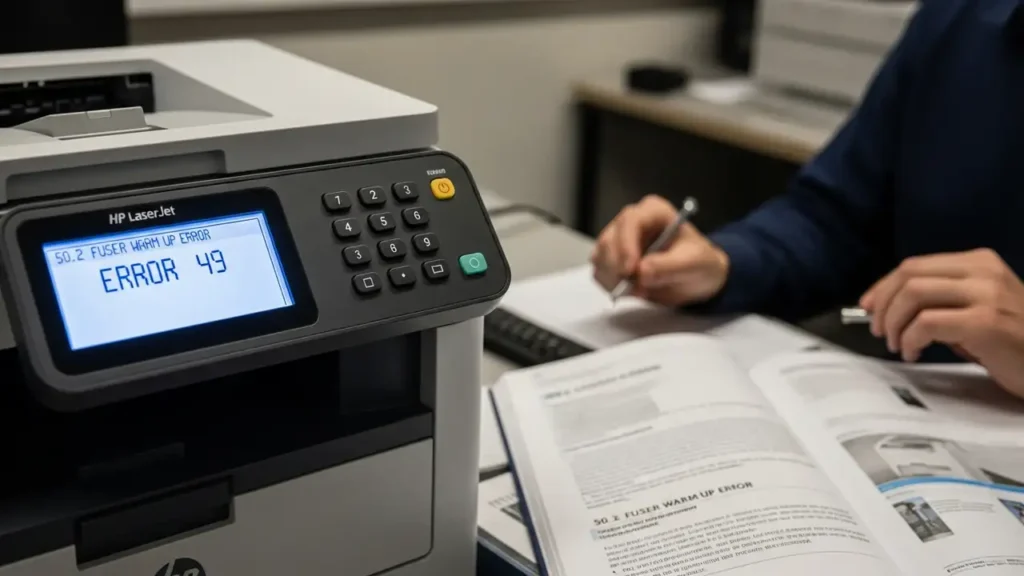
Resolve HP LaserJet 49 error fix and Fuser Issues
Addressing common operational faults in your HP LaserJet printer often involves specific troubleshooting methods. Errors like the HP LaserJet 49 error fix (identified as a firmware crash) or the “50.2 fuser warm up” message are frequent occurrences that can halt printing. These alerts point to distinct underlying problems, ranging from digital communication glitches to issues with critical heating components. Successfully resolving these problems requires a methodical approach, beginning with basic resets and progressing to more involved checks.
This guide provides targeted instructions to diagnose and rectify these common printer messages. By following the outlined steps, you can systematically investigate the cause of each error and apply the necessary remedies to get your device back online. Understanding the specific nature of each problem is the first step towards an effective HP LaserJet 49 error fix or a resolution for fuser-related complications.
Addressing the HP LaserJet 49 error fix (Firmware Crash)
The “49.x” series of errors typically signals a firmware crash, which occurs when the printer encounters a command it cannot process or attempts to handle a corrupted file. This can disrupt normal operations, leading to the device becoming unresponsive. Initiating simple resets and isolating potential external interferences are key first steps.
- Perform a Basic Device Reset
Begin by powering off your printer completely. Disconnect the power cord from the electrical outlet. Allow at least 30 seconds for any residual power to discharge from the unit. After this brief waiting period, plug the power cord back in and power on the printer. This simple cycle can sometimes clear temporary glitches causing the HP LaserJet 49 error fix. - Isolate Connectivity to Identify Root Cause
If the firmware error persists after a basic reset, the problem might stem from incoming data or a driver conflict. Disconnect all network and USB cables from the printer. Power the printer off, then on again. Observe if the printer now transitions into a “Ready” state without any connected devices. If it does, the issue likely originates from a pending print job on a computer or a corrupted printer driver attempting to send data.
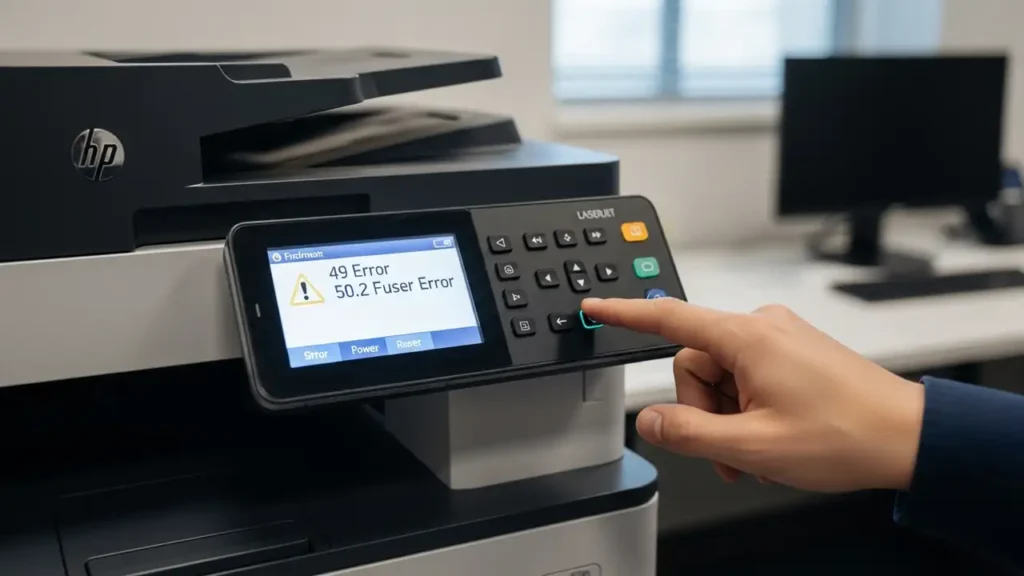
Software Solutions for HP LaserJet 49 error fix
If disconnecting external cables allows the printer to reach a “Ready” state, the next steps focus on resolving software or communication-related problems. These actions aim to eliminate potential sources of corrupted data or misunderstood commands.
- Clear All Pending Print Jobs
On your computer, access the print queue and cancel or delete any documents awaiting printing. A corrupted file stuck in the queue can repeatedly trigger the HP LaserJet 49 error fix as the printer attempts to process it. Ensure the queue is entirely empty before proceeding. - Update Device Firmware
Visit the official HP website for your specific printer model. Locate and download the latest firmware update available. Installing current firmware can resolve known communication bugs and improve the printer’s ability to interpret various print commands. Follow the instructions provided by HP for a successful firmware installation. - Experiment with Alternative Printer Drivers
Sometimes, a specific printer driver can contribute to communication errors. If you are using a Universal Print Driver (UPD), try switching to a PCL 6 driver instead. Install the alternative driver from the official HP support site. Using a different driver often resolves compatibility issues that might lead to the firmware crash. This step is a critical part of a thorough HP LaserJet 49 error fix strategy.
Resolving the HP 50.2 Fuser Preheat Issue
The “50.2” error code indicates a problem with the fuser unit, specifically that it is not reaching its optimal operating temperature in the expected timeframe or is not receiving adequate power. The fuser is a critical component responsible for bonding toner to paper through heat and pressure.
- Direct Power Source Check (Crucial for Fuser Function)
A common cause for fuser preheat errors is insufficient power delivery. Ensure your printer is plugged directly into a wall outlet. Avoid using power strips, surge protectors, or uninterruptible power supplies (UPS). These devices can restrict the amount of power the printer draws, preventing the fuser from heating up quickly enough to meet operational requirements. Direct connection to a wall outlet is essential for proper fuser heating. - Comprehensive Power Reset for Electrical Discharge
Turn off the printer and completely unplug its power cord from the wall outlet. To ensure the power supply is fully discharged, wait for approximately 30 minutes. This extended waiting period allows internal components to cool down and power to dissipate, which can sometimes reset internal sensors or power delivery mechanisms. After 30 minutes, plug the power cord directly back into a wall outlet and power on the printer. - Physical Fuser Unit Reinstallation
If accessible, carefully remove the fuser unit from the printer. Refer to your printer’s manual for precise instructions on how to do this. Once removed, visually inspect the unit and its connectors for any visible damage or debris. Reinstall the fuser unit, making sure it is securely seated and all connectors are properly engaged. A loose connection can prevent the fuser from receiving power and heating correctly.
When to Replace the Fuser Unit
If the “50.2” error persists even after ensuring the printer is plugged directly into a wall outlet and you have performed the power resets and reinstallation steps, the heating element within the fuser unit is likely defective. The fuser unit is a maintenance consumable part and will need to be replaced. Consult your printer’s documentation or an authorized service provider for the correct replacement part and installation procedure.
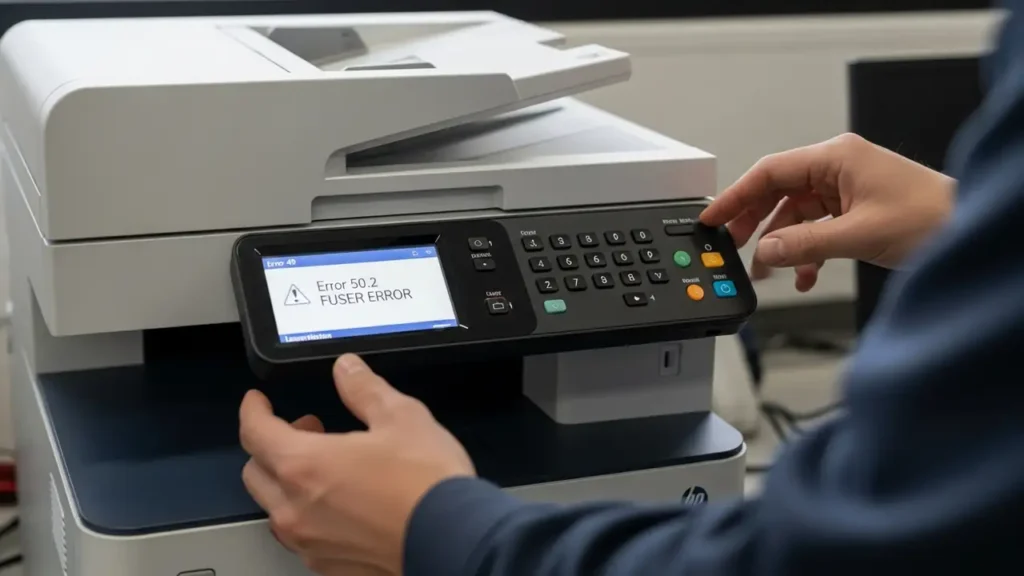
Safety & Service Considerations
When troubleshooting printer issues, particularly those involving internal components, always power off the device and unplug it from the electrical outlet to prevent electrical shock. Avoid touching sensitive internal parts unless specifically instructed and familiar with the procedure. If you are uncertain about any step or suspect deeper hardware damage, it is advisable to contact a qualified technician or HP support. Attempting repairs beyond your comfort level could void your warranty or cause further damage.
Frequently Asked Questions
Addressing the HP LaserJet 49 error fix and the “50.2 fuser warm up” error involves a series of logical diagnostic and corrective actions. By methodically working through the steps outlined, from basic resets to software adjustments or power source verification, you can effectively resolve many common printer malfunctions. Always prioritize safety during troubleshooting and consider professional service if the issue remains unresolved.