

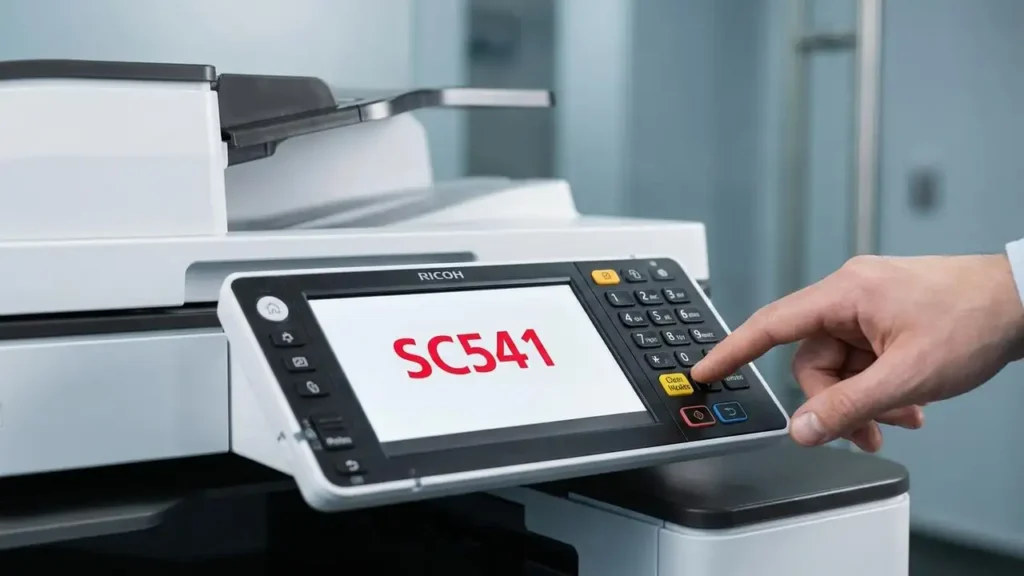
How to Perform a Ricoh Reset Error Code
Clear persistent SC fault messages on your Ricoh device and get back to printing efficiently.
Experiencing an “SC” code on your Ricoh multifunction printer or copier can halt your work, signaling an internal issue that prevents normal operation. These error codes, typically appearing as “SC” followed by a three-digit number (e.g., SC541, SC899), indicate a specific problem within the device’s hardware or software. Understanding how to perform a Ricoh reset error code procedure is a crucial first step for many users before calling a technician.
While an SC code might seem daunting, many common issues can be resolved with a simple reset sequence. This guide will walk you through the standard methods for initiating a Ricoh reset error code on various models, from those with physical keypads to newer devices featuring Smart Operation Panels. Always remember that a successful reset clears the fault, but if the error returns, it often points to an underlying component issue that needs professional attention.
Understanding Ricoh Error Codes and Their Nature
Ricoh Service Codes (SC codes) are diagnostic messages designed to help identify problems within the printer’s various systems. These can range from minor sensor discrepancies to significant hardware failures. For example, codes in the SC5xx range often relate to the fuser unit, while SC8xx codes might point to system or communication issues.
Performing a Ricoh reset error code often involves accessing a hidden Service Mode, also known as SP Mode. This special diagnostic menu allows users or technicians to clear stored error flags, initiate specific tests, or adjust settings that are not accessible during normal operation. It’s a powerful tool, but it should be used carefully and exactly as instructed to avoid unintended changes to your device’s configuration.
Standard Method to Reset Ricoh Error Code on Keypad Models
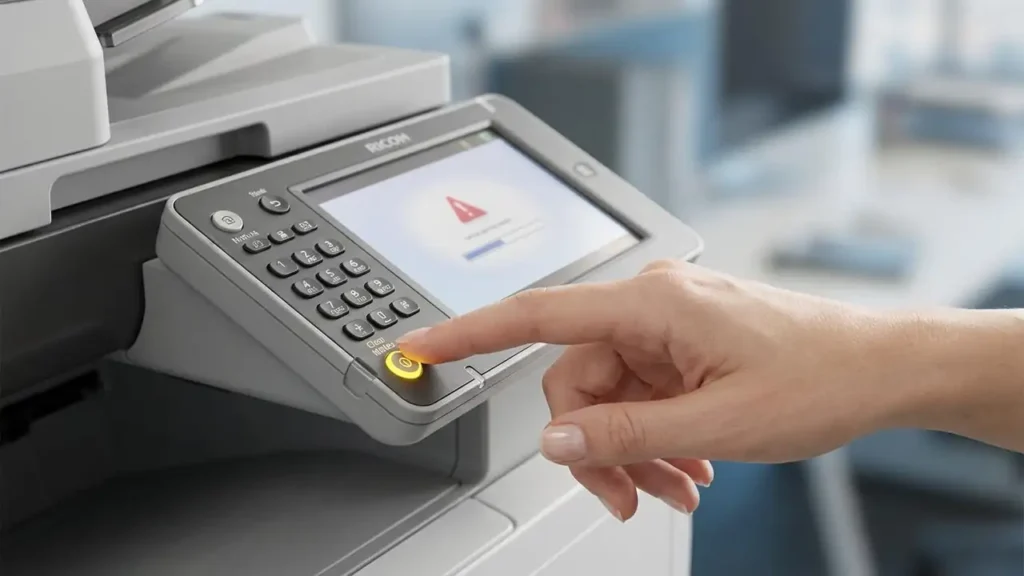
For many traditional Ricoh devices equipped with a physical numeric keypad, the process to perform a Ricoh reset error code involves a specific button sequence to enter Service Mode. This is the most common method for older and mid-range models. It allows access to the SP 5-810 code, which is specifically for SC resets.
Follow these steps carefully:
- Press the Yellow Clear Modes Key: Locate and press the dedicated yellow [Clear Modes] key on your control panel. This clears any active selections or job settings.
- Enter Service Mode Code: Immediately after pressing [Clear Modes], enter the sequence 1, 0, 7 using the physical numeric keypad.
- Activate Service Mode: Press and hold the red [Stop] (or Clear/Stop) key for approximately 5 seconds. The screen will change, indicating you have entered Service Mode (SP Mode). Release the key once the display changes.
- Navigate to System SP: On the touchscreen, select [System SP] or [Copy SP], depending on your model’s menu layout. This grants access to the system-level service programs.
- Enter SC Reset Code: Using the on-screen keypad or by navigating through the menus, enter the code 5810. This code specifically corresponds to the “SC Reset” function. Alternatively, you can browse to SP 5-810.
- Execute the Reset: Press the [Execute] button on the touchscreen. This action will clear the current SC error code from the system’s memory.
- Power Cycle the Device: Turn the Ricoh device completely off using its main power switch, usually located on the side or back. Wait for at least 10 seconds, then turn it back on. The machine should now boot up without the error code.
Resetting Ricoh Error Codes on Smart Operation Panel Models
Newer Ricoh devices often feature a large, tablet-like Smart Operation Panel (SOP) with no physical numeric keypad. The method to enter Service Mode on these models is slightly different, though the subsequent steps for performing the Ricoh reset error code remain similar. This ensures consistency for the critical reset function.
Here’s how to proceed:
- Initiate Entry: Press the [Reset] button, which is typically a yellow physical button located on the side of the control panel or an icon on the screen itself.
- Enter SOP Service Code: Immediately after pressing [Reset], enter the sequence 8-0-6-1-8-2 using the on-screen numeric keypad that appears.
- Activate Service Mode: Press and hold the [C] (Clear) button (either physical or on-screen) for approximately 5 seconds until the display changes to indicate Service Mode.
- Follow Previous Steps: Once in Service Mode, proceed with steps 4 through 7 from the “Standard Method” section above. You will select [System SP], enter 5810 (SC Reset), press [Execute], and then power cycle your device.
Addressing Common Ricoh Error Code Scenarios
While a Ricoh reset error code can clear a fault, understanding the common types of SC codes can help diagnose recurring issues. Some errors indicate underlying hardware problems that require more than just a reset. Knowing these can prevent further damage or repeated failures.
- SC541 to SC554 (Fuser Errors): These codes typically point to issues with the fuser unit’s temperature regulation. If the error returns immediately after a reset, it strongly suggests a problem with the fuser’s thermistor, heating lamp, or thermal fuse. Resetting these only temporarily clears the symptom; the faulty component often needs replacement.
- SC899 (Software Error): This code signifies a general software or firmware issue. If you encounter an SC899, turn off the machine, disconnect any network cables, and then restart. After it boots, clear any pending print jobs on all connected computers before reconnecting the network cable. If the error persists, a firmware update or a more comprehensive system check might be necessary.
- SC501 to SC504 (Paper Tray Errors): These codes indicate a problem with a specific paper tray. For example, SC501 refers to Tray 1, SC502 to Tray 2, and so on. Check the indicated tray for any jammed paper that isn’t immediately visible, or for sensors that might be obstructed. Ensure the tray is correctly seated and that the paper guides are properly adjusted for the paper size.
Important Safety and When to Call a Technician
Attempting a Ricoh reset error code is generally safe, but any further troubleshooting that involves opening the device can pose risks. Always unplug the printer from the power source before attempting to remove covers or inspect internal components. Avoid touching components like the fuser unit (which can be extremely hot) or the photoconductive drum (which is sensitive to light and physical contact).
Be aware that opening your printer or attempting repairs beyond simple resets might void your warranty. If the error code returns immediately after a reset, or if you’re uncomfortable performing any of the steps, it’s a clear sign to stop. Persistent errors usually indicate a failing hardware component that needs professional repair or replacement to prevent further damage or potential safety hazards. Contact an authorized Ricoh service center for expert assistance.
Common questions about fixing Ricoh Error Codes
Successfully performing a Ricoh reset error code can quickly resolve many common issues, getting your device back up and running. By following the correct sequences for your specific model and understanding the nature of different SC codes, you can often save time and avoid unnecessary service calls. Remember, always prioritize safety and consult a professional if the problem proves persistent or complex.