

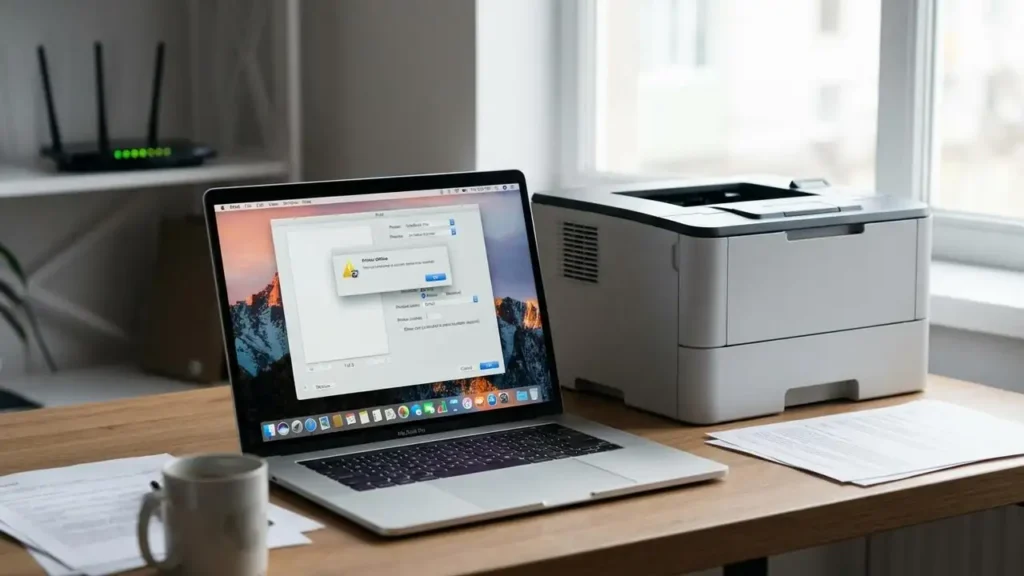
Fix Your AirPrint printer offline in macOS Sequoia
If your wireless laser printer is displaying as AirPrint printer offline within macOS Sequoia, this guide provides targeted solutions. The issue often stems from new network security protocols introduced in the operating system update or existing print queue corruption. Restoring consistent connectivity to your printing device is achievable through specific adjustments.
Upon updating to macOS Sequoia, many users encounter situations where their previously functional wireless laser printer suddenly becomes unresponsive. This problem, frequently manifesting as a status message indicating the AirPrint printer offline, can disrupt workflow significantly. The core reasons typically involve tighter local network access controls or issues within the system’s printing components. Understanding these potential conflicts is the first step toward resolution.
Initial Checks for an AirPrint Printer Offline State
Before diving into deeper system configurations, perform fundamental network and device restarts. These actions can often resolve temporary communication glitches that might cause your AirPrint printer offline message.
- Full Device Restart Sequence: Begin by completely shutting down your Mac. Next, power off your wireless laser printer. Finally, turn off your Wi-Fi router. Allow a few moments, then power them back on in the reverse order: router first, then the printer, and finally your Mac. This sequence helps re-establish network addresses and connections cleanly.
- Verify Network Connection Consistency: Confirm that both your Mac and the wireless laser printer are connected to the exact same Wi-Fi network. Avoid scenarios where your Mac might be on a “Guest” network, which often isolates devices, or if one device is connected to a 5GHz band while the other (especially many printers) is restricted to a 2.4GHz band. Ensure they reside within the same local network segment.
Adjust Local Network Permissions in Sequoia
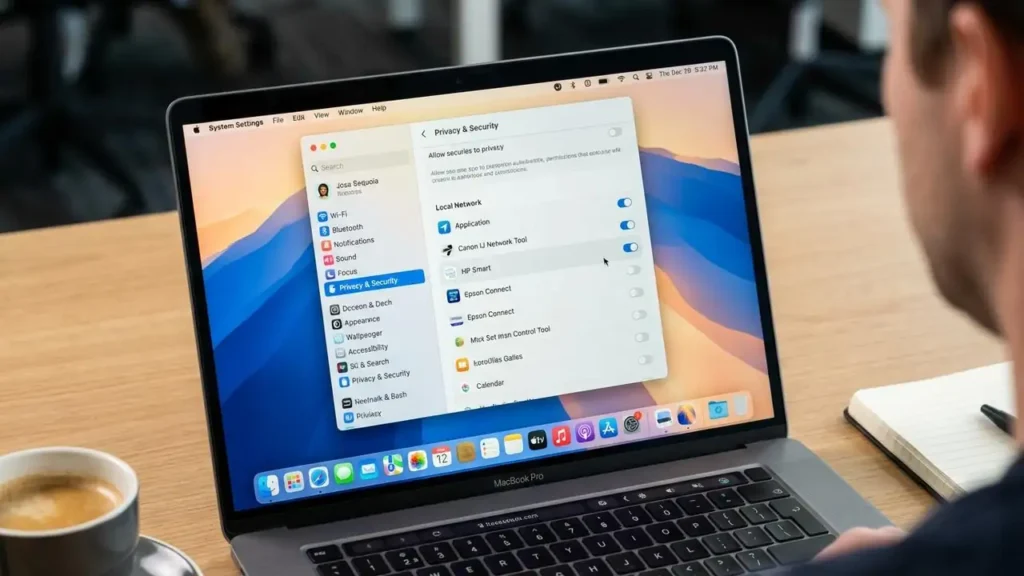
macOS Sequoia introduced enhanced privacy and security settings, which can inadvertently block printing software from communicating with network devices. If your AirPrint printer offline status persists, checking these permissions is crucial.
- Access System Settings: Navigate to the Apple menu located in the top-left corner of your screen. From the dropdown, select “System Settings.”
- Locate Privacy & Security: In the sidebar of the System Settings window, scroll down and click on “Privacy & Security.”
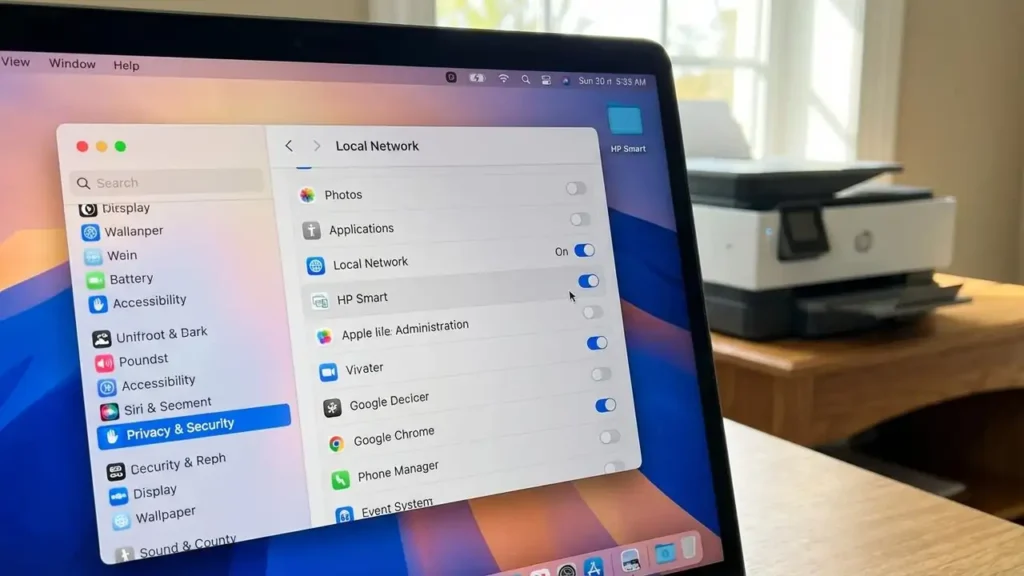
- Configure Local Network Access: Within the “Privacy & Security” section, find and click on “Local Network.” This area lists applications and processes requesting access to your local network.
- Enable Printer Software Permissions: Review the list of applications and processes. Ensure that the toggle switch is turned on for your specific printing software. This might include applications like “HP Smart,” “Canon,” or system processes such as “rastertoescpll,” depending on your printer’s manufacturer and drivers. Granting this permission allows the software to discover and communicate with your AirPrint printer offline device.
Resetting macOS Printing System
A corrupted print queue or conflicting printer configurations can frequently lead to a persistent AirPrint printer offline status. Resetting the entire printing system is a powerful troubleshooting step, though it requires re-adding all your printers afterward.
- Open Printers & Scanners: Go back to “System Settings” from the Apple menu. In the sidebar, select “Printers & Scanners.”
- Initiate System Reset: In the printer list displayed on the right side of the window, control-click (or right-click) anywhere within the empty space or on an existing printer entry.
- Confirm Reset Action: From the contextual menu that appears, choose “Reset printing system.” A warning will appear, notifying you that this action will remove all printers from your list. Confirm your decision by providing your password when prompted.
- Re-add Printers: After the reset, your printer list will be empty. Click the “Add a printer, scanner, or fax machine” button (represented by a “+” icon) to begin reinstalling your devices.
Re-add Your AirPrint Printer Offline via AirPrint
When re-adding your wireless laser printer after a system reset, prioritize using AirPrint if your device supports it. Manufacturer-specific drivers can sometimes lag in compatibility updates for new macOS versions like Sequoia, making AirPrint a more stable alternative for your AirPrint printer offline issue.
- Select Your Printer Model: During the printer re-installation process (after clicking the “+” button), your Mac should detect available printers on the network. Select your specific wireless laser printer model from the list.
- Choose AirPrint for Driver Selection: In the subsequent setup window, there will be a “Use” drop-down menu. Instead of selecting a specific manufacturer’s driver name (e.g., “HP LaserJet Driver”), choose “AirPrint.” This instructs macOS to use its built-in, universal print technology, which often provides more reliable connectivity.
Configure a Static IP Address
Dynamic Host Configuration Protocol (DHCP) assigns IP addresses to devices on a network, and these addresses can change periodically. If your printer’s IP address changes without your Mac updating its connection, it can cause the AirPrint printer offline symptom. Assigning a static IP can prevent this.
- Obtain Printer’s Current IP: Print a network configuration page directly from your wireless laser printer’s control panel. This page typically lists the printer’s current IP address and other network details. Refer to your printer’s manual for instructions on how to print this page.
- Add Printer by IP Address: Return to “System Settings” > “Printers & Scanners.” Click the “Add a printer, scanner, or fax machine” button (the “+” icon).
- Enter IP Details: Select the “IP” icon (often represented by a globe) at the top of the “Add Printer” window.
- Specify Protocol: In the “Address” field, enter the static IP address you retrieved from your printer’s network configuration page. For the “Protocol,” select “Internet Printing Protocol (IPP).” This method establishes a direct, stable connection to the printer using its unchanging network address.
Safety & Prevention Notes
When performing any troubleshooting, always prioritize safety. Powering off devices before making physical checks or reconfiguring settings helps prevent damage. If you are unsure about any steps, particularly those involving network configurations, consider consulting with a network professional or your printer’s technical support. Regularly check for driver updates from your printer manufacturer, as these often include compatibility fixes for new operating system versions. Applying these updates can prevent future occurrences of your AirPrint printer offline issue.
Frequently Asked Questions about Your AirPrint Printer Offline
By systematically applying these solutions, you can effectively troubleshoot and resolve the AirPrint printer offline issue on your macOS Sequoia system. These steps address common causes from network access restrictions to print queue integrity, ensuring your wireless laser printer returns to a fully functional state.