

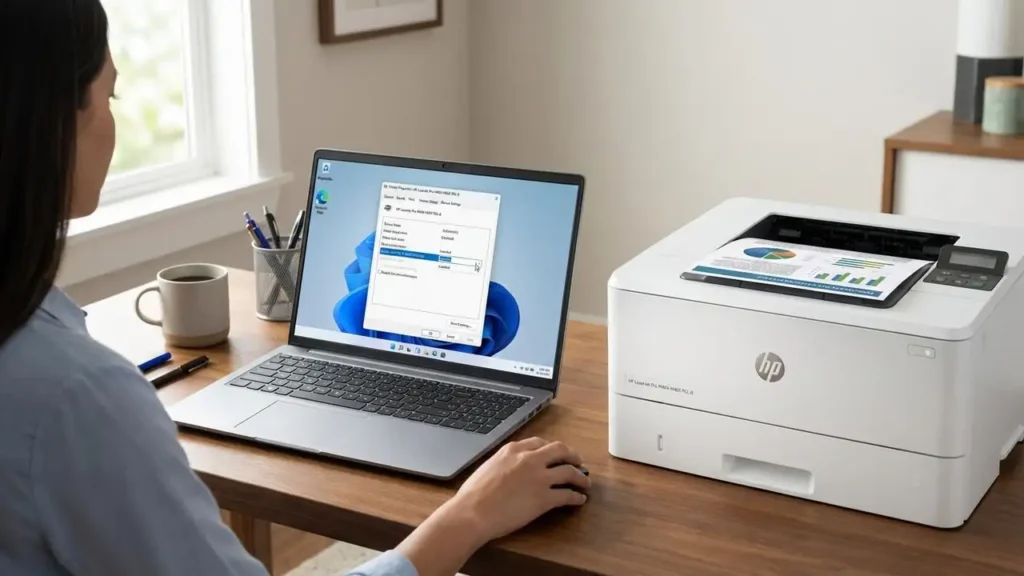
Resolve hp laser printer advanced settings missing on Windows 11
Restore advanced printing options for your HP laser device in Windows 11.
Many users operating HP laser printers on a Windows 11 system may encounter a specific issue where crucial advanced settings, such as options for duplexing or precise color management, vanish from their printer preferences. This problem often leads to a significant reduction in print quality options and control, leaving users with basic functionality. Addressing this requires a systematic approach to driver management and device configuration, ensuring the full capabilities of your hardware are accessible.
The core of the problem often lies in how Windows 11 manages printer drivers. The operating system may automatically install a basic, generic driver, such as an Internet Printing Protocol (IPP) or Web Services for Devices (WSD) driver. These generic installations inherently lack the comprehensive functionality and advanced controls present in the full-feature software packages provided by the manufacturer. Consequently, critical options like two-sided printing or detailed color settings are unavailable, giving the impression that hp laser printer advanced settings missing.
Understanding Why hp laser printer advanced settings missing
Several factors contribute to the phenomenon where hp laser printer advanced settings missing on Windows 11. One primary reason is the automatic installation of a simplified driver by the operating system, which is not designed to support intricate features. This basic driver provides only fundamental print capabilities, omitting options like duplex printing controls or specific color profiles that users expect from a full-featured HP laser device.
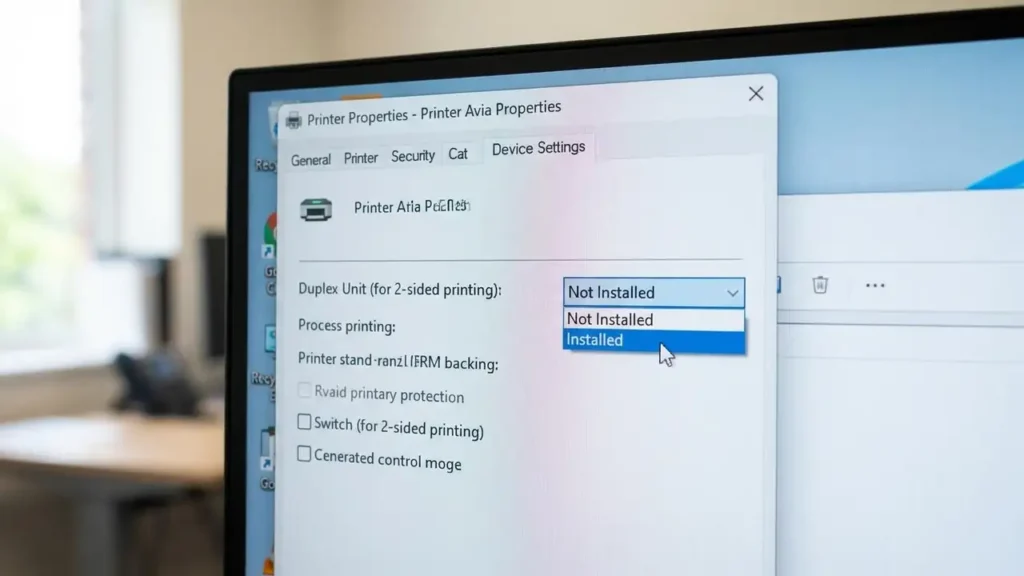
Another common trigger is driver corruption, which frequently occurs following Windows 11 updates. System updates can sometimes conflict with existing printer software, leading to a rollback of settings to a default, basic state. This can result in printer preferences not saving windows 11 or reverting to limited choices. Furthermore, issues with the HP Smart application itself can sometimes prevent the correct configuration of advanced printer settings windows 11, failing to enable the full range of print dialog options. In some instances, the device properties might incorrectly report the duplex unit as “Not Installed,” directly disabling two-sided printing features.
Initial Steps to Restore Printer Preferences
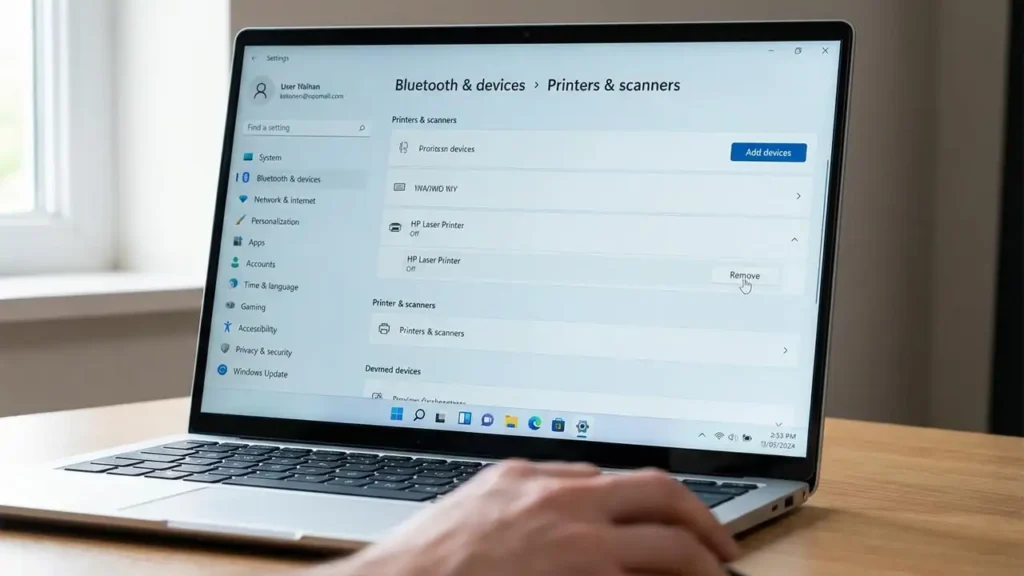
To effectively restore printer preferences and regain access to all features, a thorough removal and reinstallation process is often necessary. This ensures that any corrupted drivers or basic installations are completely replaced with the correct, full-feature software package, directly addressing the core reasons why your hp laser printer advanced settings missing. Following these steps meticulously will help in resolving most driver-related problems.
- Remove the Existing Printer Configuration: Navigate to the system settings on your Windows 11 device. Locate “Bluetooth & devices,” then proceed to “Printers & scanners.” Identify your specific HP printer from the list, select it, and choose the “Remove” option to completely detach its current installation from your system. This action clears out any problematic or generic drivers.
- Download the Full Feature Driver: Instead of allowing Windows to automatically detect and install a device driver, manually obtain the complete software package. Visit 123.hp.com using your web browser. This official source provides the full-feature driver specific to your HP laser printer, which is crucial for enabling all advanced capabilities.
- Install the Full Software Package: Once the full driver package is downloaded, run the installer. Follow the on-screen prompts to complete the installation. This process will ensure that all necessary components for advanced functionality, including settings for color and duplexing, are correctly integrated into your system.
- Restart Your Computer: After successfully installing the full software package, it is essential to restart your computer. A system restart finalizes the driver installation, ensuring that the new drivers are fully initialized and recognized by Windows 11, preventing issues like printer preferences not saving Windows 11.
Reinstalling to Fix hp laser printer advanced settings missing
A clean reinstallation using the full driver from HP’s official website is the most reliable method when your hp laser printer advanced settings missing. This process bypasses the common pitfalls of Windows automatically installing a generic driver and ensures all functionalities are enabled. The comprehensive software includes specific modules for features like enhanced color control and automatic two-sided printing, which are often absent with basic drivers. Always prioritize downloading the complete software package over relying on system defaults for optimal performance and access to all advanced capabilities.
Advanced Driver Management for Printer Features
Beyond a clean reinstallation, there are additional tools and checks that can help manage and verify your printer’s advanced capabilities. These steps are particularly useful if basic troubleshooting doesn’t fully resolve the issue of printer lost print quality options or if specific features remain unavailable after driver updates. Utilizing these resources helps maintain proper configuration and ensures full access to your printer’s feature set.
- Utilize HP Print and Scan Doctor: Download and run the HP Print and Scan Doctor tool. This diagnostic utility is designed to identify and fix common driver issues and connectivity problems with HP printers. It can automatically detect missing or corrupted driver components and attempt to repair them, which can restore advanced printer settings Windows 11.
- Check Device Properties for Duplex Unit: If two-sided (duplex) printing options are still unavailable, access your printer’s properties. Go to “Printer Properties” and then navigate to the “Device Settings” tab. Within these settings, locate the “Duplex Unit” or “Duplex Unit (for 2-sided printing)” option. Ensure that this setting is explicitly marked as “Installed.” If it is set to “Not Installed,” change it to “Installed” to enable duplex functionality. This step is critical if you find your hp print dialog options gone for two-sided printing.
Addressing Connectivity for Stable Preferences
For persistent issues related to connectivity or if advanced settings seem to revert frequently, the method of connecting your printer to your network can play a role. The default WSD (Web Services for Devices) port, while convenient, sometimes contributes to instability or a lack of full feature recognition. Considering an alternative connection method can lead to more reliable access to your printer’s full range of capabilities.
If you continue to experience problems with advanced functionality or find that printer preferences windows 11 are not consistently saved, consider configuring your HP printer to use a TCP/IP port instead of WSD. A TCP/IP port connection can provide more stable and direct communication between your Windows 11 computer and your HP laser printer. This type of connection often helps in situations where advanced printer settings windows 11 are prone to disappearing or where the printer loses its configured options over time, ensuring a more consistent user experience.
Safety and Prevention Tips
To maintain optimal printer performance and prevent future occurrences of hp laser printer advanced settings missing, always ensure that you are downloading printer drivers only from the official HP support website. Regularly checking for updated full-feature drivers is also recommended, especially after major Windows 11 updates. Before performing any driver installation or removal, it is good practice to ensure your computer has a stable internet connection. When troubleshooting, always power off and unplug the printer if instructed, and avoid touching internal components unless explicitly guided by the manufacturer’s instructions to prevent damage or voiding any warranty. If uncertain about any step, seek professional assistance.
Frequently Asked Questions About Printer Settings
Resolving the issue of hp laser printer advanced settings missing on Windows 11 primarily involves ensuring the installation of the comprehensive, full-feature driver directly from HP. By removing generic drivers, reinstalling the correct software, and verifying device-specific settings, you can restore full functionality and gain complete control over your printer’s advanced capabilities, including specific print quality options and duplexing features.