

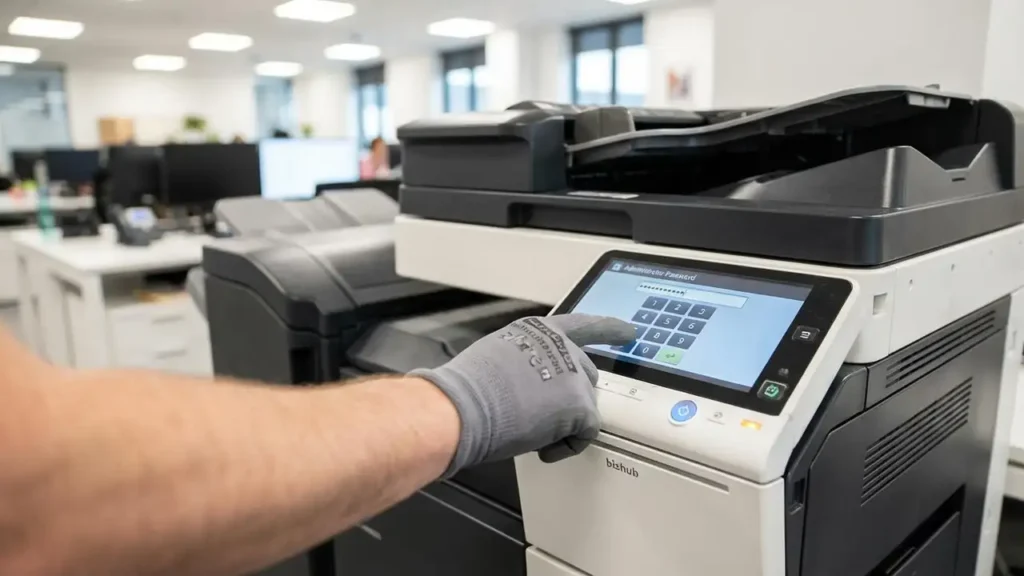
How to Reset the Konica Minolta admin password
The Konica Minolta admin password serves as the primary gateway for configuring network protocols, user permissions, and security certificates on a Bizhub device. Accessing this level of control is necessary for maintaining the Web Connection interface and ensuring the machine operates within the desired infrastructure. If the standard credentials do not grant entry, specific hardware sequences allow for a complete reset of these security parameters through the built-in system menus.
Establishing a connection to the administration panel is the first step in managing any office imaging system. Without the correct Konica Minolta admin password, technical adjustments to the IP address or scan-to-email functions remain restricted. Most machines arrive with a standardized code that allows for immediate setup, but security policies frequently require these to be modified during initial installation.
Recovering the Konica Minolta admin password via Defaults
Before pursuing advanced recovery methods, verify if the device still utilizes its original factory credentials. Use the username “admin” when prompted by the login screen on the control panel or within the Web Connection browser interface. Input the eight-digit string 12345678 as the primary attempt. If this does not resolve the lockout, the machine might require a sixteen-digit string, which is 1234567812345678.
If these default strings fail to provide access, the credentials have been modified from their original state. In such instances, the user must transition from the standard user interface to the more restricted Service Mode. This environment bypasses the standard administration login to allow for direct manipulation of the security database. If the machine belongs to a managed fleet, check with the initial setup team to see if a custom policy was applied before proceeding with a manual override.
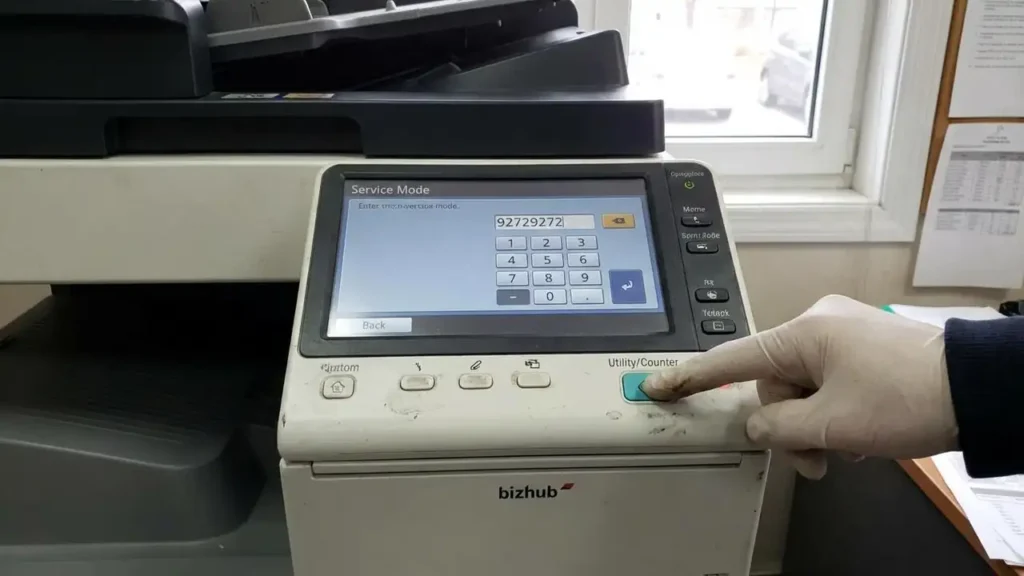
Accessing Service Mode to Reset the Konica Minolta admin password
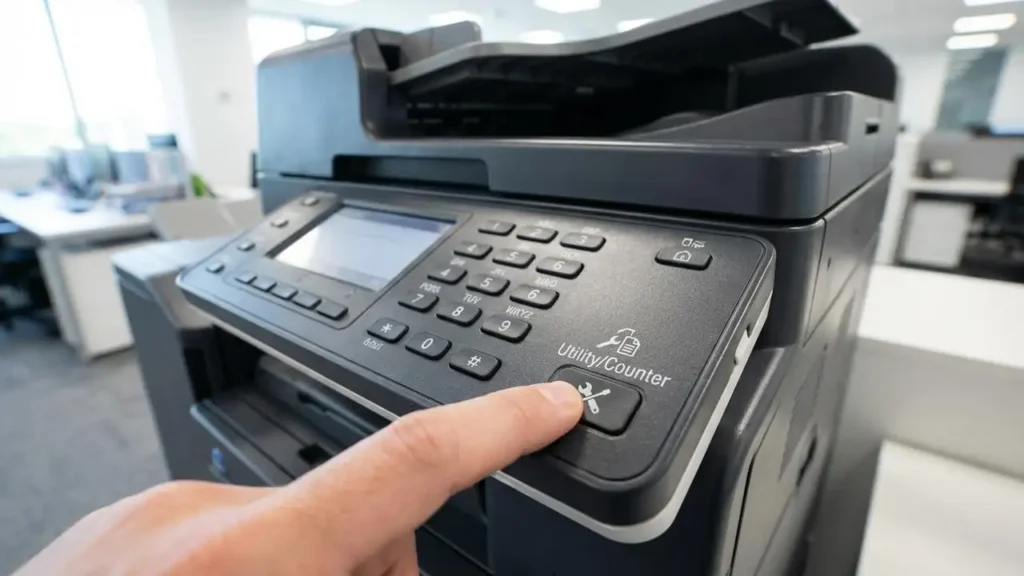
When the standard login fails, the Service Mode, also known as Technical Representative Mode, provides the necessary tools to override existing security. To begin this process, locate the Utility/Counter button on the physical control panel of the machine. Press this button to open the initial settings screen. From this menu, input the specific technical sequence: Stop, followed by 0, then 0, then Stop, then 0, and finally 1.
If this sequence is entered correctly, the machine will prompt for a technician code, frequently referred to as the CE password. The standard code for this entry is 92729272. On certain older or specific regional models, the system may require you to input 9272 four times consecutively to gain entry. Success in this step provides a deep-level menu that operates independently of the standard Konica Minolta admin password settings.
Updating the Konica Minolta admin password in Security Settings
Once the system displays the Service Mode interface, navigate through the menu tree to locate the security management options. Select the section labeled Security and then choose the sub-menu for Administrator Password. This area allows the technician to view or modify the current string used for standard administrative logins. Select the option to change the existing password and input a new numerical string that meets your organizational requirements.
After entering the new Konica Minolta admin password, the system will require a confirmation entry to ensure accuracy. Confirm the change and then exit the Service Mode by following the on-screen prompts. To ensure the new credentials propagate through the entire system architecture, perform a full power cycle. Turn off the main power switch, wait for the machine to shut down completely, and then turn it back on. This reboot finalizes the security database update and prepares the machine for a standard login using the newly created credentials.
Restoring Access to the Web Connection Interface
If the control panel is accessible but the browser-based Web Connection remains locked, the issue may involve the network security certificates. Access the machine settings through the physical panel using the administrator credentials. Navigate to the Security section and locate the PKI Settings. Within this menu, select SSL Setting to verify the current status of the encrypted connection.
Ensure that HTTPS is correctly configured, as a mismatch in SSL settings can prevent the Web Connection from loading or accepting a valid Konica Minolta admin password. If the web interface continues to reject logins despite correct credentials, resetting the password through the Service Mode method often synchronizes the login requirements for both the physical panel and the remote web portal. This synchronization ensures that a single set of credentials works across all access points.
Advanced Reset Techniques for Specific Bizhub Models
Different hardware generations within the Bizhub family may require specific sequences if the standard Service Mode entry is blocked. For those using the C3350 or C3850 series, a lockout might prevent immediate entry into the technical menus. To bypass this, go to the Menu screen and select Counter. Use the keypad to enter Stop, 0, 9, 3, 1, and 7. This specific command triggers a five-minute lock release timer, after which the security menus become accessible for modification.
On legacy hardware where software-based resets are not responsive, a physical memory reset may be required. This involves the removal of the CMOS battery from the internal control board to clear the NVRAM. Note that this method is not recommended for contemporary models and should only be performed on older units where other methods have failed. For any machine manufactured after August 2025, specific security measures may prevent these manual overrides, requiring a direct call to a Konica Minolta service representative to unlock the device using a CE-specific code.
Safety and Security Protocols for Credential Management
Before performing any actions that involve the internal components of the copier, such as memory resets, ensure the device is powered off and unplugged from the wall outlet. Touching sensitive internal circuit boards can cause static discharge damage or electrical shock. Always prioritize software-based resets through the panel before attempting hardware interventions. Be aware that unauthorized access to Service Mode may impact service agreements or warranties if settings are changed incorrectly.
To prevent future lockouts, document the new Konica Minolta admin password in a secure location accessible only to authorized IT staff. Regular updates to the machine firmware can also help maintain the integrity of the security menus and ensure that recovery sequences function as intended. If the machine is part of a high-security environment, ensure that all PKI and SSL configurations align with your local network requirements to avoid persistent Web Connection errors.
Frequently Asked Questions
Managing the Konica Minolta admin password is a critical task for any system administrator overseeing document workflows. By following the structured recovery steps from default checks to Service Mode overrides, you can restore full functionality to the machine. If the device was produced after August 2025 or remains unresponsive to these steps, contact an authorized technician to handle the final recovery process.