

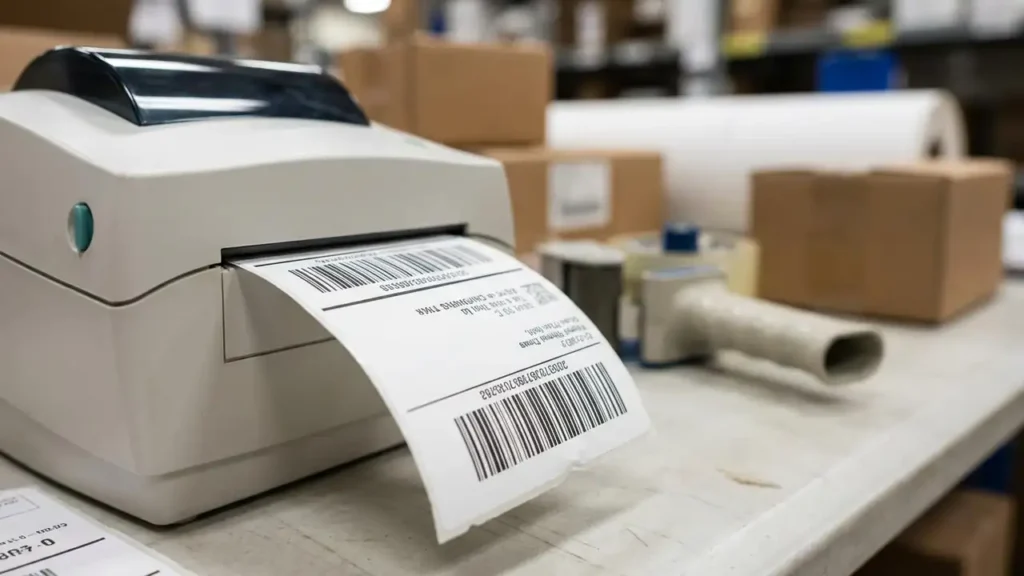
Fixing Zebra Label Misaligned Calibration for Perfect Prints
Achieve accurate label printing by resolving common misalignment problems.
Label printers, whether a Dymo labelwriter or a Zebra device, are essential tools, but encountering misaligned labels can disrupt workflow and waste materials. This guide focuses on correcting zebra label misaligned calibration and similar issues on Dymo devices, ensuring your prints are consistently placed and fully legible. Addressing calibration, driver settings, and physical alignment points will restore your printer’s accuracy.
Understanding Zebra Label Misaligned Calibration Issues
When labels print incorrectly, showing vertical shifts, horizontal errors, or skipping entirely, it points to a problem with how the printer reads or feeds the media. This often stems from an incorrect zebra label misaligned calibration or faulty settings in the printer’s software or physical setup. Proper calibration allows the device to accurately detect label gaps and lengths, while correct software settings dictate the print area’s dimensions and orientation.
- Observe Misalignment Patterns:
- Note if the print is shifted up or down, left or right, or if it rotates incorrectly.
- Confirm if the printer is skipping entire labels between prints.
- Ensure the “print area” configured for your job matches the dimensions of your physical label stock.
- Initiate Printer Calibration:
- For Zebra Printers: Hold down the feed button until it flashes once to perform a basic SmartCal. For a more comprehensive adjustment where the printer measures the gap and length, hold the feed button until it flashes twice.
- For Dymo Printers: Navigate to Control Panel, then Devices and Printers. Locate your Dymo printer, right-click, select Printing Preferences, then Advanced. Verify that the selected label size here precisely matches the labels loaded into the printer.
- Factory Reset: If initial calibration steps fail to resolve the issue, consider performing a factory reset on your printer to restore its original settings. This can often clear stubborn configuration errors impacting zebra label misaligned calibration.
Verifying Media Settings to Prevent Misalignment
Incorrect media settings are a common cause of print issues, especially for horizontal or orientation problems. The printer driver must be configured to match the physical dimensions of your labels. This synchronization is crucial for both Zebra and Dymo devices to avoid frustrating misaligned labels.
- Check Driver Settings:
- Open Control Panel, then Devices and Printers on your computer.
- Right-click on your printer and select Printing Preferences.
- Ensure the paper size setting precisely matches the label size you are using (e.g., 4×6 inches or 2×4 inches). Discrepancies here can lead to consistent horizontal shifts or improper scaling.
- Adjust Print Orientation:
- Within the printer’s driver settings (Printing Preferences), review the orientation setting.
- If your print appears rotated on the label, switch the orientation between Portrait and Landscape to correct it. This often resolves cases where text or images are partially cut off at the edges.
- Confirm Application Settings:
- The software you are using to print (such as ShipStation or DYMO Connect) also has label size configurations.
- Verify that the label size within your application’s print settings is identical to both your physical labels and the printer driver settings. Inconsistencies across these three points frequently lead to misaligned labels.
Optimizing Zebra Label Misaligned Calibration with Driver Settings
Fine-tuning your printer’s driver settings directly impacts how accurately it detects and prints on labels. Even minor discrepancies in these configurations can result in persistent zebra label misaligned calibration problems. It’s a critical step in achieving reliable print output.
Physical Checks and Maintenance for Accurate Label Printing
Beyond software settings, physical factors like sensor cleanliness and label placement significantly influence print accuracy. Neglecting these areas can lead to recurring misaligned labels regardless of calibration efforts. Regular physical checks are vital.
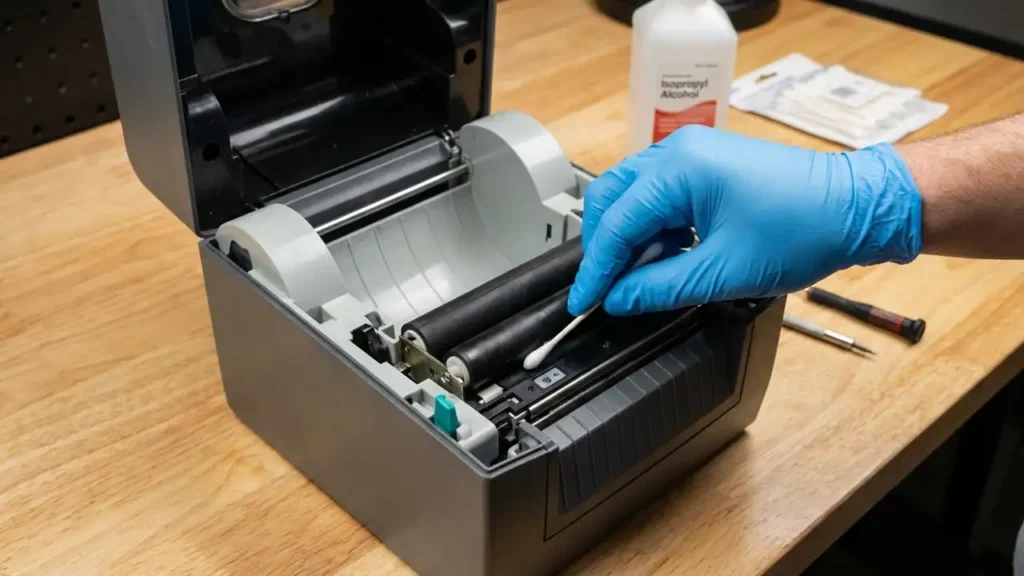
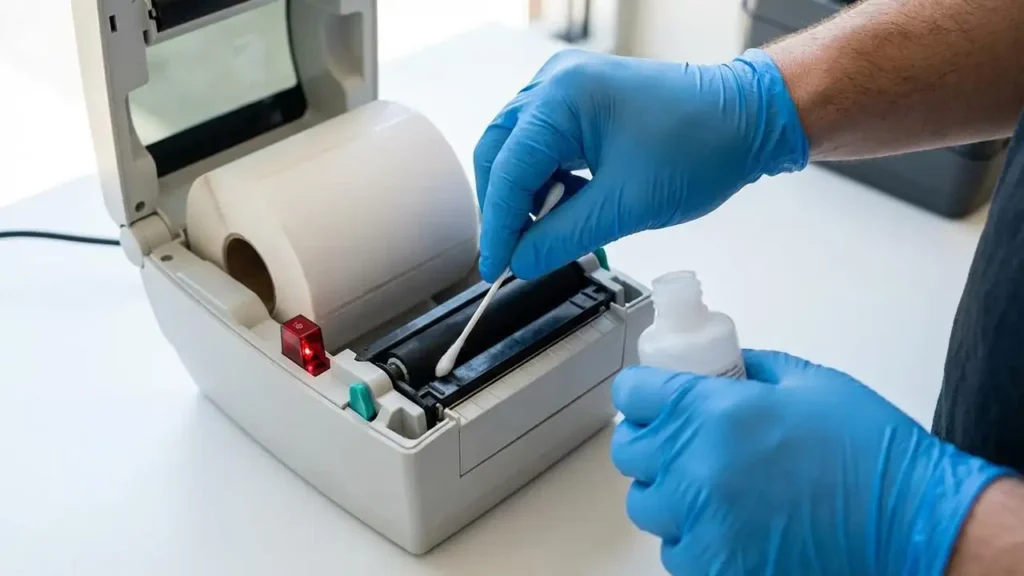
- Clean Sensors and Rollers:
- Over time, adhesive residue, dust, or other debris can accumulate on the printer’s internal sensor and platen roller. This buildup can interfere with the sensor’s ability to accurately detect label gaps, causing skipping or misalignment.
- Using isopropyl alcohol, carefully clean both the sensor and the platen roller. Ensure these components are free of obstructions for optimal performance.
- Adjust Media Guides:
- Examine the physical media guides inside your printer. These guides keep the label roll steady as it feeds through the device.
- Ensure they are snug against the sides of the label roll. If the guides are too loose, the labels can skew as they feed, leading to uneven or misaligned labels.
- Verify Zebra Sensor Position:
- For Zebra printers specifically, locate the media sensor, which typically emits a red light.
- Confirm that this sensor is positioned directly underneath the path of the labels. An incorrectly placed sensor will fail to detect the label gaps accurately, resulting in significant zebra label misaligned calibration issues.
Addressing Print Area and Label Feed Issues
Sometimes, misalignment stems from how the print job is scaled or how the label roll itself is presented to the printer. These subtle issues can override correct calibration and settings.
- Verify “Fit to Page” Settings:
- When printing, always check the print dialog box.
- Select “Actual Size” or “100%” for scaling. Avoid using “Fit to Page” or similar scaling options, as these can subtly resize the print job, causing it to appear misaligned on the label.
- Loosen Label Roll:
- If the label roll is wound too tightly, the printer may struggle to pull individual labels, leading to resistance and potential misfeeds.
- Gently loosen the roll to reduce tension, allowing for a smoother, unhindered label feed. A tight roll can exacerbate zebra label misaligned calibration issues.
- Confirm Print Area Matching:
- Double-check that the defined “print area” within your software or driver settings corresponds precisely to the size of your physical labels. An mismatch can result in partial prints or blank areas, even when other settings are correct.
By systematically working through these calibration, setting, and physical adjustment steps, you can effectively resolve most instances of misaligned labels and ensure your printer operates with precision. Consistent maintenance and careful attention to software configurations will help maintain optimal performance.