

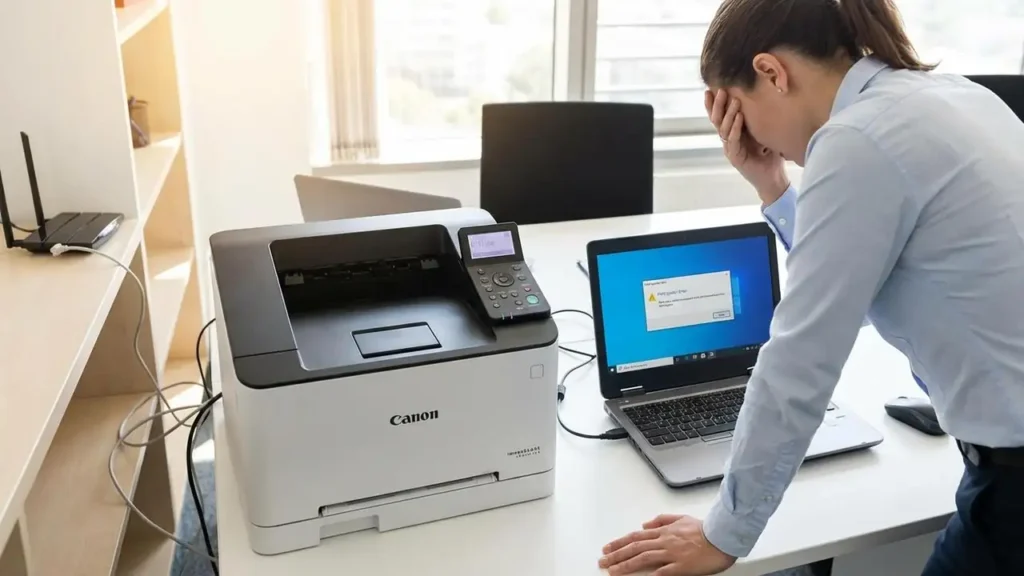
How to Resolve a Canon imageCLASS Error in Communication
The Canon imageCLASS series is a staple in professional environments, known for its speed and reliability. However, few things are as disruptive to a productive afternoon as a sudden communication failure. When you encounter a canon imageclass error related to network or PC-to-printer connectivity, the device essentially becomes an island, unable to receive the data it needs to produce documents. These errors typically manifest as a “Printer Offline” status, a “Communication Error” message on the printer’s LCD, or print jobs that simply sit in the queue indefinitely without ever processing.
Understanding the root cause is the first step toward a permanent fix. Most communication breakdowns stem from three primary areas: a stalled Windows print spooler, a network configuration mismatch, or security software that has mistakenly flagged the printer as a threat. By systematically addressing these layers of the printing environment, you can restore functionality and ensure your imageCLASS printer remains a reliable asset in your workflow.
Managing the Windows Print Spooler and Queues
One of the most frequent culprits behind a communication failure isn’t the hardware at all, but the software bridge that manages print jobs. The Windows Print Spooler is a service that temporarily stores print jobs on the computer’s hard disk until the printer is ready to process them. If a single file in this queue becomes corrupted, it acts like a digital roadblock, preventing all subsequent data from reaching the device.
Manually Restarting the Spooler Service
When the spooler hangs, restarting it often clears the “invisible” logic errors that prevent communication.
- Access Services: Press the Windows Key + R, type
services.mscinto the box, and hit Enter. - Locate the Service: Scroll through the alphabetical list until you find Print Spooler.
- Reset the Process: Right-click the entry and select Restart. This forces the service to re-initialize its connection to the hardware drivers.
Clearing Corrupted Spooler Files
Sometimes a restart isn’t enough because the corrupted temporary files remain in the system folder. To perform a deep clean, you must delete these files manually.
- Open the Spool Directory: Press Windows Key + R, type
spool, and press Enter. - Access Printers Folder: Open the subfolder named PRINTERS. If prompted for administrator permission, click Continue.
- Wipe the Queue: Select every file inside this folder and delete them. Do not worry; these are only temporary task files, not your actual documents or drivers.
For those comfortable with a more direct approach, using the Command Prompt can accomplish this faster. By opening the Command Prompt as an Administrator and running net stop spooler, followed by del %systemroot%\System32\spool\printers\ /Q, and finally net start spooler, you effectively flush the entire system in seconds.
Optimizing Network Stability and IP Configuration
If the spooler is clear but the canon imageclass error persists, the issue likely lies in how the printer identifies itself on your local network. Many modern printers use DHCP, which means the router assigns them a new IP address occasionally. If the Windows port settings are looking for the printer at “192.168.1.10” but the router has moved it to “.15,” communication will fail.
Addressing Router and Signal Conflicts
Network hardware can sometimes experience “IP conflicts” where two devices are accidentally assigned the same address. Unplugging your router for 10 seconds forces a refresh of the entire network table. Once the router is back online, check the printer’s screen to ensure it isn’t showing an “Offline” or “Disconnected” status. If the printer is on Wi-Fi, ensure there are no large metal objects or high-voltage electronics between the printer and the router that could cause signal drops.
Correcting the Printer Port Settings
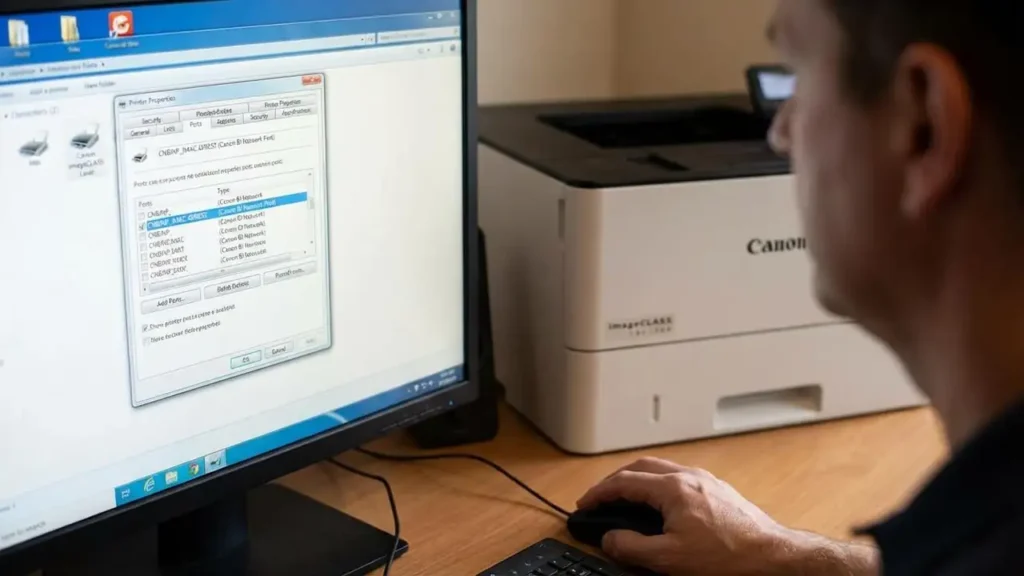
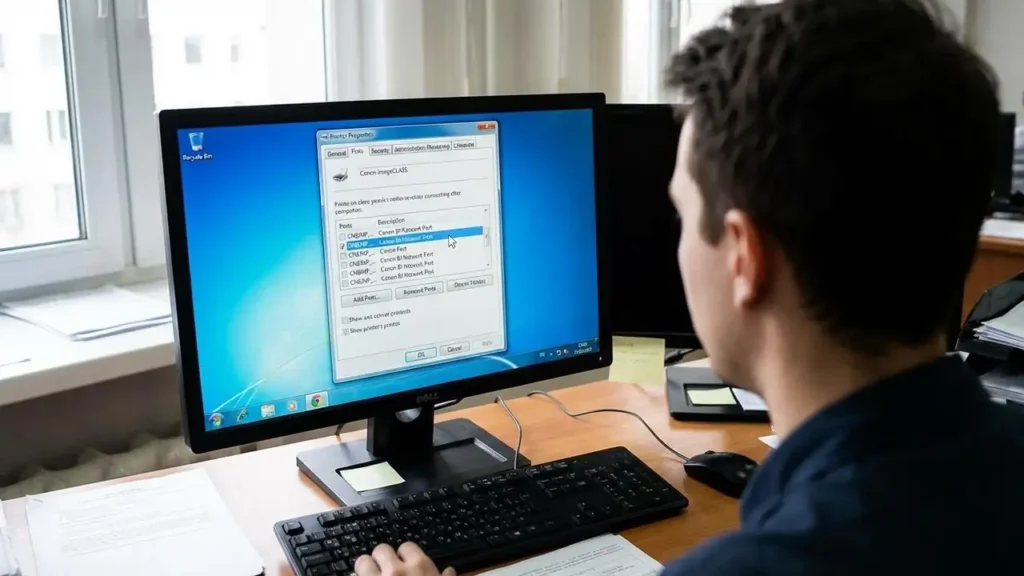
Canon printers often rely on a specific port monitor to maintain a stable connection. If your printer is set to a “WSD” (Web Services for Devices) port, it may frequently drop off the network.
- Open Devices and Printers: Navigate to the Control Panel and select Devices and Printers.
- Printer Properties: Right-click your Canon imageCLASS model and choose Printer Properties (not general Properties).
- Adjust the Port: Click the Ports tab. Look for a port labeled CNBJNP or Canon BJ Network Port. This proprietary Canon port is much more stable than standard TCP/IP or WSD ports for imageCLASS hardware. If it isn’t selected, check the box next to it and apply the changes.
Overcoming Security and Driver Barriers
Sometimes the network is fine and the spooler is active, but the data is being intercepted. This is common in environments with strict firewalls or for users who utilize a Virtual Private Network (VPN) for work.
Disabling Firewall and VPN Interference
Third-party antivirus suites often include their own firewalls that are more aggressive than the built-in Windows Defender. These can see the “incoming” status requests from a printer as a security risk. To test this, temporarily disable your firewall and attempt a test print. Similarly, a VPN creates a secure “tunnel” for your internet traffic that often bypasses the local network entirely. If you are connected to a VPN, your computer might literally be unable to “see” the printer sitting three feet away. Always disconnect from the VPN to verify if local communication is restored.
Reinstalling the Driver and Updating Firmware
If the communication link is fundamentally broken, the driver software may have become corrupted by a Windows update or a system crash.
- Uninstall the Device: Remove the printer from the Devices and Printers menu.
- Fresh Installation: Visit the official Canon support site and download the latest driver package specifically for your imageCLASS model. Reinstalling from a fresh download ensures you have the most recent patches for modern operating systems.
- Firmware Updates: Just like your computer, your printer has an internal operating system called firmware. Manufacturers release updates to fix “communication bugs” that may cause the internal NIC (Network Interface Card) to crash. Check the printer’s “System Manager” settings to see if a firmware update is available directly via the device’s screen.
Final Summary Checklist for Rapid Recovery
If you are in a rush and need a quick sequence to try and resolve the canon imageclass error, follow this hierarchy of actions:
- Power Cycle: Turn off the printer, the computer, and the router. Wait 30 seconds before turning them back on.
- Clear the Queue: Delete any stuck documents in the Windows print queue and flush the
C:\Windows\System32\spool\printersfolder. - Verify IP Matching: Print a “Network Configuration Page” from the printer’s own menu. Check the IP address listed and compare it to the IP address listed in the Port settings on your PC.
- Update Software: Ensure both the driver on the PC and the firmware on the printer are at the latest versions provided by Canon.