

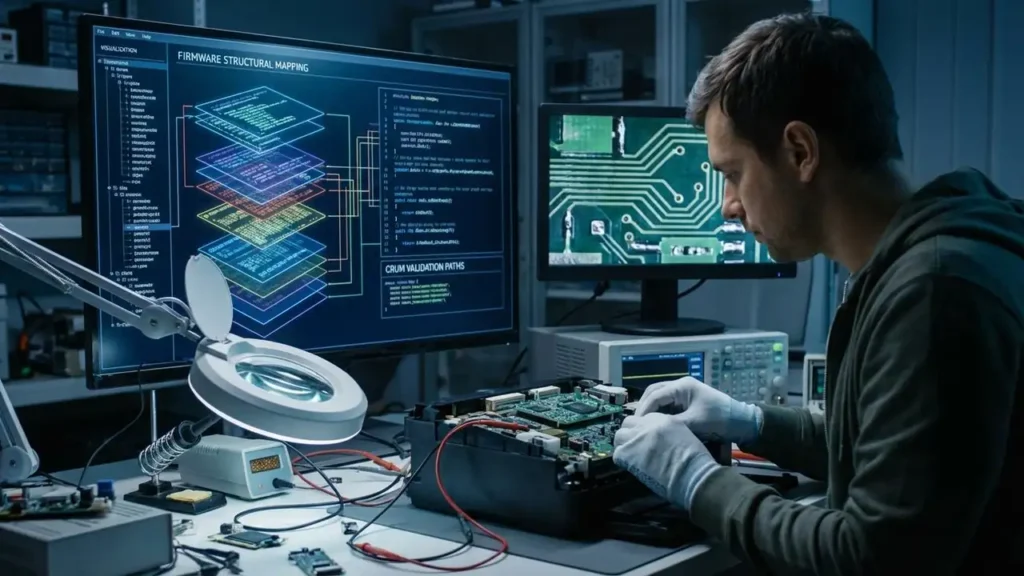
Samsung Printer Firmware Analysis
Samsung printer firmware analysis becomes much more useful once you stop treating the firmware like a plain binary that should reveal everything in a hex editor. That approach can work on older builds or on simpler models, but it often fails the moment the vendor changes the file layout, packs data differently, or moves key values into validated structures rather than leaving them as readable text.
That is why one firmware version may expose the serial number clearly while another seems almost empty, even though both files look closely related overall. The important lesson is not that the data disappeared. It is that the firmware probably changed its internal structure, and your analysis method did not change with it.
Why the firmware looks similar across versions
Printer firmware families often keep a large part of the same core logic from one release to the next. You may see long matching regions, similar file sizes, repeated headers, or recognizable patterns that make two versions look nearly identical at first glance.
That visual similarity can be misleading. A build may preserve most of its code while changing the way configuration data, validation blocks, or update metadata are stored. So yes, two files can be very similar and still behave very differently when flashed onto a device.
This matters when you compare models like the SCX-3200 and SCX-3400. Even if the update packages share a common base, they do not have to expose identifiers in the same way. One may leave the serial number in an easy-to-read section, while another may move it into a packed region, encode it differently, or rebuild it during runtime from separate values.
Why a hex editor stops helping
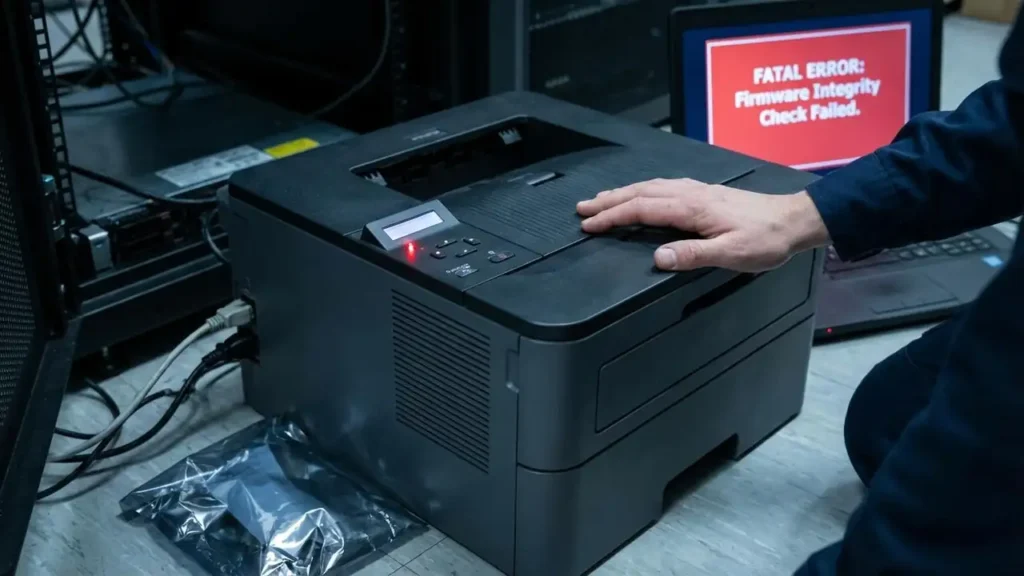
A hex editor is still useful, but only as a starting point. It helps you spot headers, repeated patterns, alignment changes, and plain-text strings when they exist. The problem is that it does not explain the structure of the blob.
That is usually why the serial number is visible in one firmware and missing in another. The second file may not be hiding less information. It may simply be storing it in a way that a raw byte viewer does not make obvious.
The same is true for the CRUM number. If it never appears as readable text, that does not automatically mean it is absent. It may be stored in a table, embedded inside a packed section, validated indirectly, or checked against device-side state during flashing or boot.
So the real limitation is not the firmware alone. It is the assumption that important values should always be visible in plain ASCII.
The better tools for Samsung printer firmware analysis
If you want to go beyond surface inspection, the first improvement is to analyze structure before content. In practical terms, that means using tools that can detect embedded sections, containers, compression boundaries, and suspicious high-entropy regions.
This is where a firmware-focused toolchain becomes much more useful than a hex editor alone. Start by extracting strings and comparing nearby versions. That often reveals model names, build paths, updater messages, and version markers even when the serial or CRUM value is not readable.
Then move to structural analysis. A firmware-aware scanner can show whether the blob contains nested files, compressed data, or extracted payloads that need to be unpacked before any serious comparison makes sense. Without that step, you may waste hours staring at a wrapper instead of the real payload.
After extraction, disassembly and decompilation tools become more valuable. Once you isolate executable sections, you can inspect validation paths, parsing routines, and version checks instead of guessing from raw bytes.
What the CRUM mismatch is really telling you
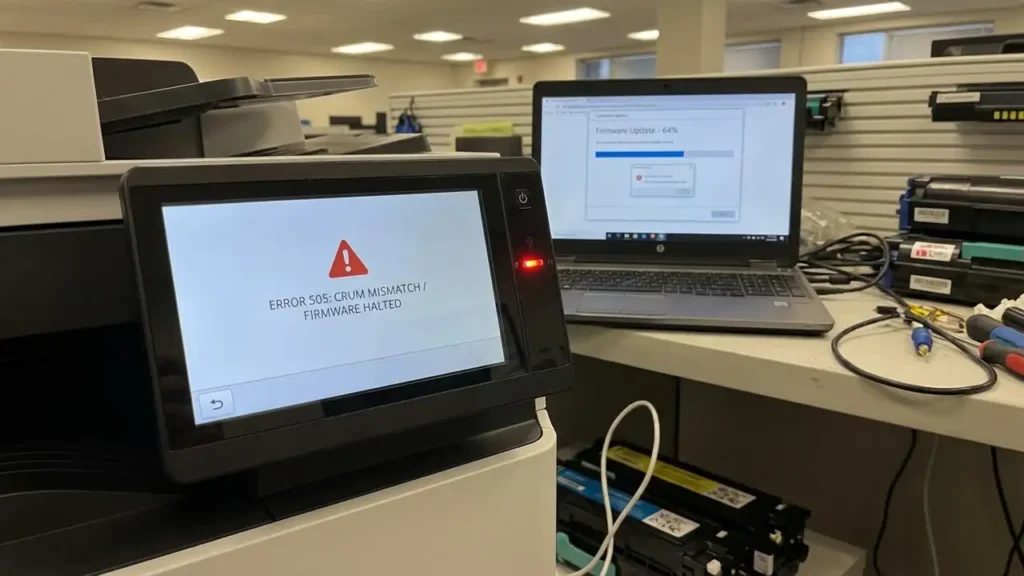
The most important clue in your description is not the missing text fields. It is the fact that flashing a firmware version with a different CRUM number causes the machine to crash.
That behavior strongly suggests the firmware is not treating the CRUM as a loose label. It is more likely part of a validation path. In other words, the value may be tied to model expectations, update metadata, device state, or another integrity check that must match before the device can continue safely.
This is why searching only for visible strings can send you in the wrong direction. If the firmware checks a derived value, a binary table, a packed metadata block, or a device-stored reference, there may be no obvious plain-text marker to find.
So the crash is not just an annoyance. It is evidence. It tells you the firmware likely contains a meaningful compatibility or validation mechanism, even if the human-readable form of that value is nowhere to be seen.
A safer way to compare firmware builds
A more reliable workflow begins with comparison discipline. Keep exact notes for each firmware version, device model, and observed behavior. Hash the files, compare close releases first, and identify which sections remain stable versus which ones move or change sharply.
Then separate the analysis into stages. First, look for plain strings and obvious markers. Second, scan the file for embedded components or compressed regions. Third, extract what can be extracted. Fourth, inspect real code or data sections rather than the whole update blob as if it were a single flat object.
This staged approach matters because many failed reverse-engineering attempts are really failed unpacking attempts. The analyst assumes the visible file is the firmware, when in reality it is only a delivery container for the firmware.
It also keeps your conclusions grounded. If one build reveals a serial number and another does not, you can test whether the difference comes from packing, layout, validation, or actual content changes instead of treating all possibilities as equal.
What to expect from the analysis
A good Samsung printer firmware analysis will not always give you an instant readable answer. Sometimes the result is simply a clearer map of the file: wrapper here, payload there, strings in one region, dense unknown data in another.
That is still progress. Once the file is mapped properly, the strange parts become easier to compare across versions. You stop asking, “Why can’t I see the CRUM?” and start asking better questions such as, “Which section changed between versions?” or “Which routine handles compatibility before flashing completes?”
That shift in method is usually what moves the work forward.
Frequently Asked Questions
A strong Samsung printer firmware analysis starts by accepting that similar-looking firmware can hide important structural differences. Once you move beyond a hex editor and focus on layout, extraction, and validation paths, the behavior of these files becomes much easier to interpret.