

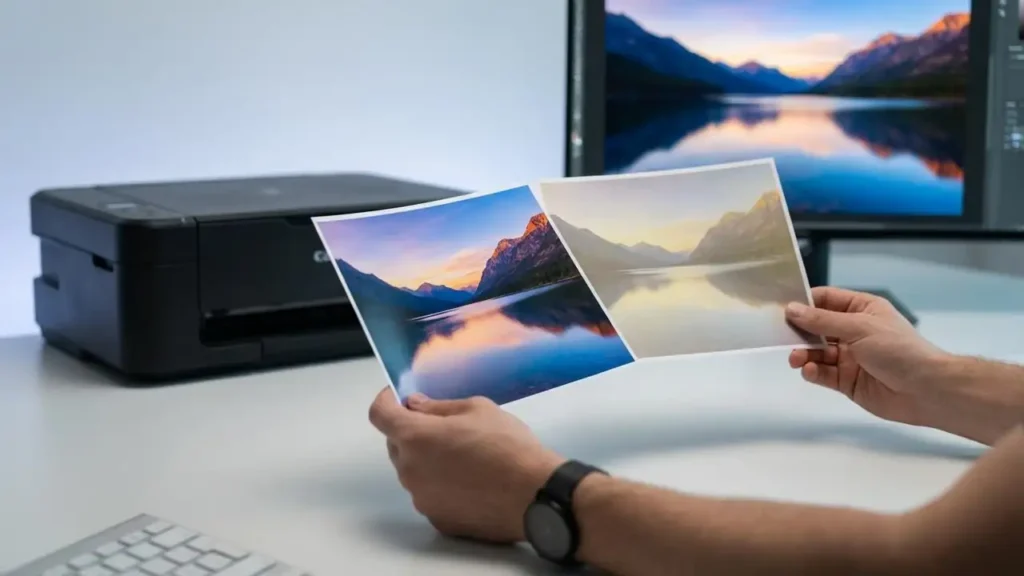
Printer Printing Faded Colors Correctly
Fix faded or wrong colors with simple, safe checks for your inkjet.
Experiencing printer printing faded colors or colors that don’t match your screen can be incredibly frustrating, especially when you need vibrant photos or professional documents. If your inkjet printer is suddenly producing dull, washed-out, or inaccurate hues, it’s a common issue that often has a straightforward solution. This guide will walk you through the most frequent culprits behind printer printing faded colors and how to resolve them without needing a technician.
Many factors can contribute to a shift in color output. It could be as simple as low ink levels or as complex as a misconfigured color profile. Understanding these possibilities is the first step toward restoring your printer’s color fidelity. We’ll cover everything from checking your ink and nozzles to ensuring your software is set up for optimal color reproduction.
Is Your Ink Really Low?
One of the most common reasons for printer printing faded colors is simply that one or more of your ink cartridges are running low or are completely empty. Modern printers often give advanced warning, but sometimes they can surprise you. Even if a color looks “okay,” a partially depleted cartridge can lead to weaker color saturation and inaccurate mixes.
Check your printer’s software utility or its display screen for ink level indicators. If any color is below 15-20%, it’s highly likely to be the source of your printing faded colors problem. Replacing the lowest cartridge, or all of them if they are old, is often the quickest fix. Ensure you are using genuine or high-quality compatible cartridges recommended for your specific printer model.

Clogged Printheads and Ink Flow Issues
Inkjet printers rely on precise nozzles within the printhead to spray ink onto the paper. Over time, these nozzles can become clogged with dried ink, dust, or debris. This blockage prevents ink from flowing correctly, leading to missing colors, banding, or, most commonly, printer printing faded colors. A clogged printhead can also affect the proper mixing of colors.
Most printer manufacturers include a printhead cleaning utility within their printer software. Running this tool can often resolve minor clogs by forcing ink through the nozzles. It’s usually a good idea to run this cycle a couple of times if the first attempt doesn’t fully fix the issue.
Running an Automated Printhead Cleaning
- Open your printer’s software or control panel on your computer.
- Navigate to the maintenance or tools section.
- Select “Print Head Cleaning” or a similar option.
- Follow the on-screen prompts, which may include printing a nozzle check pattern.
- After cleaning, print a test page to see if the printer printing faded colors problem has improved.
If the automated cleaning doesn’t work, some printers allow for a more intensive manual cleaning, but this should only be done if you are comfortable, as it can use a significant amount of ink.
Paper Type and Print Quality Settings Matter
The type of paper you use can significantly impact the vibrancy of your prints. Different paper stocks absorb ink differently. Using plain paper for photos, for instance, can cause ink to spread, leading to duller colors and less sharp detail. Conversely, using photo-grade paper with standard draft settings can also yield unexpected results.
Your printer’s driver settings play a crucial role in color reproduction. When printing, ensure you select the correct paper type that matches what you’ve loaded into the tray. Higher print quality settings (like “Best” or “Photo”) use more ink and take longer but produce significantly better color depth and accuracy compared to “Draft” or “Normal” modes. If you are facing printer printing faded colors, verify these settings.
The Importance of Color Calibration and ICC Profiles
Color management is critical for achieving accurate prints, especially if printer printing faded colors is a concern. Your monitor displays colors using light, while your printer uses ink pigments. These are fundamentally different processes. Without proper calibration, the colors you see on screen will inevitably differ from what comes out of your printer.
An ICC (International Color Consortium) profile is a set of data that characterizes a color input or output device. Your printer and paper combination have specific ICC profiles that tell your computer how to translate colors accurately. Many printer drivers come with default profiles, but for critical work, you might need to download specific profiles from the paper manufacturer or even create custom profiles using a colorimeter. Using the wrong paper type setting in your print driver might even load an incorrect ICC profile, leading to significant color shifts and wrong color balance.
Ensuring Correct ICC Profile Usage
- Download the Correct Profile: Visit the website of your paper manufacturer (e.g., Canon, Epson, HP, Ilford) and download the ICC profile for your specific paper type and printer model.
- Install the Profile:
- Windows: Right-click the downloaded
.iccor.icmfile and select “Install Profile.” - macOS: Double-click the
.iccor.icmfile and select “Open,” then click “Install Profile” in the ColorSync Utility.
- Windows: Right-click the downloaded
- Select the Profile in Your Application: When printing from software like Adobe Photoshop or Lightroom, go to File > Print. Under the “Color Management” or “Printer Manages Colors” section, select “Let Printer Determine Colors” (if using the printer driver’s default profile) or “Manually” and choose the specific ICC profile you just installed.
- Select the Correct Paper Type: Crucially, ensure the paper type setting in your printer driver exactly matches the paper you are using, as this often dictates which profile the system uses.
Checking Printer Settings and Software Defaults
Beyond ICC profiles, general printer settings and application defaults can also contribute to printer printing faded colors. Sometimes, software updates or system changes can reset preferences, causing colors to render incorrectly. It’s worth exploring the advanced settings within your printer driver.
Look for options related to “Color Adjustments,” “Enhancements,” or “Color Correction.” Ensure that any automatic color correction features are either turned on (if you trust them to work well with your setup) or turned off (if you are managing color manually via ICC profiles). Some drivers have a “Vivid Color” or “Color Enhancement” mode that can sometimes over-saturate or alter colors undesirably, leading to wrong color balance. It’s often best to use the driver’s basic color management or rely on application-level color management with the correct ICC profile.

Troubleshooting Cyan, Magenta, and Yellow Output
When printer printing faded colors occurs, it’s often due to a specific issue with the cyan, magenta, or yellow inks, or their interaction. A problem with just one of these foundational colors can throw off the entire spectrum, making everything look wrong. If blacks are also affected, it might be a general printhead issue, but faded colors usually point to a specific color channel problem.
A nozzle check pattern is essential here. This diagnostic printout shows a grid of dots for each color. If you see gaps, broken lines, or very faint output in the cyan, magenta, or yellow sections, it confirms a problem with that ink delivery or printhead nozzle. This reinforces the need to run printhead cleaning cycles. If multiple cleaning cycles don’t resolve wrong color balance, it might indicate a more persistent clog or even a failing ink cartridge that’s not dispensing ink properly.
A Note on Safety and Warranty
Before attempting any internal cleaning or maintenance, always unplug your printer from the power outlet to prevent electrical shock. Avoid touching sensitive components like the printhead assembly, ink nozzles, or rollers directly with your fingers, as oils and debris can cause further issues. Opening printer panels or attempting repairs beyond standard consumables replacement might void your manufacturer’s warranty. If you are uncomfortable with any step, or if the problem persists, it’s best to consult your printer’s manual or contact an authorized service provider.
Frequent Questions About printer printing faded colors
If you’ve gone through these steps and are still experiencing printer printing faded colors, it might be time to consider that a component within the printer, such as the printhead itself or an ink delivery system part, might be failing. However, for most users, these troubleshooting steps resolve the vast majority of color output issues, bringing your prints back to life.
