

HP DeskJet 2700 Error State: Proven Fixes for Printer Connectivity and Hardware Issues
Encountering an HP DeskJet 2700 error state is a common hurdle for many home office users. This generic status message effectively means the printer and the operating system are no longer communicating correctly, or a localized hardware fault is preventing the device from completing a task. Because the “error state” label is broad, it can stem from anything from a stalled print queue to a temporary firmware glitch or a network handshake failure.
Restoring your printer to an active, ready status requires a systematic approach. By addressing the most common failure points—power delivery, network stability, and software management—you can resolve the majority of these issues without professional intervention. This guide outlines the necessary steps to clear the HP DeskJet 2700 error state and return your device to its normal operational flow.
Performing a Hard Reset and Power Cycle
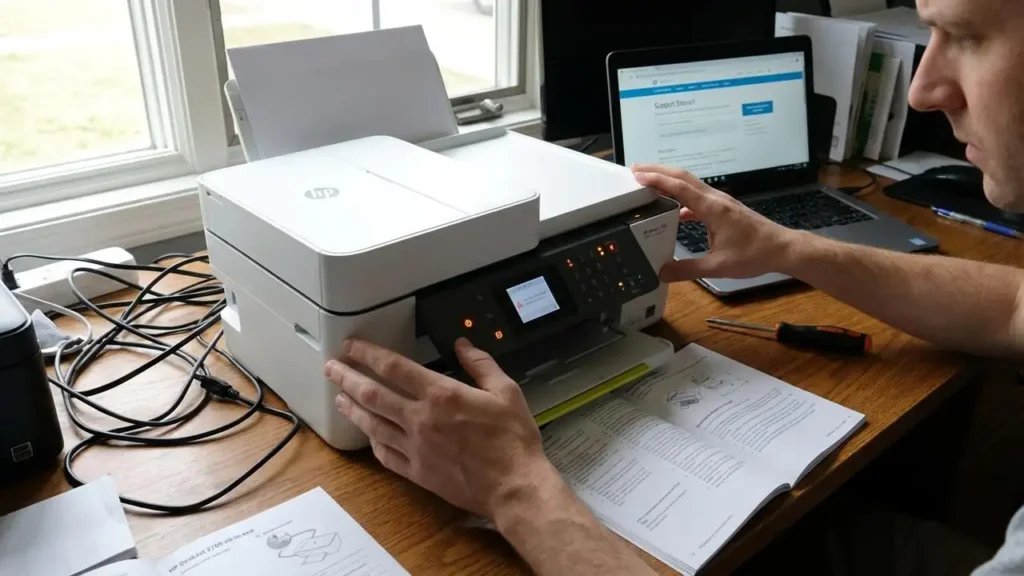
The most effective first step for resolving an HP DeskJet 2700 error state is a hard reset. This process clears the printer’s temporary memory (RAM) and discharges static electricity that might be causing the logic board to hang. Unlike a simple restart, a hard reset forces the hardware to re-initialize its internal components and firmware from a cold start.
To perform a hard reset correctly, ensure the printer is turned on. While the device is powered, disconnect the power cord from the back of the printer. Once disconnected, unplug the power cord from the wall outlet. Wait at least 60 seconds to allow the internal capacitors to drain completely. During this time, it is highly recommended to plug the printer directly into a wall outlet rather than a surge protector or power strip. Some HP printers are sensitive to the slight voltage fluctuations or power delivery limitations of multi-plug strips, which can occasionally trigger an error state.
After the minute has passed, reconnect the power cord. The printer should power on automatically; if it does not, press the power button manually. Allow the initialization process to complete fully before attempting any print jobs.
Managing the Windows Print Spooler and Queue
Frequently, the HP DeskJet 2700 error state is not a hardware fault at all, but a software conflict within the Windows environment. The Print Spooler is a service that manages the communication between your computer and the printer. If a document becomes corrupted while being sent to the printer, it can jam the spooler, causing the system to report an error state indefinitely.
To resolve this, you must clear the print queue and restart the service:
- Clear the Print Queue: Open the “Devices and Printers” menu through the Windows Control Panel. Right-click on your HP DeskJet 2700 and select “See what’s printing.” In the window that appears, click the “Printer” tab and select “Cancel All Documents.” If a document refuses to disappear, you will need to restart the service.
- Restart the Print Spooler Service: Press the Windows key and type “Services.” Locate the entry titled “Print Spooler” in the list. Right-click on it and select “Restart.” This action refreshes the communication bridge between your PC and the printer hardware.
Once the spooler has been refreshed, check the printer status in your settings. If the error state was caused by a hung file, the printer should now show as “Online” or “Ready.”
Addressing Connectivity and Network Obstacles
The HP DeskJet 2700 series relies heavily on a stable Wi-Fi connection. If the blue wireless light on the printer control panel is blinking, the device has lost its connection to the network, which is a primary cause of the HP DeskJet 2700 error state appearing on your computer.
Network interference or a router that has been active for too long can lead to IP address conflicts. To fix this, power down your router by unplugging it for 30 seconds. While the router is rebooting, restart both your printer and your computer. This forced “handshake” often assigns a fresh local IP to the printer, resolving the communication gap.
If the connection remains unstable, check the distance between the printer and the router. Objects such as thick walls, metal cabinets, or 2.4GHz devices like microwaves can disrupt the signal. Ensuring the printer is within 10 to 15 feet of the router during the initial setup or recovery phase can help stabilize the connection.
Utilizing HP Smart Diagnose & Fix
For users who prefer an automated approach to troubleshooting, the HP Smart app provides a dedicated utility designed to identify and repair the HP DeskJet 2700 error state. The “Diagnose & Fix” tool scans the system for driver issues, port mismatches, and queue errors that are not immediately visible to the user.
To use this tool, open the HP Smart app on your Windows or macOS device. Select your printer from the home screen and look for the “Diagnose & Fix” icon (usually represented by a small wrench or stethoscope icon). Once initiated, the app will run a series of tests. If it finds a port mismatch or a driver conflict, it will apply the fix automatically. This is particularly useful if the error state is caused by the computer looking for the printer on the wrong network port.
Hardware Integrity: Cartridges and Paper Path
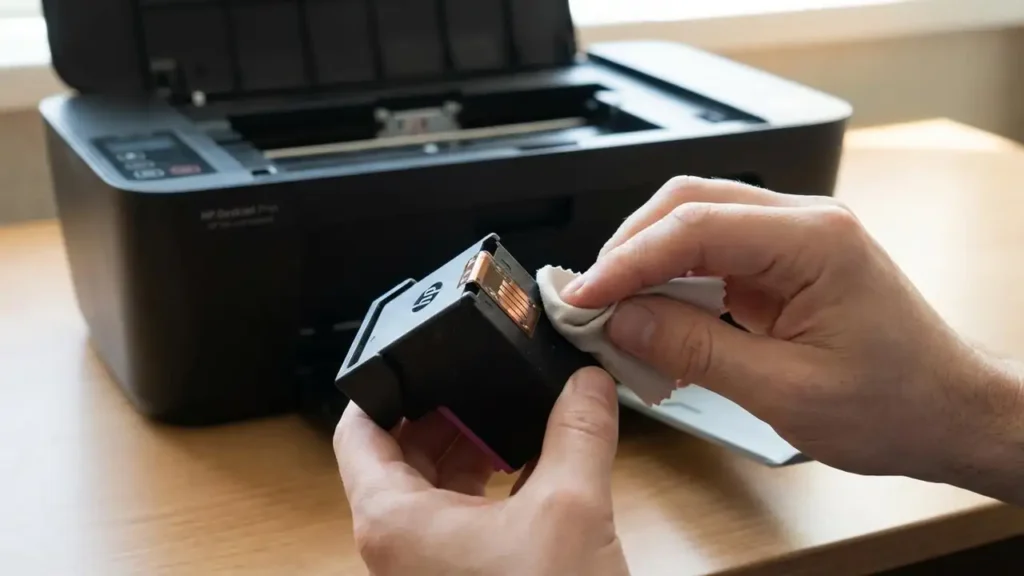
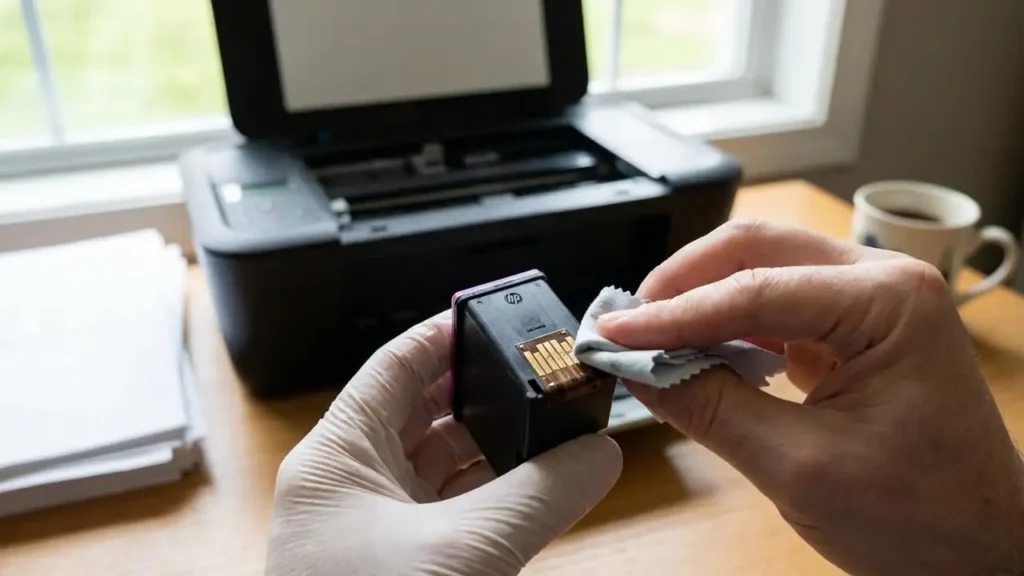
Sometimes, the “error state” is the system’s way of reporting a physical obstruction or a consumable failure. The HP DeskJet 2700 series uses a combined cartridge system, and if the gold-colored contacts on the back of the cartridges become smudged with ink or oils from your skin, the printer may lose contact with them.
If you see blinking ink icons on the printer’s small LCD screen, open the cartridge access door and remove the ink. Use a lint-free cloth and a tiny amount of distilled water to gently wipe the copper-colored contacts on the cartridges and the corresponding pins inside the carriage. Re-seat them firmly and close the door.
Additionally, pay attention to error codes like E5 or E6. These typically indicate a paper jam or a carriage stall. Even a tiny scrap of torn paper lodged in the feed rollers can trigger a persistent error state. Carefully inspect the input tray, the output tray, and the bottom “clean out” door of the printer to ensure no debris is obstructing the mechanical movement of the device.
Advanced Power Reset for Stuck Firmware
If a standard hard reset does not clear the HP DeskJet 2700 error state, you may need to perform an advanced power reset. This technique is used to force a deep discharge of the logic board’s memory, which is often necessary if the firmware has “frozen” in a specific error loop.
First, ensure the printer is turned on. Disconnect the power cord from the rear of the device without turning it off first. Once the power is disconnected, press and hold the printer’s Power button for exactly 30 seconds. This action drains any residual energy stored in the motherboard’s capacitors. After holding the button, reconnect the power cord directly to a wall outlet. This deeper reset often clears stubborn “ghost” errors that survive a standard power cycle.
