

Epson L3210 Support Center (Troubleshooting & Fixes)
If you’re using an Epson EcoTank L3210 and you’re dealing with printing errors, “end of service life” messages, offline issues, or poor print quality—this page is your central hub.
It links to step-by-step fix guides and includes a quick checklist you can try immediately.
Important: This hub focuses on safe, practical fixes and official software workflows. If you see websites offering “free reset tools,” be careful—many are bundled with malware or cause more damage than they fix.
Quick Fix Checklist (Start Here)
Try these in order. Most “L3210 not printing / offline / error” situations are solved in the first 5–10 minutes.
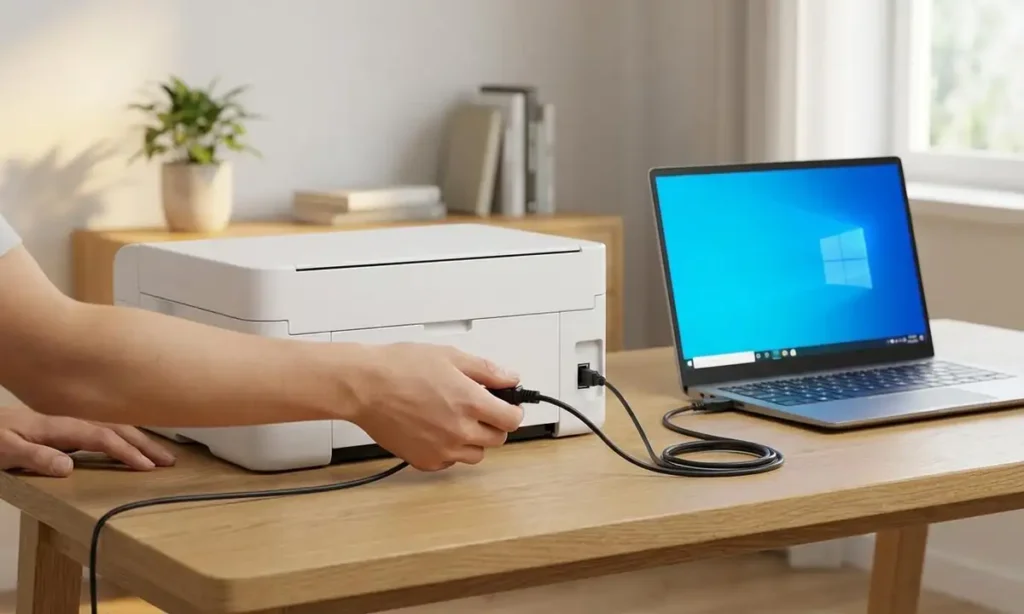
1) Power Cycle + Basic Connections
Turn the printer OFF.
Unplug the power cable for 60 seconds.
Plug it back in, turn it ON.
If using USB: try a different USB port (avoid hubs).
If using Wi-Fi (via router): restart your router once.
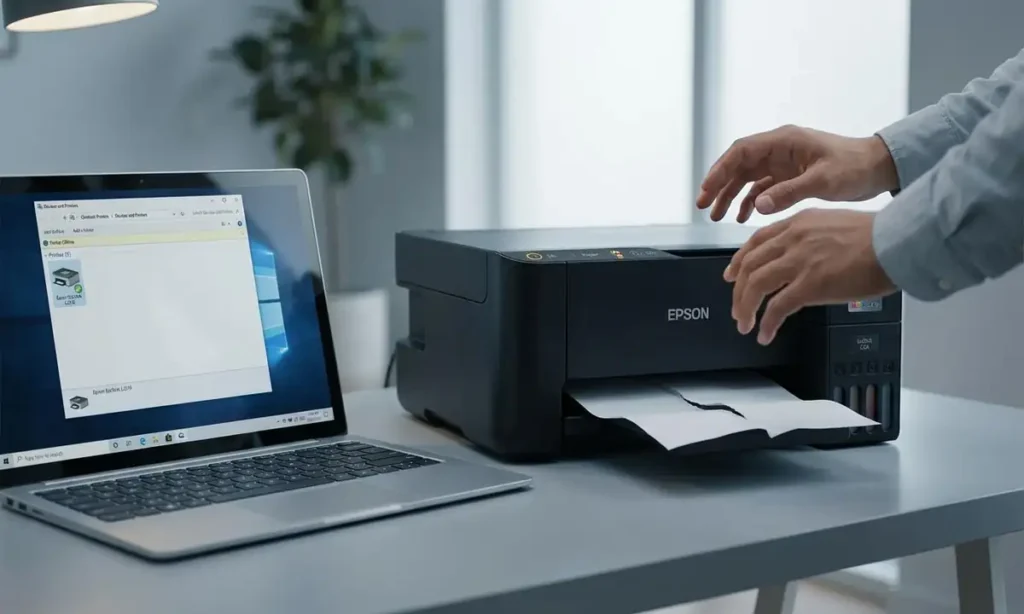
2) Windows “Offline” Fix (Fast)
Open Control Panel → Devices and Printers
Right-click Epson L3210 → See what’s printing
In the menu: uncheck Use Printer Offline
Cancel stuck documents (if any), then print a test page.
👉 Full guide
Printer Offline (Windows 10/11) – Full Fix Guide
3) Clear the Print Queue + Restart Spooler (Windows)
Press Win + R, type:
services.mscFind Print Spooler → Restart
Try printing again.
👉 Full guide
Print Spooler Issues – Fixes That Actually Work
4) Run Nozzle Check + Head Cleaning (EcoTank)
If prints are faint, missing colors, or have lines:
Run a Nozzle Check
If needed, run Head Cleaning
Wait 10–15 minutes and test again
👉 Full guide
Lines / Missing Colors on Epson L3210 – Diagnosis & Fix
5) Update Driver & Firmware the Right Way
Install the latest driver for your OS
Use Epson Software Updater to apply recommended updates
👉 Full guide
Epson Software Updater – How to Use It Safely
Common Epson L3210 Messages & Errors
Below are the most common issues users face. Each one links to a dedicated, step-by-step guide.
“Ink Pad is at the End of Its Service Life” / “Service Required”
This message usually relates to the printer’s internal waste ink system. It can require servicing or maintenance to prevent leaks or long-term damage.
👉 Full guide
Epson L3210 End of Service Life – What It Means & Safe Fix Options
Paper Jam / Paper Feed Problems
Remove paper carefully (avoid tearing)
Check the rear feed path for small scraps
Confirm correct paper type and stack alignment
👉 Full guide
Epson L3210 Paper Jam – Step-by-Step Removal + Prevention
Blinking Lights (Power / Ink / Paper)
Blink patterns often indicate specific faults:
Paper feed issues
Ink system warnings
Maintenance-related alerts
👉 Full guide
Epson L3210 Blinking Lights – What Each Pattern Means
Not Printing / Prints Blank Pages
Common causes:
Clogged nozzles
Driver mismatch
Wrong printer selected
Stuck queue
👉 Full guide
Epson L3210 Not Printing – Complete Fix Checklist
Software & Updates (Drivers, Epson Software Updater)
Keeping your software clean and official prevents 80% of recurring issues.
Recommended Software (Official)
Printer Driver (Windows / macOS)
Epson Software Updater
Epson Scan / Epson Scan 2 (if applicable for your setup)
Best Practices
Avoid “driver pack” websites.
Prefer official download sources.
After installing a new driver, reboot your PC before testing.
👉 Full guide
Epson Software Updater – What It Is & How to Use It
Printing Problems (Offline, Not Printing, Slow Printing)
“Why Is My Printer Offline?”
This is usually caused by:
Windows setting the printer to offline
Network changes / router issues
Spooler glitches
Wrong default printer selection
👉 Full guide
Why Is My Printer Offline? (Windows) – Real Fixes
Slow Printing or Jobs Stuck
Try:
Clear the queue
Restart Print Spooler
Reinstall driver if the issue repeats
👉 Full guide
Print Queue Stuck – How to Clear It Safely
Print Quality Issues (Lines, Faded Prints, Smudges)
EcoTank printers are great, but print quality issues happen—usually for fixable reasons.
Vertical / Horizontal Lines (Banding)
Most common causes:
Nozzle clogging
Head alignment needed
Paper quality mismatch
👉 Full guide
Epson L3210 Banding (Lines) – Causes & Fixes
Faded Prints / Missing Colors
Try:
Nozzle check
Head cleaning
Confirm genuine ink + correct tank levels
👉 Full guide
Epson L3210 Faded Prints – Diagnosis & Fix
Smudging / Wet Ink
Common causes:
Wrong paper type
High ink density settings
Printing too soon after cleaning cycle
👉 Full guide
Epson L3210 Smudging – How to Fix & Prevent
Maintenance Tips (Keep It Working Longer)
A few simple habits reduce errors dramatically:
Print a small color page at least once every 1–2 weeks (prevents clogs)
Keep the printer in a dust-free area
Use correct paper types and avoid warped sheets
Don’t interrupt firmware updates once started
👉 More guides
Printer Maintenance Tips – EcoTank Edition
FAQ (Epson L3210)
Next Steps (This Site’s Guides)
This hub will be expanded with detailed guides. Bookmark it and check back for new fixes and model-specific troubleshooting.