

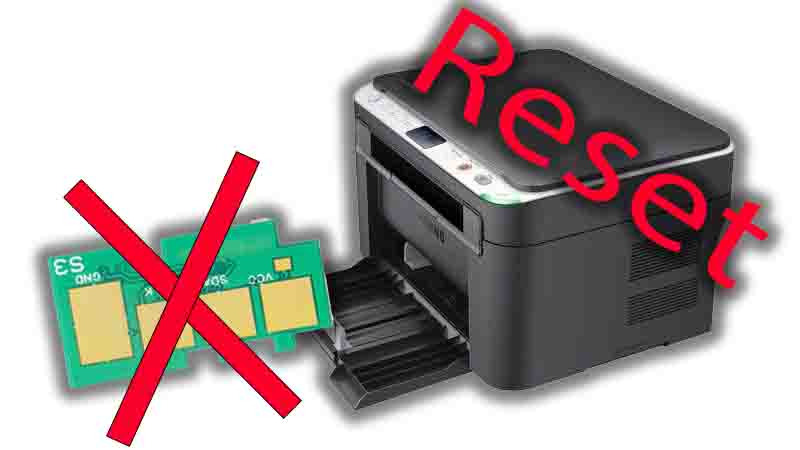
samsung scx-3200 reset counter is one of the most searched solutions when the printer keeps showing “Replace toner” or “Toner exhausted” even after you install a new cartridge or refill the old one. On many Samsung laser models, this alert is triggered by a built-in page counter (often stored on the cartridge chip), and sometimes it remains stuck due to a detection or firmware mismatch. The good news: you can usually resolve it with the right troubleshooting sequence, and in some cases, an official firmware update process can clear false warnings.
This guide explains the safest ways to handle printer troubleshooting for the SCX-3200, when a resetting counter attempt makes sense, and how to avoid common mistakes that can waste time—or risk the device.
Why the SCX-3200 shows “Toner exhausted”
The Samsung SCX-3200 series tracks usage to estimate toner life. When the count hits a threshold, the printer warns you to replace toner. Usually, this is accurate—but not always.
Common causes behind the warning
Cartridge chip counter reached its limit: The printer reads the chip and assumes the toner is finished.
Cartridge not seated correctly: Poor contact can make the printer misread the chip.
Dirty electrical contacts: Toner dust or oxidation affects detection.
Outdated firmware behavior: Some devices become overly strict or misreport after changes.
Wrong cartridge type/region: Similar-looking cartridges can behave differently.
If your goal is samsung scx-3200 reset counter, start with the safe checks below before thinking about deeper steps.

Step 1: Quick checks (fastest wins)
These steps are basic printer maintenance, but they solve a surprising number of “toner exhausted” cases.
Power cycle + reseat the cartridge
Turn the printer off.
Open the toner door and remove the cartridge.
Gently shake the cartridge side-to-side (only if it’s a refill or near-empty).
Reinstall it firmly and close the door.
Turn the printer on and wait for initializing to finish.
Clean the cartridge contacts
Use a dry, lint-free cloth to clean the contact points inside the printer and on the cartridge. Toner dust acts like insulation. This simple step often fixes persistent replace toner messages.
Step 2: Confirm what the printer actually thinks
Before attempting any resetting counter workflow, print a status/configuration report (if your model supports it) to confirm:
Toner status reading
Total page count
Error state history
This prevents “blind fixes” and helps you identify whether you’re facing a genuine counter lock or a detection issue.
Step 3: Understand the “counter” reality
Here’s the key SEO truth behind samsung scx-3200 reset counter searches:
Many SCX-3200 “toner” limits live on the cartridge chip
On many cartridges, the page counter is on a small chip attached to the cartridge. Refilling toner alone does not change that chip value. In those cases, a true reset often requires:
A cartridge with a fresh chip, or
A replacement chip, or
A service-approved reset method (model/region dependent)
If your cartridge is a refill and the printer immediately says toner exhausted, the chip is usually the reason.

Step 4: Firmware update (official approach)
A legitimate firmware update can fix false alerts, improve USB stability, and correct detection logic. It will not magically refill toner, but it can solve cases where the message persists due to software/compatibility issues.
When firmware update helps
You replaced the cartridge with a correct original/compatible unit, but the printer still shows replace toner.
The printer behaves inconsistently after updates or OS changes.
The warning appeared suddenly after a long period of normal usage.
Important: Use only official firmware for your exact SCX-3200 variant. Installing the wrong package can cause serious problems and may impact warranty.
Step 5: Entering Download Mode (when required)
Some SCX-3200 procedures use download mode for service-level firmware loading. If your printer supports this method, it typically looks like this:
Turn off the printer.
Press and hold Stop for about 5 seconds.
While holding Stop, press and hold Power.
Keep holding until the screen shows initializing, then wait image.
Release the buttons when download mode appears.
Connect the printer with a USB cable to your computer.
Run the official firmware utility and follow on-screen steps.
After completion, power off, disconnect USB, then restart.
This is the clean, structured way to address software-side issues—without relying on questionable files.
What to do if the warning still returns
If the printer continues to report toner exhausted after all safe steps:
Confirm you installed the correct cartridge model.
Try another cartridge (known-good).
Consider a chip replacement if you’re using refilled toner.
If your device is under warranty, avoid risky methods and use official servicing.
This is the practical line between normal printer repair and time-wasting guesswork.
Frequently Asked Questions
.
Conclusion
If you’re searching for samsung scx-3200 reset counter, the smartest approach is layered: start with safe detection fixes, confirm status, then use official firmware update steps (including download mode only when needed). If the warning persists after a refill, the cartridge chip counter is often the real cause—meaning chip replacement is the cleanest long-term solution. With the right printer troubleshooting flow, you can eliminate the message and keep the SCX-3200 printing reliably.
Firmware Download Links: 👇👇👇
Download