

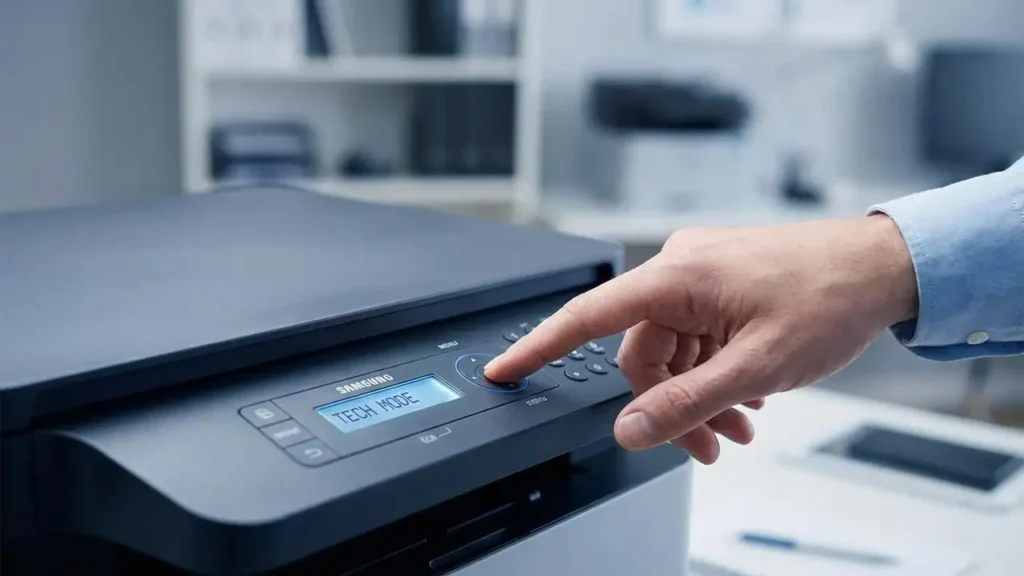
samsung printer tech mode is a hidden maintenance menu built into many Samsung printers and multifunction devices. It’s mainly used by technicians to print internal reports, check supplies information, view usage data, and sometimes read firmware details that don’t appear on standard configuration pages. If you repair printers, refill toner, or troubleshoot “replace toner” messages, learning samsung printer tech mode can save you a lot of time—because it gives you the exact status pages you need without software tools.
This guide explains how samsung printer tech mode works, how to enter it on popular Samsung models, what each command does, and how to print the right report for your situation. Everything below is written for practical use, clean formatting, and strong SEO structure—without adding any links inside the article.
What is samsung printer tech mode
samsung printer tech mode is a built-in service interface that provides advanced diagnostic options. Unlike normal menus, it can expose hidden codes like usage counters, event logs, supplies data, shading reports, and “all reports” printouts. Depending on the model, it may also allow factory resets and toner warning control options.
What you can do in samsung printer tech mode
Print Usage Report (total pages and counters)
Print Supplies Report (CRUM data and toner status)
Print Event Log (error history)
Print All Reports (everything at once)
Access service functions like factory memory clear (model dependent)
Why technicians use samsung printer tech mode
If you’re troubleshooting a Samsung printer, the standard configuration report often doesn’t include firmware version, CRUM data, or deep logs. samsung printer tech mode helps you extract the exact sheet needed to diagnose:
Toner-related messages that won’t clear
Firmware version confirmation before a firmware procedure
Hidden error codes and event log history
Supplies data when a cartridge is not recognized
Counter values after maintenance or resets
Samsung SCX-3200 / 3205 / 3207 / 3200W / 3205W tech mode
These SCX-3200 family devices are extremely common in refill and service work. samsung printer tech mode on this line uses quick key sequences and short two-letter commands.
Print a configuration or supplies sheet (simple method)
Press Stop until the LEDs flash, then release.
One report prints.
If the LED stays lit, you can print a Supplies Report (note: firmware version may not appear here).
Enter samsung printer tech mode on SCX-3200 series
Press these keys quickly in order:
Up (+) → Up (+) → Stop → Down (-) → Down (-) → Stop → Stop
If entered correctly, the display shows UC. Then you select a command with + / –, and press Start/Print to execute.
SCX-3200 tech mode command list (what each code means)
Inside samsung printer tech mode, you’ll see short codes. Here’s what they do:
UC — Usage Report Print
SD — Shading Report Print
SI — Supplies Report Print
EL — Event Log Report
CA — Customer Assistance Report
AA — All Reports (prints everything)
SA — Scanner Aging Start
FC — Factory Memory Clear
LC — Toner Low Level Control
Best command for most users
If you want everything in one shot, select AA and press Print/Start. For toner problems, SI (Supplies Report) and EL (Event Log) are usually the most useful.
Samsung SCX-3400 / 3400W / 3400F / 3400FW / 3400FH
Many SCX-3400 models share the same logic as SCX-3200 for entering samsung printer tech mode.
Common SCX-3400 entry sequence
Up → Up → Stop → Down → Down → Stop → Stop
SCX-3400F / FW / FH (menu-based method)
Some versions use:
Menu → # → 1 → 9 → 3 → 4
Then select Tech mode and go to the report section.
Samsung SCX-4600 and SCX-4623F / SCX-4623FN
These models typically use a menu/keypad pattern to access service menus.
SCX-4600 service entry
Menu → ID Copy → Left → Right → Menu → Stop
SCX-4623F service entry
Menu → # → 1 → 9 → 3 → #
Then:
Menu → # → 1 → 9 → 3 → 4 to select Tech mode
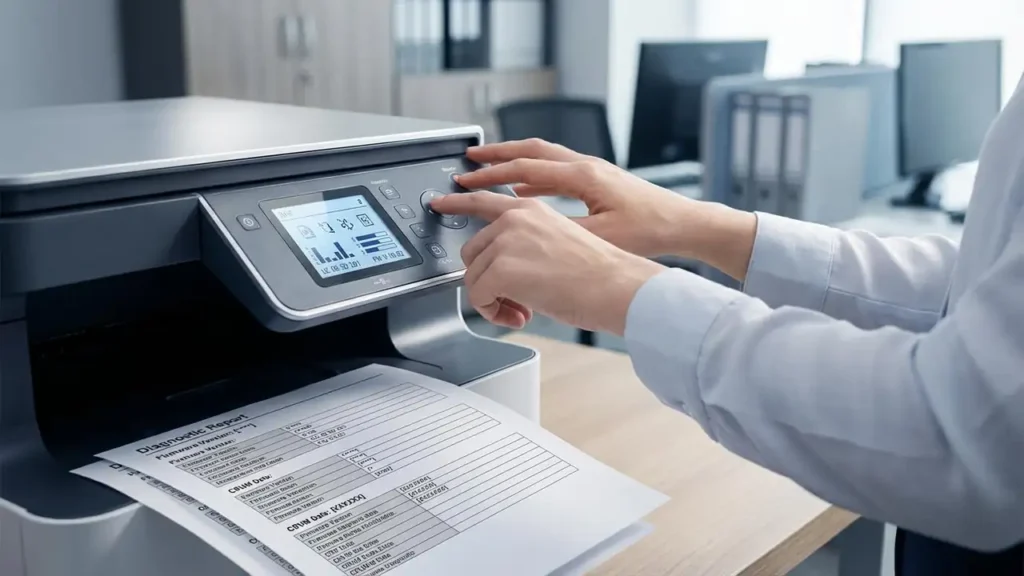
Once inside samsung printer tech mode, go to Report Configuration to print the firmware/version sheet.
Samsung SCX-4824FN / 4825FN / 4828FN / 4833FD / 4833FR
These are popular office MFP devices. Firmware version and service access often follow:
Firmware display (quick)
Menu → # → 1 → 9 → 3 → #
The display shows the firmware version on many units.
Enter samsung printer tech mode
Menu → # → 1 → 9 → 3 → 4
Then:
Tech mode → Report Configuration
If successful, the device prints a report sheet that includes firmware details.
Samsung CLP and CLX series (configuration printing)
Some models don’t expose a clean keypad service sequence, and instead rely on driver tools or “Smart Panel” utilities included with drivers.
CLP-310 / 315 / 320 / 325 series
A report can often print by holding Stop.
Otherwise, use the printer software utility to print a configuration page.
CLX-3170 / 3175 and CLX-3180 / 3185 series
A common sequence looks like:
Menu → ID Copy → Left → Right → Menu → Back → Tech Menu → Report Configuration
These sequences can vary slightly, but the goal is the same: reach Tech Menu and print Report Configuration.
Safety warnings (important)
Because samsung printer tech mode includes service options, you must be careful.
Avoid these unless you know exactly why
FC (Factory Memory Clear): Can wipe settings and cause reconfiguration headaches.
LC (Toner Low Level Control): Can alter toner warning behavior; misuse may hide real low-toner conditions.
Any “aging” or calibration items you don’t understand.
Use reports first, actions second. Reports are safe; service operations can change device behavior.
Frequently Asked Questions
Conclusion
samsung printer tech mode is one of the most useful “hidden” tools for technicians and advanced users. It gives you real diagnostic data—usage history, supplies status, logs, and firmware details—without external tools. If you’re servicing SCX, ML, CLP, or CLX models, mastering samsung printer tech mode helps you troubleshoot faster, confirm firmware safely, and print the exact reports needed to solve toner and error-message problems.