

printer offline mac? Fix It on macOS (Step-by-Step Guide)
printer offline mac? This is a common issue on macOS, especially after Wi-Fi changes, system updates, or printer driver problems. The good news is that most offline printer problems on Mac can be fixed quickly by resetting the connection, re-adding the printer, or resetting the printing system.
This guide shows the fastest solutions first, then advanced macOS fixes if the printer stays offline.
👉 Back to the main hub:
Printer Offline Fix Hub
Quick Fix Checklist (Try These First)
1) Restart Printer + Mac + Router (Fastest)
-
Turn the printer OFF
-
Restart your Mac
-
Restart your Wi-Fi router (if using wireless printing)
-
Turn the printer ON
-
Wait 2–3 minutes and try printing again
✅ This alone fixes many “printer offline mac” cases.
2) Check Wi-Fi Network (Same Network Rule)
If your printer is wireless, make sure:
-
Your Mac and printer are connected to the same Wi-Fi
-
You are not using Guest Wi-Fi
-
You’re not connected to a different extender/SSID
Why Does a Printer Go Offline on Mac?
The most common reasons include:
-
The printer changed IP address after router restart
-
macOS is pointing to the wrong printer connection
-
The printer was added with an old or broken configuration
-
Driver or macOS update caused a mismatch
-
Wi-Fi signal drops or sleep mode disconnects the printer
Now let’s fix it properly.
Fix 1: Remove and Re-Add the Printer (Best Simple Fix)
-
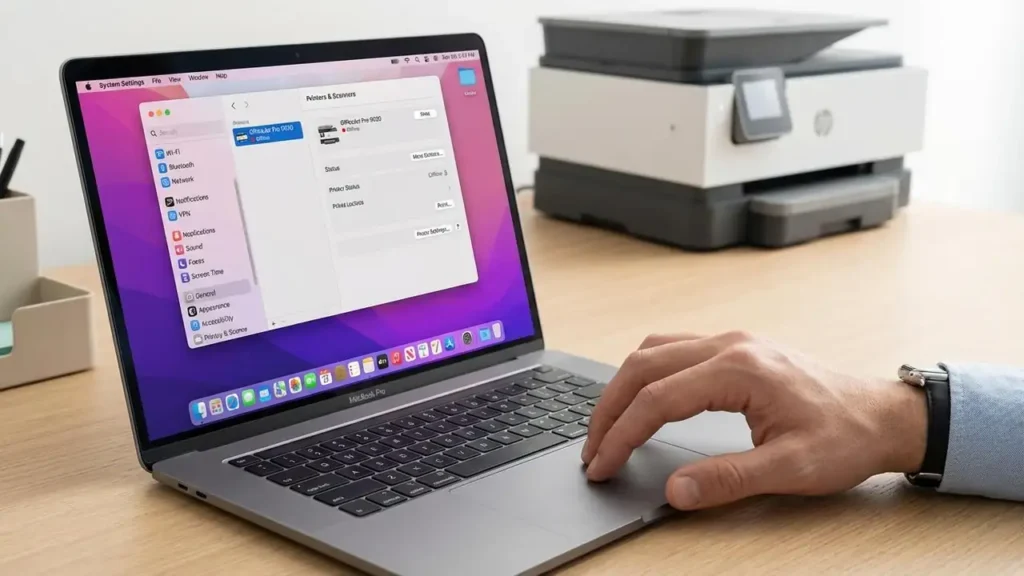
Click Apple Menu → System Settings
-
Go to Printers & Scanners
-
Select your printer and click Remove Printer
-
Restart your Mac
-
Click Add Printer, Scanner or Fax
-
Select your printer and add it again
✅ After adding it, try printing a test page.
Fix 2: Use the Correct Printer Connection (AirPrint vs Driver)
When adding the printer on macOS, you’ll often see:
-
AirPrint
-
Secure AirPrint
-
Brand driver name (Epson/Brother/HP…)
What to choose?
-
Start with AirPrint (stable for most printers)
-
If AirPrint causes problems, try the official driver from the printer manufacturer
⚠️ Avoid random “driver pack” websites. Always use official sources.
Fix 3: Check the Printer IP Address (Wi-Fi Offline Fix)
A common “printer offline mac” reason is that the router gave the printer a new IP address.
How to find the printer IP:
-
On the printer screen: Network/Wi-Fi settings → Network Status
-
Or print a network report page
Then confirm macOS is using the correct IP:
-
Go to System Settings → Printers & Scanners
-
Select your printer
-
Open printer info (depending on macOS version)
-
Confirm it matches the current IP address
If it doesn’t match: remove the printer and re-add it (Fix 1).
Fix 4: Clear Stuck Print Jobs (macOS Queue)
Sometimes the printer looks offline because the queue is frozen.
-
Go to Printers & Scanners
-
Select your printer
-
Click Open Print Queue
-
Cancel stuck jobs
-
Try printing again
✅ Clearing the queue often restores the connection instantly.
Fix 5: Reset the Printing System (Most Powerful macOS Fix)
If none of the above works, do this reset.
It removes all printers and restores the printing settings to default.
Steps:
-
Go to System Settings → Printers & Scanners
-
In the printers list, right-click (or Control-click) in the empty area
-
Choose Reset printing system…
-
Confirm, then restart your Mac
-
Add the printer again (Fix 1)
✅ This is one of the strongest solutions for repeated “printer offline mac” issues.
Fix 6: Disable Sleep/Power Saving Disconnects (Wireless Printers)
Some printers disconnect in sleep mode, especially on Wi-Fi.
Try:
-
Keep printer on for 10 minutes and test again
-
If available in printer settings: disable deep sleep / eco mode temporarily
-
Place printer closer to the router to reduce signal drops
Fix 7: If You’re Using a USB Printer
If your printer is connected by USB:
-
Try another USB port
-
Use a different cable (very common cause)
-
Avoid USB hubs
-
Restart Mac after reconnecting
Then remove and re-add the printer on macOS.
Final Checklist (If Still Offline)
-
Restart printer + router + Mac
-
Confirm same Wi-Fi network (no guest/extender mismatch)
-
Remove and re-add printer
-
Clear print queue
-
Reset printing system (macOS)
-
Reinstall official driver if needed
-
Test printing from another device (phone/PC) to isolate the problem
