

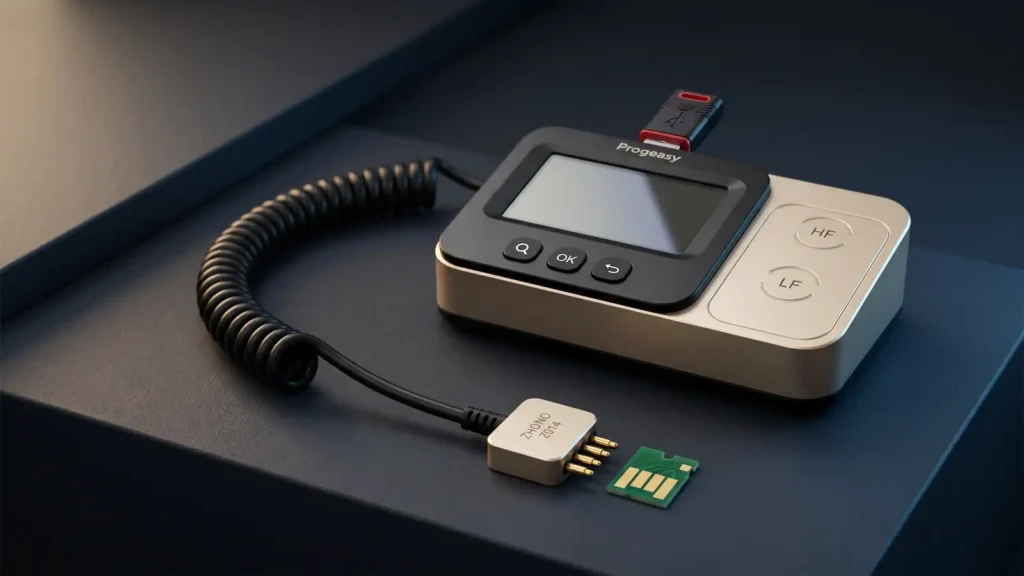
Refilling an HP laser toner hopper restores the physical toner supply, but the printer still relies on the cartridge identification chip to track page counts, toner status, and regional compatibility. When a refilled cartridge continues to trigger “Cartridge Depleted,” “Replace Toner,” or a flashing supply light, performing a Zhono Progeasy HP Chip Reset can restore supported OEM or compatible aftermarket chips to a ready state without replacing the circuit board on every cycle.
Success depends on two factors: confirming that your specific HP chip generation is supported by your Progeasy hardware database, and matching the physical circuit board layout to the correct software profile before writing data.
Hardware Scope and Supported HP Cartridge Profiles
Guangzhou Zhono Microelectronics has released multiple generations of its chip-programming tools, and each targets a different segment of the remanufacturing workflow. Understanding which unit is on your workbench prevents wasted time on unsupported cartridges.
-
Legacy Zhono Progeasy Resetters: Designed for standalone bench operation using a dedicated USB authorization dongle and wired 4-pin contact adapters. In workshop bench testing with the legacy unit, the interface provides specific HP reset profiles including HP 1215, HP 1005, and HP 30/35.
-
Progeasy 3 (Tablet System): A 11.5-inch touchscreen workstation paired with wireless Bluetooth identification heads that read, reset, and reprogram supported OEM and Zhono compatible chips across multiple production lines.
-
Progeasy Update and Update2: Handheld Wi-Fi and Bluetooth devices equipped with interchangeable pinboards. Rather than resetting legacy counters, these units focus on 10-second firmware upgrades for newer HP chip families—such as CF258A/X, CF259A/X, CF276A/X, and W2020A/W2030A/W2040A—when printer firmware updates block existing aftermarket supplies.
Common HP Profiles on the Legacy Progeasy Interface
When working with older HP monochrome and color laser cartridges on a dongle-authorized Progeasy unit, the menu profiles correspond to the following cartridge families:
| Progeasy Profile Label | Primary Printer Series | Associated HP Cartridge Numbers | Supply Type & Standard Yield |
| HP 1215 | HP Color LaserJet CP1215, CP1515n, CP1518ni, CM1312 MFP | CB540A (Black), CB541A (Cyan), CB542A (Yellow), CB543A (Magenta) | Color Laser (2,200 pages K / 1,400 pages CMY) |
| HP 1005 | HP LaserJet P1005, P1006 | CB435A (35A) | Monochrome Laser (1,500 pages) |
| HP 30/35 | HP LaserJet P1005, P1505, M1120, M1522 | CB435A (35A), CB436A (36A), Universal 35A/36A | Monochrome Laser (1,500–2,000 pages) |
Note: Canon engines sharing the same print cartridge architecture—such as the Canon CRG-716/316 (LBP5050) for the CP1215 family or CRG-712/312 (LBP3010/3100) for the P1005 family—use physically similar PCB layouts, but regional and OEM identifiers stored on the chip must match the target machine.
Pre-Reset Inspection and Chip Identification
Many legacy HP monochrome and color chips share an almost identical 4-pad contact arrangement. Attempting to write an HP 1005 profile onto an HP 1215 color chip, or choosing the wrong regional variant, will result in a write error or an immediate “Supply Memory Error” (10.00.XX) inside the printer.
Before powering on the resetter, inspect and prepare the cartridge chip:
-
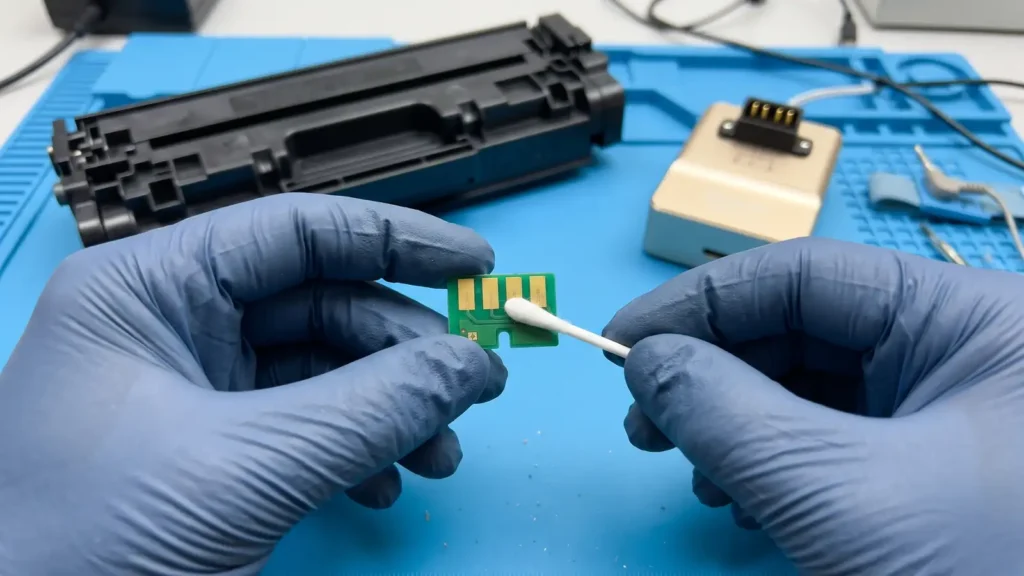
Observe ESD Precautions: Cartridge chips contain CMOS memory components that are vulnerable to electrostatic discharge. Ground yourself on a metal chassis or work on an ESD mat, and hold the chip only by its PCB edges if it has been removed from the cartridge slot.
-
Clean the Contact Pads: Residual toner dust, skin oils, or oxidation on the four gold contact pads can interrupt data transfer mid-write. Wipe the pads gently with a dry, lint-free swab or a small amount of isopropyl alcohol and allow them to dry completely.
-
Check the PCB Alignment Notch: Inspect the small cutout (alignment notch) along the edge of the printed circuit board and note the layout of the contact pads relative to the plastic housing. The Progeasy interface uses notch orientation and board geometry to distinguish between visually similar HP profiles.
-
Understand Credit Deduction Behavior: On the bench-tested legacy Progeasy configuration, reset credits stored on the USB dongle are deducted only when the screen confirms a completed write (“Success”). Failed reads, probe slips during identification, or unsupported chip messages did not deduct a credit during testing, though exact credit handling can vary by hardware revision and account type.
Executing the Zhono Progeasy HP Chip Reset
You can reset the chip while it remains seated in the toner cartridge housing or after sliding it out onto a flat, non-conductive work surface. Keeping the chip in a dedicated holder or flat on the bench often makes it easier to keep the four spring-loaded probe pins steady.
Step 1: Initialize the Progeasy Unit and Dongle
-
Insert the authorized USB dongle containing your active reset credits firmly into the USB port on the Progeasy housing.
-
Press and hold the power button for roughly 5 seconds until the LCD screen illuminates and loads the operating system.
-
Confirm that the main menu recognizes the USB dongle and displays your remaining credit balance before touching a chip.
Step 2: Run Search Mode to Verify the Chip
Never skip directly to writing if you are unsure whether a chip is an original OEM board or a third-party compatible replacement.
-
Select Search from the Progeasy main menu.
-
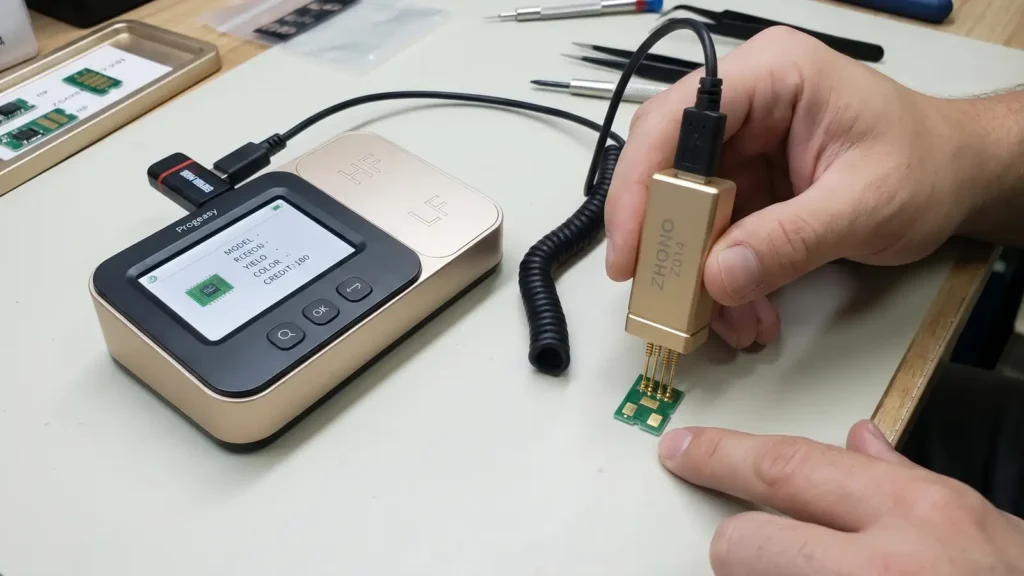
Position the 4-pin contact adapter directly over the four conductive pads on the HP chip, matching the orientation indicated for the notch.
-
Press down with steady, moderate vertical pressure so all four spring probes compress evenly against the pads without sliding.
-
Read the detected parameters on the LCD screen—including model family, color channel (K, C, M, or Y for HP 1215 series), region code, and current supply status—to confirm that the hardware can communicate with the chip.
Step 3: Select the Profile and Write the Reset Data
-
Exit Search mode and navigate to the manual model selection menu.
-
Choose the exact profile matching your cartridge and physical PCB inspection (for example, HP 1215 and the corresponding color channel for a CB540A–CB543A cartridge, or HP 1005 for a CB435A cartridge).
-
Align the four probe pins squarely onto the chip pads again and hold your hand completely still.
-
Trigger the reset command on the device and maintain constant contact pressure until the progress cycle finishes.
-
Wait for the LCD to display Success. Once confirmed, lift the probe adapter straight up off the contact pads. On dongle-based units, one credit is deducted at this stage.
Verifying Cartridge Recognition in the Printer
After completing the reset, reinstall the chip into its plastic slot on the toner cartridge if it was removed, making sure the alignment notch locks into the retaining tab so the pads face the printer’s internal contact springs.
-
Install the refilled and reset cartridge into the HP printer and close the access door.
-
Listen for the normal initialization rotation and watch the control panel or status LEDs. Any previous “Replace Toner” or “Cartridge Depleted” halt condition should clear once the engine finishes initializing.
-
Print a Supplies Status Page from the printer control panel or the HP ToolboxFX / Embedded Web Server utility on a connected computer.
-
Check that the estimated toner gauge reads full (100%) and that the serial or supply memory status shows no communication faults.
Practical Limitation: Some HP printers store recent cartridge serial numbers in non-volatile memory or apply firmware rules that alter how refilled OEM vs. aftermarket chips display supply gauges. If a printer accepts the cartridge and prints normally without a red error light, minor differences in status-bar reporting do not prevent normal operation.
Troubleshooting Progeasy Reset Errors
If the device fails to read or reprogram the chip, use the symptom table below to isolate whether the fault lies with probe alignment, authorization, or an locked chip architecture.
| Progeasy Screen Message | Likely Cause | Corrective Action |
| Read Error / No Connection | Oxidized contact pads, reversed probe orientation, or uneven pin pressure | Clean the four gold pads, check the PCB notch orientation against the adapter guide, and press all four pins flat against the board. |
| Write Failed | Probe slipped during the write cycle, or the selected profile does not match the chip’s internal IC | Run the Search function first to verify the chip remains readable, brace your wrist on the bench to prevent movement, and retry with the exact matching profile. |
| Unsupported / Locked | The chip uses a one-time-programmable (OTP) aftermarket IC or an encrypted revision outside the device database | Confirm the cartridge model in Search mode. If the IC is write-locked or unsupported by your firmware version, replace the chip with a new compatible board. |
| Invalid Dongle / Credit Error | Loose USB dongle connection, depleted credit balance, or expired authorization file | Power off the Progeasy, reseat the USB dongle firmly, reboot to check the credit counter, and recharge credits through your Zhono distributor if depleted. |
| Printer Shows 10.00.XX After Reset | Chip shifted in the cartridge slot, bent printer contact springs, or wrong regional/color profile written | Inspect the cartridge slot to ensure the chip sits flush, verify that a Cyan profile was not written to a Magenta or Black CB540-series chip, and check the printer’s internal memory tag contacts. |