

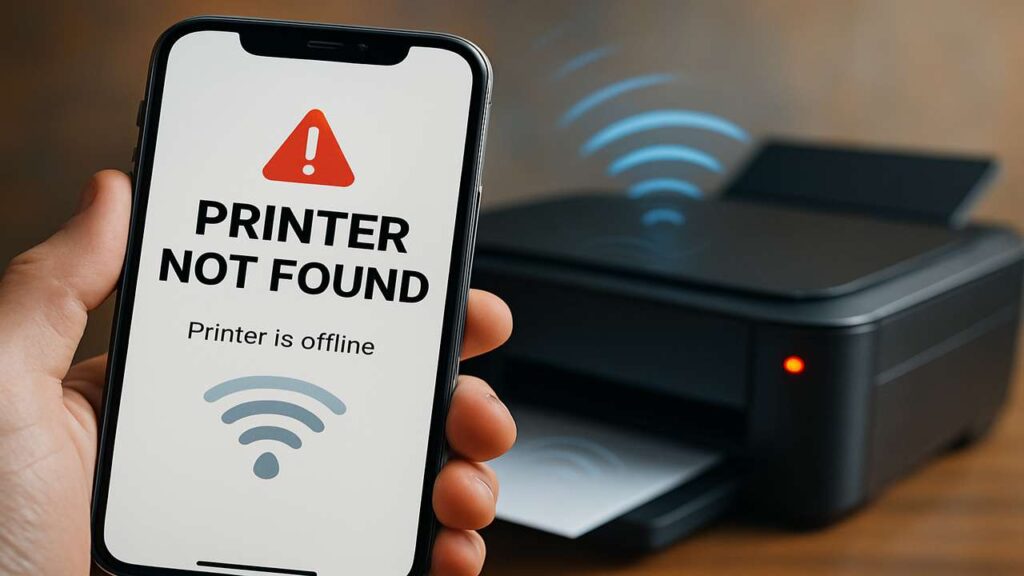
Airprint not working after ios 18.5 — quick network & mdns fixes
airprint not working after ios 18.5 is a common headache when your iPhone/iPad suddenly can’t see printers that worked yesterday. Use our airprint not working after ios 18.5 guide to restore discovery, stabilize mDNS/Bonjour, and get reliable printing on home and office networks.
Airprint not working after ios 18.5 — what changed
AirPrint depends on mDNS/Bonjour multicast to discover printers. After major iOS updates, tiny changes in Wi-Fi, privacy, or multicast handling can expose weak spots in your network:
AP/client isolation or guest Wi-Fi that blocks device-to-device traffic
Multicast throttling, IGMP snooping quirks, or buggy router firmware
Band or SSID mismatches (phone on 5 GHz, printer stuck on 2.4 GHz with isolation)
Printers sleeping too deeply to answer discovery packets
Airprint not working after ios 18.5 — fastest fixes first
Reboot order that actually helps: router → wait 90s → printer → wait Ready → iPhone/iPad.
Same network, same band: put phone and printer on the same SSID. If you have separate 2.4/5 GHz names, join both to the same one.
Disable isolation: turn off AP/client isolation on the SSID used for printing.
Reserve the printer’s IP: in the router, create a DHCP reservation so the address never changes.
Wake the printer: tap a hardware button so it’s fully awake before you open the iOS print sheet.
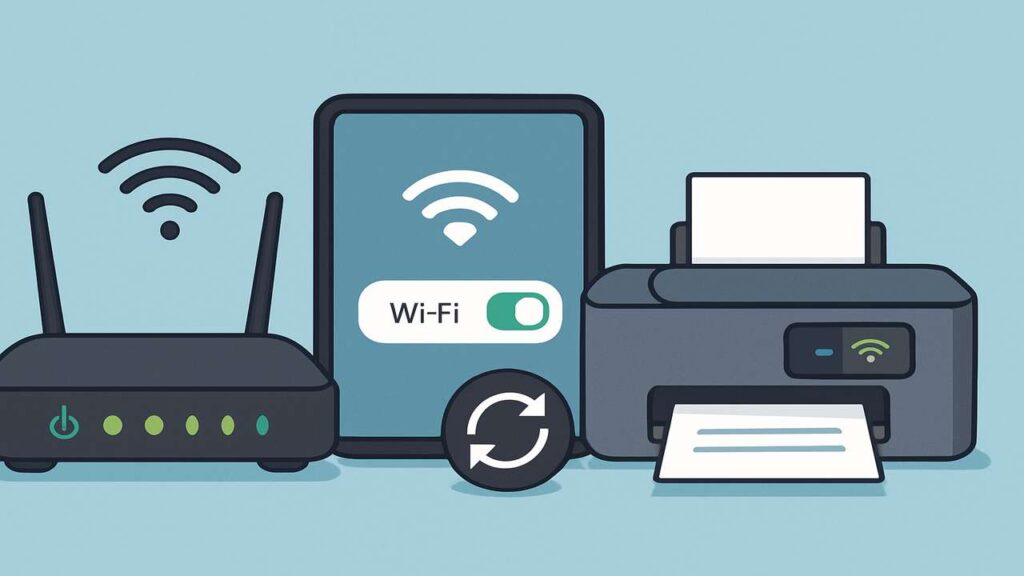
MDNS/Bonjour fixes on popular routers
Turn on multicast/Bonjour support; some routers call it “Multicast enhancement” or “Bonjour forwarding.”
IGMP snooping: if enabled and discovery is flaky, try toggling it off/on; misconfigured snooping often drops mDNS packets.
Block WAN, allow LAN: keep the printer LAN-only if you don’t need cloud features; this reduces noise and surprise firmware changes.
Channel & width: set a fixed, uncongested 2.4 GHz channel (1/6/11) and keep width at 20 MHz for older printers.
Airprint not working after ios 18.5 — printer-side checks
AirPrint/Bonjour: make sure AirPrint (or IPP Everywhere) is enabled in the printer’s web interface.
Sleep & power: extend sleep timer or enable “wake on network,” so the device answers mDNS quickly.
Firmware sanity: if you updated recently, re-apply or roll to the last stable build supported by your model.
Network basics: confirm valid IP/subnet/gateway and that DNS points to your router or a reachable resolver.
Separate your networks, connect your services
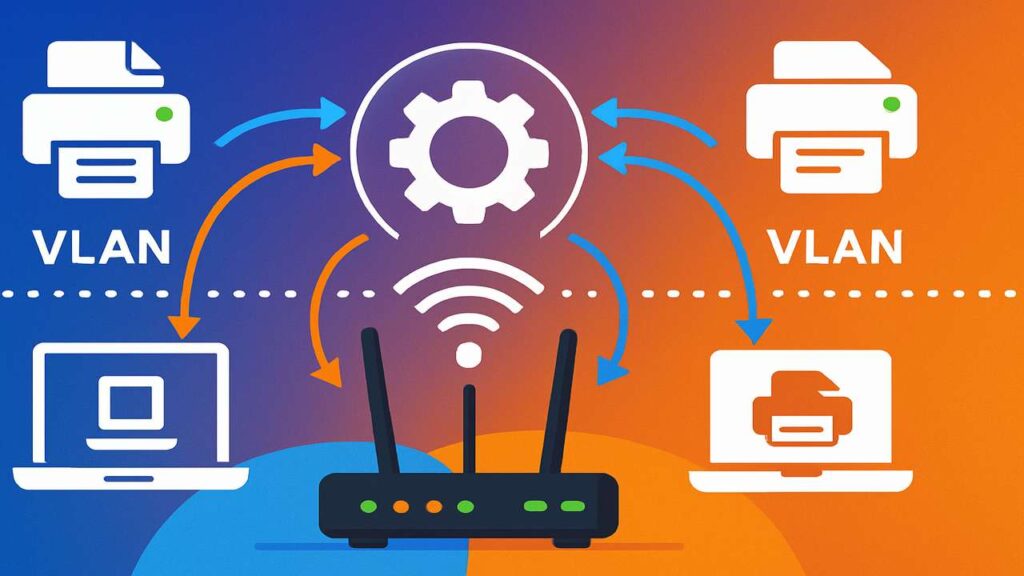
If you keep printers on a different VLAN/SSID for security, discovery won’t cross subnets on its own. Use one of these:
Bonjour gateway/mDNS reflector on your router/controller to relay AirPrint across VLANs.
Mac print share: add the printer to a Mac (by IP), then share it so iOS devices can reach it on the user SSID.
Temporary same-LAN test: join the printer to the same SSID/subnet as the phone; if it appears, the issue is inter-VLAN mDNS.
Airprint not working after ios 18.5 — iOS tweaks that help
Private Wi-Fi Address: toggle off/on for the printing SSID to refresh ARP tables.
Low Data Mode/VPN: disable temporarily; some profiles suppress multicast.
Reset Network Settings (only if needed): Settings → General → Transfer or Reset → Reset → Reset Network Settings.
Stable setups that “just keep working”
One SSID for everything that prints (2.4/5 GHz combined if possible).
DHCP reservations for all printers; document IPs.
Router updates on your schedule; avoid beta firmware.
Manual firmware policy on printers (no auto-updates) to prevent surprise behavior changes.
Monthly quick test: print a one-page PDF from iOS and log any hiccups.
Troubleshooting by symptoms
Printer’s web page opens but iOS doesn’t see it → mDNS path issue. Fix isolation/IGMP/multicast; keep both devices on the same SSID.
Appears, then disappears → printer sleeps too soon or multicast is throttled. Extend sleep; check router multicast settings.
Shows up with the wrong name or multiple times → remove stale entries on Macs, restart the printer, and ensure only one active AirPrint service is broadcasting.
Only the vendor app can print → AirPrint service is blocked. Use the app as a temporary workaround while you restore mDNS.
FAQs
Is AirPrint the same as Wi-Fi Direct?
No. AirPrint uses your LAN via mDNS/IPP. Wi-Fi Direct is a separate ad-hoc link and won’t fix LAN discovery issues.
Do I need IPv6?
Not required for AirPrint on most networks, but enabling it on the LAN can help discovery on some setups.
Can I add a printer by IP on iPhone?
iOS doesn’t add raw IP printers directly; use AirPrint, a shared Mac queue, or the vendor app as a bridge.
Will a USB print server help?
Only if it supports Bonjour/IPP. Basic RAW servers won’t advertise AirPrint.
Quick checklist
Same SSID/band, no client isolation
DHCP reservation created; printer awake
Multicast/Bonjour enabled; IGMP tuned
AirPrint on; sleep timer extended
If on different VLANs, use a Bonjour gateway or Mac share
Conclusion
When airprint not working after ios 18.5 derails your workflow, fix discovery first: align SSIDs, allow multicast, and keep the printer awake and address-stable. With mDNS flowing and firmware under control, iPhone and iPad will see your printers instantly—no more guesswork.