

windows 11 can’t find printer — permanent TCP/IP fix
windows 11 can’t find printer is the headache that shows up after router changes, driver updates, or flaky Wi-Fi discovery. Use our windows 11 can’t find printer walkthrough to add your device by a stable TCP/IP address, bypass unreliable auto-discovery, and keep printing reliably.
windows 11 can’t find printer — why this happens
Windows relies on discovery protocols (WSD, mDNS/Bonjour) that break when:
-
The printer’s IP changes after a reboot or router swap
-
AP isolation or guest Wi-Fi hides devices from each other
-
Drivers were auto-replaced or queues duplicated
-
Sleep/energy settings make the printer ignore discovery probes
The permanent cure is to stop discovering and start addressing: create a fixed IP and a Standard TCP/IP Port.
Step 1: lock the printer’s IP (2 minutes)
-
Print the printer’s Network/Configuration page to see its current IP.
-
In your router, create a DHCP reservation for that MAC address so the printer always gets the same IP.
-
Keep the printer and PC on the same subnet/VLAN. Turn off AP/Client isolation if it’s enabled on the Wi-Fi.
Prefer router reservations over static IP set on the printer; it prevents conflicts and is easier to manage.
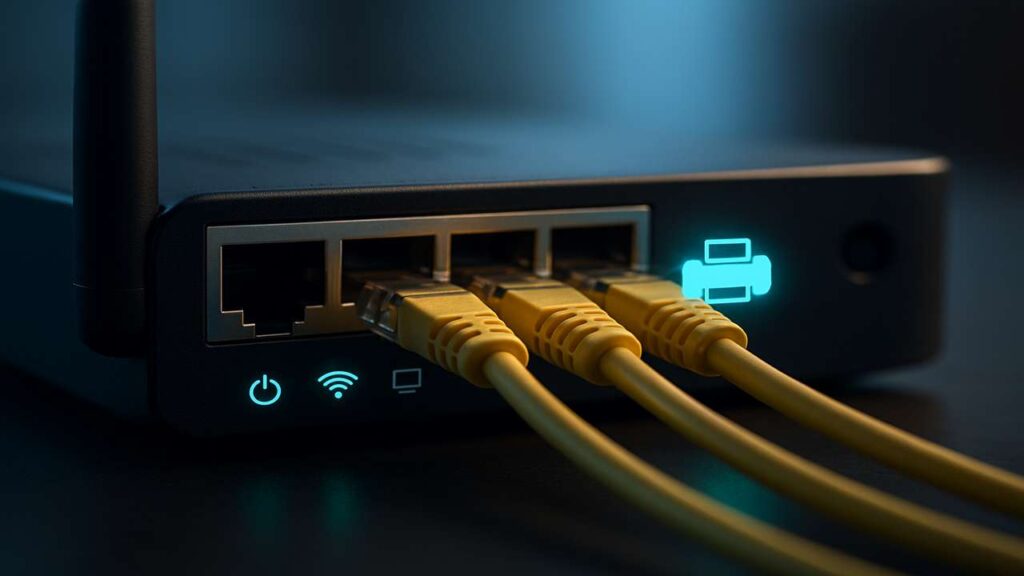
Step 2: add the printer by TCP/IP (not WSD)
-
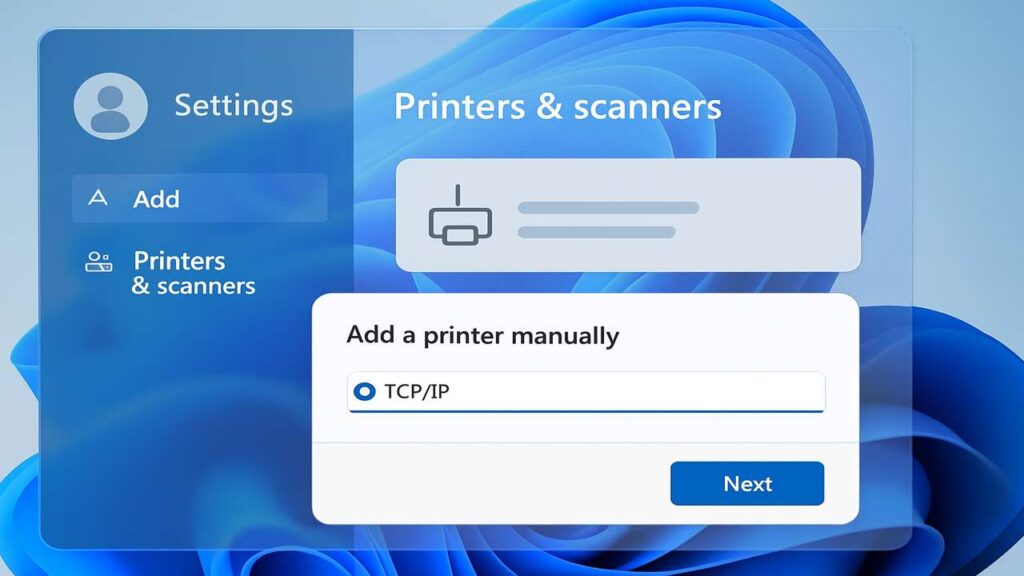
Windows Settings → Bluetooth & devices → Printers & scanners → Add device.
-
After the scan, click Add manually.
-
Choose Add a printer using a TCP/IP address or hostname → Device type: TCP/IP Device.
-
Enter the printer’s IP address. Uncheck Query the printer if it spins too long, then Next.
-
When prompted, select the model-specific driver (PCL/PS/IPP Everywhere) rather than a random universal one.
-
Name it clearly (e.g., “Office-Laser 192.168.1.50”) and print a test page.
Why this works: You’ve created a Standard TCP/IP Port that points straight to the printer. No discovery = no disappearing.
windows 11 can’t find printer — queue and driver hygiene
-
Remove duplicate queues (those “Copy 1/2/3” entries). Keep one: the TCP/IP one you just created.
-
In Printer Properties → Ports, confirm you are on Standard TCP/IP Port, not WSD.
-
In Advanced, keep a single, correct driver. If features are missing (duplex, trays), install the vendor’s full driver and enable options.
Fix the print spooler if jobs won’t clear
-
Press Win+R, type
services.msc, press Enter. -
Find Print Spooler, click Restart.
-
Open Settings → Printers & scanners, select your printer → Open print queue → Cancel all jobs.
-
Re-send a small PDF test job.
Network settings that keep it online
-
Reserve IP in the router (already done).
-
Place the printer on 2.4 GHz if it’s an older model; ensure strong signal, avoid metal cabinets/microwaves.
-
Disable Power saving that turns off Wi-Fi on the printer; extend sleep timers or enable “wake on network” if supported.
-
If you run VLANs, keep the PC and printer on the same VLAN or allow inter-VLAN rules for IPP/RAW printing.
USB/Ethernet fallbacks while you stabilize Wi-Fi
-
USB: Use a short, known-good cable on a rear motherboard port (avoid unpowered hubs).
-
Ethernet: If available, it’s the most stable path. Check link lights and switch port VLAN.
windows 11 can’t find printer — advanced checks
-
Ping the IP:
ping 192.168.1.50. No replies = network path issue, not a Windows problem. -
Open the IP in a browser: If the printer’s web page loads, the device is online; fix the driver/port on Windows.
-
Firewall: Allow local print protocols (IPP 631, RAW 9100, SMB if used). Most home setups need IPP or RAW only.
-
Let Windows manage my default printer: Turn this off (Settings → Printers & scanners). It can flip your default queue.
FAQs
Why does Windows keep adding a WSD printer I didn’t choose?
Auto-discovery can re-add devices. Delete the WSD queue and keep your Standard TCP/IP one as default.
The test page prints, but apps still say “Offline.”
Clear stuck jobs, restart the spooler, and make sure the app points to the same TCP/IP queue (not an old copy).
IPP vs RAW vs LPR — which should I use?
Try IPP first for modern printers. If performance is uneven or the printer is older, switch the TCP/IP port to RAW (9100). LPR is fine for legacy gear.
Do I need admin rights?
Yes, for installing drivers/ports. On company PCs, ask IT or use an admin account.
My printer wakes up but then disappears.
Extend sleep timers, keep the reserved IP, and ensure your Wi-Fi doesn’t have client isolation or aggressive power saving.
Quick checklist
-
DHCP reservation created; printer & PC on the same subnet
-
Added via Add manually → TCP/IP (not WSD)
-
Correct model driver selected; duplicates removed
-
Spooler restarted, queue cleared, test page OK
-
Sleep/Wi-Fi settings tuned; firewall allows IPP/RAW
Conclusion
The permanent solution to windows 11 can’t find printer is a fixed network identity and a direct TCP/IP port. Reserve the IP, add the printer by address, keep one clean queue with the right driver, and your printer will stay visible—no more discovery roulette.
