

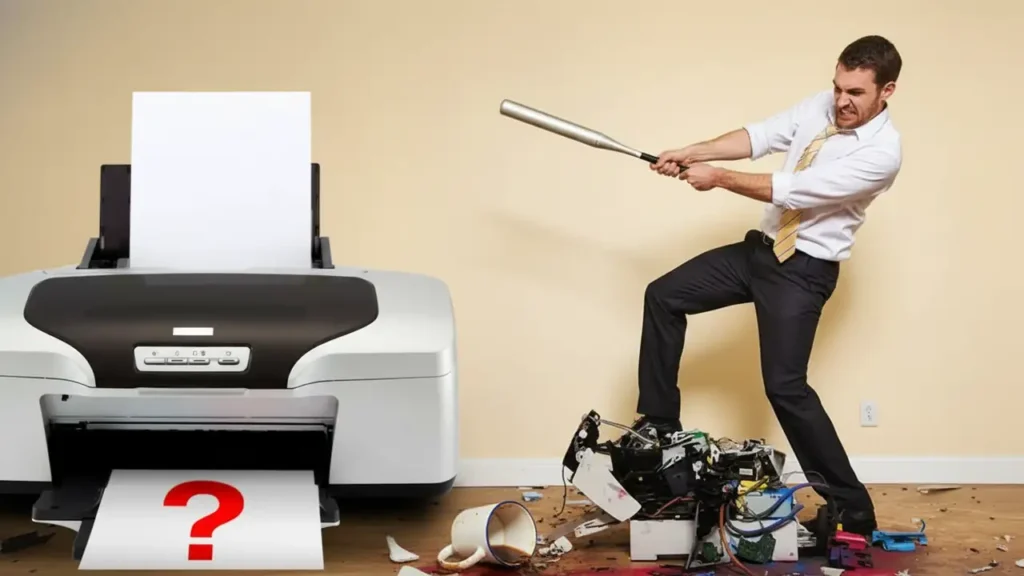
Common printer problems are a source of major frustration in any office or home. A down printer can waste valuable time, cost money, and even impact your business’s reputation. Fortunately, many of these issues have simple, do-it-yourself solutions. This guide covers the most common printer problems and provides step-by-step solutions to get you back to printing in no time.
1. Paper Jams: The Most Annoying Common Printer Problem
Perhaps the most loathsome and common printer problem is the paper jam. While your first reaction might be to pull the paper out forcefully, this can tear the paper and damage the printer’s internal components.
Common Causes:
- Improper Paper Loading: Misaligned paper is a primary cause of jams.
- Poor Paper Quality: Using paper that is too thin, damp from humidity, or low-quality can cause frequent jams.
- Overfilled Trays: Loading the paper tray beyond its capacity can cause multiple sheets to feed at once.
- Worn Rollers: Over time, the rubber rollers (or “feed tires”) that grab the paper become coated in paper dust, dry out, and lose their grip.
- Foreign Objects: Staples, paper clips, and small bits of torn paper are frequent culprits, especially in the Automatic Document Feeder (ADF).
Solution: Open all access doors and inspect the entire paper path. Gently pull any stuck paper in the direction of the paper path, ensuring no small, torn fragments are left behind. Inspect the rollers; you can often clean them with a lint-free cloth lightly dampened with water or isopropyl alcohol. If the rollers appear cracked or smooth, they may need to be replaced.

2. Poor Print Quality: A Technical Common Printer Problem
Streaky, faded, or blurry prints are another of the most common printer problems.
For Laser Printers (Copiers):
- The Problem: You see vertical lines on your copies, but not on prints from your computer.
- The Cause: This is almost never a toner issue. The cause is a dirty slit glass. This is the small, narrow strip of glass to the left of the main “platen” glass. When you use the Automatic Document Feeder (ADF), the paper scans over this small strip. A tiny speck of dust, ink, or Wite-Out on this glass will create a vertical line on every copy.
- The Solution: Lift the ADF cover and thoroughly clean the narrow slit glass with a lint-free cloth and glass cleaner.
- The Problem: Smudges, faded spots, or streaks appear on all printed pages.
- The Cause: This usually indicates a problem with a consumable component, such as a low toner cartridge, a damaged photoconductor (drum) unit, or a failing fuser unit.
- The Solution: First, check your toner levels. If they are fine, the issue may be the drum or fuser, which typically requires a technician to replace.
For Inkjet Printers:
- The Problem: Prints are streaky, colors are missing, or there are blank spots.
- The Cause: The most common culprit is a clogged printhead. This happens when ink dries in the microscopic nozzles, often because the printer has been sitting idle.
- The Solution:
- Auto-Cleaning: First, run the printer’s built-in “Clean Printhead” function from its maintenance menu. You may need to run this cycle 3-4 times.
- Manual Cleaning: If that fails, you can gently remove the cartridges and wipe the copper contacts on both the cartridge and the printer’s carriage with a dry, lint-free cloth.
- Deep Cleaning (Advanced): For removable printheads, you can soak the head in a shallow dish of warm distilled water for 10-15 minutes as a last resort.
3. Connectivity Issues: The “Printer Offline” Common Printer Problem
One of the most confusing common printer problems is when your computer reports the “Printer is Offline” even though the device is on and connected.
Common Causes:
- New Wi-Fi Router/Password: This is the most common cause. If you get a new router or change your Wi-Fi password, the printer is still trying to connect to the old, non-existent network.
- Bad Connection: A USB or network cable may be loose.
- Sleep Mode: The printer may be in a deep sleep mode and not responding to the print job.
Solution:
- Power Cycle Everything: Turn off your printer AND your Wi-Fi router. Wait 60 seconds. Turn on the router first and wait for it to fully connect to the internet. Then, turn your printer back on.
- Reconnect to Wi-Fi: If your network settings changed, you must reconnect the printer. Use the printer’s control panel (look for “Network Settings” or “Wireless Setup Wizard”) to find your new Wi-Fi network name (SSID) and enter the new password.
4. Jobs Stuck in the Print Queue
This is a frustrating software-based common printer problem where a print job gets “stuck,” preventing anything else from printing.
Common Causes:
- A single document failed to print, creating a bottleneck for all subsequent jobs.
- The “Print Spooler” service on your Windows computer has crashed.
Solution:
- On your computer, open the printer’s queue, right-click the stuck document, and select “Cancel.”
- If that doesn’t work, run the built-in Windows printer troubleshooter.
- As a final fix, you can manually restart the “Print Spooler” service. Open the “Services” app on your PC, find “Print Spooler,” right-click it, and select “Restart.”
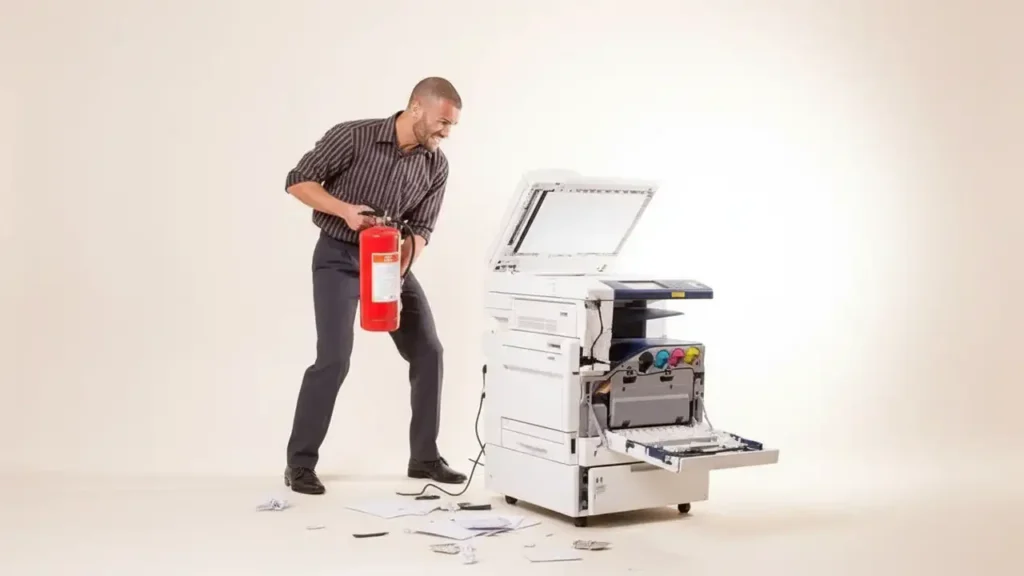
5. Strange Noises (Grinding or Squeaking)
Unusual noises are clear warnings of mechanical common printer problems.
- Squeaking: A high-pitched, rhythmic squeak is usually caused by friction from worn rollers or components that need lubrication. This is a sign that maintenance is due.
- Grinding: A harsh, deep grinding noise is a critical warning. It almost always means a plastic gear is broken or misaligned inside the printer.
- Solution: If you hear a grinding noise, turn the printer off immediately to prevent catastrophic damage and call a professional technician.