

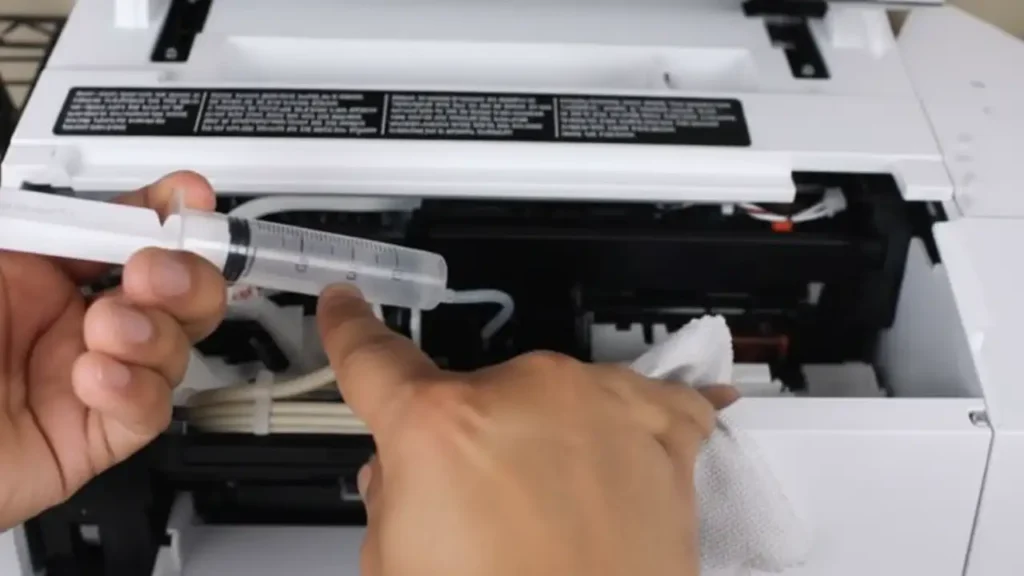
Prevent Epson EcoTank Printers Drying Out
Stop ink drying, printheads clogging, and save money with simple maintenance.
The Epson EcoTank line of printers, like the popular Epson L3210, offers incredible value with its high-capacity ink tanks. However, like all inkjet printers, they can suffer from dried ink and clogged printheads if not used regularly or maintained properly. This guide will help you understand how to keep your EcoTank printer running smoothly, especially if you don’t print frequently. By following these tips, you can prevent costly repairs and ensure consistent print quality.
Understanding how ink works in these systems is key to avoiding problems. Inkjet printers spray tiny droplets of ink onto paper. If the printer sits idle for too long, this ink can dry out in the nozzle of the printhead, creating blockages. This is a common issue for any inkjet owner, but with its large ink tanks, an EcoTank printer can be especially susceptible to this problem if neglected.
This guide focuses on preventing Epson EcoTank printers drying out, offering practical advice for owners of models like the Epson L3210 and similar ink tank systems. We will cover recommended printing frequency, proper storage techniques, and ideal environmental conditions to keep your printer in top shape.
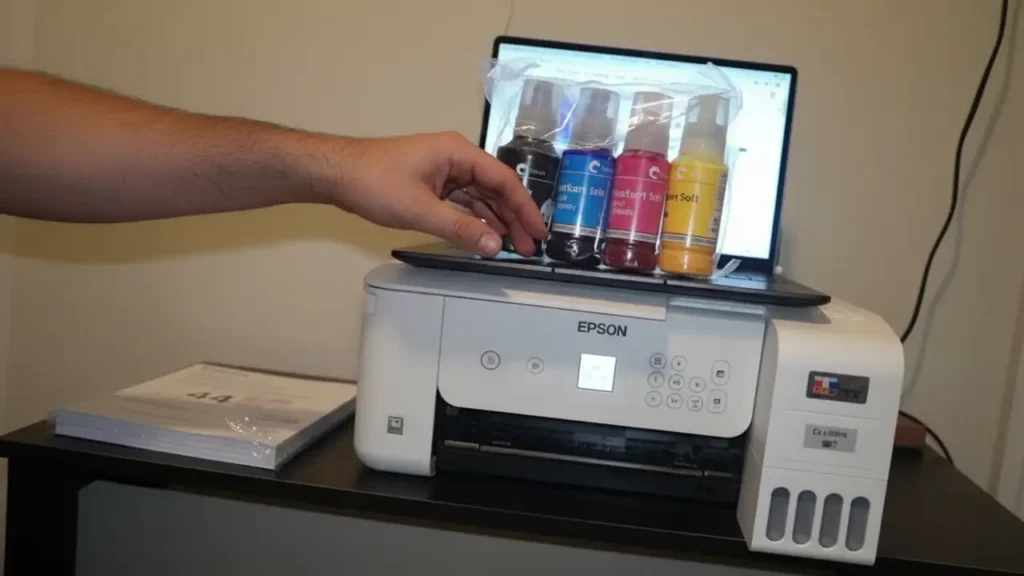
How Often Should You Print with an EcoTank?
Regular use is the best defense against dried ink in your Epson EcoTank printers drying out. While EcoTank printers are designed for high volume, even low-volume users can keep them functional with a simple routine. Printing at least once a week is generally recommended to keep the ink flowing through the printhead.
This doesn’t mean you need to print lengthy documents. A single page of text or a simple graphic is often enough to circulate the ink. If you know you’ll be away or won’t print for an extended period, consider printing a test page or a short document before you leave. This proactive step can save you headaches later.
If you print very infrequently, perhaps only a few pages a month, you might need to be more diligent. In such cases, consider running a nozzle check and print head cleaning cycle from your printer’s utility software once a week, even if you don’t print. This ensures ink is actively moved through the system.
Proper Storage for Your Epson L3210
Storing your Epson L3210 or any EcoTank printer correctly is crucial to prevent ink issues. If you need to store the printer for a short period, ensure it’s in a safe, stable position. Avoid placing heavy objects on top of it or exposing it to extreme conditions.
For longer-term storage, such as moving house or taking a vacation, it’s best to take a few extra precautions. Ensure the printer is switched off and unplugged. If possible, gently close the ink tank covers to minimize air exposure. Some users also recommend placing a protective sheet over the print head area if accessible without forcing parts.
When preparing to use the printer again after storage, always perform a print head cleaning cycle and a nozzle check. This will help clear any ink that may have started to thicken or dry during the inactive period. If print quality is still an issue, a couple more cleaning cycles might be necessary.
Environmental Factors: Temperature and Humidity
The environment where you store and use your Epson EcoTank printers drying out plays a significant role in ink condition. Extreme temperatures, both hot and cold, can affect ink viscosity and the performance of internal components. It’s best to keep your printer in a temperature-controlled environment, ideally between 50°F and 95°F (10°C and 35°C).
Humidity levels also matter. Very low humidity can accelerate ink drying, while excessively high humidity might cause condensation or affect electronic components. Aim for a moderate humidity level, generally between 20% and 80% non-condensing. Avoid placing the printer near humidifiers, dehumidifiers, or in bathrooms.
Proper placement in your workspace also contributes to longevity. Ensure the printer has adequate ventilation and is not placed directly in sunlight, which can cause heat build-up. A stable, level surface is also important for the proper functioning of the ink delivery system and print head alignment.
Maintaining Your EcoTank: Cleaning Cycles and Nozzle Checks
Regularly performing maintenance routines is vital for keeping your Epson EcoTank printers drying out. The printer’s software utility offers tools like “Nozzle Check” and “Head Cleaning.” A nozzle check verifies if all the ink nozzles are firing correctly and prints a pattern to show any gaps or missing lines.
If the nozzle check reveals issues, running a “Head Cleaning” cycle is the next step. This process forcefully pushes ink through the print head to dislodge any dried ink particles. It’s important to note that head cleaning uses a small amount of ink, so it’s not a function to be overused.
After performing a head cleaning, always run another nozzle check to see if the problem has been resolved. If print quality remains poor, you might need to perform one or two more cleaning cycles. However, if multiple cleaning cycles do not improve the output, it might indicate a more persistent clog or a hardware issue.

Advanced Care for Printhead Health
While routine cleaning is effective, sometimes printheads require more attention, especially if Epson EcoTank printers drying out is a persistent concern. If you notice faded colors, streaky lines, or missing colors in your prints, and standard cleaning cycles aren’t solving the problem, you can try a “Power Cleaning” or “Deep Cleaning” function if your model offers it. This is a more intensive process that uses more ink but can clear stubborn clogs.
For users who suspect dried ink is a recurring issue despite regular printing, using third-party cleaning solutions can be an option. However, this is an advanced technique and should be approached with extreme caution. Always use solutions specifically designed for Epson ink tanks and follow instructions meticulously. Improper use can damage the printhead.
It’s also worth noting that the ink itself can degrade over time, though this is rare with Epson’s genuine ink. Always use genuine Epson ink for your EcoTank printer. Third-party inks may have different chemical compositions that can clog the printhead or affect print quality, potentially voiding warranties.
Protecting Your Printer During Downtime
When your printer is not in use for a week or two, ensure you print something regularly. If you know you will be away for a month or more, it’s advisable to perform a full power cleaning cycle before you leave. This expends more ink but helps ensure the print heads are clear and ready for when you return.
Upon returning, don’t immediately print important documents. Instead, perform a nozzle check first. If it looks good, proceed with printing a test page. If there are any issues, run a standard head cleaning cycle and check again. This methodical approach minimizes waste and potential damage.
Remember that even with the best care, inkjet technology has its limits. Very old clogs might be irreversible without professional service. The goal of these maintenance tips is to prevent such severe blockages from occurring in the first place, thus extending the life of your printer and maintaining optimal Epson L3210 performance.
Frequently Asked Questions
Safety and Warranty Considerations
Always ensure your printer is turned off and unplugged from the power source before performing any physical maintenance or cleaning. Avoid touching the print head assembly or other sensitive internal components directly with your fingers, as oils and debris can cause damage. Remember that performing advanced cleaning or using third-party cleaning solutions may affect your printer’s warranty. If you are unsure about any maintenance step, consult your printer’s user manual or contact authorized Epson support for assistance.
By implementing these simple, regular maintenance routines, you can significantly reduce the risk of your Epson EcoTank printers drying out. Consistent printing, proper storage, and environmental awareness are your best allies against clogged printheads and faded prints. Following these guidelines will help ensure your Epson printer continues to deliver quality output for years to come.