

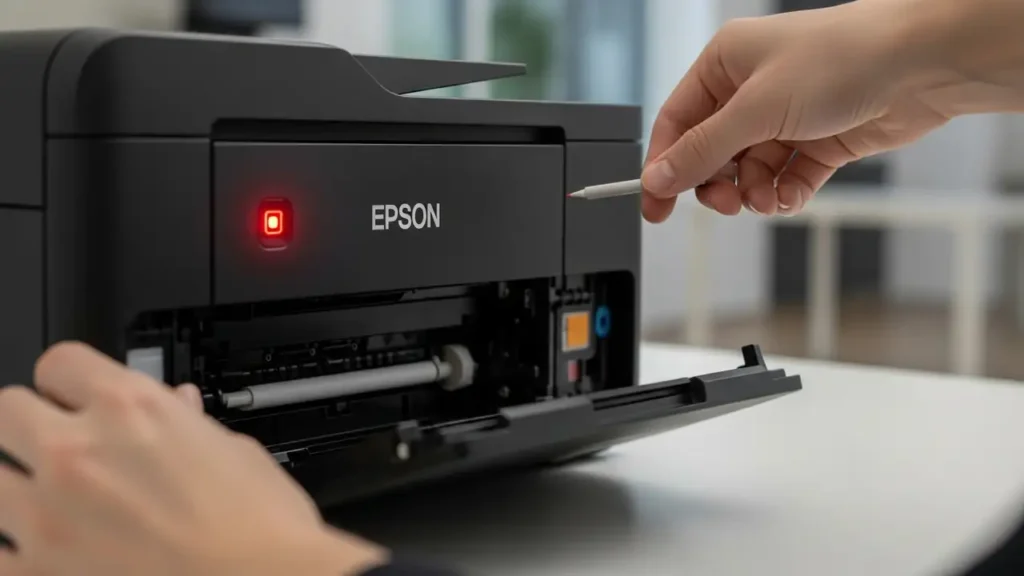
Epson L3210 Red Light Blinking Troubleshooting
Fix common Epson L3210 errors and blinking lights with this expert guide.
Experiencing a blinking red light on your Epson L3210 printer can be frustrating, especially when it’s accompanied by a “Service Required” or general error message. This common issue often indicates a problem that needs your attention, but it’s usually something you can resolve yourself without needing a technician. Understanding the meaning behind the blinking lights and error messages is the first step to getting your Epson L3210 printing again.
This guide will walk you through the most frequent causes of the Epson L3210 red light blinking and how to troubleshoot them. We’ll cover everything from simple paper jams to the more complex ink pad overflow issue. By following these step-by-step instructions, you can often resolve the problem quickly and efficiently, saving you time and money.
Understanding Epson L3210 Error Lights
The blinking red light on your Epson L3210 is a communication signal from the printer to you. It’s designed to alert you to specific conditions that are preventing it from operating normally. While different patterns or combinations of blinking lights can signify various issues, a persistent blinking red light often points towards a general hardware error, a paper jam, or a full ink pad.
Many users encounter a “Service Required” error message, which is frequently tied to the Epson L3210 red light blinking. This message, along with the blinking light, means the printer has detected an internal condition that needs to be addressed before printing can resume. It’s crucial not to ignore these indicators, as they are designed to prevent further damage to the printer.
Diagnosing Paper Jams and Obstructions
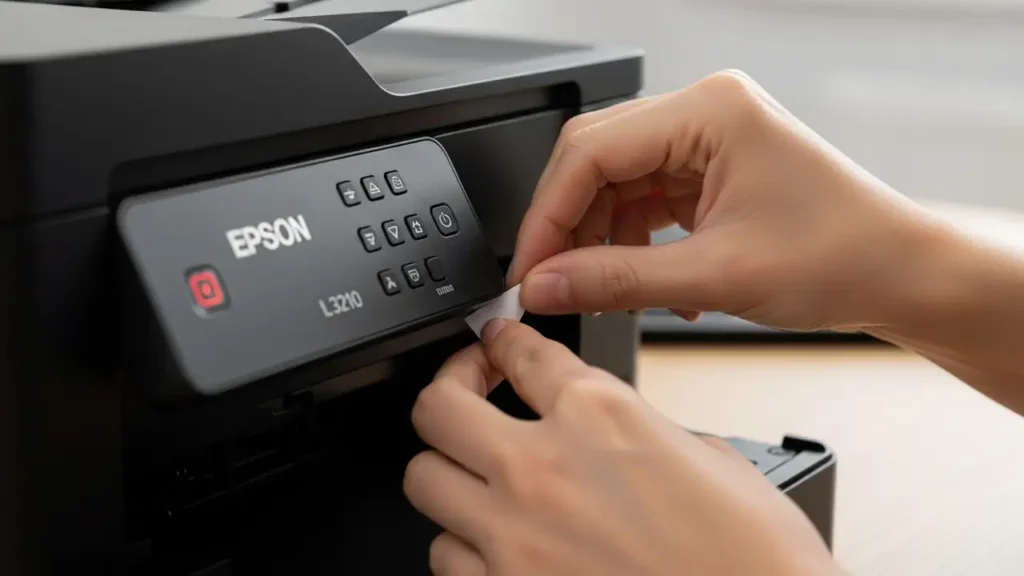
One of the most common reasons for an Epson L3210 red light blinking is a paper jam or an obstruction within the paper path. Even a small piece of torn paper or a foreign object can trigger the printer’s sensors. It’s essential to carefully inspect all accessible areas of the printer for any foreign materials that might be interfering with the paper feeding mechanism.
Before proceeding, always ensure the printer is turned off and unplugged from the power source to ensure safety. Open all the printer covers you can access, including the main access panel, the rear output tray, and the scanner unit. Gently check for any jammed paper, staples, paper clips, or other debris that could be blocking the rollers or the paper’s path.
Step-by-Step Paper Jam Removal
- Power Down and Unplug: Turn off your Epson L3210 printer and disconnect the power cord from the wall outlet and the printer.
- Open Access Panels: Carefully open the printer’s main cover, the rear cover, and lift the scanner unit.
- Inspect Paper Path: Slowly and carefully look for any visible paper fragments, labels, or foreign objects.
- Gentle Removal: If you find jammed paper, gently pull it out in the direction the paper normally travels. Avoid tearing the paper, as small pieces can be harder to find and remove.
- Check Rollers: Examine the paper feed rollers for any damage or debris. You can use a lint-free cloth lightly dampened with water to clean them, ensuring they are dry before closing.
- Close Covers: Once you are certain the paper path is clear, carefully close all access panels and covers.
- Reconnect and Power On: Plug the power cord back in and turn on your Epson L3210 printer. The red light should stop blinking, and the printer should return to its ready state.
Addressing the “Service Required” Error and Ink Pad Overflow
The “Service Required” error, often signaled by the Epson L3210 red light blinking continuously or flashing in conjunction with the power light, is frequently linked to the ink pad reaching its service life. Epson printers use ink pads to absorb excess ink that is flushed out during print head cleaning cycles. Over time, these pads become saturated, and the printer can no longer manage the waste ink effectively.
When the ink pad is full, the printer will stop functioning to prevent ink from leaking and causing damage. Resetting the ink pad counter is typically required to clear this error. This process often involves using a specialized service tool or utility software, as it’s not a standard user-accessible function within the printer’s normal menus.
How to Reset the Ink Pad Counter
Resetting the ink pad counter on an Epson L3210 is a task that requires specific software. This is usually done using an “Epson Adjustment Program” or a similar utility tool. These programs are designed for service technicians but can be found through various online sources.
- Download the Adjustment Program: Search online for “Epson L3210 Adjustment Program” or “Epson L3210 WIC Reset Utility”. Ensure you download from a reputable source to avoid malware.
- Install and Launch: Follow the on-screen instructions to install and launch the utility. You may need to temporarily disable your antivirus software.
- Select Your Printer: In the utility, select your Epson L3210 model and the correct port.
- Navigate to Maintenance: Find and select the “Particular Adjustment Mode” or “Maintenance” option.
- Choose Waste Ink Pad Counter: Locate and select “Waste Ink Pad Counter” or a similar option.
- Initialize Counter: Click “Initialization” or “OK” to reset the counter. The utility may ask you to turn the printer off and on again.
- Confirm Reset: After the process is complete, confirm that the counter has been reset. Turn off your printer, wait a few seconds, then turn it back on. The Epson L3210 red light blinking should now be gone.
General Error and All Lights Flashing Scenarios
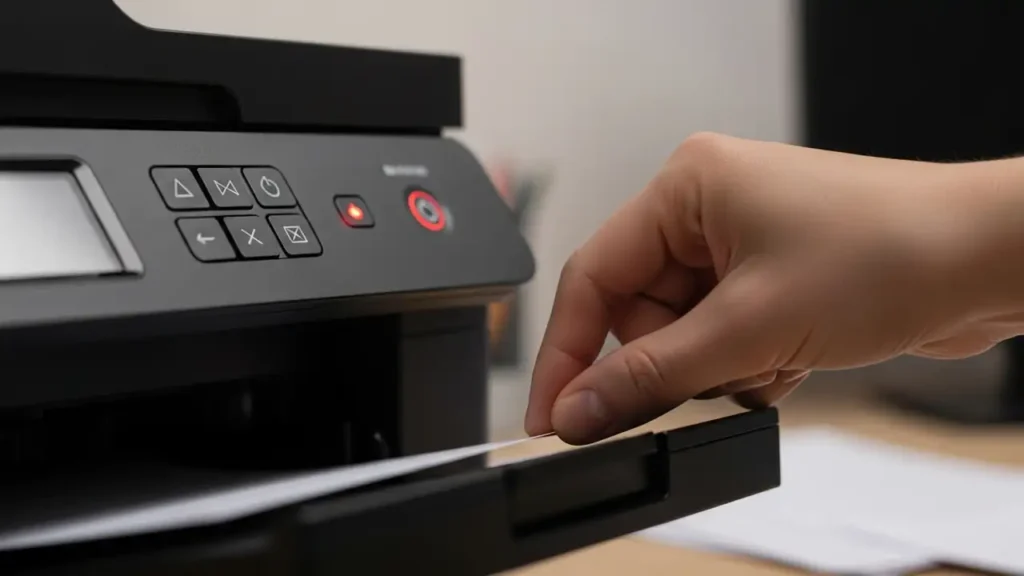
Sometimes, your Epson L3210 might display a general error or have all its lights flashing simultaneously. This situation can be more complex than a simple paper jam or full ink pad, indicating a more significant internal hardware issue or a communication problem between printer components. While less common, it’s still worth attempting a few troubleshooting steps before considering professional service.
A “general error” can be triggered by a wide range of issues, from minor sensor malfunctions to critical component failures. If the printer is not responding to any commands and all lights are flashing, it suggests the printer is in a critical error state and requires a more thorough diagnostic approach.
Basic Troubleshooting for General Errors
- Power Cycle: Turn off the printer, unplug it, wait for 60 seconds, then plug it back in and turn it on. This simple step can sometimes clear temporary glitches.
- Check Connections: Ensure the USB cable (if used) is securely connected to both the printer and your computer, or verify your Wi-Fi connection is stable if printing wirelessly.
- Update Drivers: Visit the Epson support website and download the latest drivers for your L3210 model and your operating system. Uninstall the current drivers and install the new ones.
- Printer Spooler (Windows): On Windows, search for “Services,” find “Print Spooler,” right-click it, select “Restart.” Also, try clearing the print queue by deleting any stuck print jobs.
- Firmware Check: While less common for this model, check the Epson support site for any available firmware updates for your printer.
Proactive Maintenance for Your Epson L3210
Preventative care is key to avoiding recurring issues like the Epson L3210 red light blinking and “Service Required” messages. Regular maintenance helps keep your printer running smoothly and extends its lifespan. Simple habits can make a significant difference in the reliability of your printing experience.
Ensuring you use quality ink and paper, performing regular head cleaning cycles when needed, and keeping the printer’s environment clean can all contribute to fewer errors. By being mindful of these practices, you can minimize the chances of encountering disruptive blinking lights and error codes.
Tips for Long-Term Printer Health
- Use Genuine Ink: Always use genuine Epson ink cartridges or ink bottles designed for your L3210. This ensures compatibility and optimal print quality.
- Quality Paper: Use good quality paper that is appropriate for your printer. Avoid paper that is too thick, too thin, or has a rough texture, as it can cause jams.
- Regular Cleaning Cycles: Run the printer’s built-in head cleaning utility periodically, especially if you notice print quality issues or haven’t printed for a while. Follow this with a nozzle check.
- Avoid Dust: Keep the printer in a clean environment, free from excessive dust. Dust can enter the printer and interfere with its internal mechanisms.
- Periodic Usage: Print at least once a week to keep the ink flowing and prevent print heads from clogging.
Common questions about Epson L3210 red light blinking
A blinking red light on your Epson L3210 doesn’t have to mean a trip to the repair shop. By systematically checking for paper jams, understanding the implications of the “Service Required” error, and knowing how to address ink pad issues, you can often resolve the Epson L3210 red light blinking yourself. Remember to perform regular maintenance to keep your printer in optimal working condition.