

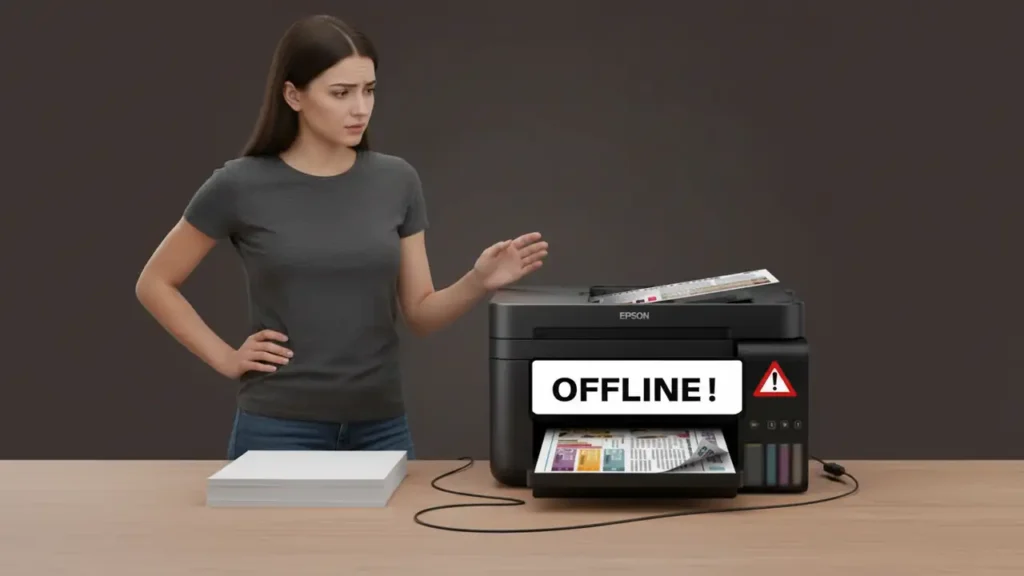
Printer Offline Fix Guide
Restore your printer’s connection and get back to printing quickly.
When your printer suddenly shows as “offline” on your Windows or Mac computer, it can be frustrating. This common issue prevents you from sending jobs, halting your work or personal printing needs. Don’t worry, most printer offline problems are resolvable with a few straightforward steps. We’ll guide you through checking basic connections, troubleshooting network issues, clearing print queues, and updating your system to bring your printer back online.
This guide is designed to help you diagnose and fix the printer offline status on your own, without needing technical support. We’ll cover everything from simple power cycling to more in-depth software solutions. By following these steps, you can get your printer working reliably again and avoid future interruptions.
Check Basic Connections and Power
Often, the simplest solutions are the most effective for printer offline issues. Before diving into complex troubleshooting, ensure your printer is properly powered on and physically connected. A loose cable or a printer that has gone into sleep mode can easily trigger an offline status.
Start by verifying the printer’s power cord is securely plugged into both the printer and a working wall outlet. Check if the printer’s power light is on. If it is, try turning the printer off using its power button, wait for about 30 seconds, and then turn it back on. This simple reboot can re-establish communication between the printer and your computer.
Resolve Wi-Fi and Network Connectivity Issues
If your printer is connected via Wi-Fi or an Ethernet cable, network problems are a frequent cause for the printer offline status. Your computer and printer need to be on the same network for them to communicate effectively. If either device has recently lost its network connection, the printer will appear unavailable.
For wireless printers, check your router and the printer’s Wi-Fi status indicator. If the printer’s Wi-Fi light is off or blinking, it might have disconnected from your network. Try reconnecting it by following your printer model’s instructions, often accessible through the printer’s control panel or a dedicated setup utility. Restarting your router by unplugging it for 30 seconds and plugging it back in can also resolve temporary network glitches affecting your printer offline status.
If your printer uses an Ethernet cable, ensure the cable is firmly plugged into both the printer and your router or switch. Check for any link lights on the Ethernet ports, which indicate an active connection. A faulty network cable could also be the culprit, so testing with a known good cable might be necessary.
Clear Stuck Print Jobs and Queues
A corrupted or stuck print job in the queue can cause your printer to appear printer offline, even if the hardware is fine. Windows and macOS maintain a list of pending print jobs, and if one job gets stuck, it can block all subsequent jobs. Clearing this queue is a vital step in resolving many printing problems.
On Windows, you can access the print queue by searching for “Printers & scanners” in the Start menu, selecting your printer, and then clicking “Open queue.” In the queue window, go to the “Printer” menu and select “Cancel All Documents.” You may need administrative privileges for this. If the option is greyed out, you might need to restart the Print Spooler service, which we’ll cover next.
For macOS users, navigate to System Settings (or System Preferences on older versions), click “Printers & Scanners,” select your printer, and then click “Print Queue.” Similar to Windows, you can select individual jobs and press the ‘X’ button to delete them, or use the “Delete All” option if available. Ensure your printer is set as the default printer for your Mac.
Restart the Print Spooler Service (Windows)
The Print Spooler is a Windows service that manages all print jobs sent to your printer. If this service encounters an error or becomes unresponsive, it can lead to a printer offline status. Restarting this service is a common fix for many Windows printing issues.
To restart the Print Spooler, press Windows Key + R on your keyboard to open the Run dialog box. Type services.msc and press Enter. In the Services window, scroll down to find “Print Spooler.” Right-click on it and select “Restart.” If “Restart” is greyed out, select “Stop,” wait a few seconds, and then select “Start.” After the service restarts, check if your printer is now online and accessible.
If the printer offline issue persists, consider setting the Print Spooler service to restart automatically if it fails. Right-click on “Print Spooler” again, select “Properties,” go to the “Recovery” tab, and choose “Restart the Service” for the First, Second, and Subsequent failures. This can prevent future instances of the printer offline problem.
Update or Reinstall Printer Drivers
Outdated, corrupt, or incorrect printer drivers are a frequent culprit behind a printer offline status. Drivers are software that allow your computer to communicate with your printer. If these drivers are not up to date or have become corrupted, communication can break down.
To update drivers on Windows, go to Device Manager (search for it in the Start menu). Expand the “Printers” or “Print queues” section, right-click on your printer, and select “Update driver.” Choose to search automatically for updated driver software. If Windows can’t find a driver, visit your printer manufacturer’s website (e.g., HP, Canon, Epson, Brother) and download the latest driver package for your specific model and operating system. After downloading, run the installer.
If updating doesn’t work, uninstalling and then reinstalling the drivers can often resolve persistent printer offline issues. First, remove the printer from your system via “Printers & scanners” in Windows Settings or “Printers & Scanners” in macOS System Settings. Then, run the driver installer you downloaded from the manufacturer’s website. Ensure you select the correct connection type (USB, Wi-Fi, Ethernet) during the reinstallation process.

Use macOS Reset Printing System
For Mac users experiencing persistent printer offline problems, the “Reset Printing System” feature can be a powerful troubleshooting tool. This function removes all printers from your system and resets all related printer settings, effectively giving your printing system a fresh start. It’s a comprehensive step that can resolve underlying software conflicts causing the printer offline status.
To use this feature, go to System Settings (or System Preferences), click “Printers & Scanners,” and then right-click (or Control-click) in the list of printers. Select “Reset Printing System…” from the contextual menu that appears. A confirmation dialog will pop up asking if you’re sure. Click “Reset” to proceed. After the system resets, you will need to re-add your printer by clicking the “+” button in the Printers & Scanners pane and following the on-screen instructions. This process often resolves deep-seated communication issues that lead to a printer offline state.
Adjust Firewall and Security Settings
Sometimes, your computer’s firewall or antivirus software can mistakenly block communication with your printer, leading to a printer offline message. These security programs are designed to protect your computer, but they can occasionally be overly cautious with network devices.
You may need to add an exception for your printer’s software or the specific ports it uses to communicate. The exact steps vary depending on your firewall or antivirus software. Generally, you’ll need to access the settings for your firewall or security suite, look for an “allow an app through firewall” or “trusted applications” section, and add your printer’s executable files or processes. Consult the documentation for your specific security software for detailed instructions on how to allow network communication for a printer.
Safety and Warranty Considerations
Always remember to unplug your printer from the power outlet before performing any physical checks or cleaning inside the device. Avoid touching sensitive components like the drum unit (in laser printers) or the print head (in inkjet printers) directly with your fingers, as oils can damage them. Performing these troubleshooting steps should not void your manufacturer’s warranty, but be aware that opening the printer’s casing or attempting internal repairs beyond what is outlined here could. If you are unsure about any step, especially those involving disassembling parts, it is best to contact your printer manufacturer’s support or a qualified service technician.