

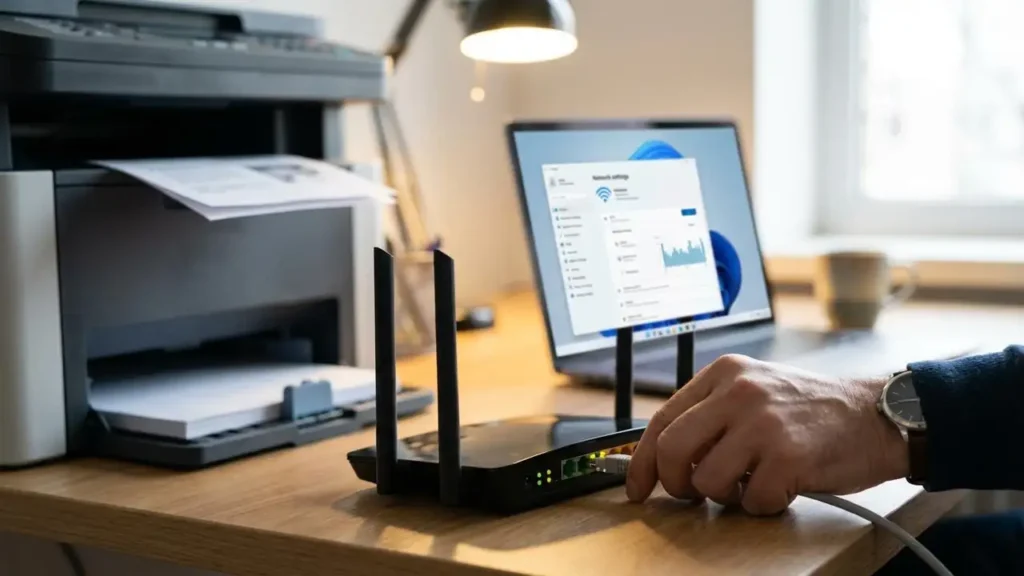
Slow Network Printing Issues Resolved
Understand and fix the frustrating delays when your printer takes too long to print over Wi-Fi or wired networks.
When your printer starts taking an unusually long time to complete print jobs, especially over a network connection, it can be incredibly disruptive. This is particularly common for slow network printing, where jobs that should be quick suddenly get bogged down. Whether you’re experiencing slow printing Windows 11, or any other operating system, understanding the potential causes is the first step to a speedy resolution.
This guide will help you diagnose why your printer is printing very slowly. We’ll cover common culprits from outdated drivers to network congestion and provide actionable steps to get your documents flowing again. Let’s dive into how to troubleshoot these frustrating printing delays and get back to efficient operation.
Isolate the Cause of Slow Network Printing
The first step in tackling slow network printing is to identify the most likely source of the bottleneck. Several factors can contribute to a printer taking too long to print, and it’s rarely just one single issue. By systematically checking each potential area, you can pinpoint the problem more effectively.
Consider the complexity of the document, the network environment, and the printer’s own status. Simple text documents should print much faster than large, image-heavy files. If only complex documents are slow, the issue might be processing power or data transfer size rather than a fundamental printer problem.
Update Printer Drivers for Optimal Performance
Outdated or corrupted printer drivers are one of the most frequent reasons for a printer not performing optimally. Drivers are the software that allows your computer to communicate with your printer, and if they’re not up-to-date, communication can be slow and inefficient. This is true whether you have a slow printing Windows 11 machine or are using an older OS.
Manufacturers frequently release driver updates to improve performance, fix bugs, and ensure compatibility with the latest operating systems. Installing the newest drivers can often resolve issues causing slow network printing almost immediately. Always download drivers directly from the printer manufacturer’s official website to avoid malware.
Steps to Update Your Printer Drivers
- Visit the support section of your printer manufacturer’s website (e.g., HP, Canon, Epson, Brother).
- Locate your specific printer model using its name or number.
- Navigate to the “Drivers & Downloads” or “Software” section.
- Select your operating system (e.g., Windows 11, macOS Ventura).
- Download the latest available driver package.
- Run the downloaded installer and follow the on-screen instructions, which may involve temporarily connecting the printer via USB if it’s a network-only setup initially.
- Once installed, restart your computer and try printing a test page.
High DPI and Graphics-Intensive Documents
Documents with very high resolution graphics or images, often associated with high DPI slow printing, can significantly increase the time it takes to print. The printer needs to process a vast amount of data for each page, which can overwhelm both the computer’s processor and the printer’s internal memory. This is especially noticeable when printing over a network, as the data transfer itself takes longer.
If you’re printing a presentation with many high-resolution images, a complex architectural drawing, or a large PDF with embedded photos, this could be the culprit. Reducing the DPI or image quality for non-essential prints can dramatically speed up the process.
Reducing Document Complexity
- Image Compression: In applications like Microsoft Word or Adobe InDesign, you can often compress images before saving the document or printing. This reduces file size without a significant loss in visual quality for most purposes.
- Lower Print Resolution: When sending the job to the printer, check the print settings. Many applications allow you to select a lower print quality or DPI for drafts or less critical documents. This can drastically reduce the processing load.
- Print as Image: For PDFs, sometimes printing as an image from the advanced print options can work around font or complex graphic issues, though it might slightly affect text clarity.
Network Congestion and Wi-Fi Issues
When dealing with slow network printing, the network itself is a prime suspect. A busy network, whether at home or in an office, can cause significant delays. If many devices are transferring large amounts of data simultaneously, your print job can get stuck in a queue, waiting for bandwidth.
For Wi-Fi printing very slow, the wireless signal strength and interference also play a crucial role. A weak or unstable Wi-Fi connection means data packets are lost or take longer to arrive, slowing down the entire printing process.
Optimizing Your Network for Printing
- Reduce Network Traffic: Try printing during off-peak hours or when fewer users are actively using the network for large downloads or streaming.
- Check Wi-Fi Signal: For wireless printers, ensure the printer is within a good range of the router. Consider moving the router or printer closer, or using a Wi-Fi extender if the signal is weak.
- Wired Connection: If possible and consistently experiencing Wi-Fi printing very slow, try connecting the printer directly to the router or a computer via an Ethernet cable. A wired connection is generally more stable and faster than Wi-Fi.
- Router Reboot: Sometimes, a simple reboot of your router can clear temporary network issues and improve performance for all connected devices, including your printer.
The Impact of Duplex Printing
Duplex printing slow is a common complaint because printing on both sides of a page requires the printer to do more work. The paper needs to be carefully fed back into the printer, flipped, and then printed on the second side. This mechanical process takes time and can significantly increase the overall print job duration compared to single-sided printing.
If your printer is also performing other background tasks or if the duplexing mechanism is slightly worn, the speed can be further reduced. For large documents, enabling duplex mode can lead to very noticeable delays.
When to Avoid or Optimize Duplex Printing
- Prioritize Speed: If you need a document printed as quickly as possible, disable duplex printing in the print settings. This is the most straightforward way to speed up the process.
- Print Drafts: For internal drafts or documents that don’t require a professional finish, consider printing single-sided to save time.
- Check Printer Capabilities: Some high-end printers have faster duplexing mechanisms than others. If duplex printing is a frequent requirement, consider a model known for its efficient duplexing capabilities.
Print Server Bottlenecks
In larger office environments, printers are often managed through a print server. This server acts as a central hub for print jobs, managing queues and sending them to the appropriate printers. If the print server is under heavy load from too many users or too many print jobs, it can become a bottleneck, leading to slow network printing for everyone.
A server experiencing high CPU usage, low memory, or disk I/O issues will struggle to process and send print jobs efficiently. This can manifest as long delays between sending a job and the printer starting to print, or jobs being processed very slowly.
Assessing Print Server Performance
- Monitor Server Resources: IT administrators can monitor the print server’s CPU, memory, and disk usage. High utilization often points to a performance bottleneck.
- Check Print Spooler Service: The print spooler service on the server can sometimes hang or become corrupted, slowing down all print jobs. Restarting this service can help.
- Driver Compatibility: Ensure all printers connected to the server are using compatible drivers. Mixed or outdated drivers can cause issues.
- Offload Printing: For very busy environments, consider distributing the print load across multiple print servers or directly connecting some printers to the network.
Frequently Asked Questions About Slow Network Printing
Safety and Warranty Considerations
Before performing any physical checks or maintenance inside your printer, always ensure it is powered off and unplugged from the wall outlet. Avoid touching sensitive internal components like the drum or toner cartridge directly, as oils from your skin can damage them. Opening printer panels or attempting unauthorized repairs may void your manufacturer’s warranty. If you are unsure about any troubleshooting step, it is best to consult your printer’s manual or contact an authorized service provider.
By systematically addressing these common issues, you can often resolve slow network printing and get your documents printing at their intended speed again. Whether it’s updating drivers, optimizing network settings, or simplifying your documents, there are many effective solutions available.