

Resolve Brother MFC-L3780CDW Toner and Scanning Issues
Maintain peak performance for your Brother MFC-L3780CDW with expert toner replacement and scanning troubleshooting.
The Brother MFC-L3780CDW is a versatile all-in-one digital color printer, renowned for its efficiency in small businesses and home offices. Offering print, copy, scan, and fax capabilities, it’s a workhorse designed for fast, laser-quality output. However, like any complex device, users may occasionally encounter issues related to Brother MFC-L3780CDW toner management or getting the most out of its robust scanning features.
Understanding how to effectively address these common concerns ensures your printer remains a reliable asset. This guide will walk you through replacing your L3780CDW toner cartridges, resolving typical toner-related print quality problems, and troubleshooting scan-to-computer functions. With these straightforward steps, you can quickly restore your printer’s optimal performance.
Understanding Your Brother MFC-L3780CDW Toner System
The Brother MFC-L3780CDW uses a laser printing technology, meaning it relies on toner cartridges rather than ink. This printer utilizes four separate toner cartridges: black (TN229BK, TN229XLBK), cyan (TN229C, TN229XLC), magenta (TN229M, TN229XLM), and yellow (TN229Y, TN229XLY). It’s crucial to understand that the toner cartridges are distinct from the drum unit, although they often come bundled together initially.
The drum unit (DR229CL) transfers the toner to the paper and typically needs replacement less frequently than the toner cartridges. Using genuine Brother MFC-L3780CDW toner ensures the best print quality and longevity for your device. High-yield toner options are also available, providing more prints per cartridge and lower running costs, a factor highlighted in expert reviews.
How to Safely Replace Your Brother MFC-L3780CDW Toner
Replacing L3780CDW toner is a routine maintenance task that can be performed easily with the right steps. Always ensure you have the correct replacement cartridge for your specific model. Genuine Brother toner can often be found on platforms like Brother MFC-L3780CDW Amazon listings or directly from Brother.
Here’s a step-by-step guide for Brother MFC L3780CDW toner replacement:
- Prepare the Printer: Ensure your Brother MFC-L3780CDW is powered on. Open the front cover of the printer.
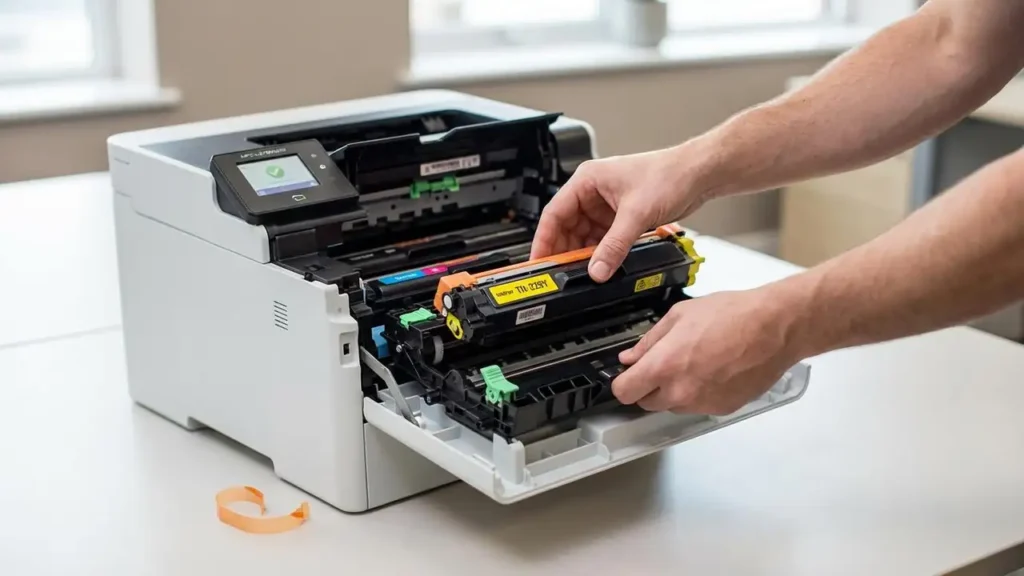
- Remove Old Cartridge: Carefully grasp the handle of the toner cartridge and drum unit assembly that corresponds to the color you need to replace. Pull the assembly straight out of the printer.
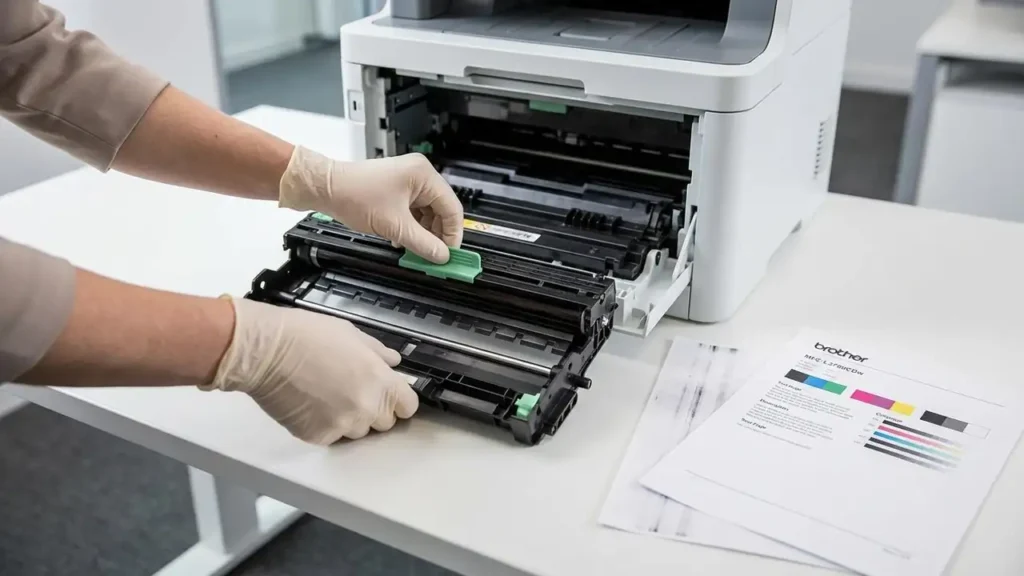
- Separate Toner from Drum: On a clean, flat surface covered with paper, hold the assembly horizontally. Push down the green lock lever on the left side and pull the toner cartridge out of the drum unit.
- Unpack New Toner: Gently shake the new L3780CDW toner cartridge horizontally several times to distribute the toner evenly. Remove the protective cover from the new cartridge.
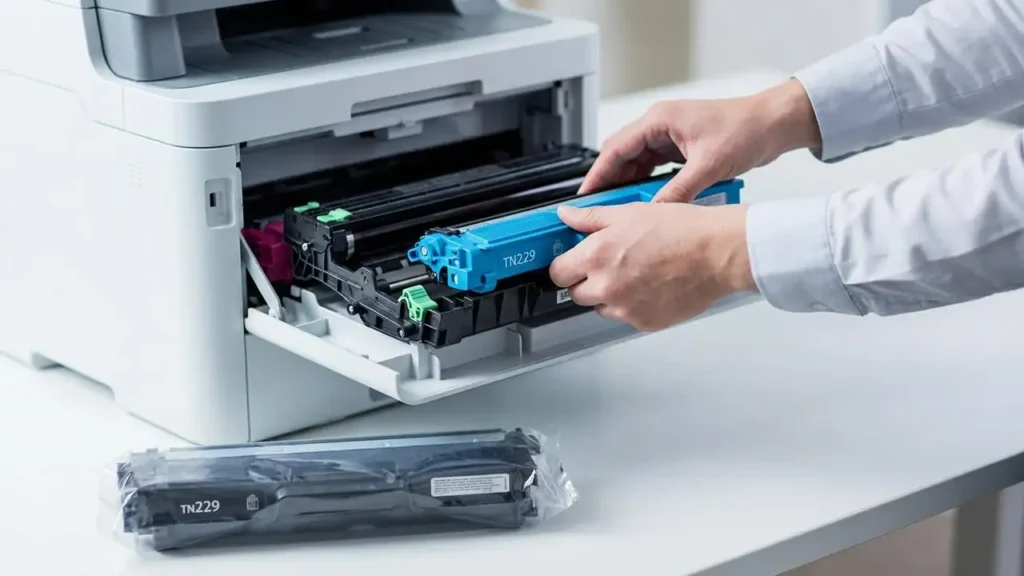
- Install New Toner: Slide the new toner cartridge into the drum unit until it locks into place with an audible click. Ensure the green lock lever lifts automatically.
- Reinstall Assembly: Gently slide the toner cartridge and drum unit assembly back into the printer until it firmly seats in its position. The color should match the slot.
- Close Cover: Close the front cover of the printer. The printer will begin a short calibration process. If prompted, confirm that you have replaced the toner.
Troubleshooting Common L3780CDW Toner Issues
Even after proper Brother MFC L3780CDW toner replacement, you might encounter issues like faded prints or persistent error messages. These problems are often straightforward to resolve.
Resolving Print Quality Problems
If your prints are faded, streaky, or uneven, especially after installing new Brother MFC-L3780CDW toner, consider these checks:
- Check Toner Levels: Verify the toner levels on your printer’s 3.5-inch color touchscreen display. Even with a new cartridge, an older, nearly empty one could be causing issues if you mistakenly swapped the wrong color.
- Shake the Cartridge: If a specific color is faded, remove its toner cartridge (after separating it from the drum unit) and gently shake it horizontally 5-6 times. This redistributes the toner powder, which can settle over time.
- Clean the Drum Unit: Occasionally, debris on the drum unit can cause streaks. With the toner and drum assembly out, locate the green tab on the drum unit. Slide it back and forth several times to clean the corona wire, then return it to its home position.
Addressing “Toner Low/Empty” or “Toner Not Recognized” Errors
If your printer continues to display a “Toner Low” or “Toner Empty” message after replacing the L3780CDW toner, or if it claims the cartridge isn’t recognized:
- Re-seat the Cartridge: Power off the printer, then remove and reinsert the toner cartridge and drum unit assembly. Ensure it clicks firmly into place. Power the printer back on.
- Check for Protective Packaging: Confirm all protective tapes and covers have been removed from the new toner cartridge. Sometimes, a small piece of plastic can prevent proper contact.
- Verify Cartridge Type: Make sure you installed the correct cartridge type for your Brother MFC-L3780CDW. Using an incompatible or damaged cartridge can lead to recognition errors.
Optimizing Brother MFC-L3780CDW Scan to Computer Functions
The ability to Brother MFC-L3780CDW scan to computer is a critical feature for many users, particularly with its single-pass duplex scanning. Ensuring reliable scanning often boils down to proper software setup and network configuration.
- Install Latest Drivers and Software: Visit the official Brother support website for the MFC-L3780CDW model. Download and install the latest full driver and software package, including utilities like Brother iPrint&Scan. This is essential for robust scanning functionality on Windows, macOS, or Linux.
- Verify Connectivity: Your printer’s versatile connectivity options (dual-band wireless, Gigabit Ethernet, Wi-Fi Direct, USB) offer flexibility. For network scanning, ensure the printer is correctly connected to your network (wired or wireless) and that your computer is on the same network.
- Configure Scan Destinations: Use the Brother Utilities software on your computer or the printer’s 3.5-inch color touchscreen to configure scan destinations. You can set up shortcuts to scan directly to a folder on your PC, email, or cloud services like Google Drive and Dropbox.
- Troubleshoot Scanner Color Issues: If, as some users report, the scanner produces slightly off colors, try updating your printer drivers. Calibrating the scanner through the Brother iPrint&Scan software or scanner settings on your computer might also help. Ensure the scanner glass and ADF components are clean from smudges.
- Check Network Firewall/Antivirus: Sometimes, firewall settings on your computer or network can block communication with the printer, preventing Brother MFC-L3780CDW scan to computer. Temporarily disable your firewall or antivirus to test if it resolves the issue. If it does, create an exception for the Brother software.
Essential Safety and Maintenance for Your Printer
Always prioritize safety when performing maintenance on your Brother MFC-L3780CDW. Before opening any covers for maintenance, it’s a good practice to unplug the printer from the power outlet, especially when dealing with internal components. Avoid touching sensitive areas like the drum unit’s surface or the fuser assembly directly, as these can be hot or easily damaged.
Unauthorized modifications or opening panels beyond standard user maintenance may void your printer’s warranty. If you are unsure about a specific troubleshooting step or suspect a hardware fault, contact Brother customer support or an authorized service center. Regularly cleaning the exterior of your printer and ensuring it has adequate ventilation will also contribute to its longevity.
Common Questions About Brother MFC-L3780CDW Toner & Scanning
Maintaining your Brother MFC-L3780CDW doesn’t have to be complicated. By following these practical steps for Brother MFC-L3780CDW toner replacement and troubleshooting scanning issues, you can keep your all-in-one printer running smoothly. Regular maintenance and attention to detail will ensure your device continues to deliver high-quality results for your home or office needs.