

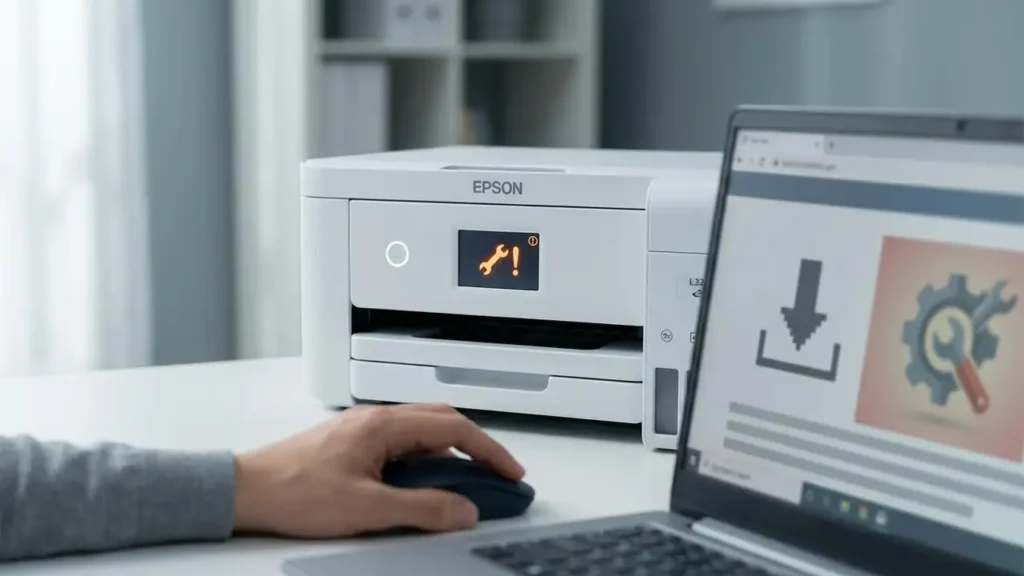
Epson L3210 “Ink Pad is at the End of Its Service Life” — Meaning & Safe Fix Options
If your Epson EcoTank L3210 shows a message like “Ink Pad is at the End of Its Service Life”, “Service Required”, or similar warnings, it usually means the printer believes its internal waste-ink system has reached a limit.
This guide explains what the message means and what you can do safely to fix it.
Quick Answer (Start Here)
If the message says “end of service life / service required”: stop printing and plan proper servicing (recommended).
If the message says “nearing end of service life”: you may be able to print temporarily, but you should still schedule maintenance soon.
Avoid random “free reset tools” from unknown websites. Many are unsafe, and resetting without maintenance can lead to ink leakage.
What This Message Actually Means
Inkjet printers produce waste ink during:
print head cleaning cycles,
borderless printing,
priming/initial setup,
maintenance routines.
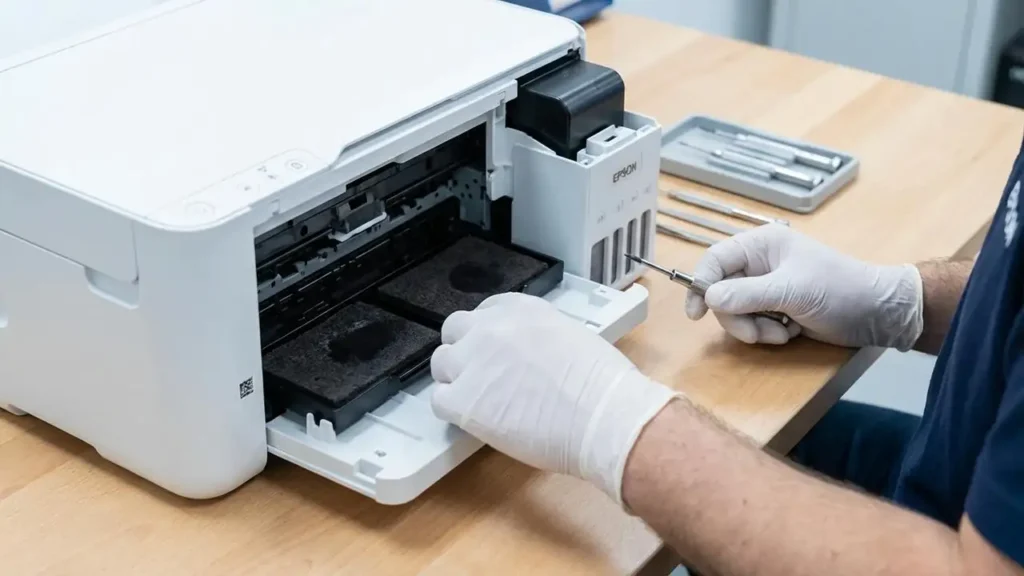
That waste ink is absorbed by internal pads (often called waste ink pads). The printer tracks an estimated usage counter. When it reaches a threshold, Epson displays the service-life warning.
So this is typically a maintenance/servicing warning—not a simple “driver error”.
Why It Happens (Common Causes)
Frequent head cleaning (especially repeated cleanings back-to-back)
Long periods without printing (more cleaning cycles when you start again)
Heavy color printing
Borderless printing (often produces more waste ink)
Normal wear over time
Safe Fix Options (Recommended)
Option 1 (Best): Service / Maintenance
The most reliable fix is proper maintenance:
inspection of the waste-ink area,
cleaning/replacement as needed,
any required internal servicing procedures.
This reduces the risk of ink overflow and protects the printer long-term.
Option 2: If You Must Print Temporarily
If the message says “nearing end of service life” (not fully blocked yet), you can reduce waste ink generation:
Avoid unnecessary head cleaning.
Print a small test page first instead of running multiple clean cycles.
Use standard print settings (avoid aggressive “High Quality” unless needed).
Avoid borderless printing.
Important: If the printer becomes blocked (“service required”), continuing to force printing is not recommended.
What NOT to Do (Risky Moves)
1) Don’t Reset Without Maintenance
Resetting the counter without addressing the underlying waste-ink situation can lead to:
ink leakage inside the printer,
messy damage to parts,
stains on desks/floors,
unpredictable failures later.
2) Don’t Trust “Free Resetter Downloads”
Many “free resetter” downloads are bundled with malware, adware, or suspicious installers. Even if something works once, it can harm your computer or cause future printer problems.
How to Confirm You’re Seeing the Right Issue
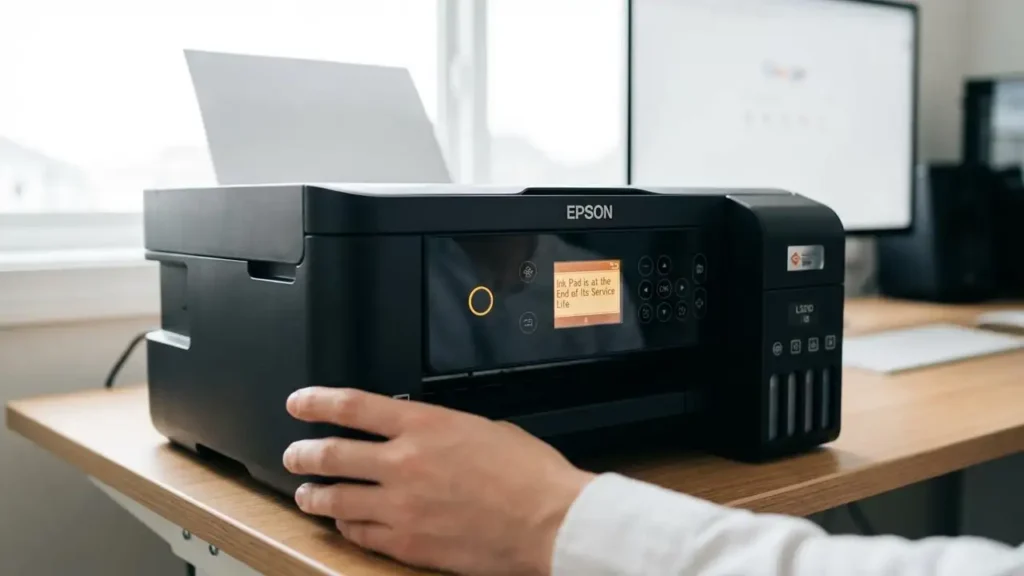
Look for wording like:
“Ink pad is at the end of its service life”
“Service required”
“A printer’s ink pad is nearing the end of its service life”
If your problem is different (printer offline, not printing, paper jam), use the correct guide instead.
👉 Back to the main hub:
Go to the Epson L3210 Support Center
Prevention (Avoid Seeing This Too Soon)
Print at least once every 1–2 weeks to reduce heavy cleaning cycles.
Don’t run multiple head cleanings in a row unless absolutely necessary.
Keep the printer in a clean, dust-free area.
Use normal print settings for everyday tasks.