

HP Smart App Can’t Find Printer Fixes
Troubleshoot and resolve HP Smart app printer discovery issues for reliable connectivity.
Is your HP printer playing hide-and-seek with the HP Smart app? You’ve confirmed your Wi-Fi is working, yet the app steadfastly refuses to find your printer. This common issue can be frustrating, preventing you from printing, scanning, or managing your device. Don’t worry; most of the time, HP Smart app can’t find printer problems stem from simple network, software, or configuration hiccups. This guide will walk you through the most effective solutions to get your HP Smart app and printer communicating again.
The HP Smart app is designed to simplify printer management, but sometimes the connection between your computer or mobile device and the printer gets interrupted. This can happen for various reasons, from a temporary network glitch to an incorrect setting on your computer or within the app itself. Understanding these potential causes is the first step toward a swift resolution, allowing you to return to seamless printing tasks.
Let’s dive into troubleshooting steps that address why your HP Smart app can’t find printer and how to restore that vital connection. We’ll cover everything from basic network checks to more in-depth settings adjustments. By systematically working through these solutions, you can pinpoint the exact cause of the problem and implement a fix.
HP Smart App Can’t Find Printer: Initial Checks
Before diving into complex troubleshooting, it’s crucial to perform some basic checks. Often, the simplest solutions are the most effective for HP Smart app can’t find printer issues. Ensure your printer and the device running the HP Smart app are on the same network, and that both are powered on and functioning correctly.
Verify that your printer is not in sleep mode or powered off. Printers can sometimes enter deep sleep states that make them temporarily invisible to network discovery tools. Waking the printer by pressing a button or initiating a test print can sometimes resolve the issue. Also, confirm that your Wi-Fi network is stable and that other devices can connect to it without problems.
Restart Devices to Clear Network Glitches
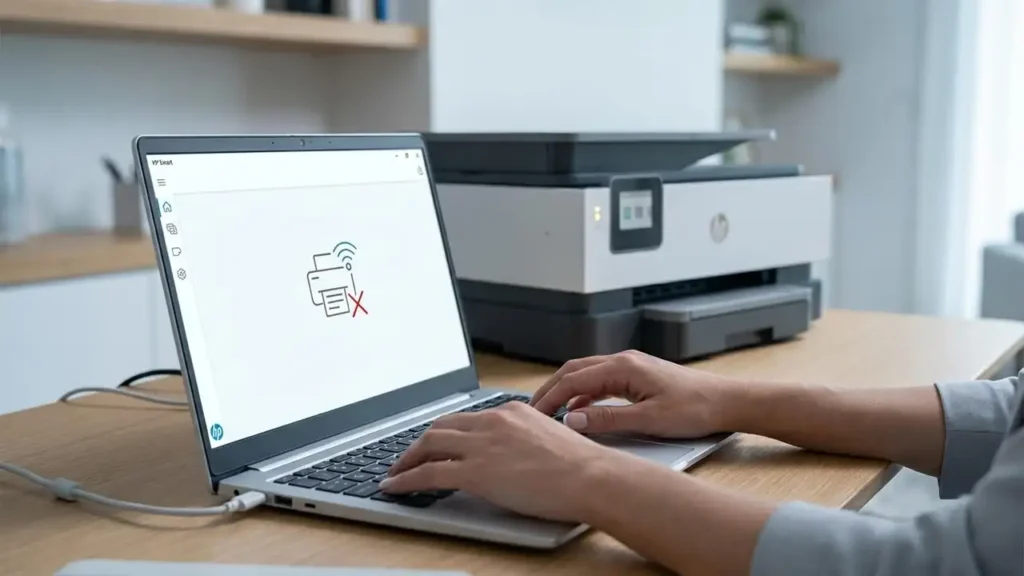
A simple restart of your printer, router, and the device running the HP Smart app can resolve many temporary network conflicts and communication errors. This process refreshes network connections and clears out any stuck processes that might be preventing discovery. It’s a quick and often highly effective first step for HP Smart unable to connect to printer.
Steps to Restart:
- Power off your printer: Press the power button and wait for it to shut down completely.
- Power off your router and modem: Unplug them from the power source.
- Restart your computer or mobile device: Close all applications and restart the operating system.
- Power on your router and modem: Wait until their indicator lights show a stable internet connection.
- Power on your printer: Allow it to complete its startup sequence.
- Open HP Smart app: Once everything is back online, launch the HP Smart app and try to find your printer again.
Ensure Proper Network Connectivity
The HP Smart app relies on your local network to discover and communicate with your printer. If your printer and your computer or mobile device are on different networks, the app won’t be able to find it. This is a common reason why HP printer not found in HP Smart.
Check your Wi-Fi settings on both the device running the app and the printer itself. Ensure they are connected to the exact same network name (SSID) and, if applicable, the same band (2.4 GHz or 5 GHz). Some routers broadcast multiple SSIDs, so it’s important to be certain they are on the same one. If you recently changed your Wi-Fi password or network name, you’ll need to reconnect your printer to the new network.
Reconnecting Printer to Wi-Fi
If your printer is not on the correct network, you’ll need to reconnect it. This process varies by printer model, but generally involves using the printer’s control panel or HP’s setup utility.
- Access Printer Network Settings: Navigate to the wireless or network settings menu on your HP printer’s display panel.
- Select Your Network: Choose your Wi-Fi network name (SSID) from the list of available networks.
- Enter Password: Input your Wi-Fi password accurately.
- Confirm Connection: Your printer should indicate a successful connection to the network.
- Re-add Printer in HP Smart: Open the HP Smart app, go to settings, and try adding the printer again.
Troubleshoot HP Smart App and Software Issues
Sometimes the issue isn’t with the network or the printer, but with the HP Smart app itself or related software on your computer. Corrupted app data, outdated versions, or conflicts with other software can lead to discovery problems. Addressing these software-related issues is vital when HP Smart unable to connect to printer.
Ensure you are running the latest version of the HP Smart app. Updates often include bug fixes and performance improvements that can resolve connectivity issues. Also, check if there are any available driver updates for your HP printer on the official HP support website. Outdated or generic drivers can sometimes interfere with the HP Smart app’s ability to detect the printer.
Reinstalling HP Smart App
If updating doesn’t resolve the problem, a clean reinstallation of the HP Smart app can often fix corrupted files or settings. This process removes all existing app data and installs a fresh copy, which can resolve many persistent HP Smart wifi connection issue problems.
- Uninstall HP Smart: Remove the HP Smart app from your computer or mobile device. Follow the standard uninstallation procedures for your operating system.
- Restart Device: Reboot your computer or mobile device after uninstalling.
- Download Fresh Install: Go to the official HP website or your device’s app store and download the latest version of HP Smart.
- Install HP Smart: Install the app and follow the on-screen prompts to add your printer.
Check Firewall and Antivirus Settings
Your computer’s firewall or antivirus software might be blocking the HP Smart app or the necessary network ports used for printer discovery. These security programs are designed to prevent unauthorized access, but they can sometimes be overzealous and block legitimate communication. This is a common reason why HP Smart discover printer fails.
You may need to temporarily disable your firewall or antivirus to see if that allows the HP Smart app to find your printer. If disabling it works, you’ll then need to configure the software to allow the HP Smart app and related HP services to communicate freely on your network. Consult your security software’s documentation for specific instructions on how to add exceptions.
Configuring Security Software
Adding exceptions for HP applications is the recommended long-term solution.
- Identify HP Ports/Programs: Research the network ports and executable files HP Smart and your printer use for communication. HP’s support site often lists these.
- Add Exceptions: In your firewall and antivirus settings, add these ports and programs to the allowed list.
- Re-enable Security: Re-enable your firewall and antivirus software.
- Test HP Smart: Try using the HP Smart app again to see if it can now find your printer.
Ensure Printer is Not Offline in HP Smart
Even if the network is fine, the printer might appear offline within the HP Smart app due to a lost connection after initial setup or a software glitch. If you’ve recently set up your printer and it’s now showing as offline, it’s important to troubleshoot this specific HP printer offline status.
Sometimes, simply refreshing the app or your printer’s status within the app can resolve this. If your printer has a Wi-Fi or network status light, ensure it is lit and stable, indicating a good connection. If the status light is blinking, it usually signifies a problem connecting to the network.
Refreshing Printer Status and Re-adding
If your HP printer offline issue persists, try removing and re-adding the printer within the HP Smart app. This can re-establish the connection from scratch.
- Open HP Smart: Launch the HP Smart application.
- Select Your Printer: Go to the list of printers.
- Remove Printer: Find the option to remove or delete your printer from the app.
- Add Printer Again: Use the “+” or “Add Printer” option in the app to search for and add your printer. Follow the on-screen setup process.
Common questions about HP Smart app can’t find printer
Safety and Warranty Note
Before opening any printer panels or attempting internal cleaning, always unplug the device from the power outlet. Avoid touching sensitive internal components such as the drum unit or print head directly with your fingers, as oils and dirt can cause damage. Modifying or tampering with your printer may void its warranty. If you are unsure about any troubleshooting step, consult your printer’s manual or contact HP support.
By systematically working through these troubleshooting steps, you can resolve most issues where the HP Smart app can’t find printer. Whether it’s a simple network misconfiguration or a software conflict, these solutions are designed to get your HP printer back online and managed effectively by the HP Smart app.