

printer offline mac? Fix It on macOS (Step-by-Step Guide)
printer offline mac? This is a common issue on macOS, especially after Wi-Fi changes, system updates, or printer driver problems. The good news is that most offline printer problems on Mac can be fixed quickly by resetting the connection, re-adding the printer, or resetting the printing system.
This guide shows the fastest solutions first, then advanced macOS fixes if the printer stays offline.
👉 Back to the main hub:
Printer Offline Fix Hub
Quick Fix Checklist (Try These First)
1) Restart Printer + Mac + Router (Fastest)
Turn the printer OFF
Restart your Mac
Restart your Wi-Fi router (if using wireless printing)
Turn the printer ON
Wait 2–3 minutes and try printing again
✅ This alone fixes many “printer offline mac” cases.
2) Check Wi-Fi Network (Same Network Rule)
If your printer is wireless, make sure:
Your Mac and printer are connected to the same Wi-Fi
You are not using Guest Wi-Fi
You’re not connected to a different extender/SSID
Why Does a Printer Go Offline on Mac?
The most common reasons include:
The printer changed IP address after router restart
macOS is pointing to the wrong printer connection
The printer was added with an old or broken configuration
Driver or macOS update caused a mismatch
Wi-Fi signal drops or sleep mode disconnects the printer
Now let’s fix it properly.
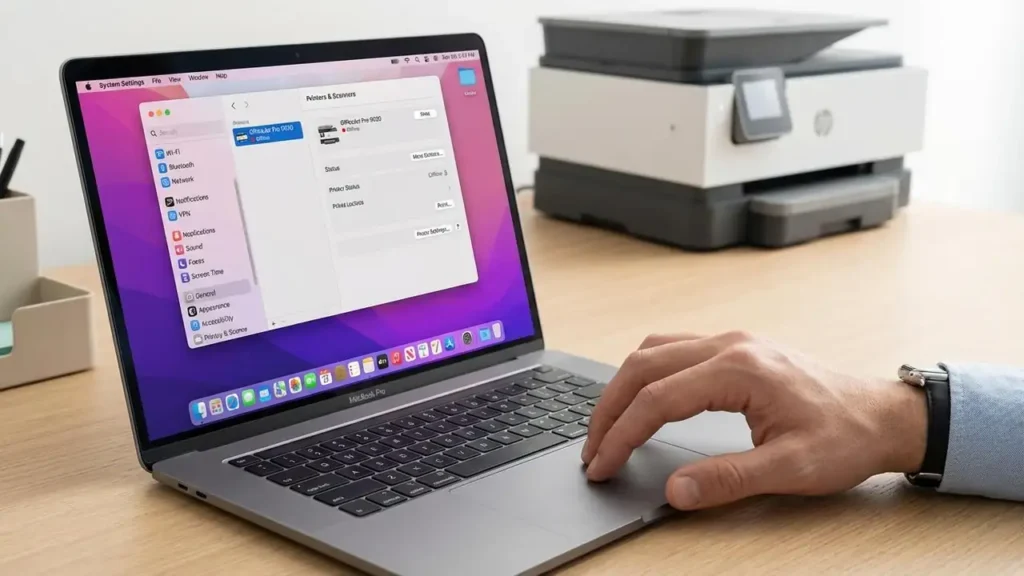
Fix 1: Remove and Re-Add the Printer (Best Simple Fix)
Click Apple Menu → System Settings
Go to Printers & Scanners
Select your printer and click Remove Printer
Restart your Mac
Click Add Printer, Scanner or Fax
Select your printer and add it again
✅ After adding it, try printing a test page.
Fix 2: Use the Correct Printer Connection (AirPrint vs Driver)
When adding the printer on macOS, you’ll often see:
AirPrint
Secure AirPrint
Brand driver name (Epson/Brother/HP…)
What to choose?
Start with AirPrint (stable for most printers)
If AirPrint causes problems, try the official driver from the printer manufacturer
⚠️ Avoid random “driver pack” websites. Always use official sources.
Fix 3: Check the Printer IP Address (Wi-Fi Offline Fix)
A common “printer offline mac” reason is that the router gave the printer a new IP address.
How to find the printer IP:
On the printer screen: Network/Wi-Fi settings → Network Status
Or print a network report page
Then confirm macOS is using the correct IP:
Go to System Settings → Printers & Scanners
Select your printer
Open printer info (depending on macOS version)
Confirm it matches the current IP address
If it doesn’t match: remove the printer and re-add it (Fix 1).
Fix 4: Clear Stuck Print Jobs (macOS Queue)
Sometimes the printer looks offline because the queue is frozen.
Go to Printers & Scanners
Select your printer
Click Open Print Queue
Cancel stuck jobs
Try printing again
✅ Clearing the queue often restores the connection instantly.
Fix 5: Reset the Printing System (Most Powerful macOS Fix)
If none of the above works, do this reset.
It removes all printers and restores the printing settings to default.
Steps:
Go to System Settings → Printers & Scanners
In the printers list, right-click (or Control-click) in the empty area
Choose Reset printing system…
Confirm, then restart your Mac
Add the printer again (Fix 1)
✅ This is one of the strongest solutions for repeated “printer offline mac” issues.
Fix 6: Disable Sleep/Power Saving Disconnects (Wireless Printers)
Some printers disconnect in sleep mode, especially on Wi-Fi.
Try:
Keep printer on for 10 minutes and test again
If available in printer settings: disable deep sleep / eco mode temporarily
Place printer closer to the router to reduce signal drops
Fix 7: If You’re Using a USB Printer
If your printer is connected by USB:
Try another USB port
Use a different cable (very common cause)
Avoid USB hubs
Restart Mac after reconnecting
Then remove and re-add the printer on macOS.
Final Checklist (If Still Offline)
Restart printer + router + Mac
Confirm same Wi-Fi network (no guest/extender mismatch)
Remove and re-add printer
Clear print queue
Reset printing system (macOS)
Reinstall official driver if needed
Test printing from another device (phone/PC) to isolate the problem