

Why Is My Printer Offline? (Windows 10/11) — Real Fixes That Work
If you’re wondering “Why is my printer offline?” on Windows 10 or Windows 11, the good news is: most cases are caused by a few common issues—like a stuck print queue, Windows toggling the offline mode, or a connection glitch.
This guide gives you the fastest fixes first, then moves into deeper troubleshooting if needed.
Quick Fix (Try These First)
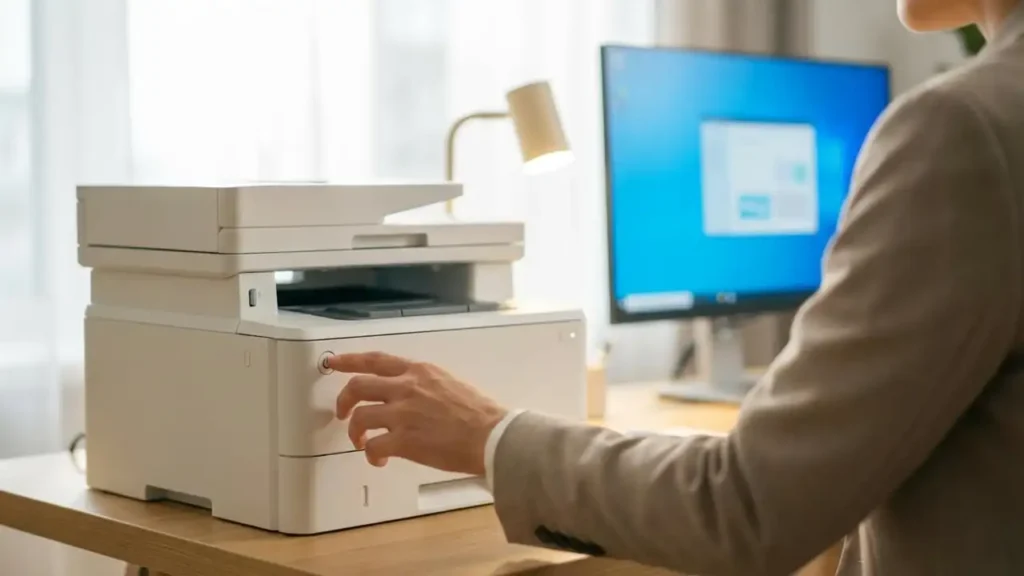
1) Power Cycle the Printer (Fastest)
Turn the printer OFF
Unplug it for 60 seconds
Plug it back in and turn it ON
Wait 2–3 minutes and try printing again
2) Uncheck “Use Printer Offline” (Most Common Fix)
Open Control Panel → Devices and Printers
Right-click your printer → See what’s printing
Click Printer (top menu)
Uncheck Use Printer Offline
Cancel any stuck documents
✅ Try printing a test page again.
3) Set the Correct Printer as Default
Go to Devices and Printers
Right-click your real printer
Choose Set as default printer
Sometimes Windows switches to a virtual printer (PDF/XPS), which makes your printer look “offline”.
Fix the Print Queue (Stuck Jobs)
4) Clear Print Queue Manually
Open See what’s printing
Select all documents → Cancel
Restart the printer and try again
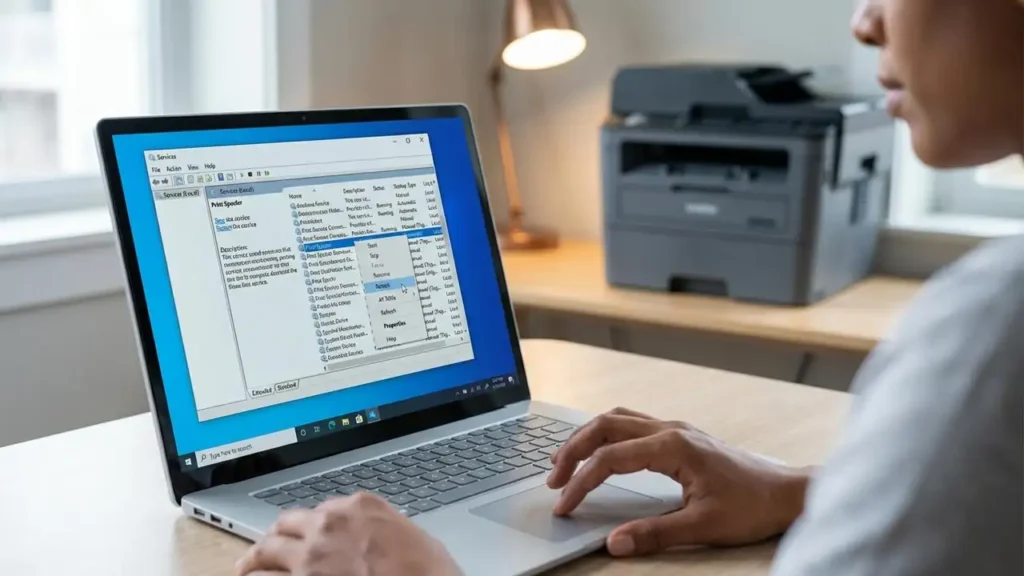
5) Restart Print Spooler (Very Effective)
Press Win + R
Type:
services.mscFind Print Spooler
Click Restart
Now test printing again.
Connection Problems (USB vs Wi-Fi)
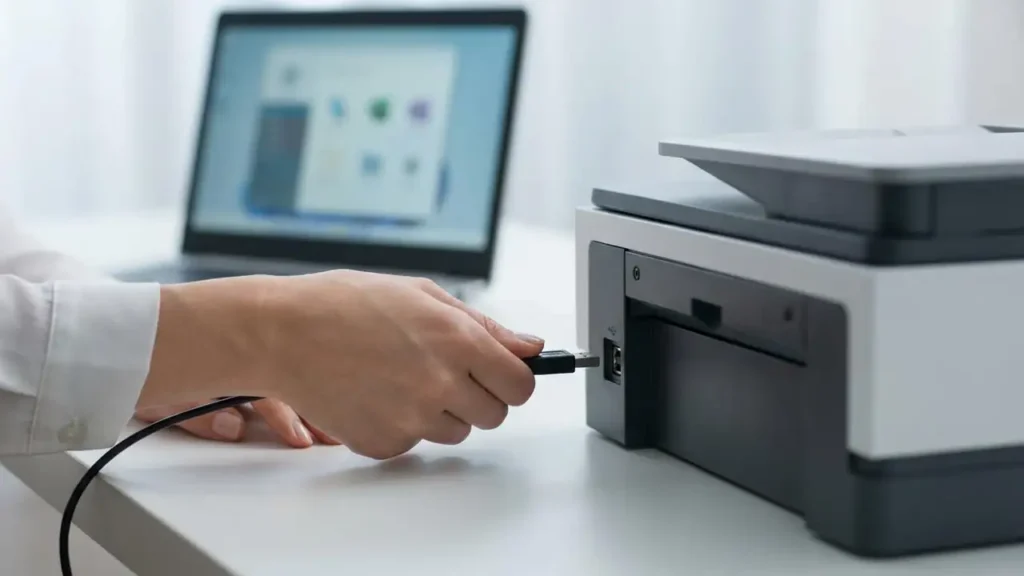
6) USB Printer Offline Fix
Try these:
Use a different USB port (avoid USB hubs)
Replace the USB cable (faulty cables cause offline status)
Plug directly into the PC, not the monitor/keyboard USB
7) Wi-Fi Printer Offline Fix (Windows)
Common reasons:
router changed your printer’s IP address
weak Wi-Fi signal
printer connected to a different network
Try:
restart the router once
reconnect the printer to the correct Wi-Fi
move printer closer to the router for testing
Driver Issues (When Everything Else Looks Fine)
8) Update/Reinstall the Printer Driver
If the printer keeps going offline:
remove the printer from Windows
restart your PC
reinstall the official driver from the printer brand website
Avoid random “driver pack” tools—official drivers are more stable.
9) Disable “SNMP Status” (Advanced Fix)
In some network printers, Windows shows offline because of SNMP status detection.
Open Devices and Printers
Right-click printer → Printer properties
Go to Ports
Select your port → Configure Port
Uncheck SNMP Status Enabled
Save → test again
(Only use this if your printer is online but Windows keeps showing it offline.)
Still Offline? Try This Final Checklist
Restart PC + printer + router
Clear queue + restart Print Spooler
Reinstall driver
Remove printer from Windows and add it again
Test printing from another PC or phone (to isolate the problem)
Frequently Asked Questions
Related Guides
👉 Back to the hub:
Printer Offline Fix Hub