

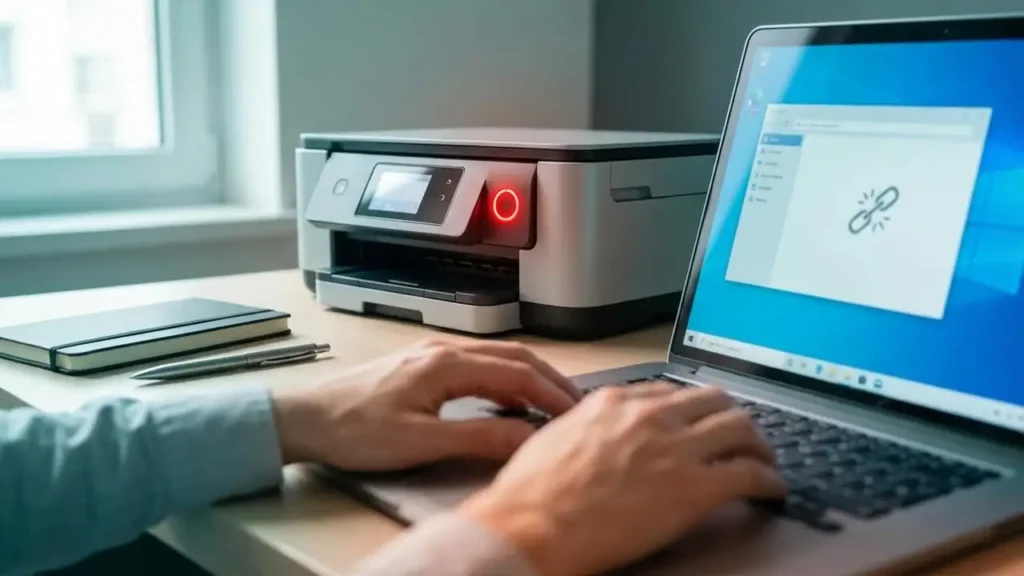
wifi printer offline? Fix Network & IP Issues (Step-by-Step)
wifi printer offline? This usually happens because of Wi-Fi signal problems, router changes, or an IP address mismatch after a restart. The good news is that most cases can be fixed in a few minutes using the right steps.
In this guide, you’ll learn the fastest troubleshooting checklist first, then advanced fixes like TCP/IP ports and static IP settings to stop your printer from going offline again.
Quick Fix Checklist (Try This First)
Before doing anything advanced, follow this order:
1) Restart the Printer and Router (Fastest Win)
Turn the printer OFF
Restart your Wi-Fi router
Wait 60 seconds
Turn the printer ON
Wait 2–3 minutes and print a test page
✅ This simple step fixes many “wifi printer offline” problems immediately.
2) Confirm the Printer Is On the Correct Wi-Fi Network
A common cause is the printer connecting to the wrong network:
Guest Wi-Fi (often blocks devices)
Extender Wi-Fi (different name/SSID)
2.4 GHz vs 5 GHz mismatch
Make sure your computer and printer are on the same Wi-Fi network.
3) Move the Printer Closer (Signal Test)
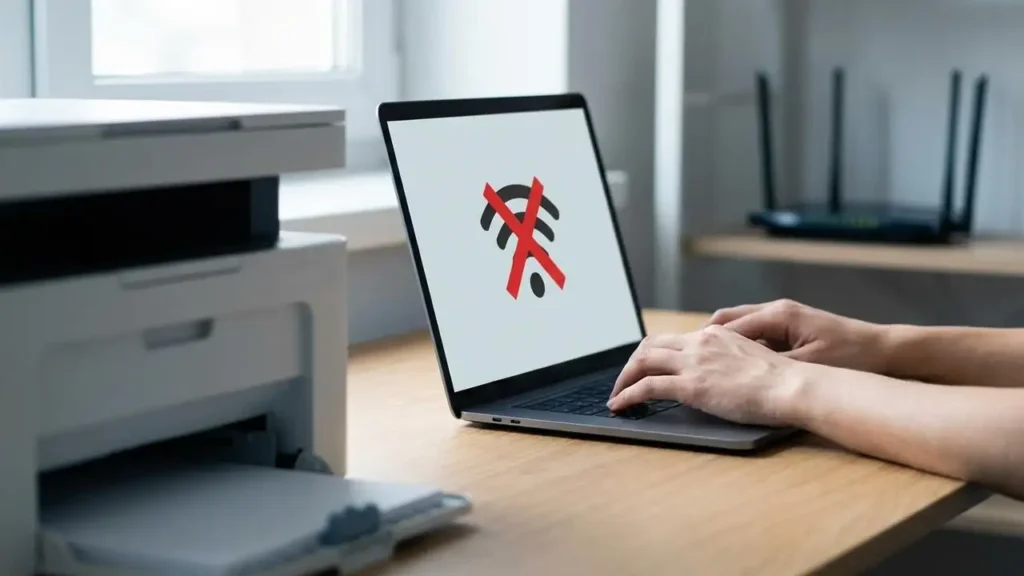
If Wi-Fi is weak, the printer may disconnect and show offline.
Try moving the printer closer to the router for 5 minutes and test again.
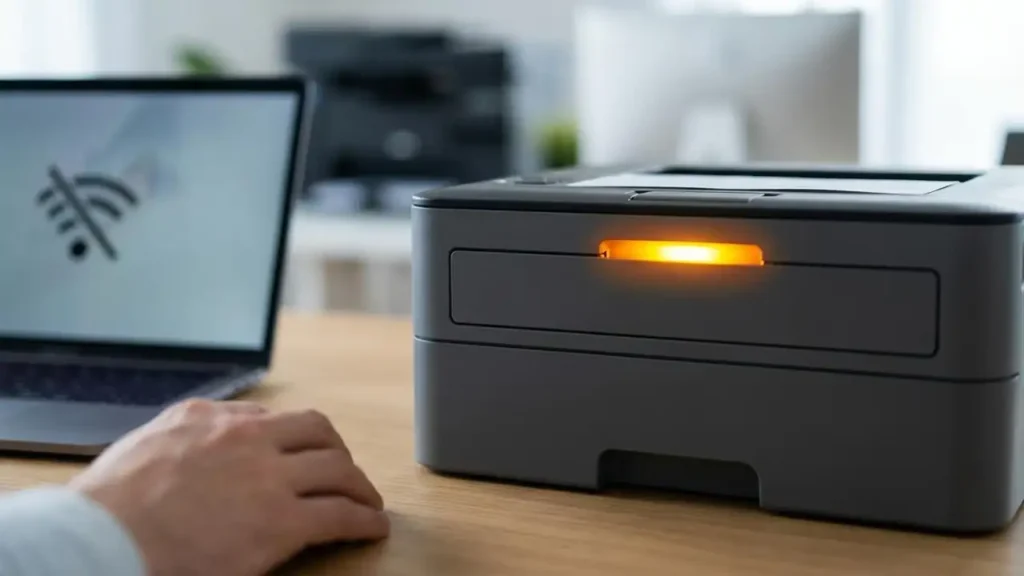
Why Your Wi-Fi Printer Shows Offline (Top Causes)
When a Wi-Fi printer goes offline, it’s usually because of one of these:
The router changed the printer’s IP address
The printer disconnected from Wi-Fi due to weak signal
Windows/macOS is pointing to the wrong port
Network discovery settings changed after updates
Firewall blocks communication
Printer entered sleep/power saving mode
The next fixes target the most common one: IP address changes.
The #1 Cause: The Printer’s IP Address Changed
Routers assign devices an IP address (like 192.168.1.25).
After a router restart, the printer might get a new IP, but your computer still prints to the old address — which makes Windows show offline.
Fix Option A (Easiest): Remove and Re-Add the Printer
Windows 10/11
Settings → Bluetooth & devices
Printers & scanners
Select your printer → Remove
Restart the computer
Click Add device and install the printer again
This often rebuilds the correct connection automatically.
Fix “wifi printer offline” on Windows Using TCP/IP Port (Powerful)
If your printer keeps going offline again and again, use a stable port setup.
Fix Option B: Add a Standard TCP/IP Port
Open Control Panel → Devices and Printers
Right-click the printer → Printer properties
Go to the Ports tab
Click Add Port…
Choose Standard TCP/IP Port
Enter the printer’s IP address
Finish → Apply → Print a test page
✅ This is one of the best fixes for recurring “wifi printer offline” issues.
How to Find Your Printer IP Address (Quick Methods)
To create a TCP/IP port or reserve a static IP, you need the printer’s IP address.
Method 1) Print a Network Status Page
Most printers can print a network report from settings:
Settings → Network/Wi-Fi → Network Status
Look for IP Address (example:
192.168.1.25)
Method 2) Check Your Router (DHCP List)
Open router page (often
192.168.1.1)Go to Connected Devices / DHCP Clients
Find the printer name and copy its IP
Method 3) Check Windows Ports
Control Panel → Devices and Printers
Right-click printer → Printer properties
Ports tab → selected port may show the IP
Best Long-Term Fix: Set a Static IP (Stops Offline Forever)
If your printer constantly switches IP, the best solution is a Static IP / DHCP Reservation.
Fix Option C: Set DHCP Reservation in Router (Recommended)
In your router settings:
Static DHCP / Address Reservation
Bind the printer’s MAC address to a fixed IP
Then update your printer port to that fixed IP.
✅ This prevents the Wi-Fi printer offline problem from returning after router restarts.
If the Printer Still Goes Offline (Extra Fixes)
1) Disable SNMP Status (Advanced)
Sometimes Windows shows offline due to SNMP detection errors:
Devices and Printers → Printer properties
Ports tab → Configure Port
Uncheck SNMP Status Enabled
Save → test again
2) Check Firewall / Antivirus Rules
For testing only:
Temporarily disable firewall
Print a test page
Re-enable firewall after testing
3) Reinstall the Official Driver
Avoid “driver pack” websites.
Install the official driver from the printer brand support page, then test again.
Final Checklist (If Nothing Worked)
Restart printer + router
Confirm correct Wi-Fi network (no guest/extender mismatch)
Remove and re-add printer
Create a TCP/IP port
Set DHCP reservation (static IP)
Reinstall official driver
Test printing from your phone to confirm the printer is online
Related Guides
👉 Back to hub: Printer Offline Fix Hub