

Choosing the Best Driver for Laser Printer on Mac
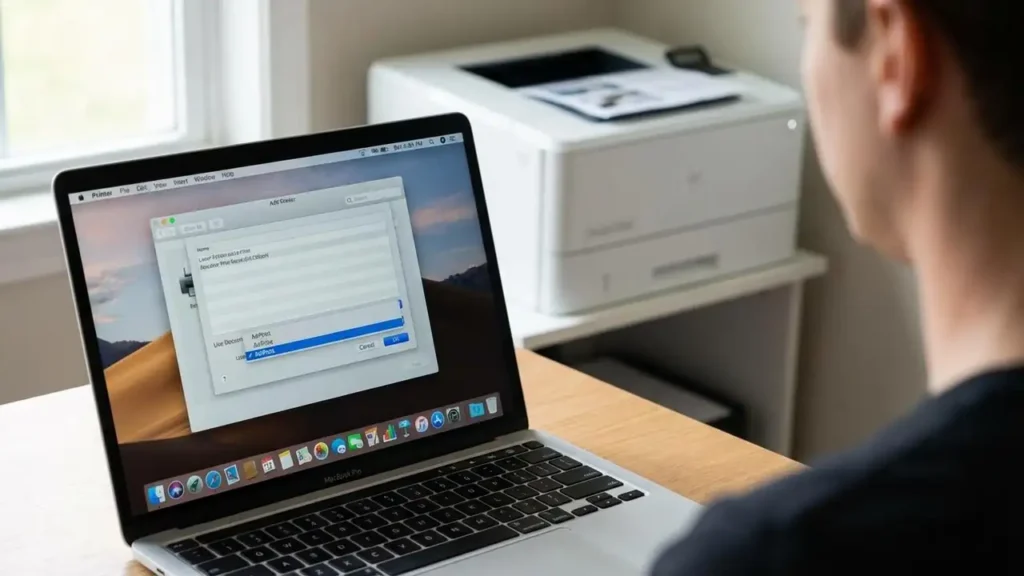
For Mac users, selecting the optimal printer driver can significantly impact printing efficiency and reliability. When operating a laser printer with macOS, AirPrint often stands out as the best driver for laser printer on Mac, offering a streamlined experience that minimizes common software frustrations. This built-in Apple technology prioritizes stability and ease of configuration, reducing the need for separate software installations.
Many users find that relying on AirPrint avoids the typical dependencies on manufacturer-specific applications, which can become problematic over time. The absence of additional downloads means setup is simpler, and there’s less software to manage or troubleshoot. This approach ensures your printing process remains robust, especially when macOS receives updates.
Why AirPrint is Usually Better for Mac Laser Printers
AirPrint drivers are integrated directly into the macOS operating system. This native integration significantly contributes to superior stability, preventing the crashes and compatibility issues frequently associated with third-party drivers following major macOS updates. Users often report fewer printer software problem Mac issues when utilizing the system’s inherent printing capabilities.
The convenience of AirPrint is a major advantage. There is no requirement to locate, download, install, or continually manage supplementary software packages from your printer’s manufacturer. This driverless approach also ensures broad compatibility, allowing seamless printing from various Apple devices, including iPhones and iPads, in addition to your Mac computer. Furthermore, embracing AirPrint removes the concern that a printer manufacturer might discontinue support for an older model, which can leave users without a functional driver.
When to Consider a Manufacturer Driver
While AirPrint offers substantial benefits for most general printing needs, there are specific scenarios where dedicated manufacturer drivers might be necessary. These instances usually involve advanced functionalities that AirPrint does not natively support. For example, if you require specialized finishing options such as stapling or booklet creation, precise color management controls for professional output, or proprietary scanning features integrated with specific software, a manufacturer’s driver could provide these capabilities.
In rare situations, a specialized driver might also be needed if AirPrint consistently fails to activate a laser printer from its sleep mode. Though uncommon, this specific interaction can sometimes be resolved by installing the official software package. It’s crucial to assess if these advanced features are truly essential for your workflow before deviating from the generally recommended best driver for laser printer on mac.
Identifying the Best Driver for Laser Printer on Mac Needs
To determine if a manufacturer’s driver is truly required, first attempt to use your laser printer with AirPrint for all standard tasks. Evaluate if any crucial features are missing that directly impact your workflow. This involves checking if AirPrint handles complex print jobs satisfactorily and if the output quality meets your expectations without specialized settings. For general document printing, generic printer features Mac provides through AirPrint are typically sufficient, delivering full-quality results. Only when essential, advanced functionalities are unavailable should you explore alternative driver options.
Steps to Optimize Your Mac Printer Setup
To ensure you have the best driver for laser printer on mac and a reliable printing experience, follow these practical steps:
- Prioritize AirPrint for Your Laser Printer: When adding a new laser printer to your Mac, always attempt to connect and use it via AirPrint first. This is generally the most stable and convenient option available.
- Verify AirPrint Compatibility: Check if your printer automatically appears as an available printing option without requiring any additional software downloads. If it does, your printer is likely AirPrint-enabled, and this connection should be your default.
- Evaluate Feature Gaps with AirPrint: Use your laser printer with AirPrint for a period. If you discover that specific, advanced finishing options, precise color adjustments, or unique scanning features are absolutely essential for your work and are not supported by AirPrint, then proceed to the next step.
- Consider Installing Manufacturer Drivers (If Necessary): Only download and install the manufacturer’s specific driver software if critical, required features are confirmed to be missing from the AirPrint functionality. Be aware that this can introduce potential printer software problem Mac users sometimes experience after macOS updates.
- Review Manufacturer Support: Before installing, ensure the manufacturer’s driver is explicitly supported for your current macOS version to minimize compatibility issues.
Safety and Prevention Tips
Always ensure your printer is powered off and unplugged before performing any physical maintenance or checks. Avoid touching internal components unless specified by official documentation. Be mindful that installing third-party software could impact your system’s stability or potentially void aspects of your printer’s warranty if not done correctly. If you are uncertain about any step, consult the printer’s official support resources. To prevent future mac printer driver vs airprint conflicts, commit to using AirPrint unless a specific, non-negotiable feature demands a manufacturer driver.
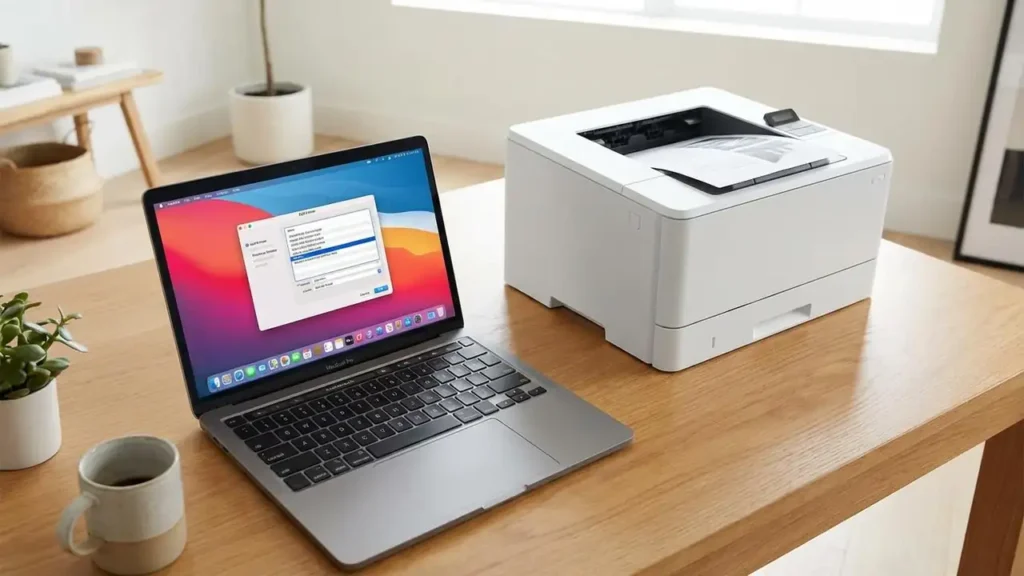
In conclusion, for the majority of Mac users, particularly those working with laser printers, AirPrint consistently proves to be the best driver for laser printer on mac. Its inherent stability, user-friendly setup, and independence from manufacturer software updates contribute to a seamless and hassle-free printing environment. Opt for the manufacturer’s dedicated software only when you identify specific, advanced features that are absolutely essential for your tasks and are not provided by AirPrint.