

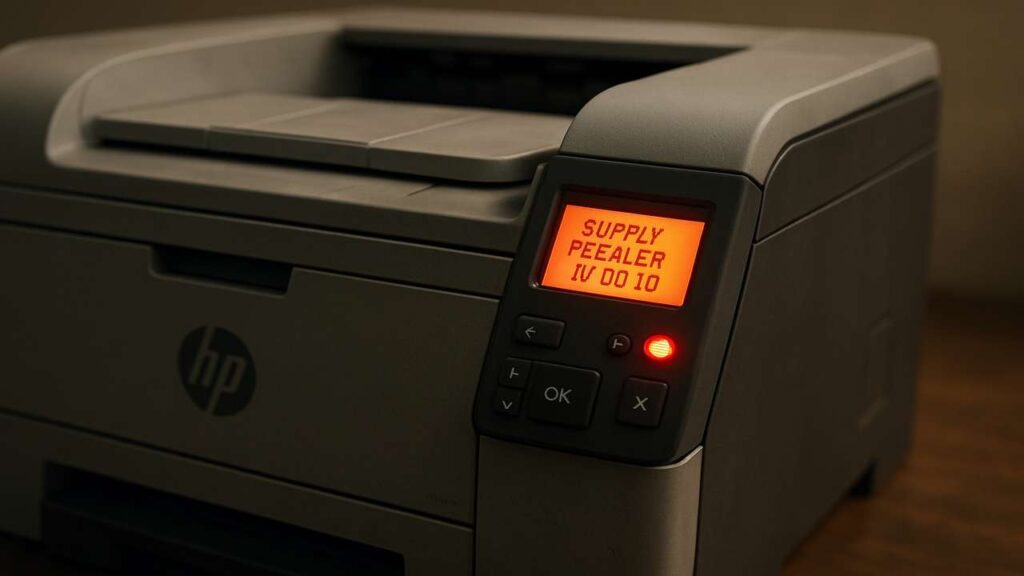
hp supply problem 10.00.10 fix — cartridge not recognized after update
hp supply problem 10.00.10 fix is what you need when a LaserJet throws “Supply Problem 10.00.10” or “Cartridge not recognized,” often right after a firmware update. Use our hp supply problem 10.00.10 fix guide to recover quickly, verify whether the issue is chip/contacts/firmware, and stop it from coming back.
hp supply problem 10.00.10 fix — what the error really signals
The printer isn’t accepting the cartridge’s identity data. Common triggers:
-
Dirty or misaligned gold contacts on the cartridge or in the printer
-
A spent or incompatible chip (especially after firmware changes)
-
Bent spring pins inside the printer’s cartridge bay
-
Partial or recent firmware update that tightened validation
-
Rarely, a damaged cartridge shell that prevents proper seating
Quick wins that solve many cases
-
Power-drain reset: Turn the printer off, unplug for 60 seconds, press and hold the power button for 10–15 seconds, plug back in and start.
-
Reseat firmly: Remove the cartridge and insert it straight until it clicks. Avoid rocking or forcing it.
-
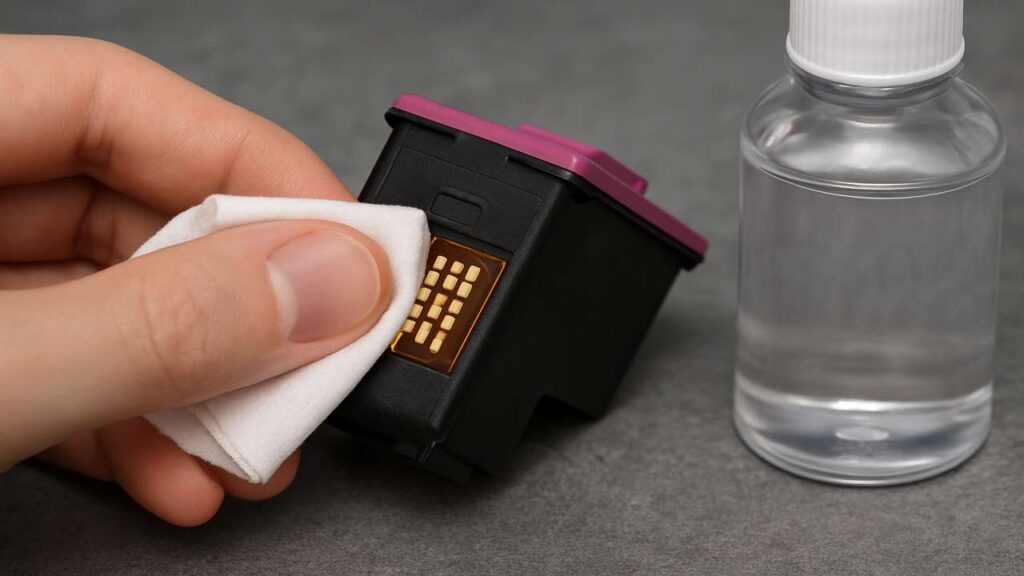
Clean contacts: With the device off, wipe the cartridge’s gold pads and the printer’s spring contacts using a lint-free cloth lightly dampened with isopropyl alcohol; wait 60 seconds to dry.
-
Try one known-good cartridge: If that is recognized instantly, your original chip is likely incompatible or worn.
-
Clear print queues: On the computer, cancel stuck jobs so the printer isn’t rechecking supplies mid-boot.
hp supply problem 10.00.10 fix — decision path
-
Recognizes a different cartridge but not this one → Replace or reset the chip for the correct series/firmware family.
-
Recognizes none of the cartridges → Inspect the spring pins with a flashlight; if a pin is flattened or missing tension, the printer needs service.
-
Only fails after a firmware update → Stabilize or roll firmware (details below) and use a chip compatible with the current build.
Firmware & “dynamic” validation — stabilize first
-
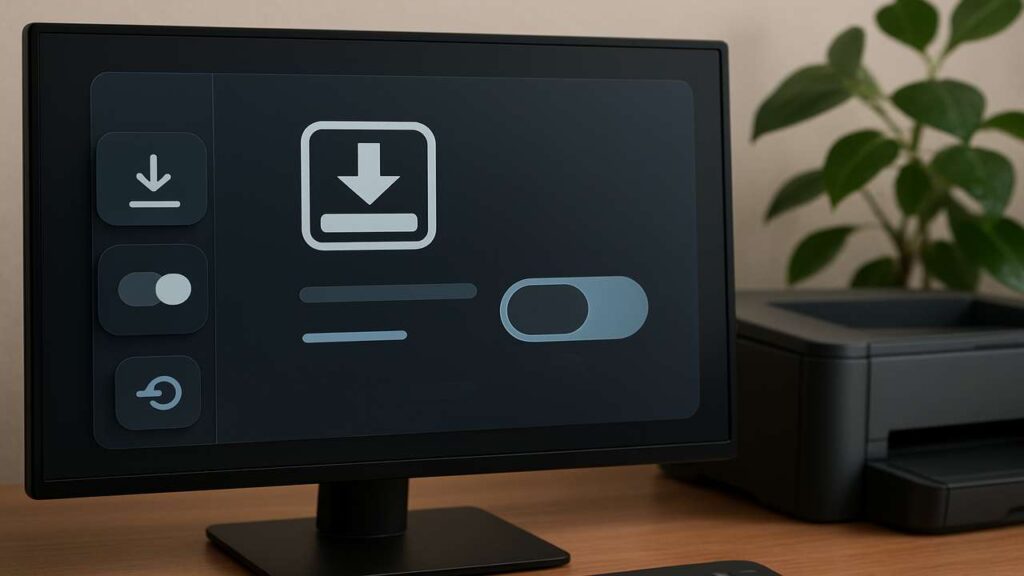
Freeze auto-updates: Turn off automatic firmware checks in the printer’s menu/Web UI and keep the device LAN-only (no direct Internet) while testing.
-
Check the current version: Print a configuration/status page and note the firmware ID/date.
-
Safe roll/redo: If the failure started right after updating and your model allows it, re-apply the same version to clear a partial install, or roll back to the last stable build supported for your device.
-
Pilot policy: In offices, test new firmware on one machine for a few days before wide rollout.
Contact and fit issues you can fix at the bench
-
Spring pins: Each pin should protrude evenly and spring back when pressed gently. If one looks shorter or stuck, that’s your culprit.
-
Shell tolerances: Some compatible cartridges have slightly different plastic tabs; if reseating helps only temporarily, swap the shell or try a higher-grade cartridge.
-
Environmental factors: Excess dust or humidity can oxidize contacts. A short cleaning routine during cartridge changes prevents recurrence.
When you need a reset chip (and how to choose it)
-
Match the exact cartridge series and, when relevant, the firmware family.
-
Store chips in anti-static bags; handle by the edges.
-
After installing the chip, print a Supplies/Status page to confirm the level resets.
-
If recognition is intermittent, reseat the chip and re-clean contacts before assuming it’s faulty.
Network/driver hygiene (to avoid mixed symptoms)
-
If the panel shows the error but the PC still “sees” the printer, you may have stale jobs or drivers. Remove duplicate queues and re-add the device by TCP/IP.
-
Keep a single, model-correct driver (PCL/PS/IPP Everywhere). Mixed or outdated drivers can trigger supply checks at odd moments.
FAQs
Does hp supply problem 10.00.10 always mean a bad cartridge?
No. It can be contacts, pins, or firmware rules. A known-good cartridge helps you isolate the cause in seconds.
Can cleaning really fix a supply error?
Yes. Oxidized pads and weak spring contact are frequent triggers. A careful alcohol wipe is often enough.
I updated firmware and now none of my refills work. What now?
Stabilize firmware (re-apply or roll back if supported), then use a compatible reset chip for that firmware family—or use an OEM cartridge to confirm hardware health.
The printer recognizes the cartridge only after a reboot. Why?
That points to borderline contact or an over-tight sleep/validation timing. Clean contacts, reseat, and extend sleep timers.
Is it safe to keep auto-updates off?
Yes, if you schedule manual updates. For fleets, block WAN for printers and update deliberately after pilot tests.
Quick checklist
-
Power-drain reset done; queues cleared
-
Cartridge reseated; contacts cleaned and dry
-
Known-good cartridge test performed
-
Firmware auto-updates off; version noted
-
Pins inspected; chip replaced if needed
-
Test page printed; stability verified over the next few jobs
After the fix: keep it from returning
-
Adopt a clean-change routine: power off → swap → clean pads → power on → print a supplies page.
-
Standardize on trusted cartridges/chips and keep a labeled spare on hand.
-
Document the firmware version on a small label inside the access door; it saves time on future diagnostics.
-
For offices, maintain a pilot device and a simple rule: no global updates until the pilot passes.
Conclusion
A careful hp supply problem 10.00.10 fix comes down to three checks: clean electrical contact, compatible chip, and stable firmware. Work through the quick wins, follow the decision path, and your LaserJet should return to normal—without trial-and-error or wasted cartridges.
