

Scan to PC Not Working Windows 11 Fixes
Troubleshoot and resolve common “scan to computer unavailable” errors on your HP, Epson, Canon, or Brother printer.
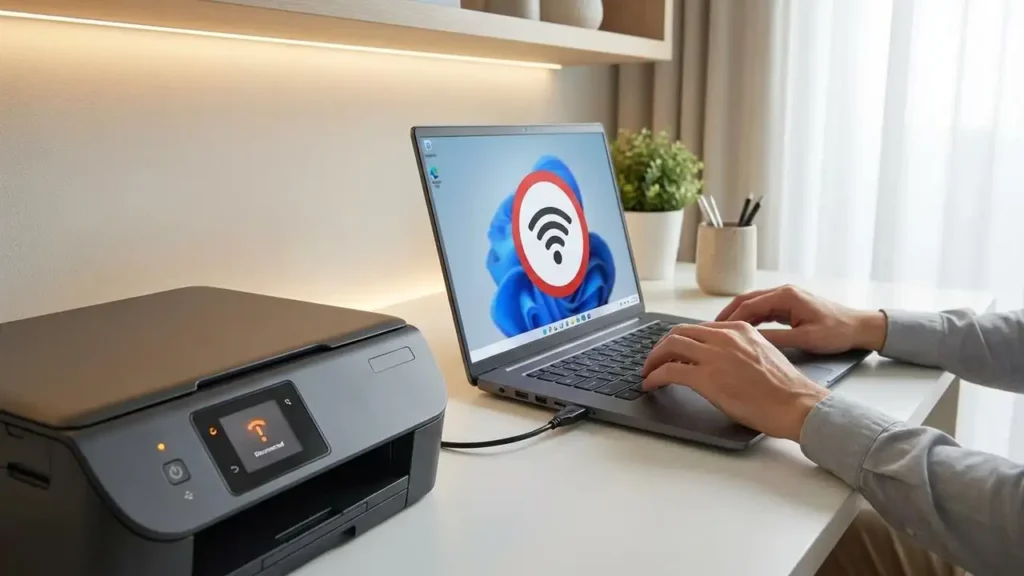
When your all-in-one printer scanner refuses to send documents to your PC, it can bring your workflow to a screeching halt. This problem, often described as the scan to PC not working issue, can stem from various sources. Whether you’re using an HP, Epson, Canon, or Brother printer on Windows 11, understanding the common culprits is the first step toward a solution.
This guide will walk you through diagnosing and fixing the scan to PC not working error. We’ll cover everything from simple driver checks and connection issues to more complex software conflicts and network settings. By following these step-by-step instructions, you can restore your scanner’s functionality without needing to be a technical expert.
Why Your Scan to Computer Function Fails
Several factors can interrupt the communication between your printer’s scanner and your computer, leading to a scan to PC not working situation. Often, the problem isn’t with the scanner hardware itself but with the software, drivers, or network configuration. Understanding these potential issues helps pinpoint the exact cause.
Common reasons include outdated or corrupted scanner drivers, a disabled or blocked scanning service, incorrect network settings if scanning over Wi-Fi, or even firewall software preventing the communication handshake. For HP printers, the HP Smart app or HP Scan Extended might be the source of the problem. Epson users might face issues with Epson Scan 2, while Canon and Brother users could encounter similar roadblocks with their respective scanning utilities.
Reinstalling Printer Drivers and Software
Outdated or corrupted drivers are a frequent cause of scan to PC not working errors. The scanner relies on specific software to communicate with your operating system. If this software is not installed correctly or is out of date, it won’t be able to establish a connection.
Reinstalling the latest drivers and scanning utility for your specific printer model can resolve many issues. This process ensures that your Windows 11 system has the most compatible and functional software for your device. Always download these from the official manufacturer’s website for the best results.
Steps for Driver Reinstallation
- Uninstall existing software: Go to “Apps & features” in Windows Settings. Find your printer’s software suite (e.g., HP Smart, Epson Scan, Canon IJ Scan Utility) and uninstall it.
- Remove the printer device: Navigate to “Printers & scanners” in Settings, select your printer, and choose “Remove device.”
- Download latest drivers: Visit the support section of your printer manufacturer’s website (HP, Epson, Canon, Brother). Search for your exact model and download the latest full driver and software package for Windows 11.
- Install new drivers: Run the downloaded installer. Follow the on-screen prompts, ensuring you select the option for installing scanning software if prompted. Connect your printer via USB or ensure it’s on the same network for wireless setup.
Checking Scanner Service and Connection
The Windows operating system uses various services to manage hardware communication, including scanning. If the relevant scanner service is stopped or disabled, your scan to PC not working issue will persist. Similarly, a faulty connection between your printer and PC can prevent scanning.
For HP scan to computer unavailable problems or similar issues on other brands, ensuring the printer is properly connected is paramount. This applies to both USB and network connections. A stable connection is the bedrock of any successful scan operation.
Verifying the Connection and Services
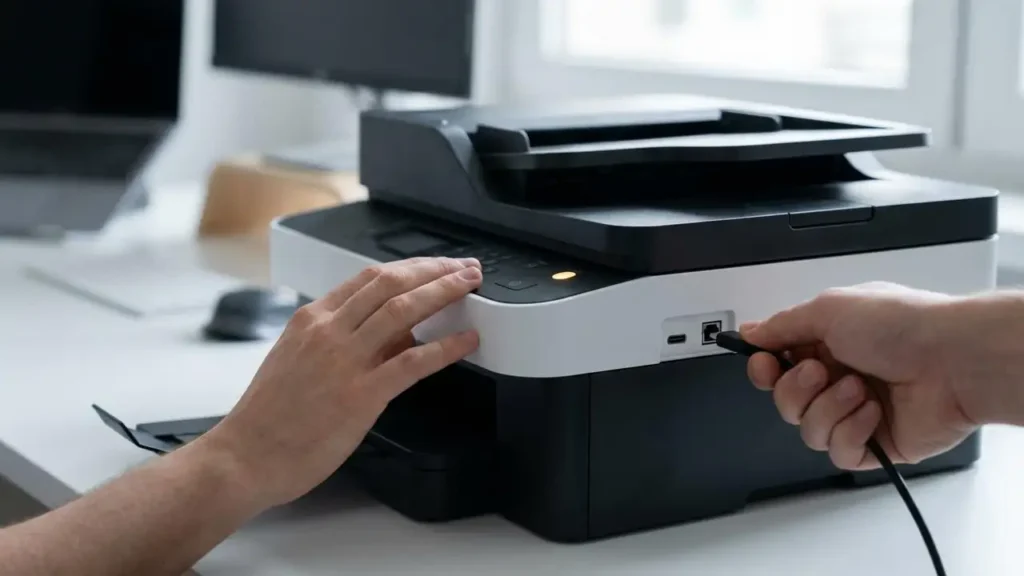
- USB Connection Check: If using USB, unplug the cable from both the printer and PC, wait 30 seconds, and plug it back in firmly. Try a different USB port on your computer.
- Wi-Fi Connection Check: Ensure your printer is connected to the correct Wi-Fi network, the same one your PC is on. Check the printer’s network status screen. Restart your router and printer.
- Windows Image Acquisition (WIA) Service: Press
Windows key + R, typeservices.msc, and press Enter. Find “Windows Image Acquisition (WIA)” and “Shell Hardware Detection.” Ensure both are running and set to “Automatic” startup. Restart them if they are not.
Firewall and Antivirus Interference
Your computer’s firewall and antivirus software are designed to protect your system, but they can sometimes be overzealous. They might mistakenly identify the scanner’s communication protocols as a threat, blocking the connection required for scan to PC not working to be resolved.
Temporarily disabling your firewall and antivirus can help determine if they are the cause of your scanning troubles. If disabling them allows scanning to work, you’ll need to configure them to allow your printer’s specific software. This is a crucial step for many Epson scan to PC error reports.
Configuring Security Software
- Temporary Disable: Locate your firewall (Windows Defender Firewall or third-party) and antivirus program. Find the option to temporarily disable them.
- Test Scan: Attempt to scan to your PC. If it works, you’ve found the culprit.
- Create Exceptions: Re-enable your security software. Go into its settings and create exceptions or trusted applications for your printer’s scanning software (e.g.,
hpwu.exefor HP,epsonscan2.exefor Epson). You may need to consult your security software’s help documentation for specific instructions. - Re-test: Try scanning again to confirm the exception was successful.
Using the Manufacturer’s Scan Utility Correctly
Each printer brand provides its own software for managing scanning tasks, such as HP Scan Extended, Epson Scan 2, or Canon IJ Scan Utility. These utilities are specifically designed to interact with your scanner and send files to your computer. Incorrect settings or a misunderstanding of how to use them can lead to the scan to computer problem you’re experiencing.
Ensuring you’re using the correct utility and that its settings are appropriate for your needs is vital. For example, if you’re trying to scan to a specific folder, make sure that folder is correctly selected within the utility. This applies to Brother printers and their ControlCenter software as well; an issue with Brother ControlCenter scan often arises from improper configuration.
Navigating Scan Utility Settings
- Launch the Utility: Open the official scanning application for your printer brand.
- Select the Scanner: Ensure your printer is selected as the active scanner if multiple devices are present.
- Choose Scan Destination: Look for options like “Scan To,” “Destination,” or “Save To.” Select your PC and choose a specific folder where you want scanned documents to be saved.
- Adjust Scan Settings: Configure resolution, color mode, and file type as needed.
- Initiate Scan: Click the “Scan” or “Start” button within the utility. This approach directly addresses the all in one printer scanner not detected scenario if the utility can still see the scanner but the OS scan button fails.
Addressing Twain Driver Issues
The TWAIN interface is a standard protocol that allows imaging devices like scanners to communicate with applications. A problem with the TWAIN driver can cause a wide range of scanning malfunctions, including the inability to scan to PC. This driver acts as a bridge, and if it’s broken, the bridge is out.
Issues with TWAIN drivers often manifest as error messages when you try to initiate a scan, or the scanner might simply not appear as an option in scanning applications. Reinstalling or updating the TWAIN driver specifically can sometimes fix problems that a general driver reinstallation might miss.
Troubleshooting Twain Driver Problems
- Check Device Manager: Press
Windows key + Xand select “Device Manager.” Expand “Imaging devices” or “Scanners.” Right-click your scanner and select “Update driver.” Choose “Search automatically for drivers.” If it finds nothing, try “Browse my computer for drivers” and select “Let me pick from a list of available drivers.” - Reinstall TWAIN Driver Manually: Download the latest driver package from the manufacturer. Extract the files. In Device Manager, right-click your scanner, select “Uninstall device,” and check the box to delete the driver software. Then, run the driver installer you downloaded.
- Alternative Software: If standard scanning software fails, try a different application that uses TWAIN drivers, like Paint.NET or IrfanView, to see if it can detect and use your scanner.
Common Questions About Scan to PC Not Working
Safety and Warranty Note
Before performing any physical checks or opening printer panels, always unplug your printer from the power source. Avoid touching sensitive internal components like the print head, drum, or fuser directly with your fingers, as oils from your skin can cause damage. Please be aware that disassembling your printer or attempting unauthorized repairs could void your manufacturer’s warranty. If you are uncomfortable with any of these steps or if the problem persists, contact your printer manufacturer’s support or an authorized service professional.
Resolving the scan to PC not working issue can often be achieved through systematic troubleshooting. By checking drivers, services, security software, and the specific scanning utilities provided by your printer manufacturer, you can usually restore your scanner’s functionality. With a bit of patience and these steps, your scanner should soon be sending documents to your PC without a hitch.
