

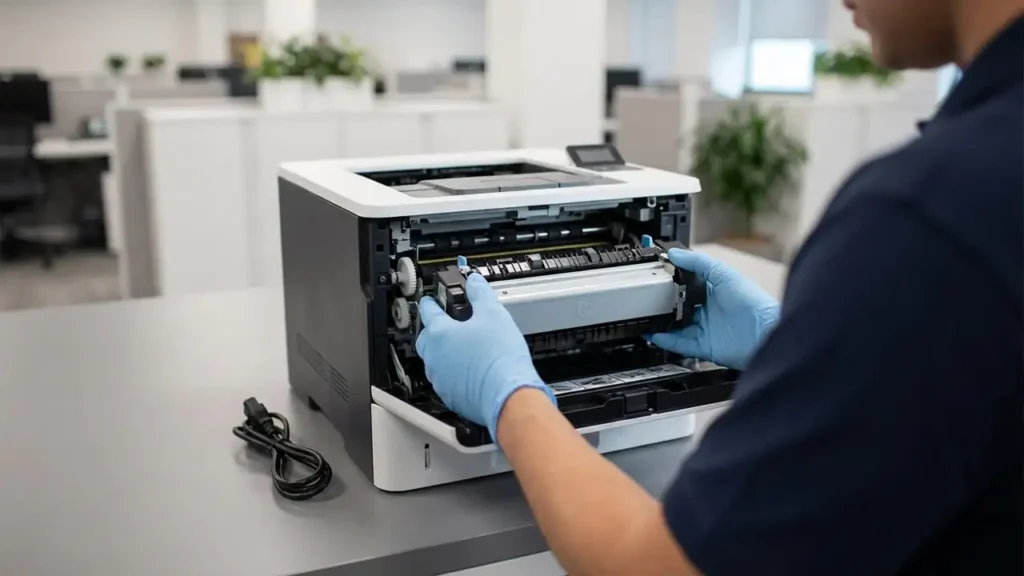
HP Replace Maintenance Kit Message Explained
Understand fuser kits, page counts, and how to reset the counter.
If your HP LaserJet printer is displaying a “Replace Maintenance Kit” or “Fuser Unit End of Life” message, it means a crucial component is nearing its operational limit. This message is a proactive alert designed to help you maintain print quality and prevent unexpected failures. Ignoring it can lead to poor printouts or even printer damage.
This guide will demystify what a maintenance kit is, what its key components like the fuser do, why your printer tracks its usage via page count, and how to address the “Replace Maintenance Kit” alert. We’ll cover when it’s time to replace the kit and how to reset the printer’s maintenance counter, ensuring your HP Enterprise printer continues to perform optimally.
What is an HP LaserJet Maintenance Kit?
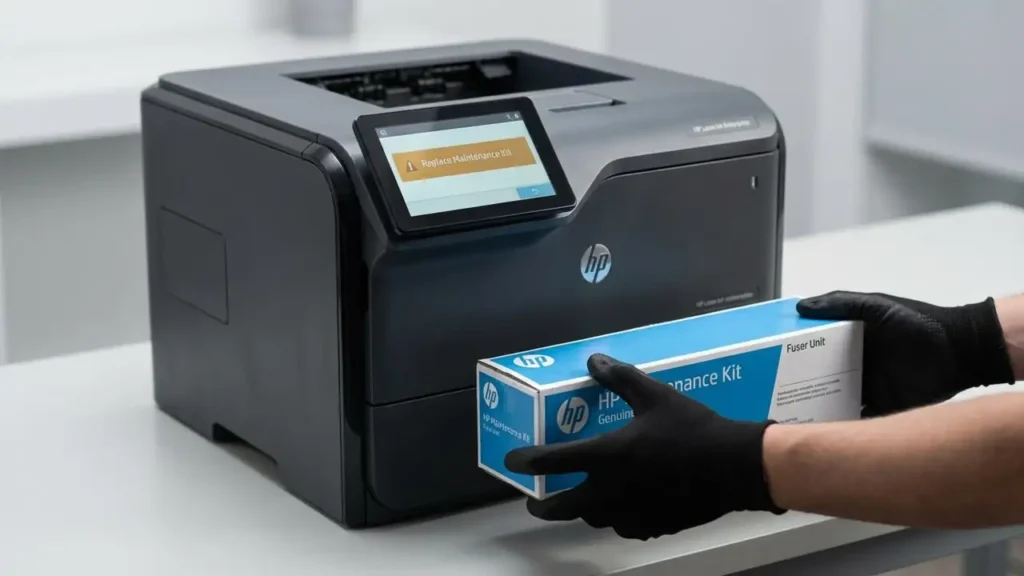
An HP LaserJet maintenance kit is essentially a service part designed to refresh your printer’s internal components that wear out over time and with heavy use. Think of it as a tune-up for your printer. These kits are specific to printer models or series, ensuring compatibility and proper function.
The primary component typically found in these kits, especially for laser printers, is the fuser unit. However, depending on the specific printer model, a maintenance kit might also include other parts like pickup rollers, transfer rollers, or separation pads. These parts work together to ensure paper is fed correctly and toner is fused onto the page.
Understanding the Fuser Unit’s Role
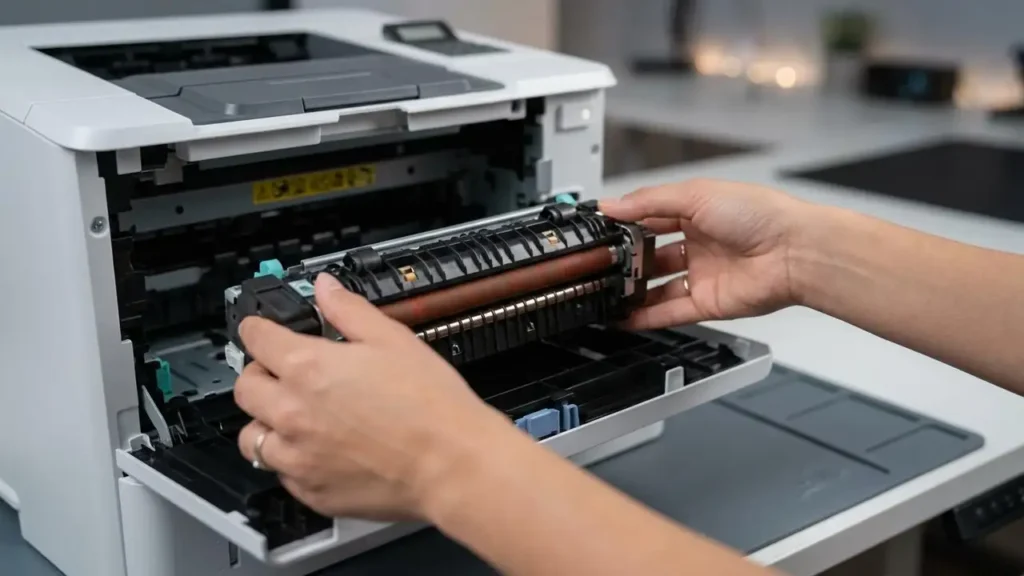
The fuser unit is arguably the most critical part of a laser printer’s printing process, and it’s often the main reason for a “Replace Maintenance Kit” message. After the toner is applied to the paper by the drum, it needs to be permanently bonded. The fuser unit accomplishes this by using heat and pressure.
It consists of heated rollers and pressure rollers. As the paper passes through the fuser, the heat melts the toner, and the pressure presses it into the paper fibers. This ensures that your printed text and images don’t smudge or flake off. The fuser operates at high temperatures, and its components are designed for a specific lifespan.
Fuser Unit End of Life and Page Count
Every fuser unit, and by extension, every maintenance kit, is rated for a certain number of pages. HP printers meticulously track the number of pages printed. When the page count reaches the predetermined threshold for the fuser or other components in the kit, the printer generates a “Replace Maintenance Kit” warning.
This isn’t an arbitrary number; it’s based on rigorous testing to ensure print quality and reliability. A fuser unit nearing its end of life may begin to produce inconsistent results, such as faded prints, horizontal streaks, or even paper jams caused by improper fusing. The HP 50.2 fuser error is a common indicator that the fuser assembly itself has a problem, often related to reaching its operational limit.
When to Replace the Maintenance Kit
The “Replace Maintenance Kit” message or a related fuser error code is your primary indicator. While some users might try to push their printer a bit further past the warning, it’s generally advisable to replace the kit promptly. Delaying can lead to a complete fuser failure, which might be more costly to repair or could potentially damage other printer components.
Consider the page count as a guide. If you’re in a high-volume office environment, you’ll likely reach this limit sooner than a home user. Check your printer’s documentation or control panel for its specific maintenance page count threshold. If you notice a decline in print quality alongside the message, it’s definitely time to plan for a replacement.
Replacing the HP LaserJet Maintenance Kit
Replacing an HP LaserJet maintenance kit is a task many users can perform themselves. While the exact steps vary by model, they generally involve opening specific access panels, locating the old kit (often the fuser), and carefully removing and installing the new one. Always refer to your printer’s user manual or HP’s support website for model-specific instructions.
Safety First: Before you begin, ensure the printer is turned off and unplugged from the power source. Allow the printer to cool down, as the fuser unit gets very hot. Wear anti-static gloves if possible and avoid touching the sensitive surfaces of the new parts.
Resetting the Maintenance Kit Counter
After physically replacing the maintenance kit, your HP printer will not automatically recognize that the new parts have been installed. You must manually reset the maintenance kit counter. This action tells the printer’s firmware that the consumables have been replaced and to begin a new page count cycle for these components.
This reset procedure varies significantly between HP printer models. Some high-end models may have an option in their control panel menus, often under “Service,” “Setup,” or “Maintenance.” For other models, it might involve a specific button combination pressed during startup or a sequence entered through the control panel. Always consult your printer’s manual for the exact reset procedure.
Common questions about replace maintenance kit hp laserjet
Safety and Warranty Considerations
Always remember to unplug your printer and allow it to cool down before attempting any internal component replacement. Touching hot fuser rollers can cause severe burns. Avoid touching the surface of the fuser or transfer roller with bare hands, as oils from your skin can cause damage. Opening your printer and replacing parts yourself may affect your manufacturer’s warranty; consult HP’s warranty documentation for details. If you are uncomfortable with the process, it is always best to contact an authorized HP service provider.
Addressing the “Replace Maintenance Kit” message promptly by understanding the role of the fuser and other components, performing the replacement, and correctly resetting the counter will help maintain your HP LaserJet’s performance and ensure it continues to produce high-quality prints for the long term. Don’t let this maintenance alert become a major problem; a little proactive service goes a long way.
