

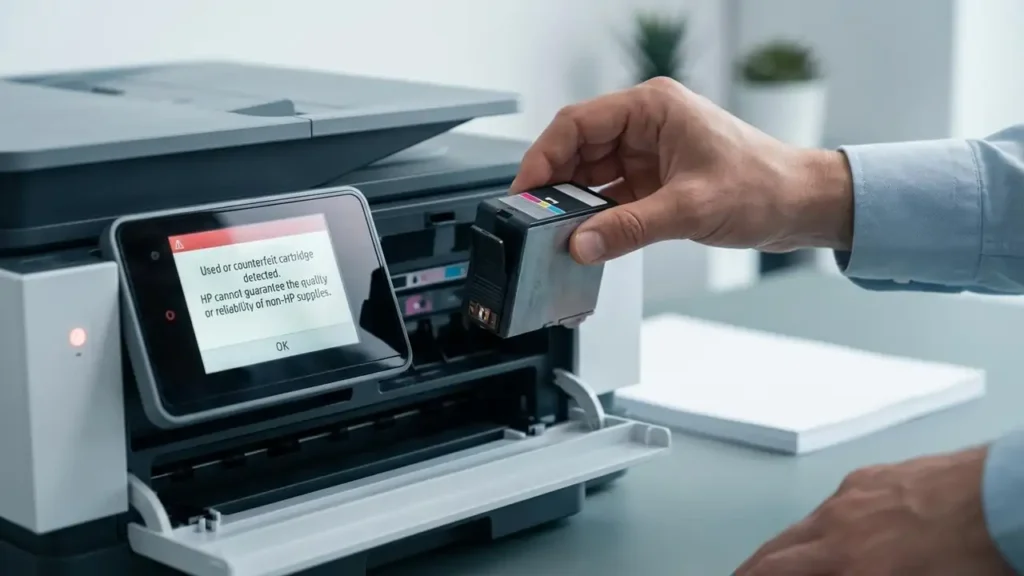
Used or Counterfeit Cartridge Detected: Fix HP Errors
Stop worrying about “Used or counterfeit cartridge detected” errors on your HP printer and get back to printing.
Experiencing the “Used or counterfeit cartridge detected” error message on your HP printer can be incredibly frustrating. This message typically pops up after you’ve installed a refilled cartridge, a compatible ink cartridge, or even sometimes a new genuine HP cartridge. It stops your printer dead in its tracks, leaving you unable to print important documents or personal items.
This guide will help you understand why these messages appear, particularly concerning HP’s cartridge chip technology and HP Instant Ink lockouts. We’ll walk through practical steps to troubleshoot and potentially resolve the used or counterfeit cartridge detected issue, so you can continue printing without unnecessary interruptions or excessive costs. Whether you’re using refilled cartridges, third-party options, or facing issues with genuine HP supplies, this information is designed to empower you.
Understanding HP Cartridge Protection and Chips
HP printers use sophisticated chip technology embedded in their ink and toner cartridges. These chips communicate crucial information to the printer, such as ink or toner levels, page yield, and cartridge authenticity. When a used or counterfeit cartridge detected error appears, it often means the printer’s sensors believe the installed cartridge is not genuine, has been previously used and refilled, or is otherwise unauthorized.
These chips are designed by HP to ensure a certain level of print quality and performance, but they can also be a source of conflict for users seeking more economical printing solutions. The printer firmware is programmed to recognize and accept only cartridges that pass its authenticity checks, which can lead to the used or counterfeit cartridge detected alert even when the cartridge appears visually correct.
Common Causes for Cartridge Detection Errors
Several factors can trigger the used or counterfeit cartridge detected error message. Beyond using non-genuine or refilled cartridges, the printer’s firmware might be too updated, or the chip on the cartridge itself might be damaged or poorly programmed. Sometimes, simple installation issues can cause the printer to misread the cartridge, leading to the error.
If you’re using a compatible ink error cartridge, it’s possible the chip on that cartridge isn’t fully compatible with your specific HP printer model or firmware version. Similarly, if you’ve refilled a cartridge, the refill process might not have correctly reset or updated the chip, causing the printer to report it as empty or unauthorized. This is a common reason why a printer won’t accept refilled cartridge.
Troubleshooting the “Used or Counterfeit Cartridge Detected” Error
When faced with the dreaded used or counterfeit cartridge detected message, the first step is often a simple reset. Turn off your HP printer, unplug it from the power outlet, and wait for at least 60 seconds. While it’s unplugged, remove the suspect cartridge, then plug the printer back in and turn it on. Once the printer is fully booted up, reinsert the cartridge, ensuring it clicks firmly into place.
This power cycle can sometimes clear temporary glitches in the printer’s communication system. If the error persists, try reinserting the cartridge a second time, applying gentle but firm pressure to make sure it’s seated correctly. This basic troubleshooting helps rule out minor installation or communication hiccups before moving to more complex solutions for the used or counterfeit cartridge detected problem.
Dealing with HP Instant Ink Cartridges Locked
HP Instant Ink cartridges are specifically designed to work within the HP Instant Ink subscription service. These cartridges often have built-in protections that lock them to your account, preventing their use if you cancel the service or try to use them with a non-Instant Ink printer. If you encounter an error message related to HP Instant Ink cartridges locked, this is usually the reason.
To resolve HP Instant Ink cartridges locked issues, you typically need to return them to HP or purchase new, standard cartridges for your printer. Attempting to bypass this system is generally not supported and can lead to further errors or even void your printer’s warranty. It’s crucial to understand that these are not standard, freely reusable cartridges once enrolled in the program.
Strategies to Bypass HP Cartridge Protection (Use with Caution)
While HP actively discourages it, some users explore methods to bypass HP cartridge protection, especially when using refilled or third-party cartridges. One common suggestion involves manually resetting certain printer models, though this is not universally applicable and can be risky. For some HP models, there might be an option in the printer’s menu to ignore certain cartridge warnings, but this is rare and depends heavily on the specific printer firmware.
Another approach involves using specialized chip resetters, though these are not available for all HP cartridge types and require careful handling. It’s important to note that attempting to bypass HP cartridge protection can lead to unexpected behavior, such as inaccurate ink level reporting or complete print failure. Always proceed with extreme caution and be aware that you might be overriding manufacturer-intended security features.
When Compatible Ink or Refilled Cartridges Cause Issues
For those opting for third-party consumables, the compatible ink error is a known potential downside. Manufacturers like HP frequently update their printer firmware, which can sometimes render previously compatible chips or refilled cartridges unrecognized. This is a constant cat-and-mouse game between printer manufacturers and third-party suppliers.
When your printer won’t accept refilled cartridge, it’s often because the chip is no longer recognized by the updated printer firmware. Some reputable third-party cartridge suppliers offer cartridges with updated chips designed to work with newer firmware. If you’re facing this issue, consider contacting the supplier of your compatible or refilled cartridges to see if they have a solution or an updated product.
Prevention and Best Practices for Cartridge Use
To minimize the chances of encountering the used or counterfeit cartridge detected error, consider a few best practices. When purchasing replacement cartridges, opt for reputable brands and suppliers. If you choose to refill cartridges, use high-quality ink or toner and ensure the chip reset process is done correctly, if applicable to your cartridge model.
Regularly update your printer’s firmware, but be aware that new firmware updates can sometimes cause compatibility issues with non-genuine cartridges. If you rely heavily on your printer and want to avoid potential disruptions, sticking to genuine HP cartridges is the most reliable route, though often more expensive. For those who want to save money, researching specific compatible cartridges known to work well with your model is key.
Common questions about used or counterfeit cartridge detected
Safety and Warranty Considerations
Before performing any troubleshooting steps involving opening your printer or handling cartridges, always ensure the device is powered off and unplugged from the wall socket. Avoid touching the electrical contacts on the cartridge or inside the printer, as static electricity or oils from your skin can cause damage. Be mindful that attempting to bypass HP cartridge protection or using third-party supplies may impact your printer’s warranty. If you’re unsure about a step or if the error persists, it’s best to consult your printer’s manual or contact an authorized HP service center.
By understanding the technology behind HP’s cartridge systems and employing careful troubleshooting, you can often resolve the used or counterfeit cartridge detected error and continue printing efficiently. Choosing your consumables wisely and performing regular maintenance will contribute to a smoother printing experience and help avoid these common, frustrating alerts.
