

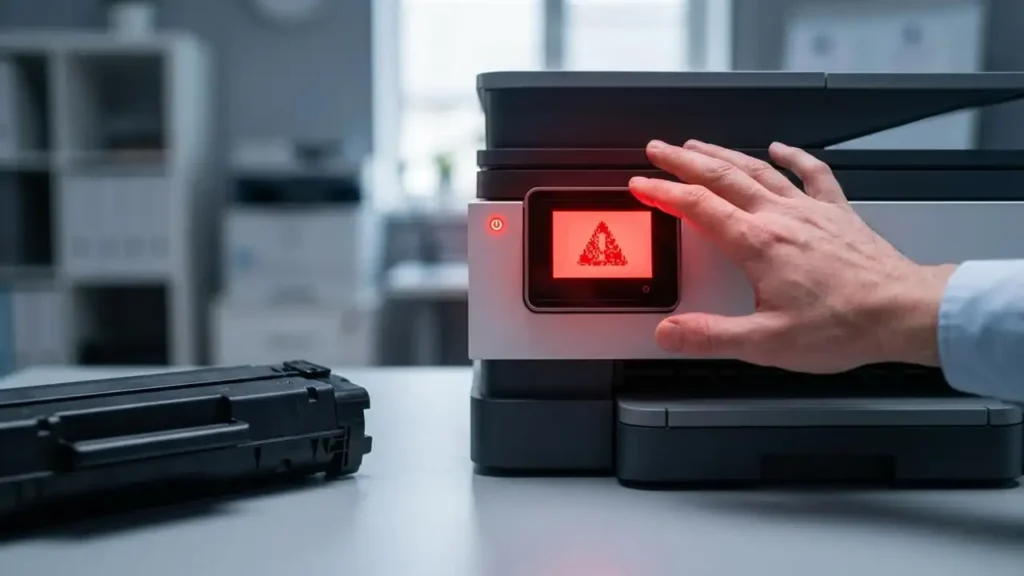
Fix “Non HP Chip Detected” Errors on Your HP Printer
Resolve HP cartridge blocked messages and get your printer working with third-party ink.
Experiencing an “HP cartridge blocked” message or a persistent non HP chip detected error can be incredibly frustrating, especially when you rely on your printer for daily tasks. This common issue typically arises when your HP printer’s firmware identifies a non-original ink cartridge that doesn’t carry an authentic HP chip. Over time, HP has implemented firmware updates designed to prevent the use of third-party or refilled cartridges, often leading to messages like “cartridge is very low hp” even when the cartridge is full, or simply outright blocking the cartridge. This guide will walk you through various troubleshooting steps, from simple reinstallation to more advanced solutions like a firmware downgrade, to help you regain control over your printing.
Understanding the “Non HP Chip Detected” Message
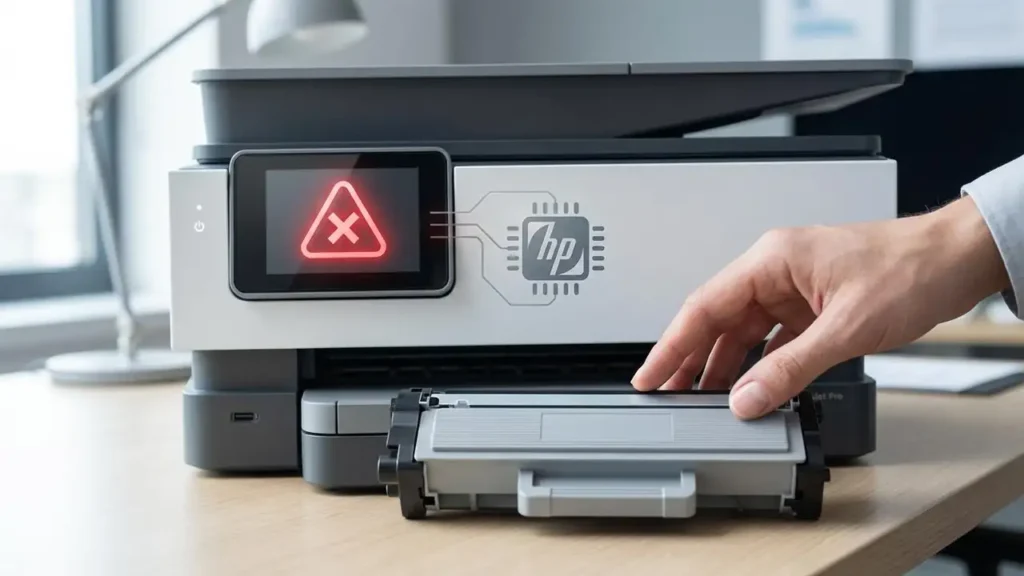
When your HP printer displays a non HP chip detected warning, it means the embedded chip on your ink cartridge isn’t recognized as a genuine HP component. This detection system is often part of HP’s Instant Ink program or a broader strategy to encourage the use of proprietary cartridges. Recent firmware update versions frequently include stricter checks, causing compatible cartridges that once worked perfectly to suddenly become blocked.
The error can manifest in various ways, such as a direct “non-HP chip detected” alert on the printer screen or via the HP Smart app, or even a message indicating the “cartridge is very low hp” when it’s clearly not. Understanding that this isn’t necessarily a fault with your third-party cartridge itself, but rather with the printer’s detection mechanism, is the first step towards finding a solution.
Immediate Steps to Address a Non HP Chip Detected Error
Before diving into more complex solutions, it’s always wise to try some immediate, straightforward fixes. These steps can often resolve temporary communication glitches between the cartridge and the printer, which might be mistaken for a non HP chip detected issue.
- Reinstall the Cartridge: Turn off your HP printer. Carefully open the cartridge access door and remove the problematic cartridge. Inspect it for any protective tape, plastic tabs, or debris that might be obstructing the electrical contacts. Reinsert the cartridge firmly until it clicks securely into place. Close the access door and turn the printer back on.
- Power Reset the Printer: With the printer still on, unplug its power cord directly from the wall outlet. Wait for at least 60 seconds. While unplugged, press and hold the printer’s power button for about 15 seconds to drain any residual power. Plug the power cord back into a direct wall outlet (avoid surge protectors or power strips for this test) and power on the printer.
- Clean the Cartridge Contacts: If reinstallation doesn’t work, gently clean the copper-colored electrical contacts on both the cartridge and inside the printer’s cartridge carriage. Use a clean, lint-free cloth lightly dampened with distilled water or isopropyl alcohol. Allow both the cartridge and printer contacts to dry completely before reinstalling the cartridge.
Disabling HP Cartridge Protection
Many HP printers feature a “Cartridge Protection” setting designed to prevent cartridges from being used in other printers once installed in yours. While intended as an anti-theft measure, it can sometimes interfere with non HP chip detected systems or block compatible cartridges. Disabling this feature might help.
Access your printer settings either directly from the printer’s control panel or through the HP Smart app on your computer or mobile device. Navigate to the “Settings,” “Tools,” “Preferences,” or “Supplies” menu. Look for an option titled “Cartridge Protection,” “HP Cartridge Protection,” or similar. If enabled, disable this feature. Once disabled, try reinstalling your non-HP cartridge to see if the non HP chip detected message persists.
Considering a Firmware Downgrade for HP Cartridge Blocked Non HP Chip Issues
If your printer started rejecting non-HP cartridges after a recent firmware update, a firmware downgrade might be a viable solution. HP occasionally releases updates that specifically target and block third-party consumables. Reverting to an older firmware version can remove these restrictions, allowing your compatible cartridges to function again.
This process is more advanced and carries some risks, as incorrect steps could potentially damage your printer or void its warranty. However, for many users facing an hp cartridge blocked non hp chip situation, it’s the most effective fix.
- Identify Your Printer Model and Current Firmware: Check your printer’s control panel or print a network configuration report to find your exact printer model and its current firmware version.
- Search for Older Firmware: Visit the official HP support website. Search for your specific printer model. Look for a “Firmware” or “Drivers and Software” section. You’ll need to find an older firmware version that was released before the date you started experiencing the blocking issue. Some websites, not directly HP, may also host older versions, but always prioritize official sources.
- Download and Install: Download the older firmware to your computer. Carefully follow the installation instructions provided by HP. This usually involves connecting your printer to your computer via USB (not Wi-Fi) and running an updater tool.
- Disable Automatic Updates: Crucially, once you’ve successfully downgraded, you must disable automatic firmware update features. This can usually be done through the printer’s control panel settings or via the HP Smart app to prevent the problem from recurring.
Safety and Warranty Note: Performing a firmware downgrade or modifying your printer’s internal settings can potentially void your HP warranty. Always unplug the printer before performing any physical checks or cleaning. Avoid touching sensitive internal components directly, such as printheads or fusers. If you are unsure about any steps, especially firmware manipulation, consider contacting an authorized HP service center or seeking professional help to avoid damage.
Alternative Solutions for Persistent No HP Chip Errors
If the previous solutions don’t resolve your no HP chip problem, or if you’re uncomfortable with a firmware downgrade, there are other avenues to explore. These options focus on ensuring you have a cartridge that your printer will accept.
- Reuse the Original Chip: Some advanced users or third-party vendors offer tools or instructions to transfer the microchip from a used original HP cartridge onto a compatible one. This often tricks the printer into recognizing the cartridge as genuine. However, the printer will likely display inaccurate ink levels, as it’s still reading the data from the old chip. This method is not officially supported and requires careful handling.
- Contact the Third-Party Cartridge Vendor: Reputable manufacturers of compatible cartridges often update their chips to remain compatible with the latest HP firmware versions. If your cartridge is giving a non HP chip detected error, reach out to the vendor from whom you purchased it. They may offer a replacement cartridge with an updated chip or provide specific troubleshooting advice for their products.
- Consider Genuine HP Cartridges: While often more expensive, using original HP cartridges is the most straightforward way to avoid compatibility issues and non HP chip detected errors. This ensures seamless operation and access to HP’s full support.
Common Questions About Non HP Chip Detected Issues
Dealing with a non HP chip detected message can be a nuisance, but with the right approach, it’s often a fixable problem. By systematically working through the troubleshooting steps, from simple cartridge reinstallation and cleaning to disabling protection features and, if necessary, performing a firmware downgrade, you can often get your printer back to accepting compatible ink. Remember to disable automatic firmware updates to prevent the issue from recurring.
