

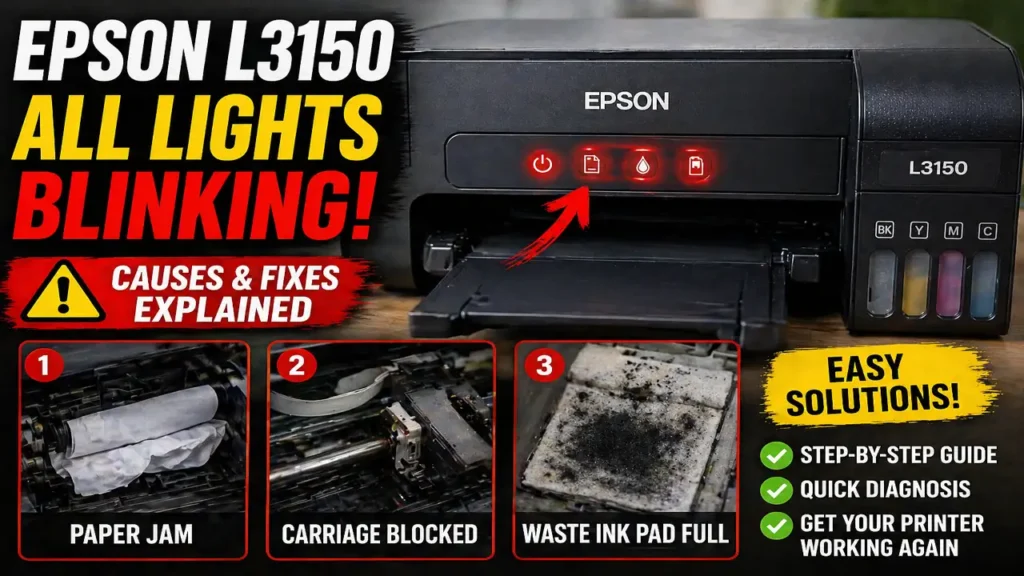
Epson L3150 All Lights Blinking
When you see Epson L3150 all lights blinking, the printer is usually not dealing with a simple low-ink warning. On this model, that pattern typically points to a more serious stop condition. In many cases, it means paper or protective material is stuck inside the printer, the carriage cannot move correctly, or the printer has entered a service-related state that prevents normal operation.
That is why Epson L3150 all lights blinking can feel confusing. The printer may suddenly stop working even though there is no obvious paper jam visible from the outside. The right fix depends on whether the problem is a real mechanical blockage, a waste ink pad issue, or a startup fault that is keeping the printer from completing its normal checks.
What Epson L3150 all lights blinking usually means
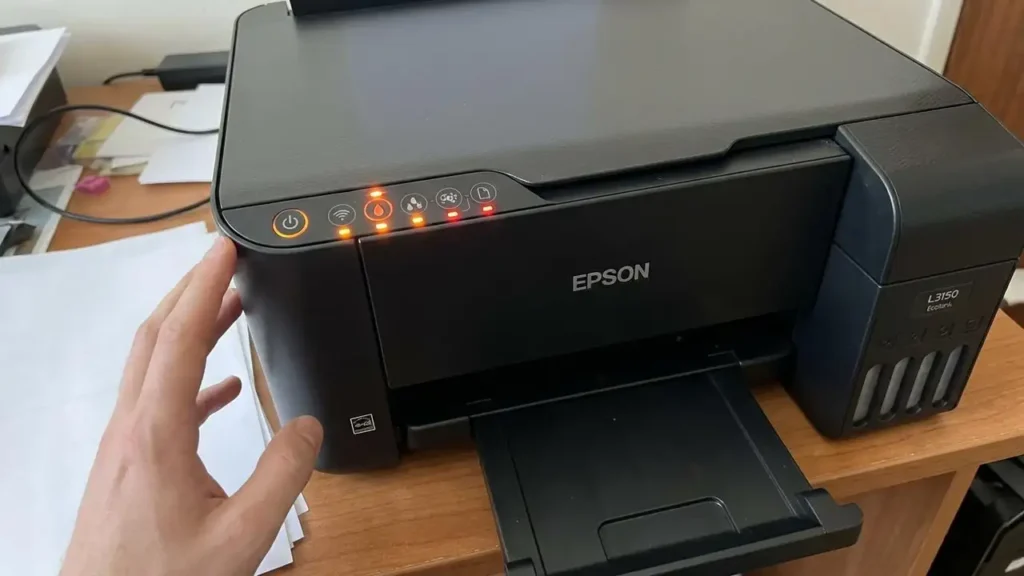
The first thing to understand is that Epson L3150 all lights blinking is not the same as one single red light or a small paper warning. On this series, different light patterns point to different problems.
If the power and paper lights flash together, that often points to the ink pad nearing the end of its service life. But when Epson L3150 all lights blinking happens, Epson’s own guidance points first to paper, protective material, or another obstruction inside the printer that is stopping normal movement.
That is why you should not jump straight to a reset tool without checking the inside of the printer first. Many users assume every flashing-light problem means the waste ink pad counter must be reset, but that is not always true for this exact light pattern.
Start with the simplest physical inspection
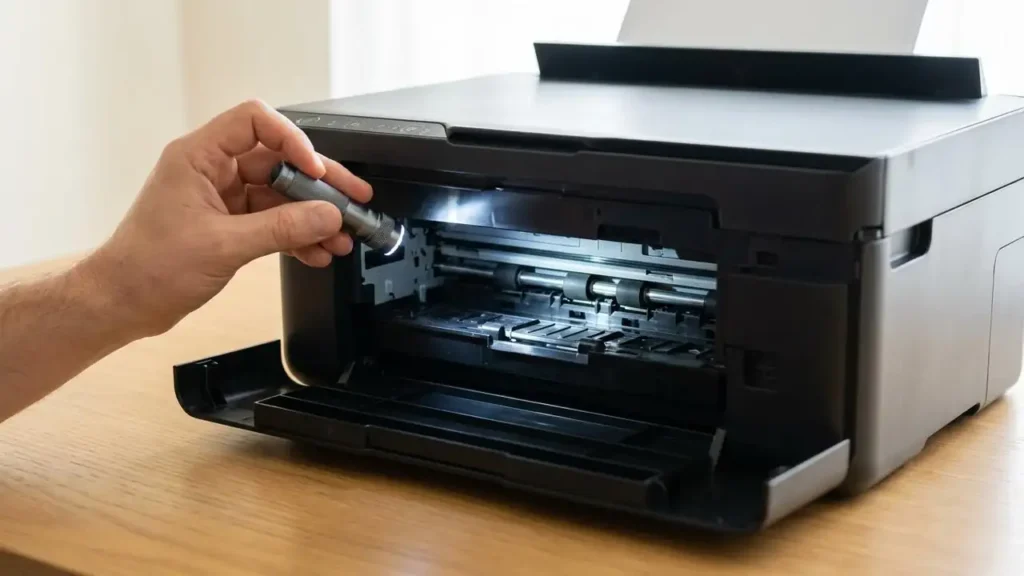
The most important first step for Epson L3150 all lights blinking is to turn the printer off completely and inspect the inside carefully. Open the front cover and look for jammed paper, torn scraps, labels, bits of packaging, or anything else that may be blocking the feed path or carriage movement.
This matters because very small debris can trigger a full stop condition. A tiny paper fragment or a piece of protective material left behind can be enough to confuse the printer during startup. The machine may then report a much broader error through the lights even though the real cause is something simple and physical.
Use a flashlight if needed. Check both the visible paper path and the carriage path. Do not force anything. You are looking for obstructions, not trying to push moving parts aggressively.
Check whether the printhead carriage can move freely
A stuck carriage is one of the most important causes to rule out when Epson L3150 all lights blinking appears. If something blocks the printhead from moving from side to side during startup, the printer can enter a fatal-style error state and refuse to continue.
After powering the printer off, inspect the carriage area for foreign objects, dried ink buildup, torn paper, or anything lodged along the rail or parking area. If the printer allows gentle movement once powered down and released, check whether the carriage path feels blocked or unusually stiff.
This step matters because some users clean rollers and paper feed areas but forget the carriage path itself. When Epson L3150 all lights blinking happens during startup, carriage obstruction is one of the strongest mechanical suspects.
Look for packaging or scanner-cover issues
This may sound too simple, but it is worth checking. Printers can show severe-looking flashing-light errors when a protective strip, transport material, or improperly closed section interferes with normal startup.
If the issue began after moving the printer, cleaning it, unpacking it, or working around the scanner area, double-check that all covers are fully closed and that no packaging material is still caught inside. On some printers, the problem is not a classic paper jam at all. It is a startup check failing because something is not seated as expected.
That is why Epson L3150 all lights blinking should always begin with a careful visual inspection before any software action.
Restart the printer after clearing the inside
Once you have checked for obstructions, close everything properly and restart the printer. A simple restart after physical inspection is important because the printer needs a fresh initialization cycle to see whether the blockage is gone.
If Epson L3150 all lights blinking disappears after that, the issue was likely mechanical and temporary. If the lights keep blinking in the same pattern, then the next step is to narrow down whether the problem is still physical or whether the printer is reporting a service-related condition.
This is also a good point to clear the print queue on your computer. A stuck job is not the most common cause of all lights blinking on this model, but it can still complicate recovery once the printer starts responding again.
When the waste ink pad becomes the real issue
Many Epson users associate flashing lights with the waste ink pad counter, and sometimes that is correct. The important detail is that the L3150 uses different light patterns for different conditions. A service-required message tied to the ink pad is more commonly associated with the power and paper lights flashing together, not necessarily every single light flashing.
Still, if you already checked the inside carefully and there is no jam, no blockage, and no carriage restriction, then a service-state issue becomes more likely. In that situation, the Epson status monitor on the computer can help identify whether the printer is specifically reporting a maintenance or service-required condition.
This matters because Epson L3150 all lights blinking can sometimes be interpreted too broadly. Not every case is a waste ink pad issue, but some cases do end up there once the mechanical causes are ruled out.
Should you use a reset utility right away?
Not as a first move. If Epson L3150 all lights blinking is caused by jammed paper or protective material, using a reset utility will not solve the real problem. It may only delay proper diagnosis.
A reset tool becomes more relevant when the printer or Epson software clearly points to a service-required or waste ink pad condition. Even then, the most responsible approach is not just resetting the counter and ignoring the physical side. If the waste ink system is genuinely saturated, the printer may need physical service, pad replacement, or waste ink maintenance in addition to the counter reset.
So the right order is important: inspect first, restart second, read the status message third, and only then think about service-counter tools if the evidence points that way.
What if the problem started after a failed update or unusual shutdown?
If Epson L3150 all lights blinking began after a failed firmware process, a connection interruption, or an unusual shutdown, then the problem may be less about paper and more about the printer not finishing startup correctly.
In that case, a clean power cycle and USB-connected recovery path may help more than repeated paper checks. But this is less common than simple obstruction-related causes. That is why firmware should not be your first suspect unless the timing clearly points there.
The key is to work from the most likely cause to the less likely one, not the other way around.
When to stop trying home fixes
If you have already done the following:
- checked thoroughly for jammed paper and debris
- confirmed the carriage path is clear
- verified covers are closed correctly
- restarted the printer
- checked Epson status messages on the computer
and Epson L3150 all lights blinking still continues, then the problem may be beyond a basic home fix. At that point, the printer may be dealing with a deeper service condition, a real carriage or sensor fault, or a maintenance state that needs proper repair.
That is when random resets and repeated restarts usually stop being useful.
Frequently Asked Questions
When Epson L3150 all lights blinking appears, the smartest approach is not to assume one fixed cause. Start with the inside of the printer, check for paper scraps or blocked carriage movement, restart it properly, and then use the status message to decide whether the problem is mechanical or service-related. That order gives you the best chance of fixing the issue without wasting time on the wrong solution.
