

HP printer firmware downgrade: Roll Back to a Previous Version and Fix “Supply problem” (M280/M281)
HP printer firmware downgrade is one of the most effective fixes when your HP LaserJet Pro M280/M281 suddenly starts showing a “Supply problem” message right after a firmware update. Many users notice the same pattern: the printer worked perfectly for months, then an update installs, and the device begins complaining that a cartridge is “not communicating successfully,” even if the toner is seated correctly and was printing fine the day before.
The key thing to understand is that firmware controls how the printer reads supply chips, handles authentication, and interprets cartridge data. When firmware changes, the printer’s “rules” can change—sometimes leading to false supply alerts, blocked printing, or repeated warnings that don’t go away with normal troubleshooting. This guide explains safe steps to diagnose the issue and perform an HP printer firmware downgrade when a rollback is appropriate.
What firmware changes can break (and why you see “Supply problem”)
Firmware is the printer’s internal operating system. It manages:
-
Supply-chip communication and validation
-
Error logic (what triggers a warning vs. a hard stop)
-
USB/network handshake behavior
-
Security and update enforcement settings
After an update, the printer may start rejecting a cartridge it previously accepted, especially if the cartridge’s chip reports data in a way the new firmware no longer likes. Even with genuine supplies, it’s possible for a firmware change to expose a previously hidden compatibility bug.
Common reasons the message appears after updating
-
Dirty or weak electrical contact between cartridge chip and printer contacts
-
Cartridge seated slightly off (clicks in but doesn’t fully align)
-
Cached supply identity stored by the printer (cartridge protection behavior)
-
Firmware logic change affecting chip communication timing or validation
-
One cartridge failing communication causing the printer to halt the entire system
Because the error is often firmware-related, many people search for HP printer firmware downgrade once normal steps fail.
Do these checks before an HP printer firmware downgrade
A rollback is powerful, but you should always try the safe fixes first. These are fast and frequently solve the problem without changing firmware.
Step 1: Full power reset (the “real” reset)
-
Turn the printer off.
-
Unplug it from power for 60 seconds.
-
Plug it back in directly to a wall outlet (avoid unstable power strips).
-
Turn the printer on and let it fully initialize.
This clears temporary firmware states that a normal restart sometimes keeps.
Step 2: Reseat every cartridge (not just the one flagged)
Even if the display names only one color:
-
Open the cartridge door.
-
Remove each toner cartridge.
-
Reinstall each one firmly until it locks in place.
-
Close the door and wait for the printer to finish checking supplies.
A single weak contact can trigger system-wide supply errors.
Step 3: Clean the chip and printer contacts carefully
Use a dry, lint-free cloth to gently clean:
-
The cartridge chip contact area
-
The printer’s matching contact points (only if accessible without forcing anything)
Do not scrape, soak, or use harsh cleaners. The goal is to remove dust or oxidation, not polish metal.
Step 4: Check “Cartridge Protection” settings (if your model includes it)
Some HP printers can remember a supply identity for “protection” features. If enabled, the printer may behave strangely when supply states change after a firmware update. Temporarily disabling protection can help the printer re-detect supplies cleanly after reboot.
Step 5: Confirm the toner is not truly empty
If prints were already fading before the update, the timing may be coincidence. If you can print any internal report page, check density and quality. A genuine empty cartridge can also trigger repeated errors.
If all the steps above fail and the problem began immediately after the update, an HP printer firmware downgrade becomes a reasonable next move.
When an HP printer firmware downgrade makes sense
A downgrade is most justified when:
-
The printer worked normally before the firmware update
-
The “Supply problem” started immediately after updating
-
Reseating and cleaning contacts did not help
-
The same cartridges were previously recognized
-
You need the printer stable again for daily work
In these cases, rolling back to a known stable firmware can restore the earlier supply-handling behavior and eliminate false communication errors.
How to perform an HP printer firmware downgrade safely
Not every HP model supports rollback. Some printers block older firmware installation for security reasons. If your M280/M281 supports it, follow a cautious approach.
Step 1: Record the current firmware version
Print an information/configuration report (or check the printer’s settings panel) and write down the firmware version/date code. This helps you verify the downgrade actually changed anything.
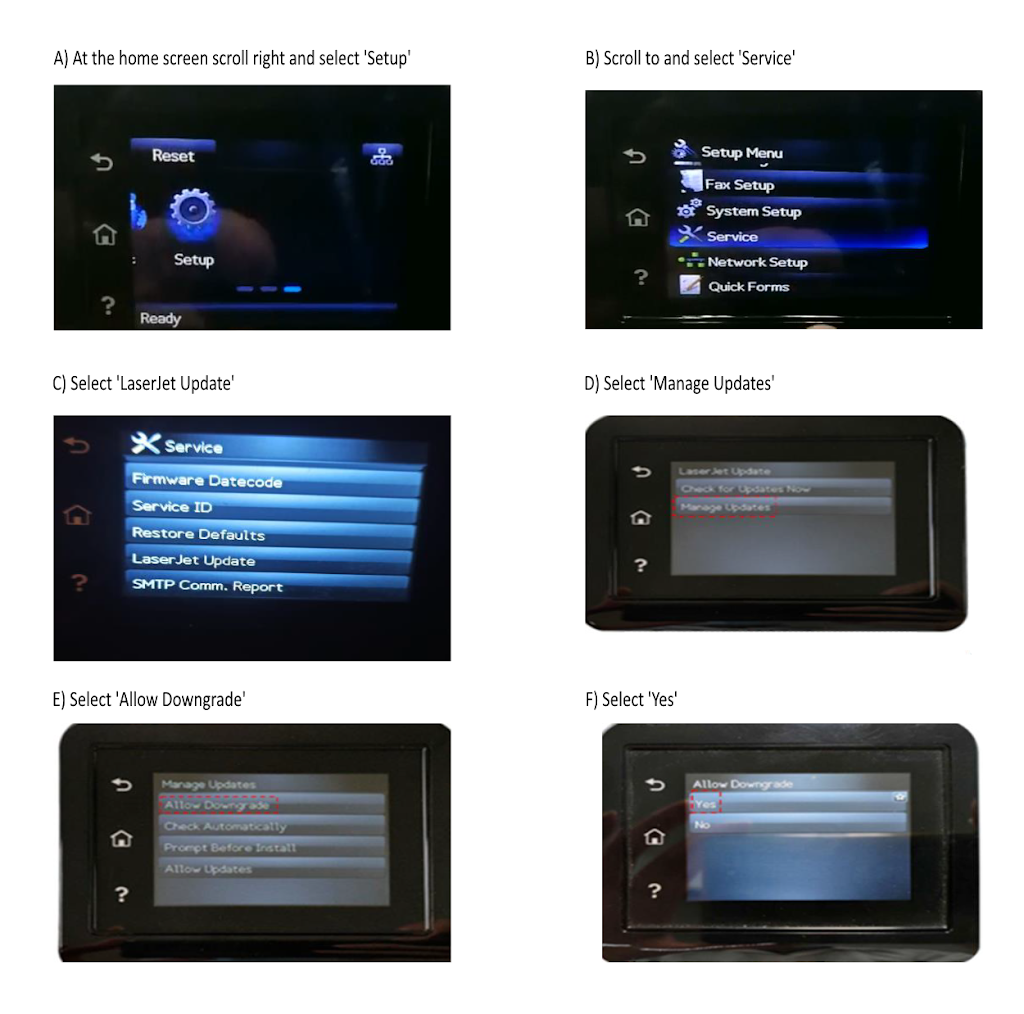
Step 2: Enable downgrade option (only if your printer has it)
Some models include a setting that prevents older firmware installation. Look in the printer’s update or security settings for options similar to:
-
Firmware Update settings
-
Allow installation of older firmware
-
Printer Update controls
If you see a downgrade restriction, adjust it only as needed for rollback.
Step 3: Use only the correct firmware package for your exact model
For an HP printer firmware downgrade, accuracy matters. The firmware must match:
-
Your exact model (M280 or M281 variant)
-
Your region/model revision
-
The correct firmware format used by your printer
Using the wrong firmware can cause serious problems, so avoid random downloads or “unverified” packages.
Step 4: Run the firmware tool and apply the rollback
If your firmware package uses a computer utility:
-
Connect the printer with a stable connection (USB is often safest).
-
Launch the firmware tool.
-
Select the correct printer from the list.
-
Click the option to send/apply firmware.
-
Wait until the progress bar completes fully and the tool confirms success.
Do not power off the printer during the process. Interrupting firmware installation is one of the few ways to create a major failure.
Step 5: Restart, verify, and test
After the downgrade:
-
Restart the printer
-
Check that the firmware version changed as expected
-
Confirm supplies are recognized
-
Print a test page
If the “Supply problem” disappears, the rollback solved the communication issue.
Prevent the issue from returning after you fix it
Once printing is restored, you’ll want stability, not surprise behavior changes.
Best practices
-
Set firmware updates to manual or notify-only
-
Avoid “silent” automatic updates
-
Keep your printer on stable power
-
If the error returns after future updates, compare firmware versions first
This is how you keep your M280/M281 reliable and avoid repeating the same headache.
Frequently Asked Questions
Firmware Download Links: 👇👇👇
