

Printer Offline Fix Hub (Windows 10/11, Wi-Fi, Mac)
If you’re asking “Why is my printer offline?”, you’re not alone. This is one of the most common printing problems on Windows and Wi-Fi networks.
This hub is your central guide. Start with the quick fixes below, then open the exact guide that matches your setup (Windows 11, Wi-Fi, Mac, or specific printer brands).
Quick Fix Checklist (Try These First)
1) Power Cycle Everything (Fastest Win)
Turn your printer OFF
Unplug for 60 seconds
Restart your Wi-Fi router (if you print wirelessly)
Turn printer ON and wait 2–3 minutes
2) Check the Printer Status on Windows
Open Control Panel → Devices and Printers
Right-click your printer → See what’s printing
Make sure Use Printer Offline is unchecked
Cancel stuck jobs if needed
👉 Full guide:
Fix Printer Offline on Windows 10/11 (Step-by-Step)
3) Restart the Print Spooler (Windows)
Press Win + R
Type:
services.mscRestart Print Spooler
👉 Full guide:
Print Spooler Fix (Stuck Queue / Offline Issues)
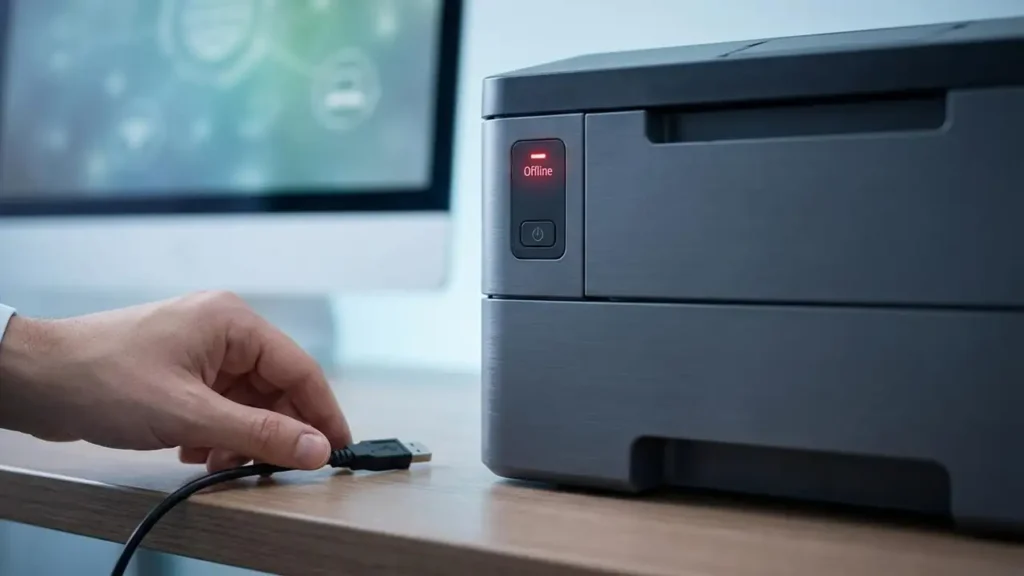
4) Fix Wi-Fi Printing Offline
Confirm your printer is connected to the correct Wi-Fi
Avoid guest networks or unstable extenders
Keep printer near the router (test)
👉 Full guide:
Wi-Fi Printer Offline Fix (Network & IP Tips)
Choose Your Setup (Best Fix Guides)
Windows 10/11 Offline Fix
This guide solves:
“Offline” status in Devices and Printers
stuck queue
wrong default printer
spooler issues
👉 Guide: Printer Offline Fix on Windows 10/11
Wi-Fi / Network Printer Offline
This guide solves:
printer suddenly offline after router restart
IP address changes
network discovery issues
wireless instability
👉 Guide: Wi-Fi Printer Offline Fix (Network)
Mac (macOS) Printer Offline
This guide solves:
printer offline on macOS
re-adding printers
resetting printing system
👉 Guide: Printer Offline Fix on Mac (macOS)
Common Causes of “Printer Offline”
Windows toggled “Use Printer Offline”
Print queue stuck or spooler bug
Router changed IP address / Wi-Fi drop
Wrong default printer selected
Driver corruption or outdated software
Sleep mode / power saving causing disconnects